Mensagens
Sobre mensagens e comentários
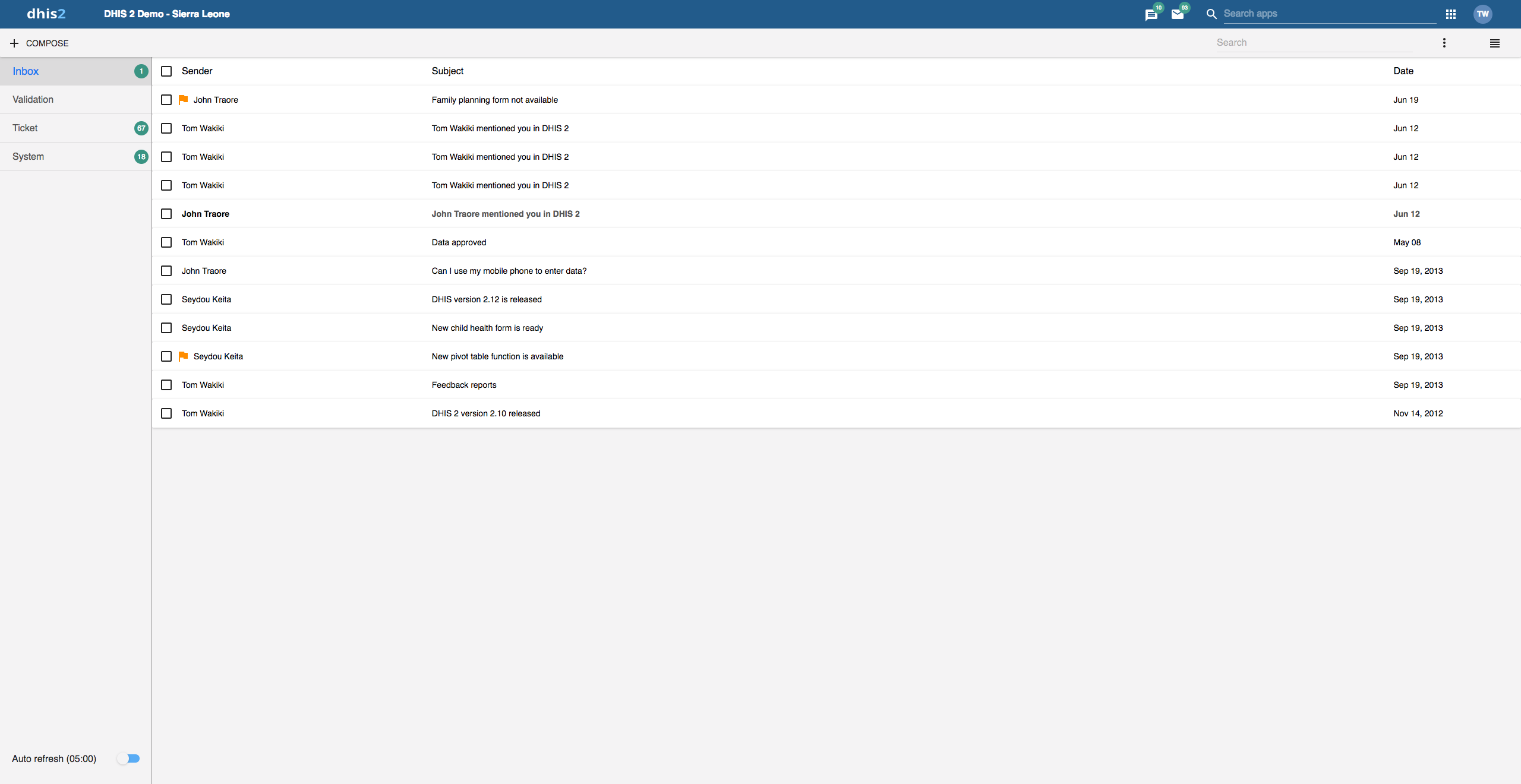
Within DHIS2 you can send messages and feedback messages to users, user groups and organisation units. When you send a feedback message, it is routed to a particular user group called the feedback recipient group. If you are a member of this user group, you have access to feedback handling tools. You can, for example, set the status of an incoming feedback to "Pending" while you are waiting for information.
In addition to the user-to-user and feedback messages, depending on your configuration the system will also send you system-generated messages. These messages could be triggered by different events, including system or background job failures and validation analysis results. Feedback handling tools are also available for validation results and the priority will be set to the importance of the validation rule violated.
To visit the app click message icon in header bar or find the Messaging app in the app search box.
Note
Messages and feedback messages are not sent to users' e-mail addresses, the messages only appear within DHIS2.
With 2.30 we introduced a new messaging app which offers a richer messaging experience. Specifically:
- Switch between list view and compact view by clicking the icon in the top right corner.
- The list view is simplistic and gives a good overview of all messages and is especially suited for feedback and validation messages.
- The compact view is a modern way of view messages where the user has more information in one view, hence viewing and replying several messages is easier.
The first screenshot in this section displays list view, while the screenshot in section Read a message displays the compact view.
A new search field is added which enables the user to search for messages. The search filters messages on different message attributes; subject, text and senders. This implies that you are able to narrow down the message conversation list by entering a search.
A auto refresh feature is added so that the app fetches new messages at a set interval, every 5 minutes. This feature is disabled by default.
For every message conversation you are able to add participants to the conversation. This is very useful if you want input on that particular conversation or if someone should also see the information. It is not possible to delete participants from a conversation.
Crie uma mensagem

-
Clique em ** Compose **.
-
Define who you want to receive the message. You can send a message to organisation units, users and user groups.
- In the To field you can search for organisation units, users and user groups and select the wished recipients.
-
Digite um assunto e uma mensagem.
-
Clique em ** Enviar **.
Leia uma mensagem

-
Selecione o tipo de mensagem apropriado à esquerda.
-
Clique em uma mensagem.
If the message is part of a conversation, you will see all messages in this conversation.
Crie uma mensagem de feedback
-
Follow the steps as for creating a message, only selecting Feedback message instead of entering recipients.
-
The message will be created as a feedback message and will appear in all of the specified users' Ticket folder.
Anexos
With 2.31 we introduced attachments to messages. When creating or replying to a message conversation you have the possibility to add attachments. Currently there are no limitations to type or size of the file.
Gerenciar mensagens de validação e feedback
Note
You will only see feedback messages and have access to the extended handling tools if you are a member of the user group that is set up to handle feedback messages.
With the new app you manage extended tools for tickets and validation messages through the icon menu which appears when viewing a message or checking of messages in the conversation list.
Todas as mensagens selecionadas

Todas as mensagens selecionadas e o seletor de escolha estendida selecionado

You will receive feedback messages to your Ticket folder and validation messages to your Validation folder. For feedback and validation messages you have the following options in addition to the messages options:
| Descrição | |
|---|---|
| Prioridade | Você pode marcar uma mensagem de feedback / validação com diferentes prioridades: Nenhum , Baixo , Médio Alto Definir a prioridade torna mais fácil acompanhar qual mensagem de feedback você precisa resolver primeiro e quais mensagens de feedback você pode esperar. |
| Status | Todas as mensagens de feedback / validação obtêm o status Abra quando criado. Para rastrear as mensagens de feedback existentes, você pode alterar o status para Pendente , Inválido ou Resolvido . Você pode filtrar mensagens de feedback / validação com base em seu status com os dois menus suspensos na barra de cabeçalho interna. |
| Atribuído a | Você pode atribuir uma mensagem de feedback a qualquer membro do grupo de usuários configurado para lidar com mensagens de feedback. Você pode atribuir uma mensagem de validação a qualquer usuário no sistema. - significa que você não atribuiu um usuário à mensagem de feedback. |
| Resposta interna | Quando você trabalha em uma equipe de tratamento de feedback, pode querer discutir o feedback antes de enviar uma resposta ao remetente. Você pode manter essa discussão na mesma conversa da mensagem que o feedback em si. Para enviar uma resposta dentro do grupo de usuários de tratamento de feedback, clique em RESPOSTA INTERNA . |
Configure a função de mensagem de feedback
Para configurar a função de mensagem de feedback, você deve:
-
Create a user group (for example "Feedback message recipients") that contains all the users who should receive feedback messages.
-
Open the System Settings app and click General > Feedback recipients and select the user group you created in the previous step.