Localização de DHIS 2
Conceitos de localização DHIS 2
Localization involves the adaptation of an application to a specific location. When implementing DHIS 2 in a given country, adequate resources should be allocated to translate and localize the application if required. Translation of the user interface elements, messages, layout, date and time formats, currency and other aspects must be considered. In addition to translation of the user interface itself, metadata content which is contained in the database must also be considered to be translated.
Interface translations are compiled into the system itself, such that new translations can only be accessed by taking a newer version of DHIS 2. Database translations, on the other hand, are specific to your implementation and can be added to your existing DHIS 2 instance.
These two aspects are managed independently and the processes and tools are outlined below.
Localização da interface do usuário
Visão Geral
DHIS 2 supports internationalization (i18n) of the user interface through the use of Java property strings and PO files. Java property files are used when messages originate from the back-end Java server, while PO files are used for front-end apps written in JavaScript. The DHIS 2 Android apps use a specific XML format.
Note
The translator need not worry about the different resource file formats; the translation platform hides the details, and only displays the strings that require translation.
For example, the figure below shows the source and target strings when translating a resource to French.

There should always be an English string for all messages in DHIS 2. When the user selects a given language, and a translation is present in that language, then the translation will be shown. However, if the string in the desired language is missing then fallback rules will be applied. In cases when two given translations, such as Portuguese and Brazilian Portuguese share common messages, it is not required to perform a full translation in the variant language. Only messages which are different should be translated.
Fallback rules are then applied in the following manner (assuming the user has chooses Brazilian Portuguese as their language:
-
Exibir a mensagem em português do Brasil, se houver.
-
If it does not exist in the variant language, then use the Portuguese message, if it exists.
-
If there is no message in either the base language or the variant language, choose the ultimate fallback language, English.
Important
There are a number of source strings such as "dd MMM yyyy 'to '" which are used for date/time formatting in various parts of DHIS 2. Part of the value should not be translated because it is actually a special formatting field used by either Java or JavaScript to interpolate or format a string. In this example the part of the value which can be translated would be "to", for instance to "a" in Spanish. The special string which should not be translated is "dd MMM yyyy". If these date format template strings are translated, it may result in errors in the application!
Important
Some special variables (e.g. {0} ) use curly brackets. This denotes a variable which will be replaced by a number or other value by the application. You must place this variable notation in the correct position and be sure not to modify it.
Plataforma de Tradução
DHIS2 is now using transifex as our main platform for managing translations. You can access the DHIS2 resources at translate.dhis2.org, or directly at [https://explore.transifex.com/hisp-uio/].
Como posso contribuir para as traduções?
Cadastre-se como tradutor
A primeira etapa é obter acesso ao projeto. Existem duas maneiras de fazer isso:
-
Navigate to the platform and create an account with transifex, then
- request access to our organisation "HISP UiO" as a member of the "DHIS 2 Core Apps" translation team.
Transifex have some useful instructions here: Getting Started as a Translator
- request access to our organisation "HISP UiO" as a member of the "DHIS 2 Core Apps" translation team.
-
Envie um e-mail para a equipe DHIS 2 em translate@dhis2.org para solicitar acesso. Please provide:
- the name, email address and translation language of the user(s) you would like us to give access to, and
- a little bit of information about why you are interested in contributing to the DHIS 2 translations
Editar traduções
Depois de ter acesso como tradutor, você pode começar a traduzir através do Transifex Web Editor.
Transifex have a useful guide here: Translating Online with the Web Editor
Na medida do possível, os projetos representam aplicativos DHIS 2 um a um. Por exemplo, o projeto ** APP: Data Visualizer ** contém as strings de tradução para o aplicativo Data Visualizer.
Nossos projetos transifex para a interface de usuário DHIS2 começam com um dos seguintes:
- ** APP: ** indica que o projeto contém strings para um aplicativo específico
- ** APP-COMPONENT: ** indica que o projeto é uma biblioteca de componentes usada pelos apps
- ** ANDROID: ** indica que o projeto é um aplicativo Andriod
Além disso, ** APP: Recursos do lado do servidor ** contém algumas strings que são usadas por vários aplicativos; nomeadamente: - "Entrada de dados" - "Manutenção" - "Tabelas Dinâmicas" - "Relatórios"
Dentro dos projetos temos recursos, que representam arquivos de localização no código-fonte. Para oferecer suporte a várias versões DHIS2, com os mesmos arquivos de localização, a versão é associada a cada instância do arquivo. Portanto, para ** APP: Data Visualizer **, a lista de recursos se parece com esta no Editor da web:
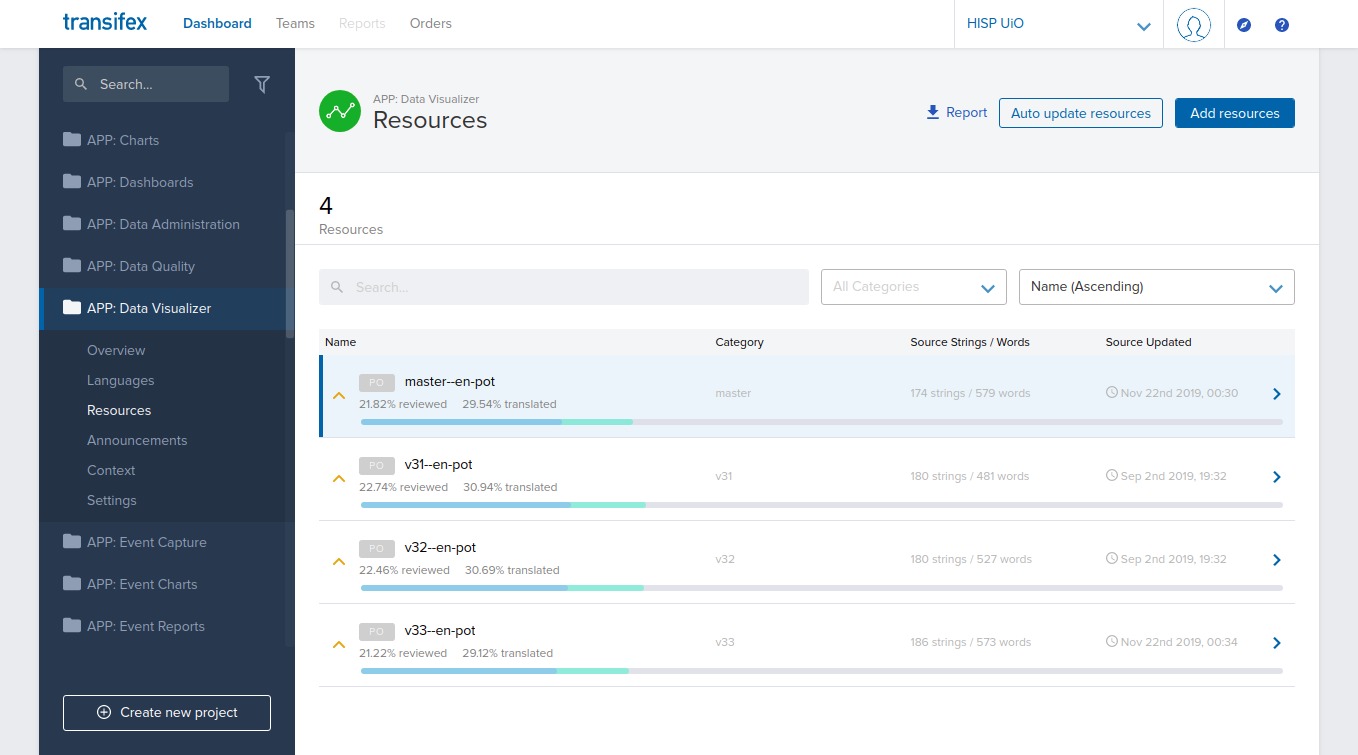
ou seja, há apenas um recurso de origem para o aplicativo (en.pot), mas adicionamos as versões de 2.31 (v31) até o desenvolvimento mais recente (mestre). A versão é mostrada no campo "Categoria" e também é visível como um prefixo para o nome do recurso, por exemplo, v31 - en-pot.
Note
In general, we request translators focus on the "master" resource; it usually contains all strings from previous versions, and when translations are added the platform will fill in matching translations on the previous versions too. See the localization section of our website.
Tip
For a specific language and DHIS2 version, you can get an overview of the tranlation coverage, as well as direct links to all relevant resources on transifex, from the localization section of our website.
Quando novas traduções estarão disponíveis no sistema?
Temos um serviço noturno que extrai novas traduções da plataforma transifex e abre uma solicitação de pull no código-fonte.
O serviço percorre todos os projetos e idiomas suportados e faz o seguinte:
- Extrai arquivos de localização do transifex (** onde as traduções estão mais de 20% concluídas **)
- Gera uma solicitação de pull no código-fonte se alterações forem encontradas para o idioma
As solicitações pull são revisadas e mescladas na base de código como parte do processo normal de desenvolvimento.
Info
The translations added to transifex will, in general, be in the next available stable release for all supported DHIS 2 versions
If you need to ensure that your translations are in the next stable release, contact us (translate@dhis2.org) expalining your needs, and we'll let you know what we can do.
Tip
The translations you add in transifex should be visible in all development demo versions on our play server (https://play.dhis2.org) within a few days, in most cases.
Como faço para adicionar um novo idioma?
Entre em contato conosco pelo e-mail translate@dhis2.org, ou na [Comunidade de Prática] (https://community.dhis2.org/c/translation) e adicionaremos esse idioma aos projetos do transifex.
Once resources for that language are more than 20% translated, they will start to be pulled into the system. They will then become visible in the development demo versions, and be available in future releases.
Note
DHIS 2 manages metadata (database) locales independently from the UI. See the Metadata/Database section below.
Custom translations using the datastore
Starting in core version 43.0, there is an option to add custom translations or text overrides for core apps using the datastore. This can be used to translate strings that haven't been translated yet by other means (Transifex), or to override the text in apps in other ways, for example to use domain-specific language.
Important
This is an experimental feature and may be subject to change.
Configuring custom translations requires either knowledge of Transifex or some simple API usage in the browser.
Using the feature takes three steps: 1. Enable custom translations from the System Settings app, under the Appearance section 2. Configure the controller in the datastore 3. Configure the app and locale text overrides
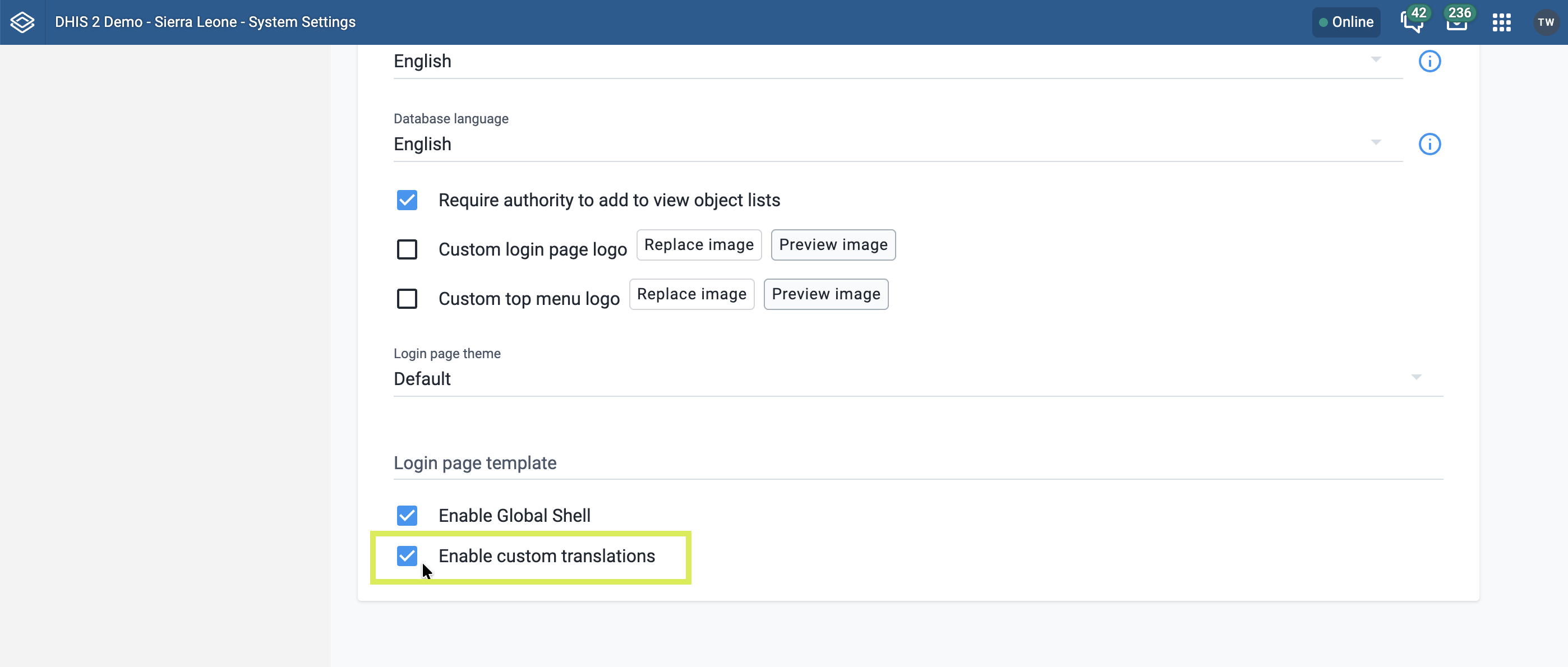
Step 1. Enable custom translations in the System Settings app
- Open the Settings app
- Navigate to the Appearance section
- Check the checkbox labeled "Enable custom translations" at the bottom of the page
Step 2. Configure the controller in the Datastore
The controller acts as an allow-list for the specified apps to load custom translations for the specified locales. This is a mechanism for saving network requests in apps and not loading unwanted overrides.
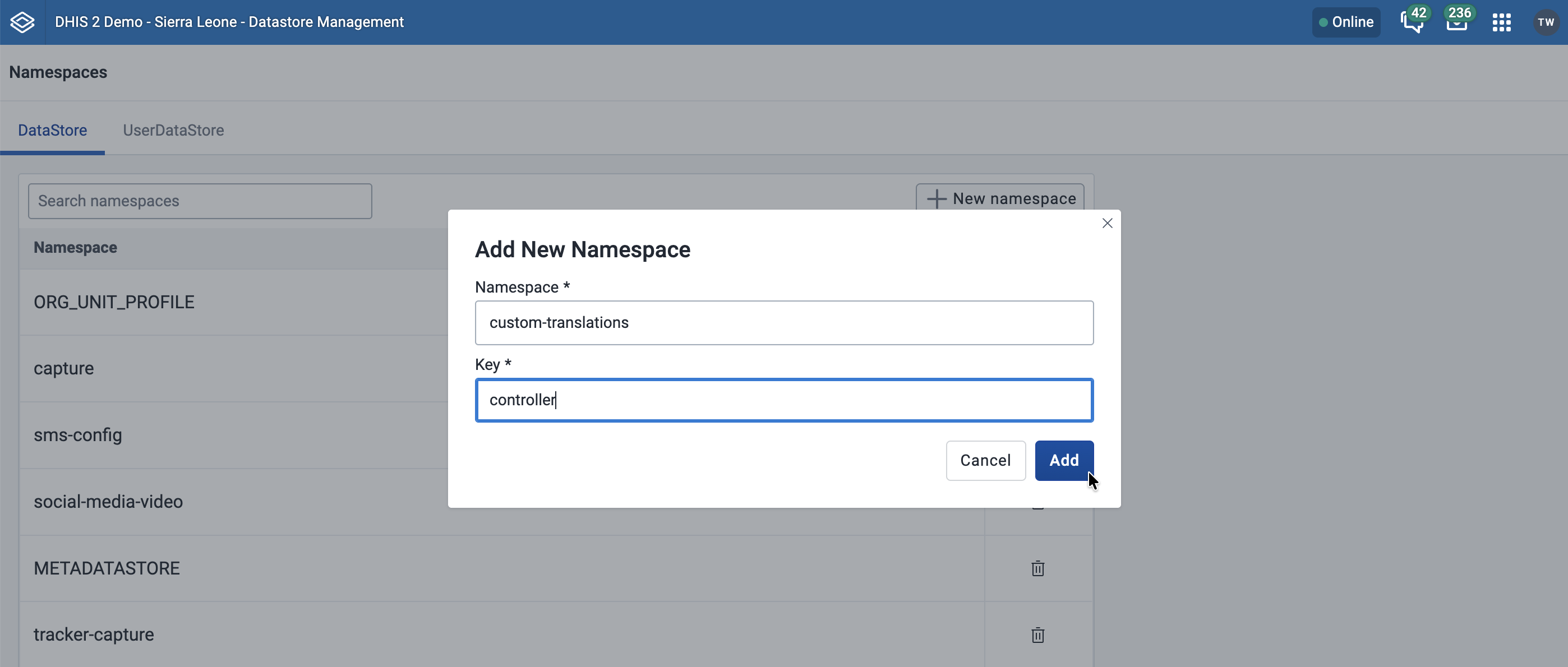
- Open the Datastore Management app
- Click New namespace to create a new namespace and key (if not already created) with these exact names: Namespace =
custom-translations. Key =controller
- Viewing the
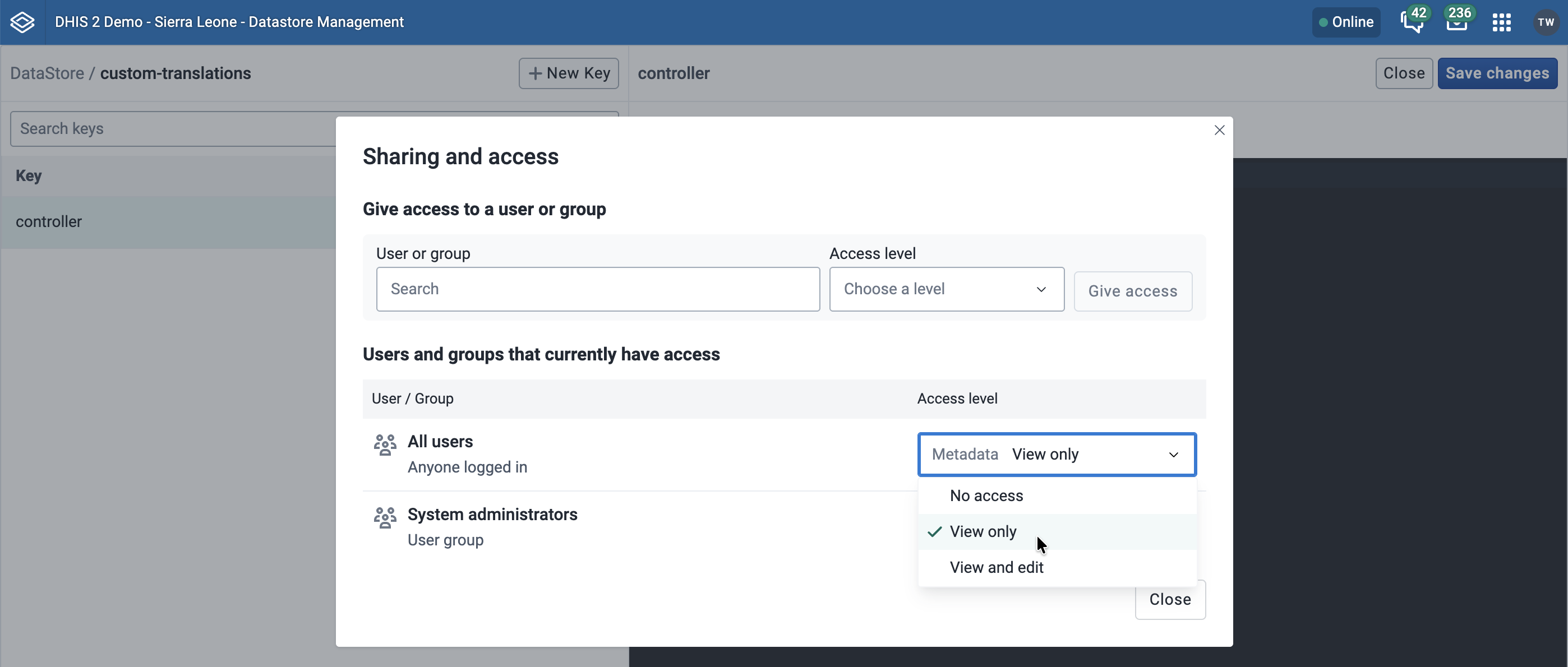
custom-translationsnamespace, click the Sharing button (three connected dots) on thecontrollerkey and edit the sharing settings so the public can only view the key, and only you and other trusted app administrators can edit the key. Click Save.
Important
Configuring these sharing settings is important because the datastore is publicly editable by default, and these translations should only be editable by privileged users.
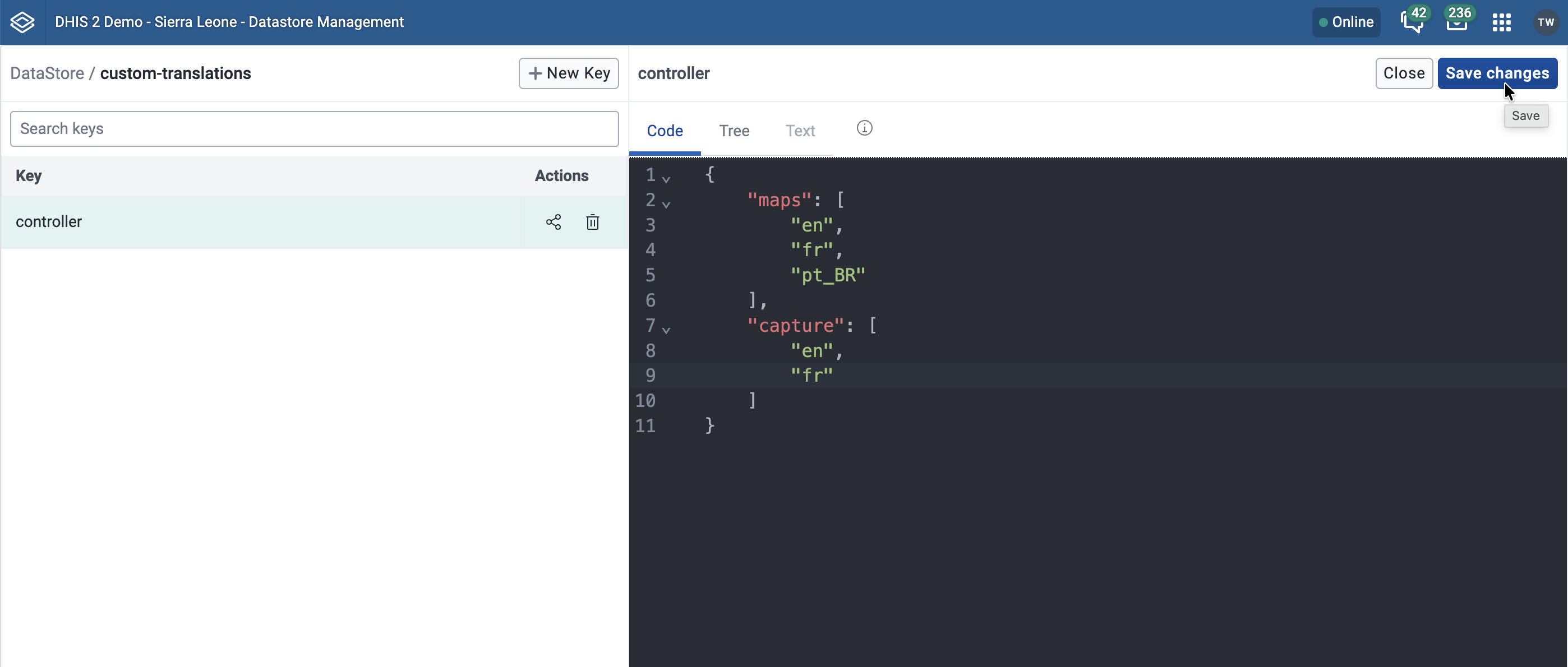
- In the code editor window to the right, edit the content to be a dictionary of app identifiers as keys and arrays of locale identifiers as values, i.e.
{ "<app-identifier>": ["<locale1>", "<locale2>"] }. See the screenshot below for an example.- You can find an app’s identifier in a few ways:
- You can navigate to that app in the browser and inspect the URL bar. Some examples are
capture,aggregate-data-entry, anddata-visualizer. Here are some formats you might find:<baseUrl>[/api]/apps/data-visualizer=>data-visualizer<baseUrl>/dhis-web-capture/=>capture
- For advanced users, the app identifier used for custom translations is an app’s
keyvalue from the/api/appsresponse.
- You can navigate to that app in the browser and inspect the URL bar. Some examples are
- You can find a locale’s identifier in a few ways:
- In Transifex, the code in parentheses when choosing a language to translate. For example, "Portuguese (Brazil) (pt_BR)" shows the locale identifier is
pt_BR. - Using the API, you can visit the URL
<dhis2BaseUrl>/api/locales/uiin the browser, find the locale you want to translate for, then use thelocaleproperty as the locale identifier.
- In Transifex, the code in parentheses when choosing a language to translate. For example, "Portuguese (Brazil) (pt_BR)" shows the locale identifier is
- You can find an app’s identifier in a few ways:
- Click Save.
Step 3. Add text overrides for the app and locale
- In the Datastore Management app, viewing the
custom-translationsnamespace, click the New key button at the top. - Name the key according to the convention
<app-identifier>__<locale-identifier>, for examplecapture__pt_BR. NB: There are two underscores between the app and locale identifiers. - Edit the sharing settings for the new key in the same way as for the
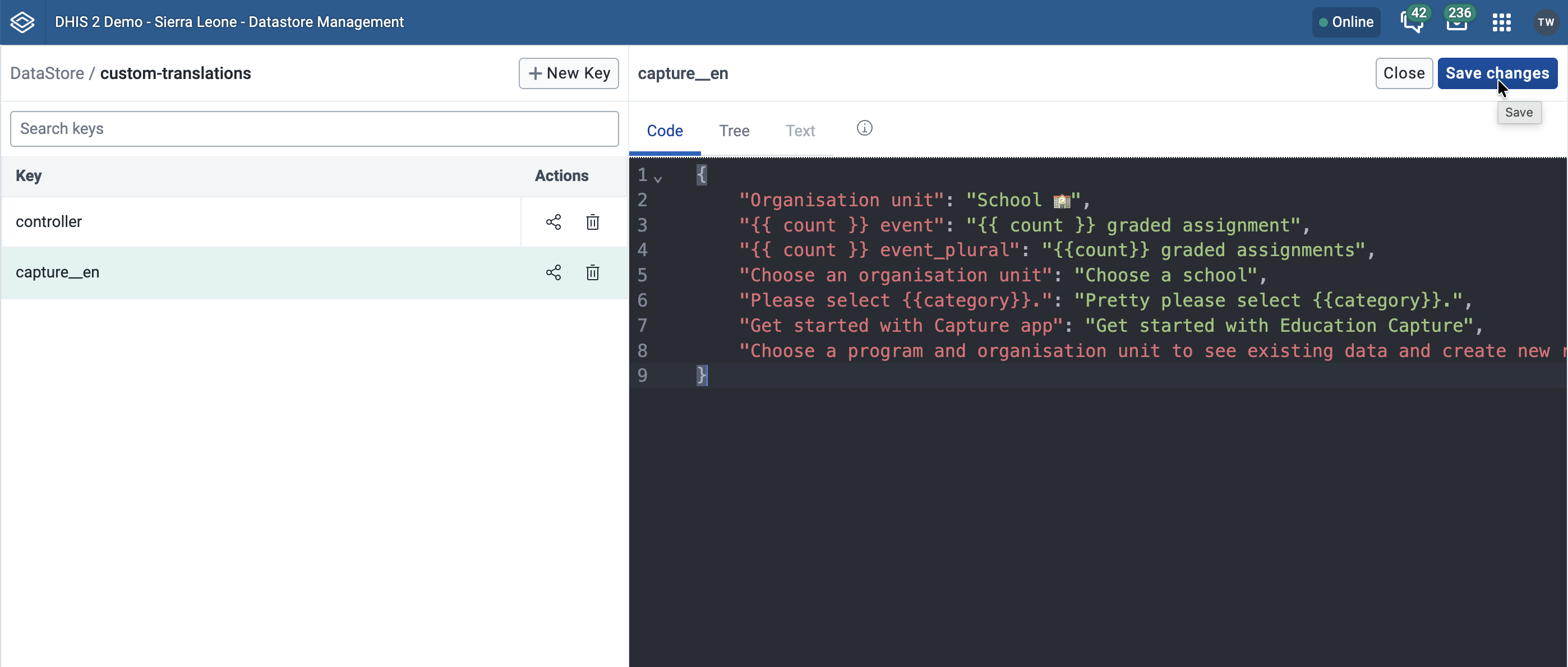
controllerkey. - In the code editor window to the right, add translations in the format
{ "<text identifier>": "Override text" }. See below for more information on how to find the right text identifiers to use. - Click Save.
How to find text identifiers for overrides
There are a few options for finding the identifiers (source string/msgid) for strings of text in the app:
- In Transifex, text identifiers can be found there in each app, for example "Choose a program and organisation unit to see existing data and create new records."
- In GitHub, identifiers can be found as the
msgidproperty in the/i18n/en.potfile for each app. Here is the file for the Capture app, for example. - For app developers, these JSON-formatted key-value pairs can be found in the
/src/localesdirectory when building an app using the App Platform. - Sometimes, identifiers can be guessed from the text in the app.
Here are some more details to keep in mind: * Make sure "interpolation values" like {{ count }} or {{ category }} are copied exactly in the override string * Plurals need multiple entries to handle "one" and "many" cases. Observe how plurals are accomplished in the screenshot above, for example for {{ count }} event and {{ count }} event_plural
Validate the changes in the app
Now, these three conditions should be met: 1. Custom translations have been enabled in the Settings app 2. The custom-translations namespace and controller key in the datastore have been set up with an app and locale allow-list 3. Text overrides for the app and locale have been added to a datastore key for the app and locale
At this stage, the affected apps should now show the new string overrides in the selected locales when the apps are loaded (notice how education-themed strings from the datastore screenshot above are visible in the Capture app below).

How to remove custom translations
To remove an override for one string, remove that line from the <app>__<locale> datastore key in the custom-translations namespace for the app and locale of interest.
To remove all the custom translations for an app and locale, remove that locale from the app's list in the controller key in the custom-translations datastore namespace. You can either keep the <app>__<locale> key to use again later, or remove the key to clean up.
To remove all custom translations for all apps and locales, remove all the contents of the controller key (but don't delete it -- it can be useful later) and uncheck the "Enable custom translations" option in the Appearance section of the Settings app. You can either keep or remove the <app>__<locale> keys in the custom-translations datastore namespace.
App requirements for custom translations from the datastore
Apps using App Platform v12.11.0 can use custom translations via the datastore.
Strings from libraries that an app uses, like the UI library, must also meet the same App Platform requirement to be translatable.
Metadados / traduções de banco de dados
In addition to translation of the user interface, DHIS 2 also supports the localization of the metadata content in the database. It is possible to translate individual objects through the Maintenance app, but in order to better support a standard translation workflow, a specialized app has been developed for this purpose.
Novos locais de metadados podem ser adicionados em ** Aplicativo de manutenção> Localidades **.
Aplicativo DHIS 2 Translations
The DHIS 2 Translation app can be used to translate all metadata (data elements, categories, organization units, etc) into any locale which is present in the database.
To get started, simply choose the Translations app from the top level menu.

-
Choose the type of object you wish to translate from the Object drop-down menu, such as "Data elements".
-
Certifique-se de ter definido o ** Local de destino ** com o idioma correto.
-
Choose the specific object you wish to translate, and translate each of the properties (Name, Short name, Description, etc). These properties vary from object to object.
-
Press "Save" when you are done translating the specific object to save your changes.
Note
You can search for a specific term using the search feature in the upper right hand corner of the app.