Installation de l'application BNA
The BNA app is completely free and open source and available on the DHIS2 app store.
To install an application in DHIS2, you require the superuser privilege. Ensure your account has the necessary authority to install the application or contact your DHIS2 support team for support in installing the app.
NOTE
Interactive BNA app supports all versions of DHIS2 from 2.28 going upward, It can run in lower versions limited functionalities and with no support for fixing any issues.
There are two ways of installing bottleneck analysis app into your DHIS2 instance.
Installation à partir de DHIS2
This installation approach is the most direct, but only available on DHIS2 running version 2.28 and above
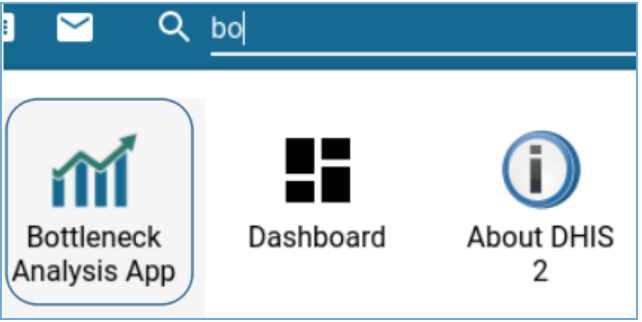
Étape 1 : Accéder à la gestion des applications à partir du menu de sélection des applications
Step 2: Once Apps management is open: Go to the apps store panel and the list of online applications for installation will show up. Install the “Interactive Bottleneck Analysis” app and the “Bottleneck analysis” app by clicking on install underneath the app name.

When done installing, the BNA App will be accessible from the search menu. Note: This step is only successful if you have an internet connection and your DHIS2 instance is accessible online.
Installation à partir du site web de l'App Store de DHIS2
Access the interactive bottleneck analysis and bottleneck root cause data entry apps from the DHIS2 app store. This approach is recommended for all DHIS2 instances running on version 2.28 and above.
NOTE
Ensure that you have good and stable internet connection to download the zip file. During installation, both the Root Cause and Interactive apps have to be downloaded and installed.

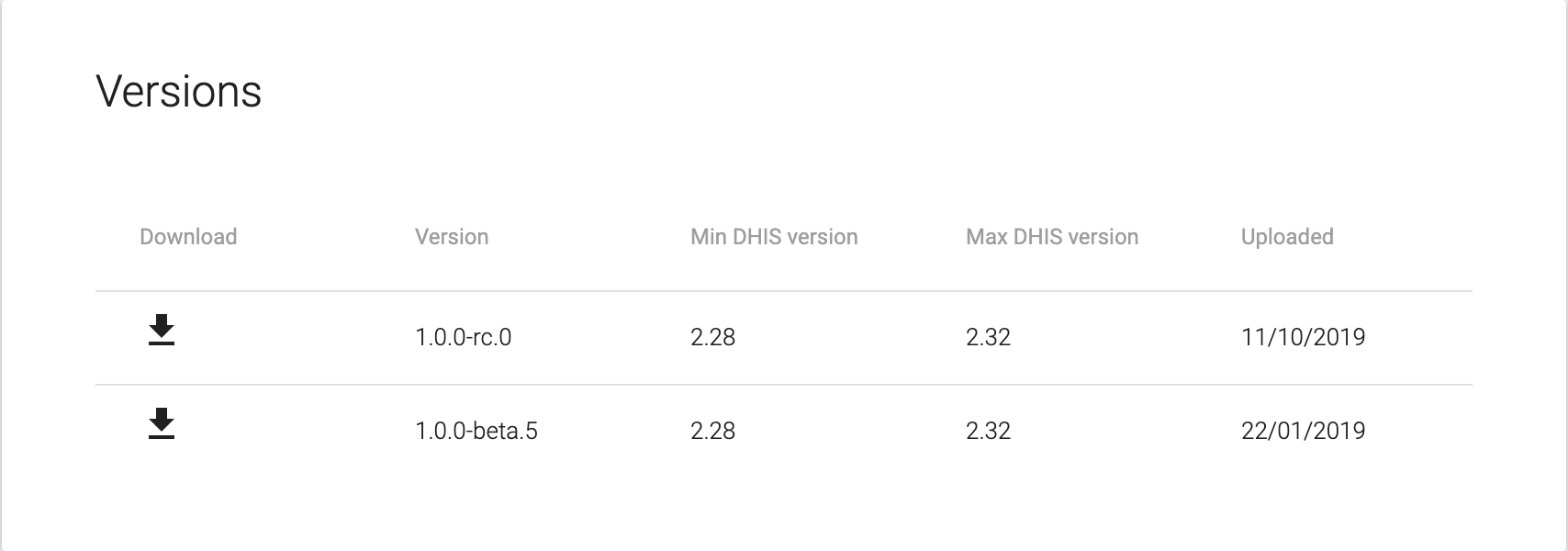
Step 1: Downloading a compatible version from the app store Once on the DHIS2 App store locate the BNA applications and select them to get the list of available versions of the app. Select the latest version of the app and download a zip file of the latest build into your local hard disk.
NOTE
The zip file name may have a cryptic alphanumeric name such as “727a1631-85e4-4313-be1f-b5f02f7e25e2”. You may want to rename the zip file to easily locate it in the future with naming such as “Bottleneck App v1.0x.beta.zip”, where “x” is version number of your build.
Étape 2 : Accéder à la gestion des applications à partir du menu de sélection des applications
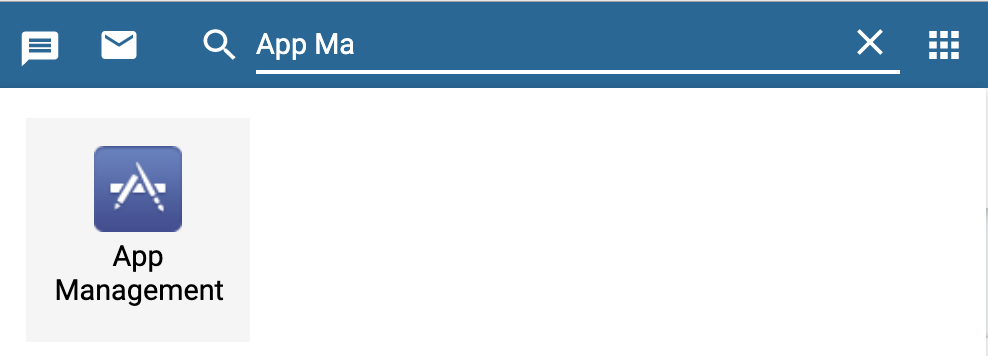
Open Apps management to see and manage list of installed applications on DHIS2, bottleneck app can be installed by clicking the upload icon.

Once installed the bottleneck analysis application will be enlisted under standard apps
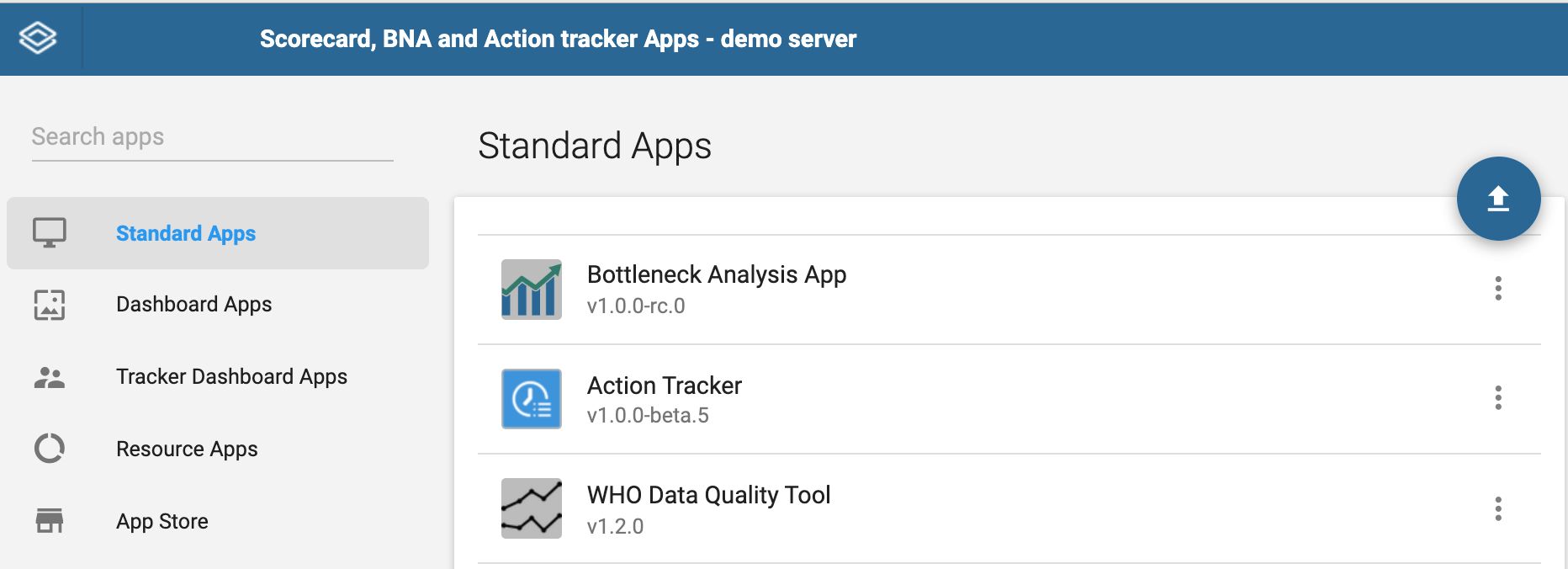
When done installing, the bottleneck app will be accessible from the search menu. If the bottleneck analysis app does not appear on your menu, it could be a result of the following two issues.
-
Installation Access credentials/Permissions While the bottleneck analysis application may be installed within your DHIS2 instances, you may not have the necessary permissions to view it. In these cases, communicate with your DHIS2 administrator or DHIS2 support team for the application to be assigned to one of your user roles.
-
Installation not successful The bottleneck analysis application will not be visible in your application if it has not been installed successfully.
NOTE
Most common failures related to installation results from misconfiguration of read/write permissions of the installation folder on the server hosting DHIS2 instance. Misconfiguration of permission can also result from denial of ability to delete an installed application.
To resolve this, the administrator needs to access the back-end of DHIS2, to assign proper ownership and read-write permission of the folder for holding installed apps.
NOTE
The location of the folder for installed apps varies depending on the version of DHIS2 Installation.
- From version 2.27 going back, the folder for installed apps is located in [DHIS2_HOME]/apps
- From version 2.28 and above, the folder for installed apps is located in [DHIS2_HOME]/files/apps
For more information on how to create and install applications on DHIS2 please visit https://www.dhis2.org/how-to-create-find-install-apps/