Synchronization Troubleshooting Web App
Overview
This section focuses on the Synchronization Troubleshooting Web App implementation.
The Synchronization Troubleshooting Web App provides administrators with real-time visibility into synchronization errors. These error records are automatically removed by the backend after a default period of 24 hours.
This cleanup period is defined in System Settings and applies to all single-run jobs (such as data imports). The value can be changed through the API. Increasing the period will retain errors for longer but also increase database storage.
To check current cleanup period:
GET /api/systemSettings/jobsCleanupAfterMinutes
To update cleanup period (value in minutes):
POST /api/systemSettings/jobsCleanupAfterMinutes?value=
Please note that in this version of the Web App, only users with "F_JOB_LOG_READ" authority are able to monitor the detailed error information. Other users will not have access to the web app.
Installation
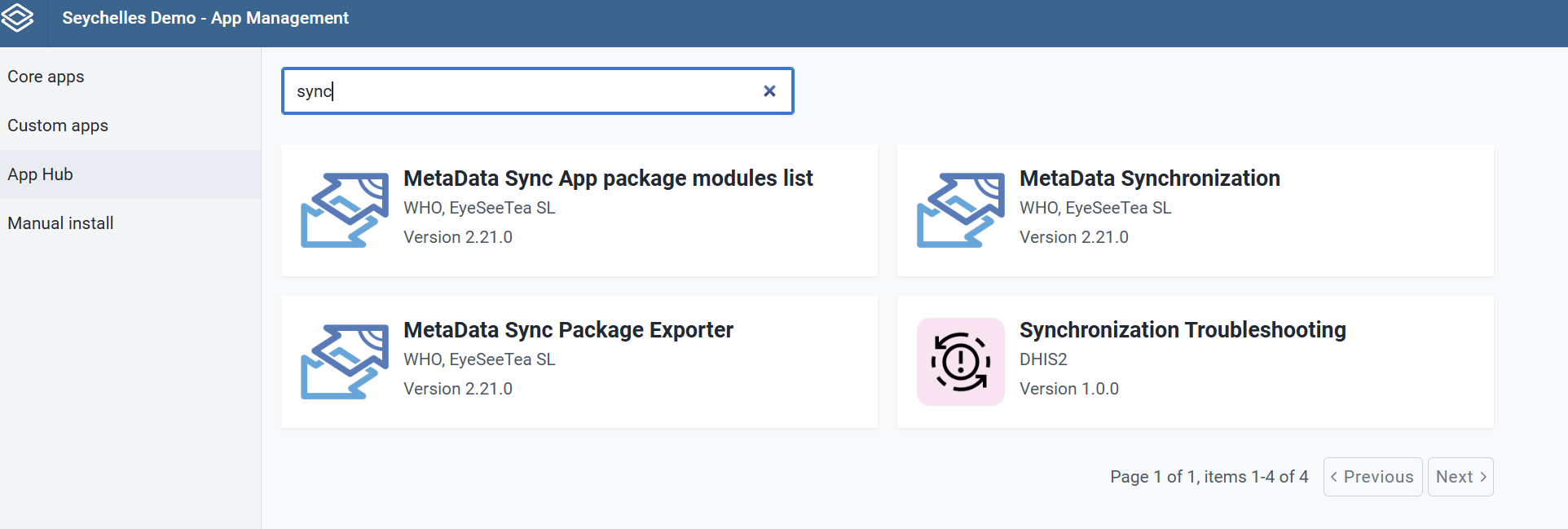
A user can easily install the Synchronization Troubleshooting Web App by logging into the DHIS2 and going to App Management.
- Cliquez sur App Hub
- Go to Synchronization Troubleshooting App
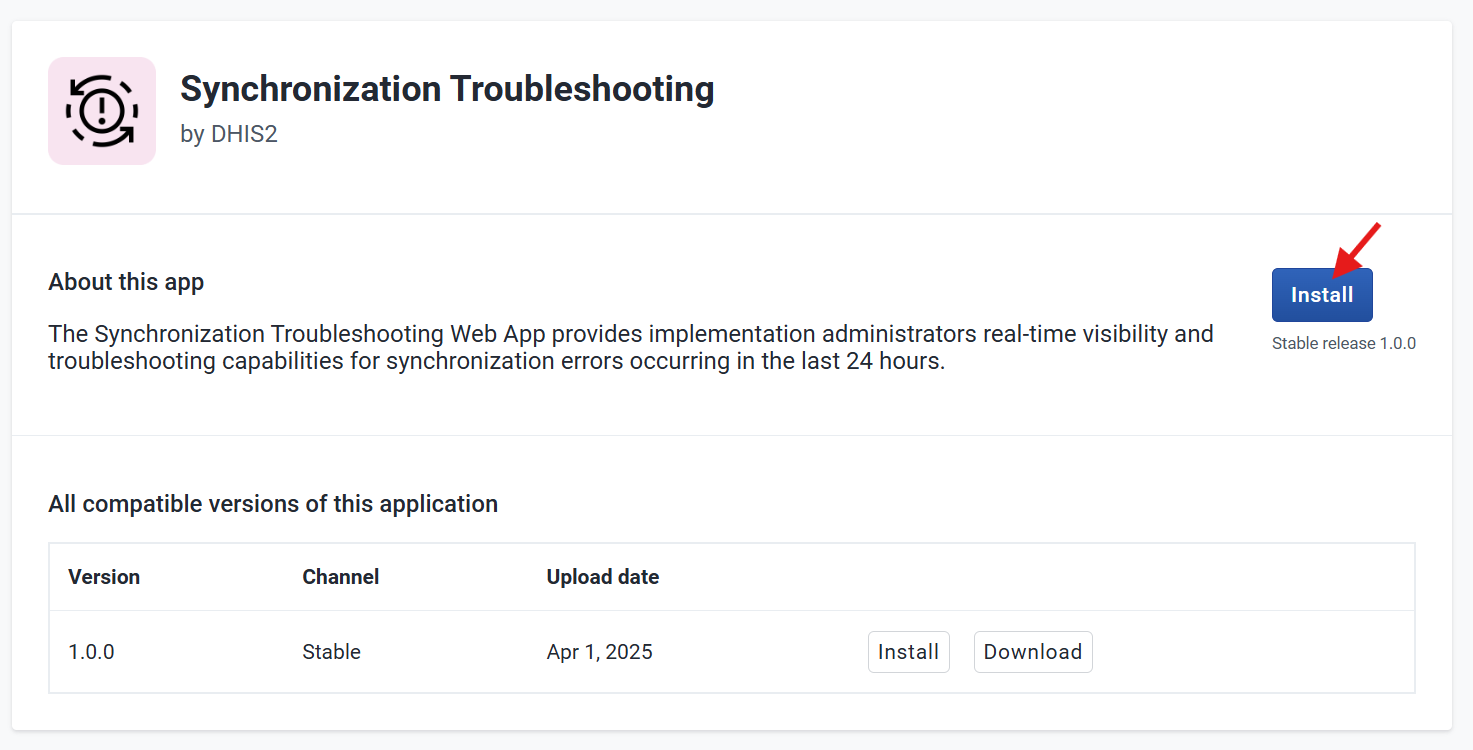
- Cliquez sur Installer V1.X.X
Synchronization Troubleshooting
The Synchronization Troubleshooting provides admin users with a dedicated interface to monitor and manage synchronization errors efficiently.
- View Error List: Admins can access a detailed list of errors that occurred during synchronization.
- Sort Errors: The list can be sorted by error name, latest, oldest or error code, making it easier to identify and troubleshoot specific issues.
- Search Errors: Quickly find specific errors using the error message as a search filter.
This functionality helps admins track and resolve synchronization problems quickly, ensuring a smoother data transfer process.
Understanding Error Details: Identifying Android vs. Web Users
In the error detail cards, additional information is provided to help identify the source of the error. Key details include:
- User Group & Role: These indicate the permissions and access level of the user involved in the error.
- Error Origin: By analyzing the user role and group, admins can determine whether the error was caused by an Android user or a web user.
This information helps troubleshoot synchronization issues more efficiently by pinpointing whether the error is related to a specific platform or user type.

Note:
To monitor synchronization errors in the web app, users must have specific permissions:
- "F_JOB_LOG_READ" Authority: Required to access and read the list of synchronization errors.
- "F_USER_VIEW" Authority: Required to read the list of users
- Additional Access for Error Details: To view more details about each error, the user must have permission to access the lists of: Users Events Programs
Without these permissions, users may only see basic error information or be restricted from viewing certain details. This ensures that sensitive data is only accessible to authorized users.
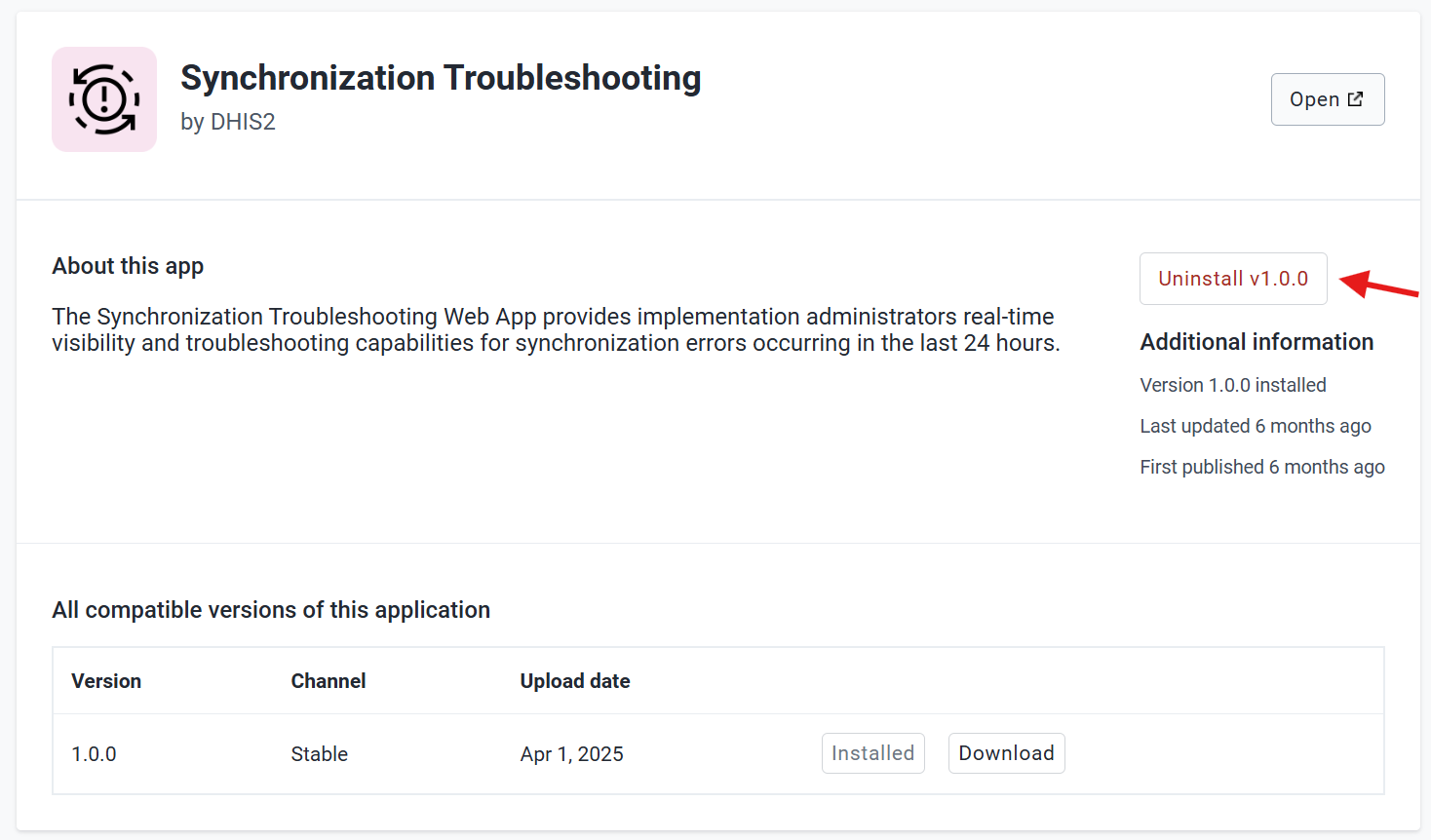
Désinstaller l'application
In case of needing to uninstall the APK Distribution App it is recommended to also delete all the data from the datastore namespace.
- Allez dans Gestion des applications
- Cliquez sur Applications personnalisées
- Go to Synchronization Troubleshooting
- Cliquez sur Désinstaller V1.X.X