Learner's Guide to Data Element Groups
En quoi consiste ce guide ?
This guide contains all exercises and detailed steps to perform them related to the review of data element groups for the Design for Data Use Level 1 academy. Please perform each of the exercises when prompted to by your instructors
Objectifs pédagogiques de cette session
- Describe why metadata is grouped in DHIS2
- Identify when it is appropriate to group different items together
- Define the terms in DHIS2 used to group items
- See how data element groups are used in analysis
- Create a data element group
Exercice 1
Perform this exercise in the DEMONSTRATION system.
Create a thematic map in the maps app.
The maps is is unique in that it does not allow you to select a data item unless it is within a group.
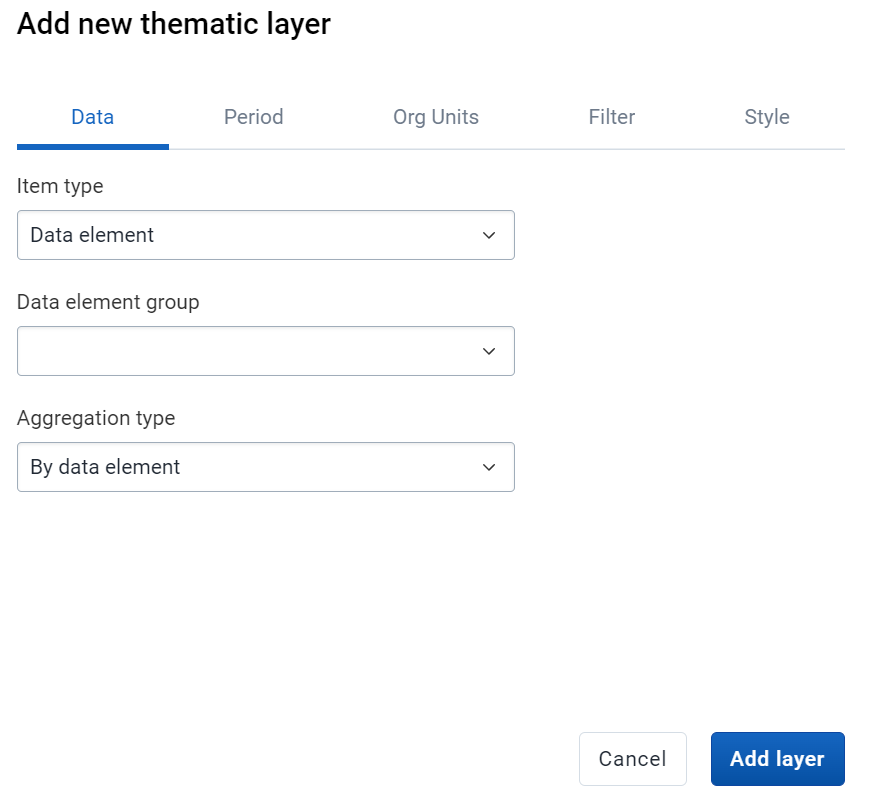
This is due to the nature of maps app and not wanting it to be overwhelmed with a large request for all data items so it will continue to work in low bandwitdth settings.
In such a scenario, the only way to access your data elements and indicators is to place them within groups that allow you to more easily search for them.
While you can search for data elements and indicators that are not in any group in data visualizer, it is often not recommended. In fact, all of your data elements and indicators should be in groups.
Select data element as the data type along with the following inputs
- Data element group : Immunization
- Data element : EPI - BCG doses given
- Aggregation type : by data element
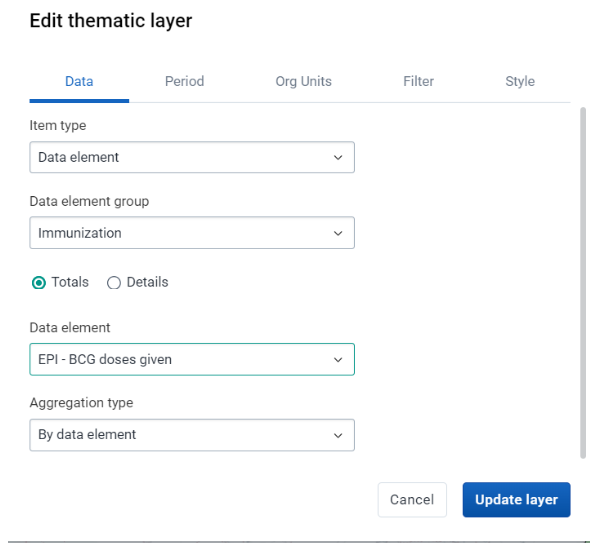
Discuss amongst the participants what some possible additonal groupings would be.
Update the Map
Période - This year
Org units - Rdp lao
Filtre - Age Immunization 1+ year
We can see in this case, while data element groups helps, and is even necessary in the maps map, there is some room for improvement that would help us refine our search parameters.
Exercice 2
Manage DE Groups and DE Group Sets in Maintenance
***Faites cet exercice dans le système de PERSONNALISATION ***
Let us create a data element group for Immunization.
Navigate to Maintenance -> Data Element
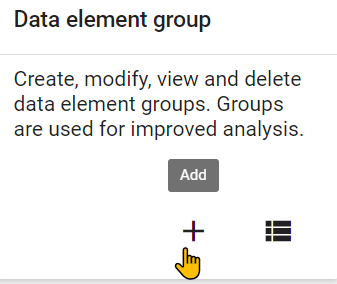
From here, we can add a data element group.
Creating a data element group is quite easy. Enter in the details for name, short name and code. Make sure you use your initials so it remains unique.
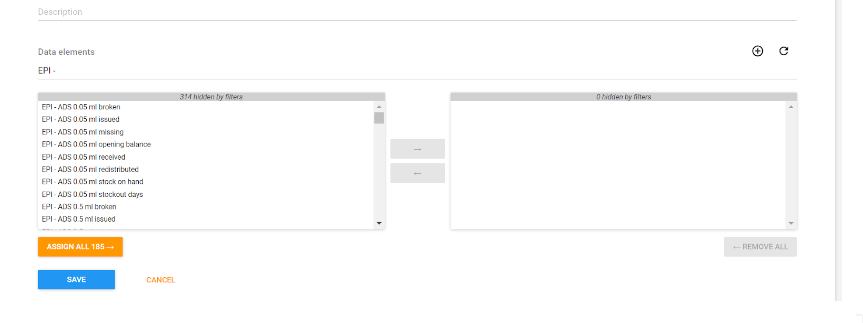
We also want to add our data elements to the group. Search for the data elements (in this case using learner enrolment) and assign all the data elements for learner enrolment to this particular group.

After you do this, you can save the group. Note that, because you are not modifying any underlying data, these groups can be added and removed at any time.