Transition Kit - Maintenance app to the Metadata Management app
Who is this transition kit for?
If you configure metadata in DHIS2 and you are used to the Maintenance app, then note that the Metadata Management app replaces it. This page lists what is new, what works differently, and what you still need the Maintenance app for.
- The Metadata Management app is installed from the DHIS2 App Hub.
- It works with DHIS2 version 41 and above.
- It is released continuously. New sections and features arrive often, so update the app from the App Hub before you report something as missing or non-functional.
- The maintenance app is no longer being supported, so plan accordingly
Note
This page covers the differences between the maintenance app and the metadata management app. For full instructions, see Configure metadata (Metadata Management app).
The Metadata Management app
The left sidebar lists every metadata object you can manage in this app. The overview page shows a card for each object type, with Add new and Manage buttons.
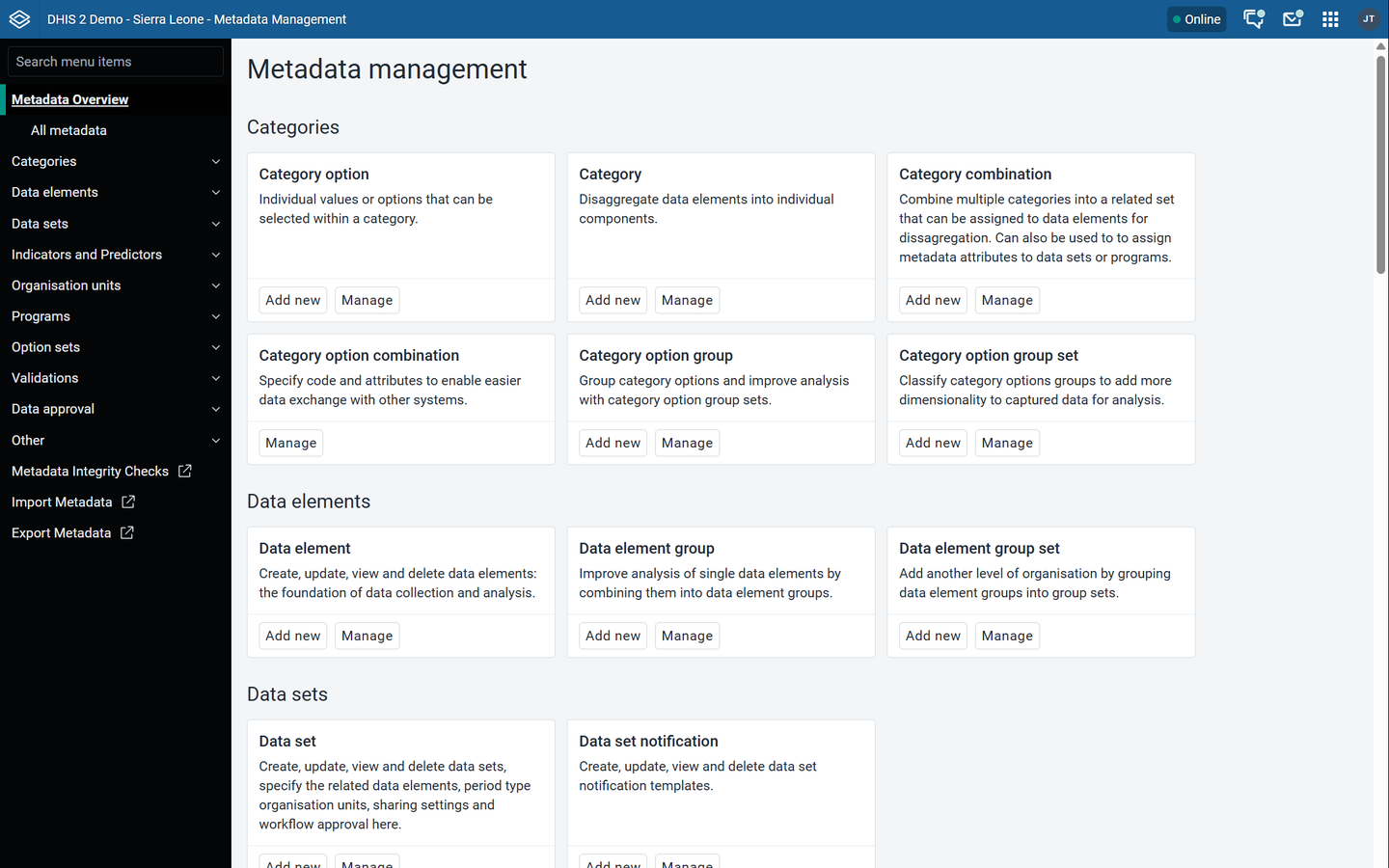
Summary of changes (when compared to the maintenance app)
| Function | Maintenance app | Metadata Management app | Status |
|---|---|---|---|
| Create metadata | Plus button, bottom right corner | New bottom in top menu | Changed |
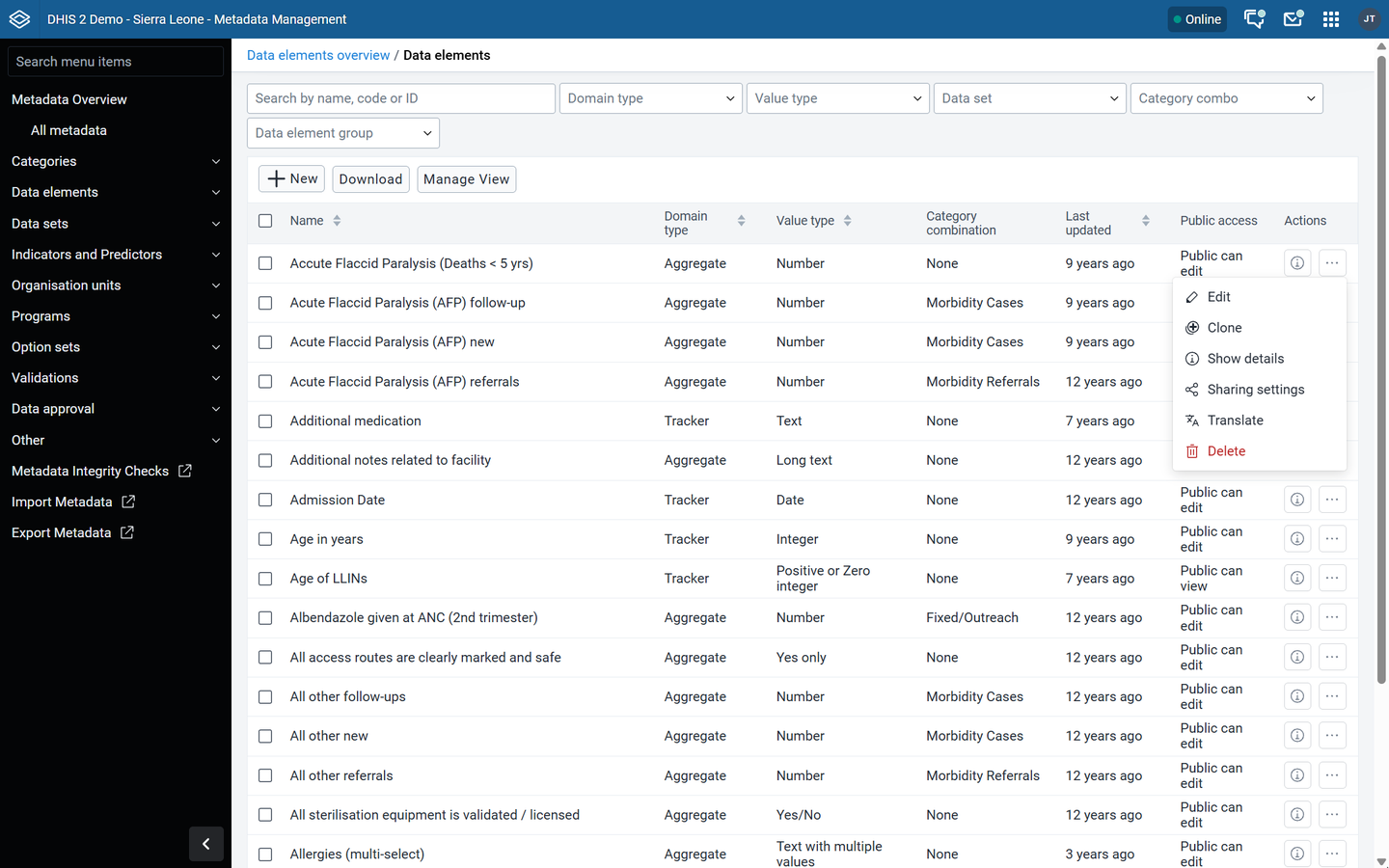
| Edit, clone, delete, translate, sharing settings, show details | Options menu on each object | Options menu (...) on each object | Same |
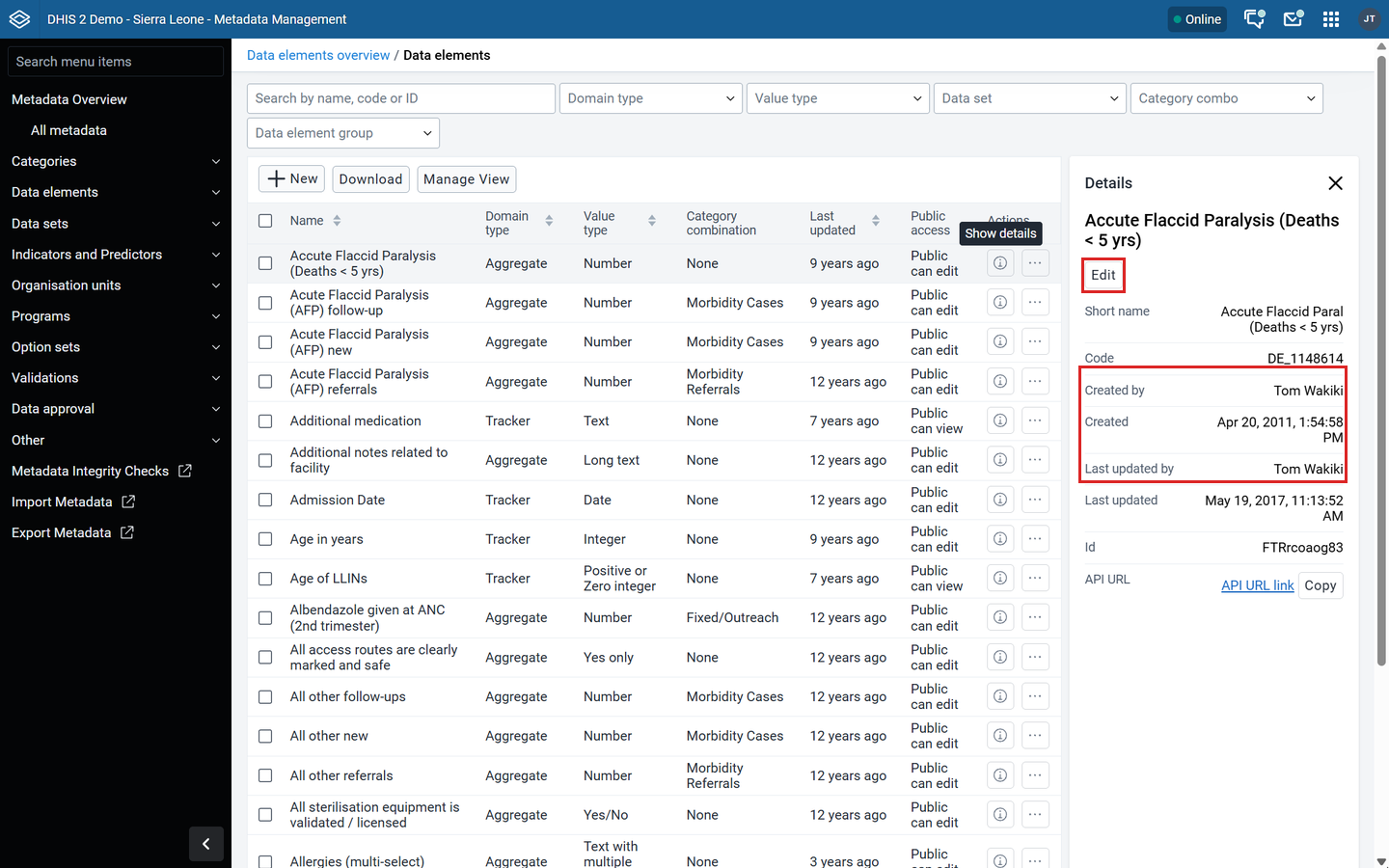
| See who created or last updated an object | Only shows dates in details panel | Shows dates and user in details panel | Changed |
| Choose which columns a list shows | Gear icon at top right of list > Manage columns | Manage View > Columns tab | Changed |
| Choose filters to apply to your current view of the metadata | Not available | Manage View > Filters tab | New |
| Download metadata from a list | Gear icon at top right of list > Download | Download button above the list | Changed |
| Search across all metadata types at once | Not available | All metadata view | New |
| Change sharing, download or delete many objects at once | Not available | Select objects in the list, then use the bar above the list | New |
| Merge duplicate objects | Not available | Merge screen (needs a merge authority) | New |
| Set compulsory data elements for a data set | Data set options menu > Edit compulsory data elements | Data set form > Validation section | Changed |
| Add many objects to a group, or one object to many groups | Separate Edit multiple object groups screen | Edit from the object or from the group | Changed |
| Download a default data entry form as PDF | Data set options menu > Get PDF for data entry | Not in the data set options menu | Not available |
| Push reports (push analysis) | Available | Not available | Use the Maintenance app |
| External map layers | Available | Not available, planned to move to the Maps app | Use the Maintenance app |
What's new
All metadata view
Search for a keyword across many metadata types from one screen.
- In the sidebar, click Metadata Overview > All metadata.
- Type a keyword in the search box. Results are grouped by metadata type, with the number of matches.
- Use the metadata types dropdown to narrow the results.
- Expand a type to see the first five matches. Click Load more to see more.
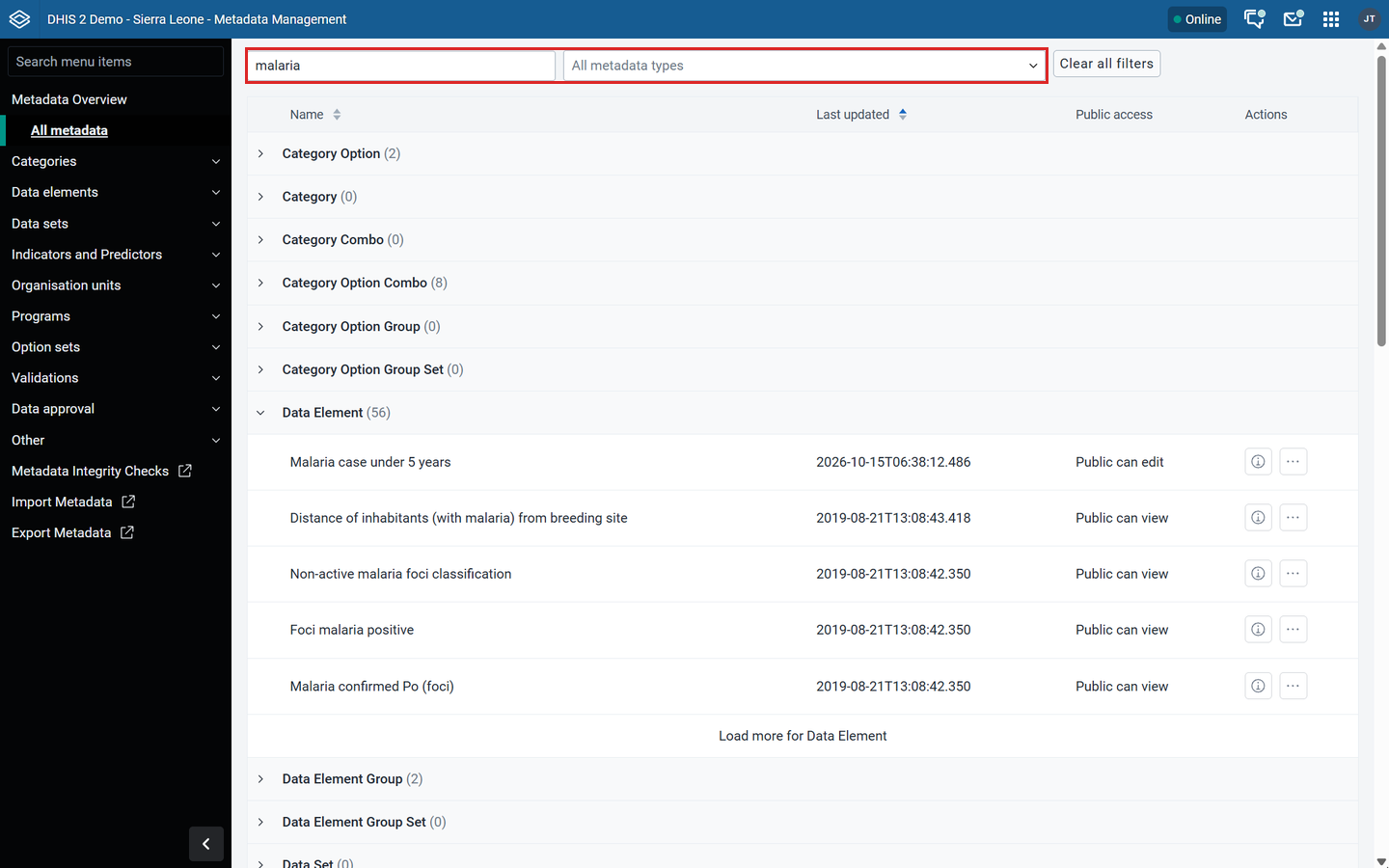
Bulk actions: sharing, download and delete
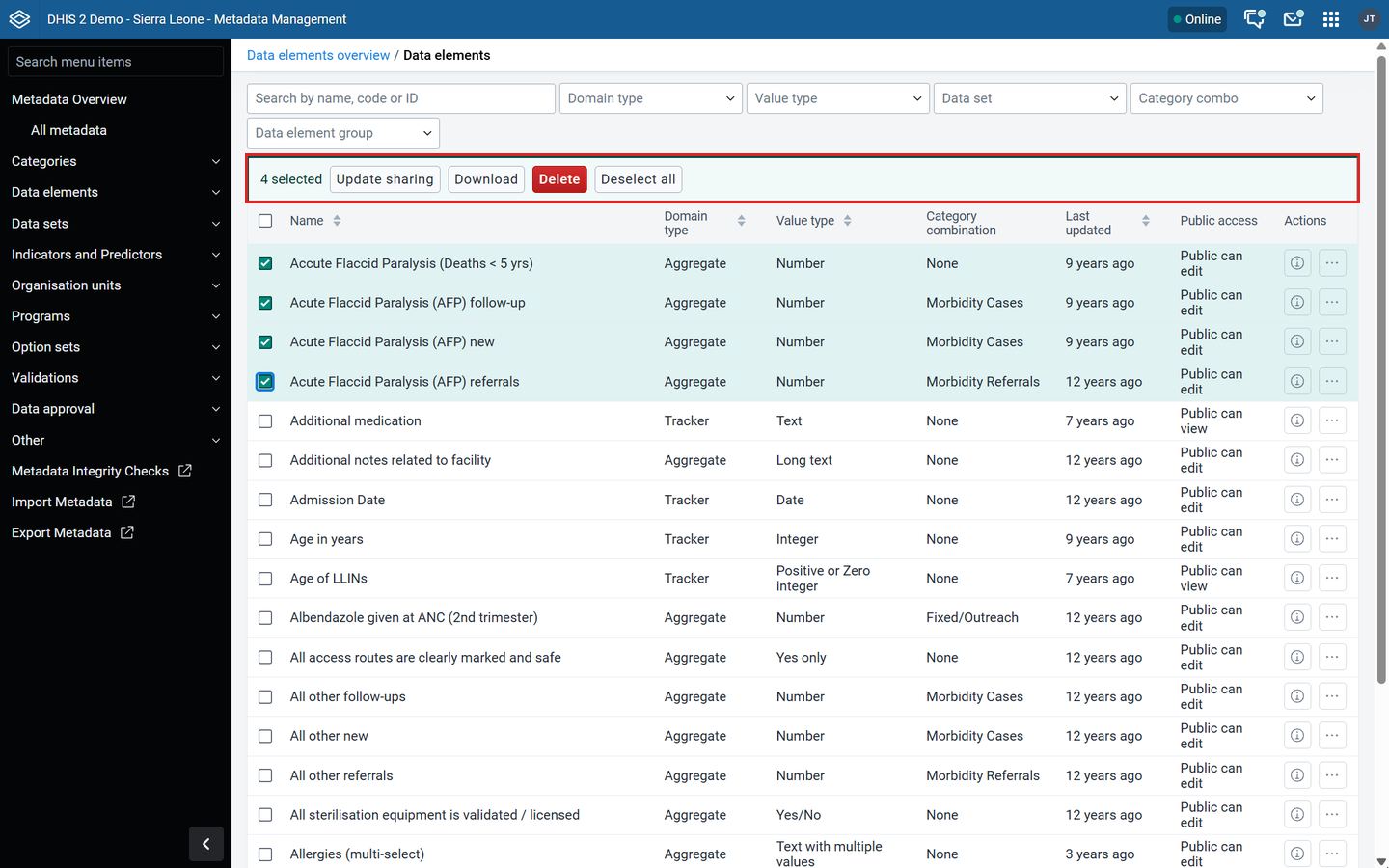
Select several objects in a list with the checkboxes. A bar appears above the list with Update sharing, Download, Delete and Deselect all.
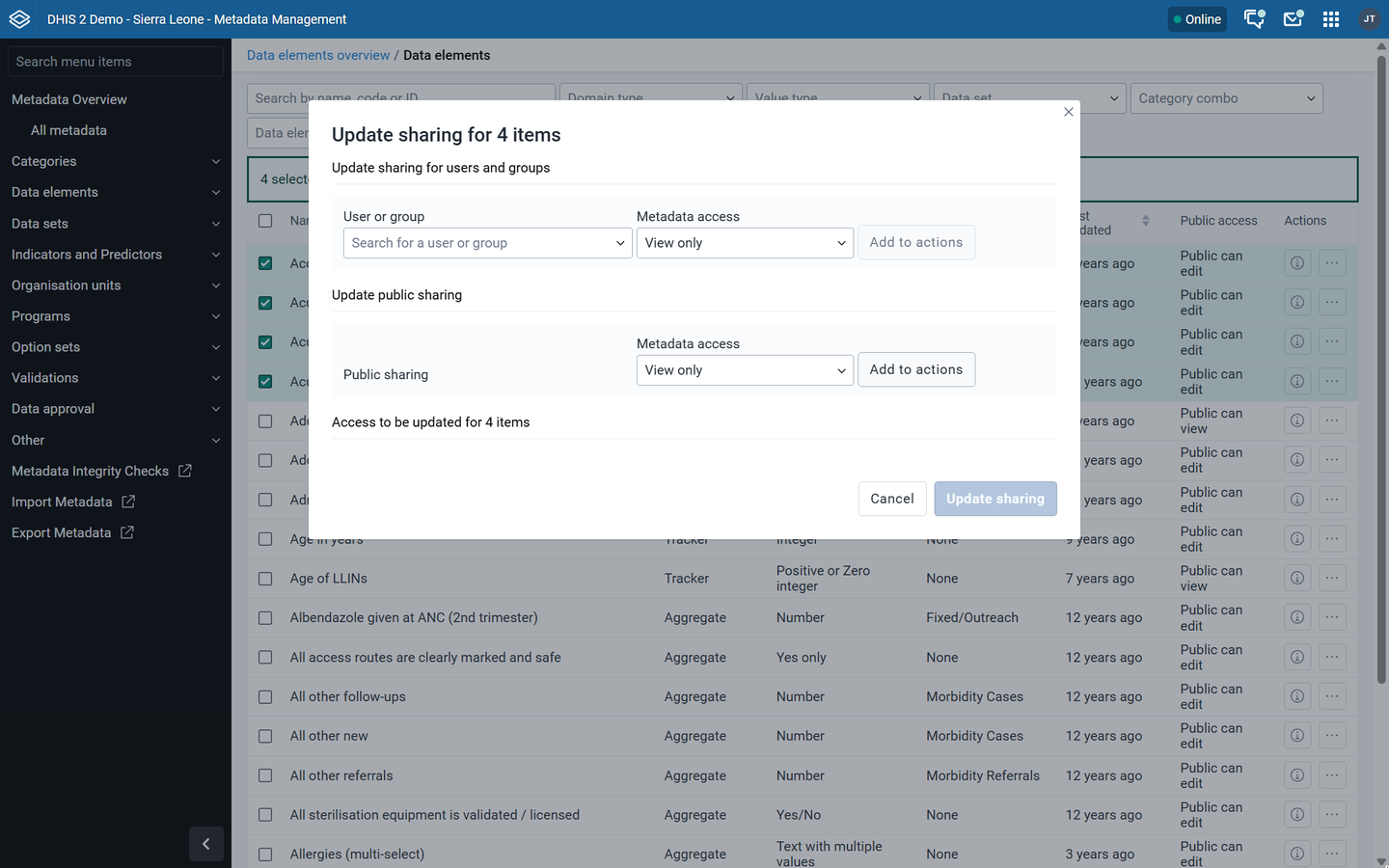
Update sharing opens a dialog where you add sharing settings for users, user groups and public access. The changes apply to all selected objects.
Note
Editing or removing existing sharing settings in bulk is not yet available; however further improvements are planned.
Warning
Delete in the bulk bar deletes all selected objects. Deleting metadata cannot be undone. Metadata dependencies, or metadata that has data associated with it, will still give warnings and/or errors when using this option to delete.
Custom filters on each list
Each list has a search bar (name, code or ID) and filters for that object type. For example, data elements can be filtered by domain type, value type, data set, category combination and data element group.
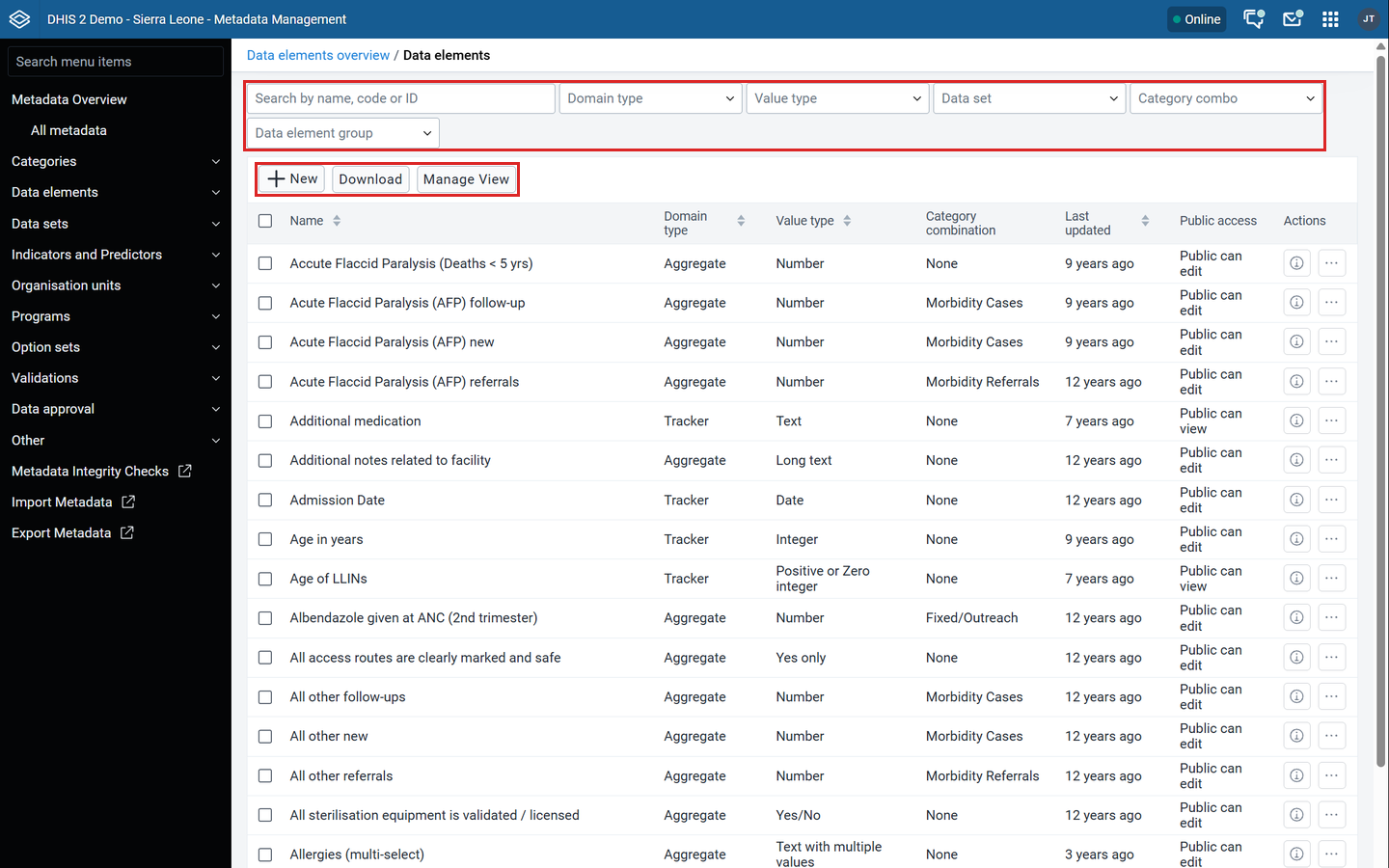
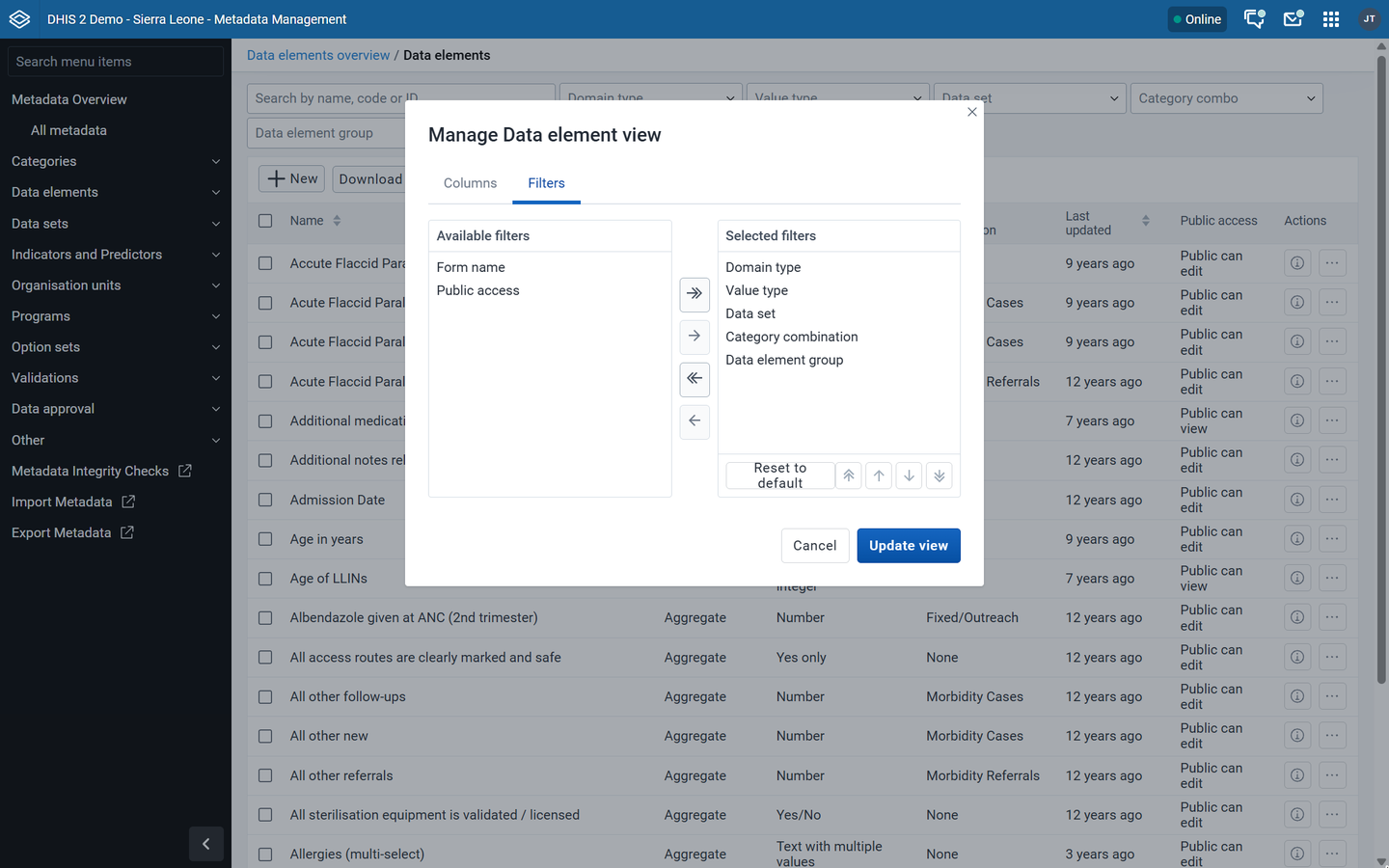
You choose which filters to show with Manage View > Filters.
Merge duplicate metadata
Merge combines duplicate objects into one. All references to the source objects move to the target object. The source objects and data can be kept or deleted depending on user selection.
- You can merge the following metadata objects: categories, category combinations, category option combinations, category options, data elements, indicators, indicator types and organisation units.
- Each object type has its own merge authority. For example, category options and categories each have their own seperate merge authority. Without it, the merge page shows an error. In order for a user to perform that merge, assign the user authority to a user role assigned to them.
Caution
It is recommended that a seperate merge role is created to allow for explicit control over who has these authorites.
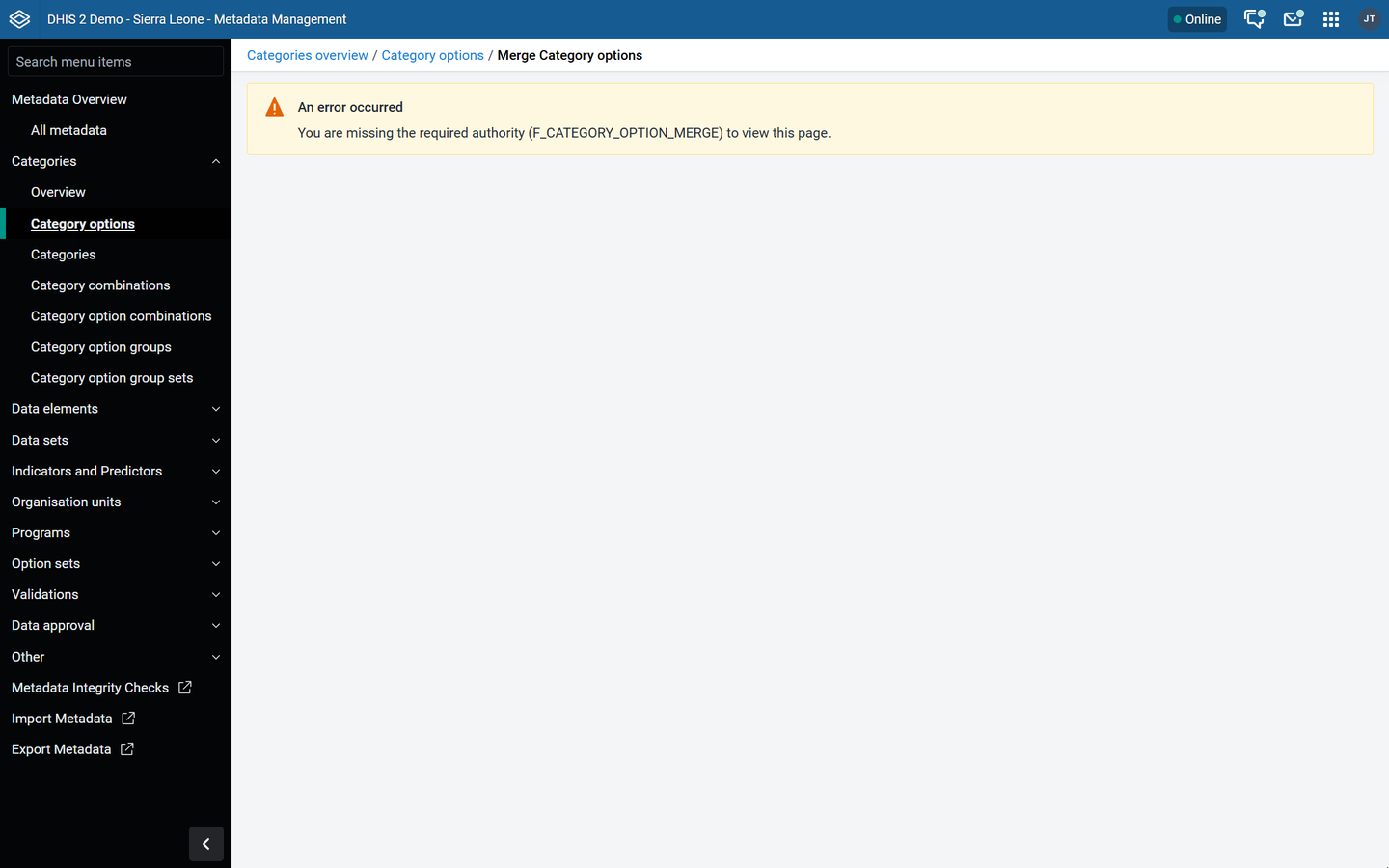
Warning
Merging cannot be undone. Back up your database before you merge.
For the full procedure, see Merge.
What works differently
Details panel
Click the details icon (i) on a row to open the details panel on the right. It shows the code, who created the object, who last updated it, the ID and the API URL. Click Edit to open the object.
Options menu
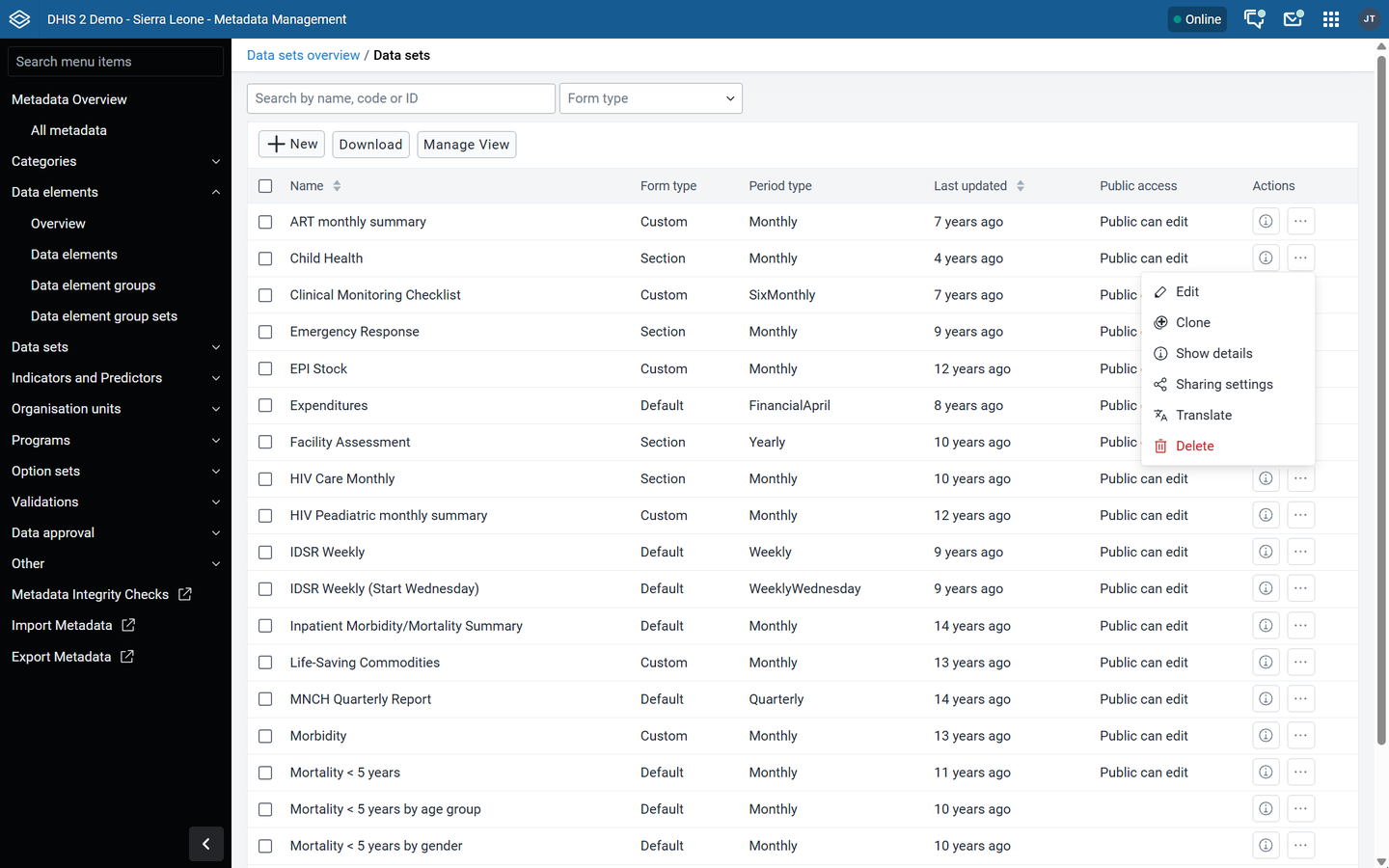
Click the options menu (...) on a row for Edit, Clone, Show details, Sharing settings, Translate and Delete.
Lists: columns, filters and download
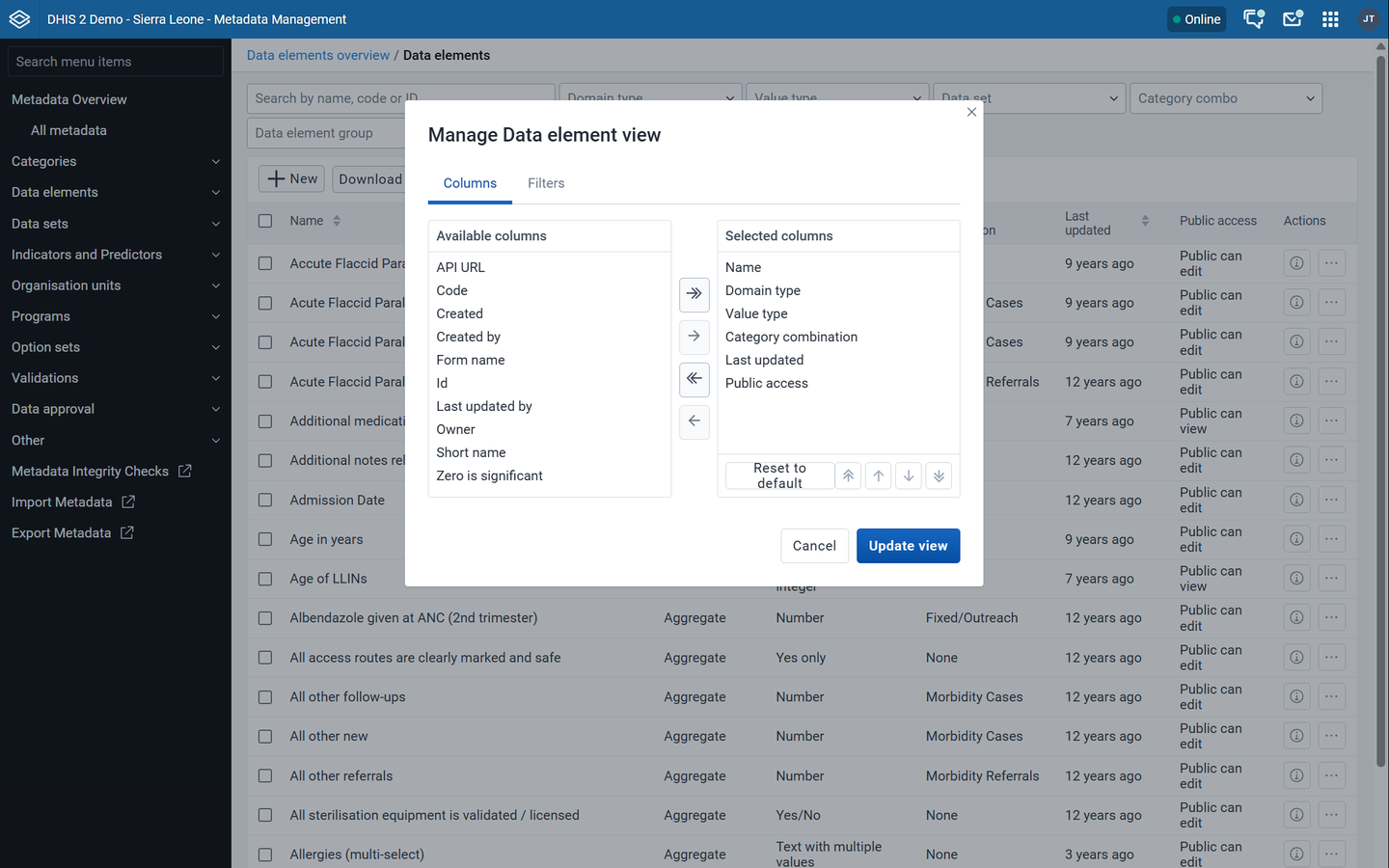
Column and filter settings are under the Manage View button above the list.
- Click Manage View.
- Select the Columns tab to choose columns, or the Filters tab to choose filters.
- Move items between the available and selected lists with the arrow buttons. Use the up and down arrows to change the order.
- Click Update view. Click Reset to default to go back to the default view.
Note
Your choices only change your own view. They do not edit metadata or affect other users.
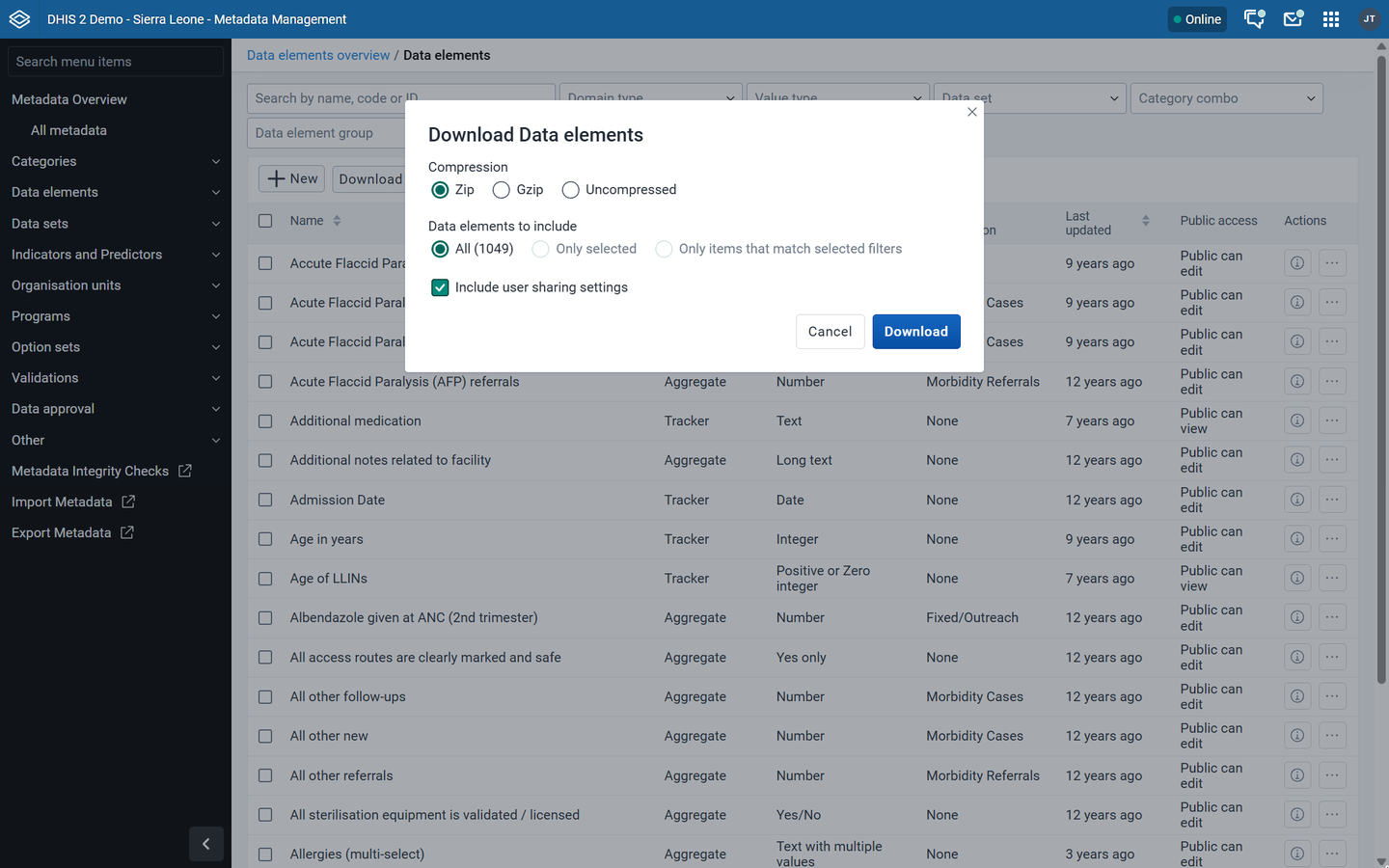
Download is a separate button above the list. You choose:
- Compression: Zip, Gzip or Uncompressed
- What to include: all objects, only selected objects, or only objects that match the active filters
- Whether to include user sharing settings
Assigning items with the transfer list
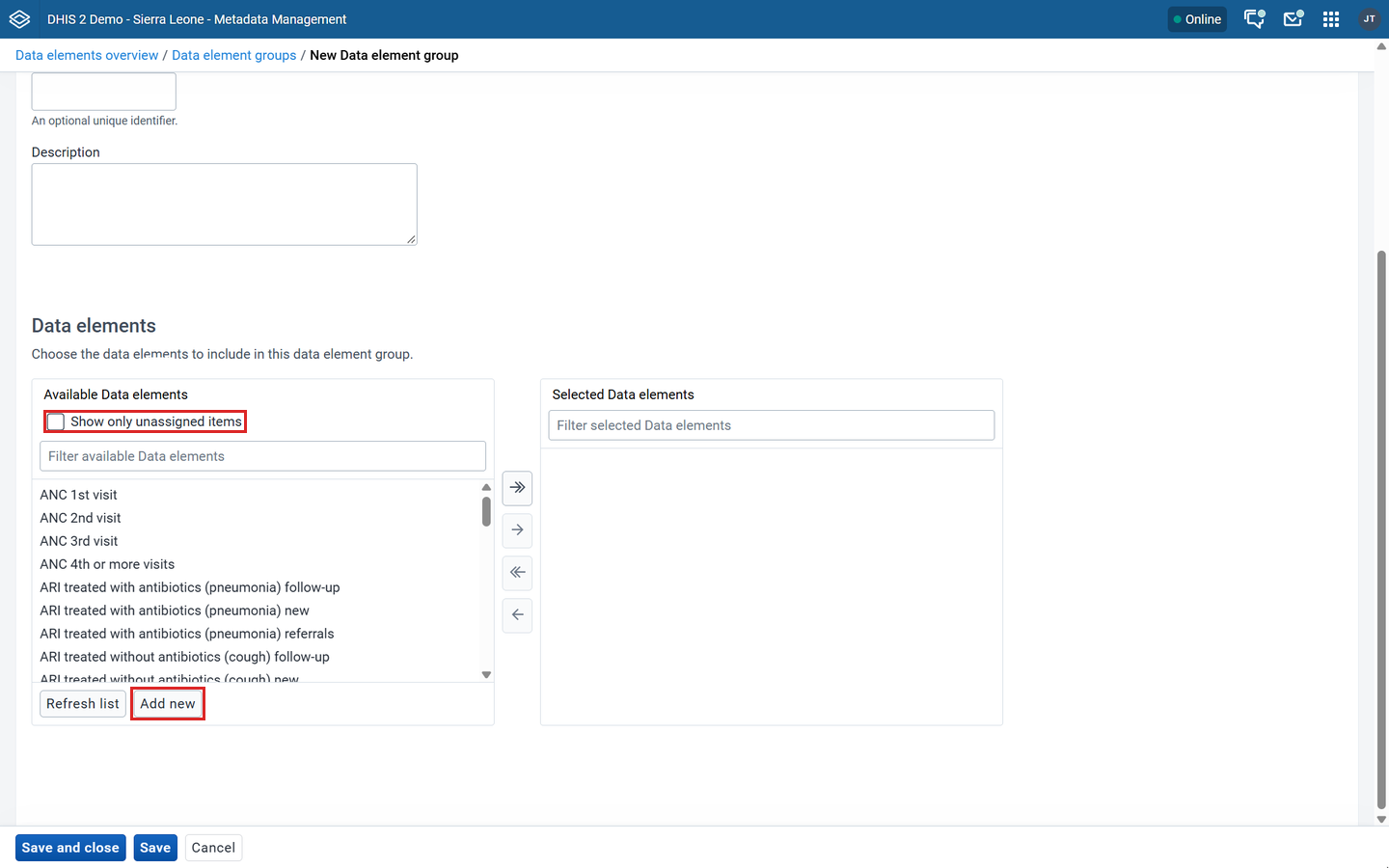
Many forms use a two-panel list to assign items, for example data elements to a data element group.
- Show only unassigned items hides items that already belong to another group.
- Each panel has its own filter box.
- Add new opens a form to create a missing item without leaving the current form. Refresh list reloads the available items.
Group membership
The Maintenance app had a separate screen for editing groups in bulk. The Metadata Management app does not have this screen. Instead:
- One object into many groups: open the object (for example a data element) and assign it to groups.
- Many objects into one group: open the group (for example a data element group) and assign the members.
Data set form
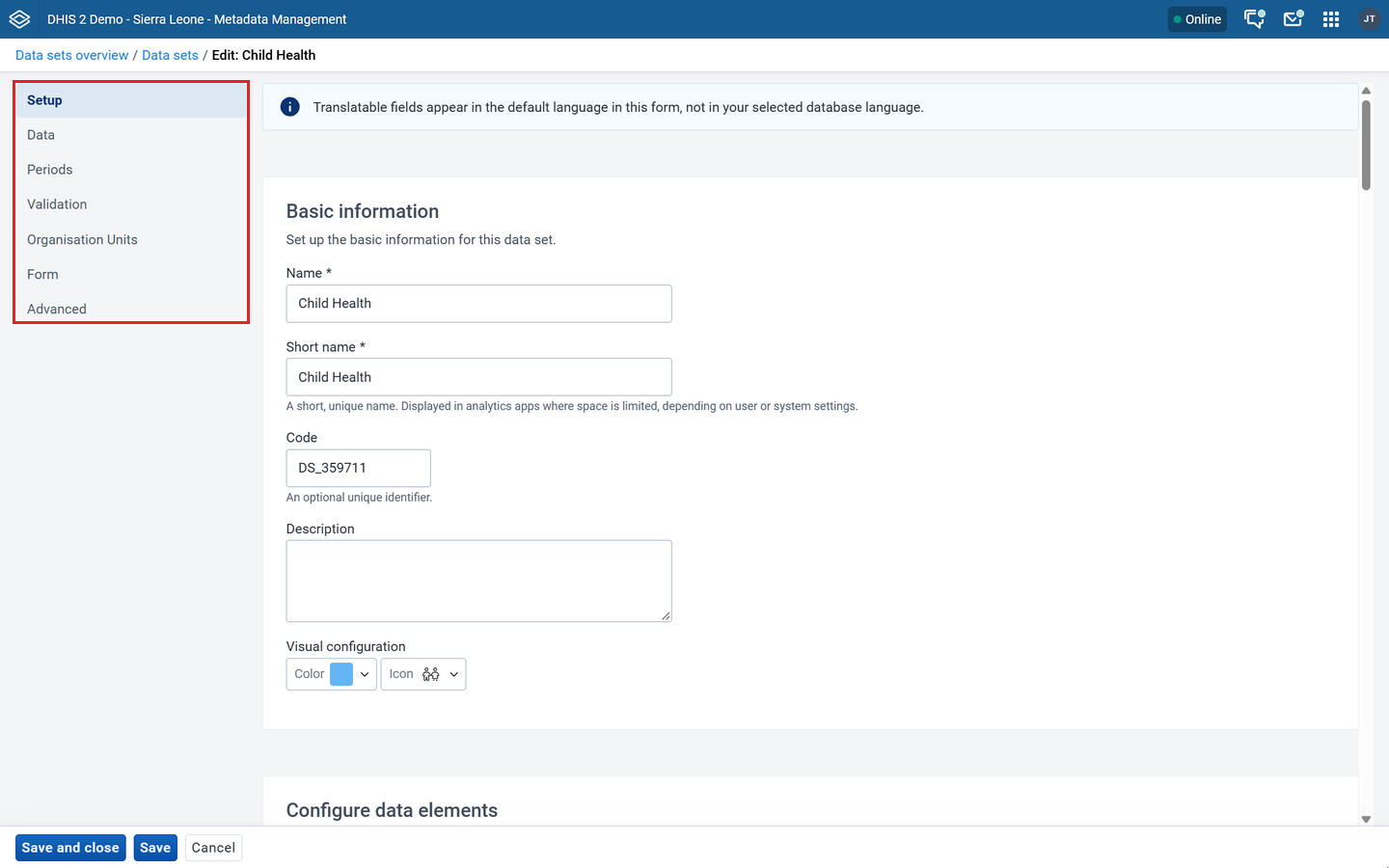
The data set form is split into sections, listed on the left: Setup, Data, Periods, Validation, Organisation Units, Form and Advanced. Click a section name to jump to it.
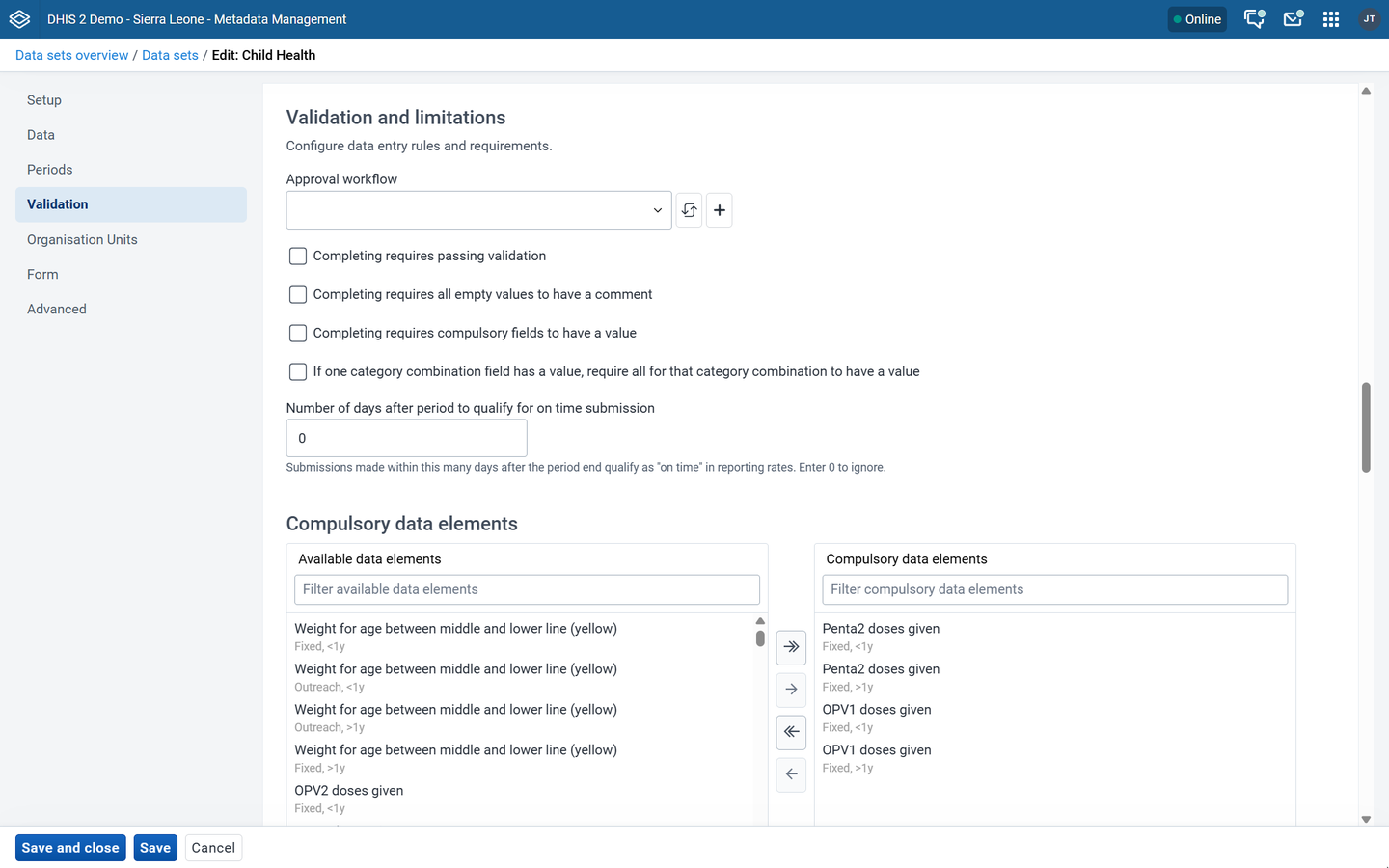
The Validation section ("Validation and limitations") has:
- the approval workflow for the data set
- the rules for completing a form, for example "Completing requires passing validation"
- the number of days after the period to qualify for on-time submission
- the compulsory data elements, which used to be a separate action in the options menu
The data set options menu does not have a Get PDF for data entry option.
Organisation units
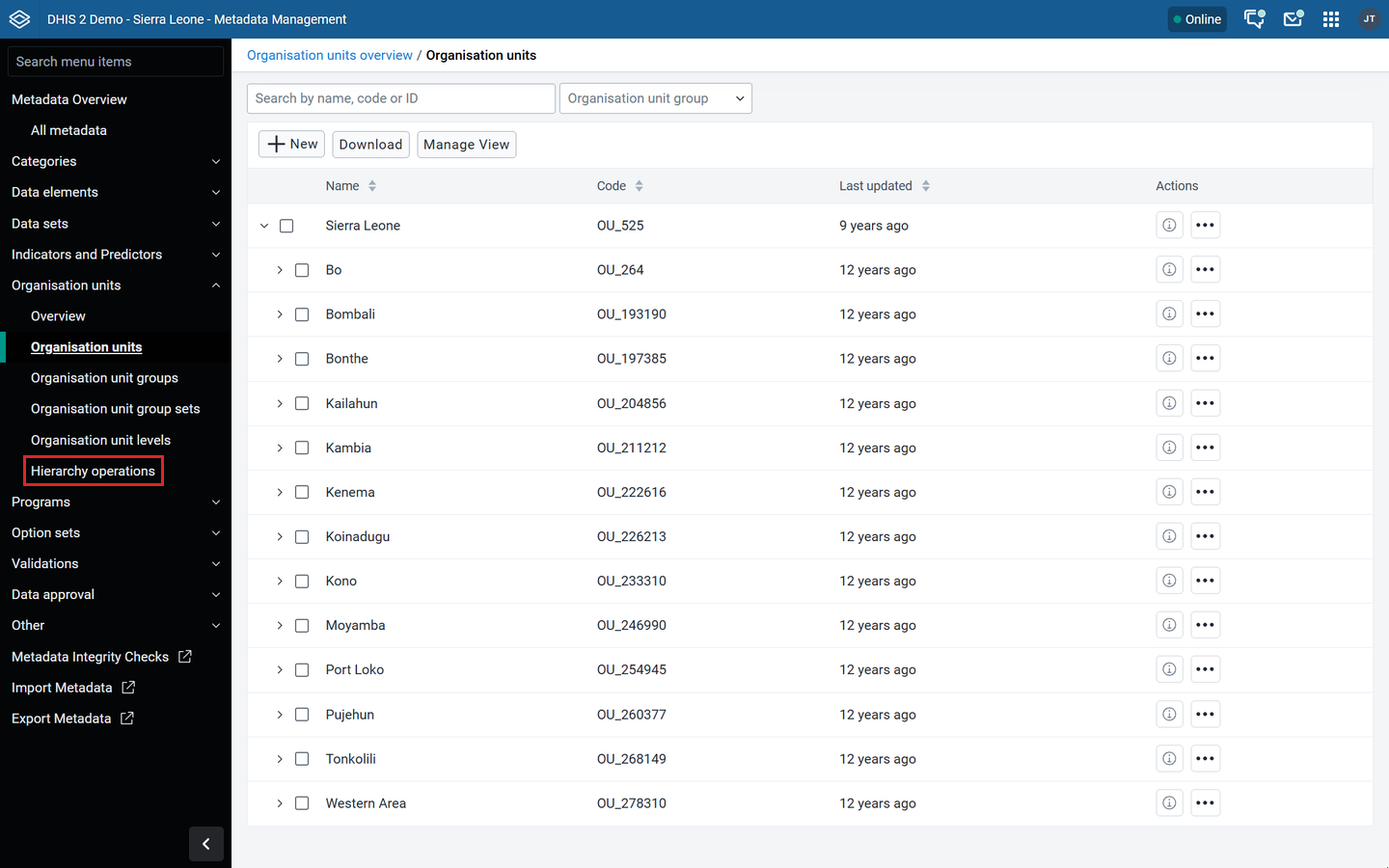
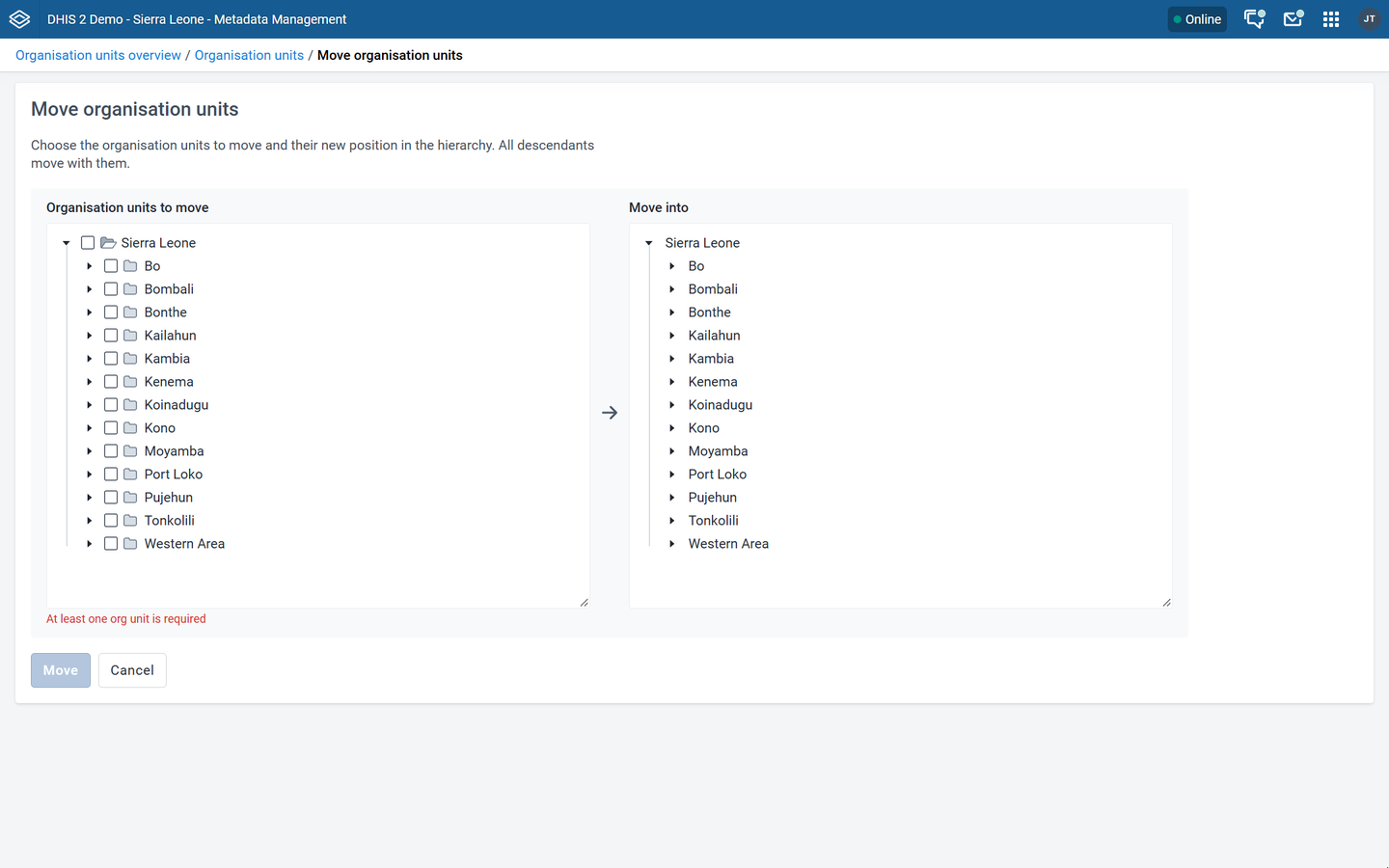
The organisation unit list shows the hierarchy. Click the arrow next to an organisation unit to show its children.
To move organisation units:
- In the sidebar, click Organisation units > Hierarchy operations.
- On the left, select the organisation units to move.
- On the right, select the new parent.
- Click Move. All descendants move with them.
Programs and data approval
Programs and data approval are in the app's sidebar. They are documented separately.
What you still need the Maintenance app for
| Task | Why | What to do |
|---|---|---|
| Push reports | Not available in the Metadata Management app | Keep using the Maintenance app. See Manage push reports. |
| External map layers | Planned to move to the Maps app | Keep using the Maintenance app until then. See Manage external map layers. |
| PDF data entry forms | Not in the data set options menu | Keep using the maintenance app. See Download forms as PDF. |
Important
Do not uninstall or hide the Maintenance app if your instance uses any of these.