Zprávy
O zprávách a zpětných vazbách
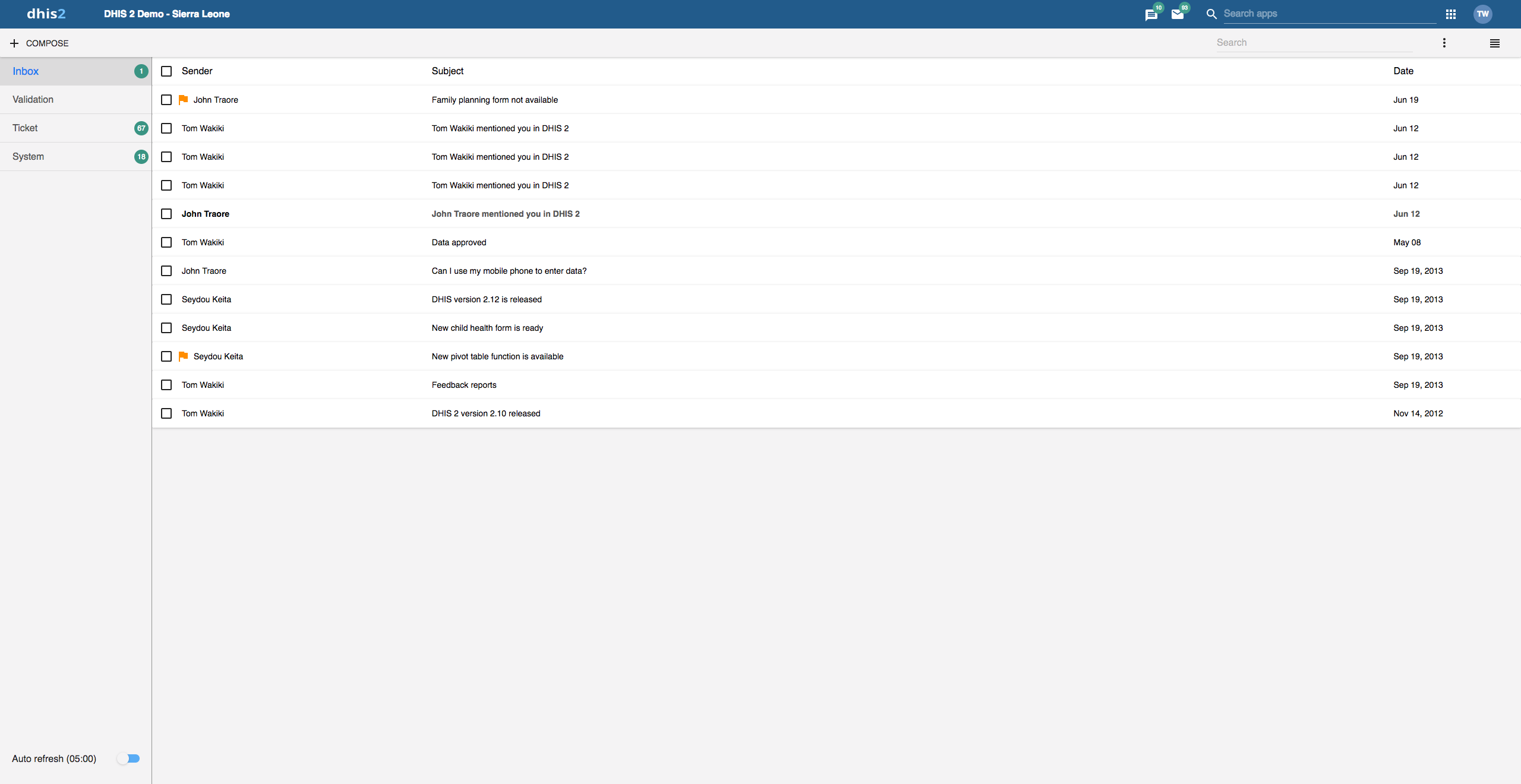
Within DHIS2 you can send messages and feedback messages to users, user groups and organisation units. When you send a feedback message, it is routed to a particular user group called the feedback recipient group. If you are a member of this user group, you have access to feedback handling tools. You can, for example, set the status of an incoming feedback to "Pending" while you are waiting for information.
In addition to the user-to-user and feedback messages, depending on your configuration the system will also send you system-generated messages. These messages could be triggered by different events, including system or background job failures and validation analysis results. Feedback handling tools are also available for validation results and the priority will be set to the importance of the validation rule violated.
To visit the app click message icon in header bar or find the Messaging app in the app search box.
Note
Messages and feedback messages are not sent to users' e-mail addresses, the messages only appear within DHIS2.
With 2.30 we introduced a new messaging app which offers a richer messaging experience. Specifically:
- Switch between list view and compact view by clicking the icon in the top right corner.
- The list view is simplistic and gives a good overview of all messages and is especially suited for feedback and validation messages.
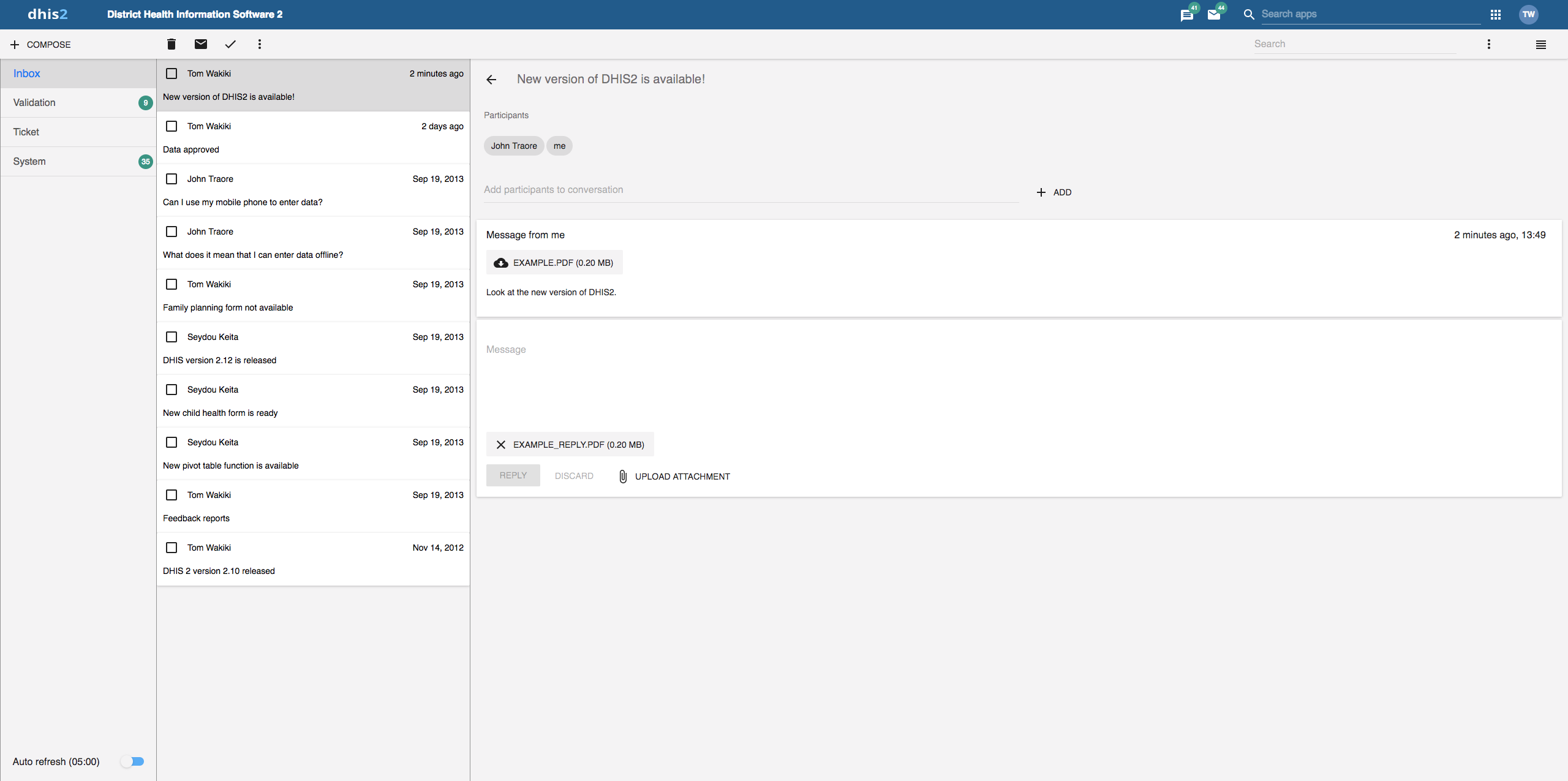
- The compact view is a modern way of view messages where the user has more information in one view, hence viewing and replying several messages is easier.
The first screenshot in this section displays list view, while the screenshot in section Read a message displays the compact view.
A new search field is added which enables the user to search for messages. The search filters messages on different message attributes; subject, text and senders. This implies that you are able to narrow down the message conversation list by entering a search.
A auto refresh feature is added so that the app fetches new messages at a set interval, every 5 minutes. This feature is disabled by default.
For every message conversation you are able to add participants to the conversation. This is very useful if you want input on that particular conversation or if someone should also see the information. It is not possible to delete participants from a conversation.
Vytvořte zprávu

-
Klikněte na Vytvořit.
-
Define who you want to receive the message. You can send a message to organisation units, users and user groups.
- In the To field you can search for organisation units, users and user groups and select the wished recipients.
-
Zadejte předmět a zprávu.
-
Klikněte na Odeslat
Přečtěte si zprávu
-
Vlevo vyberte vhodný typ zprávy.
-
Klikněte na zprávu.
If the message is part of a conversation, you will see all messages in this conversation.
Vytvořte zpětnou vazbu
-
Follow the steps as for creating a message, only selecting Feedback message instead of entering recipients.
-
The message will be created as a feedback message and will appear in all of the specified users' Ticket folder.
Přílohy
S verzí 2.31 jsme představili přílohy ke zprávám. Při vytváření konverzace se zprávou nebo odpovědi na ni máte možnost přidat přílohy. V současné době neexistují žádná omezení týkající se typu nebo velikosti souboru.
Spravujte zprávy o ověření a zpětné vazbě
Note
You will only see feedback messages and have access to the extended handling tools if you are a member of the user group that is set up to handle feedback messages.
With the new app you manage extended tools for tickets and validation messages through the icon menu which appears when viewing a message or checking of messages in the conversation list.
Všechny zprávy vybrány

Vybrány všechny zprávy a výběr rozšířené volby

You will receive feedback messages to your Ticket folder and validation messages to your Validation folder. For feedback and validation messages you have the following options in addition to the messages options:
| Funkce | Popis |
|---|---|
| priorita | můžete označit zpětné vazby / ověřovací zprávy s různými prioritami: Žádné , nízké, střední nebo vysoké. Nastavení priority usnadňuje trasování, kterou zpětnou vazbu potřebujete vyřešit jako první, a která zpětná vazba může čekat. |
| stav | Všechny zpětnovazební / ověřovací zprávy získají stav Otevřít , když jsou vytvořeny. Chcete-li sledovat existující zpětnovazební zprávy, můžete změnit stav na Nevyřízené , Neplatné nebo Vyřešené. Zprávy zpětné vazby / ověřování můžete filtrovat na základě jejich stavu pomocí dvou rozbalovacích nabídek na vnitřní liště záhlaví. |
| Přiřazeno k | Zprávu se zpětnou vazbou můžete přiřadit kterémukoli členovi skupiny uživatelů, který je nastaven pro zpracování zpráv se zpětnou vazbou. Ověřovací zprávu můžete přiřadit kterémukoli uživateli v systému. - znamená, že jste ke zpětné vazbě nepřiřadili uživatele. |
| interní odpověď | Když pracujete v týmu pro zpracování zpětné vazby, možná budete chtít diskutovat o zpětné vazbě před odesláním odpovědi odesílateli. Tuto diskusi můžete udržovat ve stejné konverzaci zpráv jako samotná zpětná vazba. Chcete-li odeslat odpověď, která ve skupině uživatelů pro zpracování zpětné vazby, klikněte na INTERNÍ ODPOVĚĎ. |
Nakonfigurujte funkci zpětné vazby
Chcete-li nakonfigurovat funkci zpětné vazby, musíte:
-
Vytvořte uživatelskou skupinu (například „Příjemci zpráv se zpětnou vazbou“), která obsahuje všechny uživatele, kteří by měli dostávat zprávy se zpětnou vazbou.
-
Otevřete aplikaci Nastavení systému a klikněte na Obecné > Zpětná vazba příjemců a vyberte skupinu uživatelů, kterou jste vytvořili v předchozím kroku.