Konfigurace programů v aplikaci Údržba
O programech
Traditionally, public health information systems have been reporting aggregated data of service provision across its health programs. This does not allow you to trace the people provided with these services. In DHIS2, you can define your own programs with stages. These programs are a essential part of the "tracker" functionality which lets you track individual records. You can also track other ‘entities’ such as wells or insurances. You can create two types of programs:
Tabulka: Typy programů
| Typ programu | Popis | Příklady použití |
|---|---|---|
| Program akce | Single event without registration program (anonymous program or SEWoR) Anonymous, individual events are tracked through the health system. No person or entity is attached to these individual transactions. Has only one program stage. | Zaznamenávat zdravotní případy bez registrace jakýchkoli informací do systému. K záznamu dat průzkumu nebo seznamu sledovacích linií. |
| Single stage Tracker program | Single event with registration program (SEWR) An entity (person, commodity, etc.) is tracked through each individual transaction with the health system Has only one program stage. A tracked entity instance (TEI) can only enroll in the program once. | Zaznamenat rodný list a úmrtní list. |
| Multi-stage Tracker program | Multi events with registration program (MEWR) An entity (person, commodity, etc.) is tracked through each individual transaction with the health system Has multiple program stages. | Program pro zdraví matky s fázemi jako návštěva ANC (2-4+), porod, návštěva PNC. |
To create a program, you must first configure several types of metadata objects. You create these metadata objects in the Maintenance app.
Tabulka: Naprogramujte objekty metadat v aplikaci Údržba
| Typ objektu | Popis | Dostupné funkce |
|---|---|---|
| Program akce | Program pro záznam jedné události bez registrace | Vytvářejte, upravujte, sdílejte, odstraňujte, zobrazujte podrobnosti a překládejte |
| Tracker program | Program pro záznam jedné nebo více událostí s registrací | Vytvářejte, upravujte, sdílejte, odstraňujte, zobrazujte podrobnosti a překládejte |
| Indikátor programu | Výraz na základě datových prvků a atributů sledovaných entit, které používáte k výpočtu hodnot na základě vzorce. | Vytvářejte, upravujte, klonujte, sdílejte, odstraňujte, zobrazujte podrobnosti a překládejte |
| Pravidlo programu | Umožňuje vytvářet a řídit dynamické chování uživatelského rozhraní v aplikacích Tracker Capture a Event Capture. | Vytvářejte, upravujte, klonujte, odstraňujte, zobrazujte podrobnosti a překládejte |
| Proměnná pravidla programu | Proměnné, které používáte k vytváření výrazů pravidla programu. | Vytvářejte, upravujte, klonujte, odstraňujte, zobrazujte podrobnosti a překládejte |
| Typ vztahu | Definuje vztah mezi sledovanou entitou A a sledovanou entitou B, například matkou a dítětem. | Vytvářejte, upravujte, klonujte, sdílejte, odstraňujte, zobrazujte podrobnosti a překládejte |
| Typ trasované entity | Types of entities which can be tracked through the system. Can be anything from persons to commodities, for example a medicine or a person. A program must have one tracked entity. To enrol a tracked entity instance into a program, the tracked entity of an entity and tracked entity of a program must be the same. Note A program must be specified with only one tracked entity. Only tracked entity as same as the tracked entity of program can enroll into that program. | Vytvářejte, upravujte, klonujte, sdílejte, odstraňujte, zobrazujte podrobnosti a překládejte |
| Atribut trasované entity | Používá se k registraci dalších informací pro trasovanou entitu. Lze sdílet mezi programy. | Vytvářejte, upravujte, klonujte, sdílejte, odstraňujte, zobrazujte podrobnosti a překládejte |
| Program | Program se skládá z fází programu. | Vytvářejte, upravujte, sdílejte, odstraňujte, přiřazujte organizačním jednotkám, zobrazujte podrobnosti a překládejte |
| Programová fáze | Fáze programu definuje, jaké akce by měly být v každé fázi provedeny. | Vytvářejte, upravujte, sdílejte, měňte pořadí řazení, mazejte, zobrazujte podrobnosti a překládejte |
| Skupina indikátorů programu | Skupina indikátorů programu | Vytvářejte, upravujte, klonujte, sdílejte, odstraňujte, zobrazujte podrobnosti a překládejte |
| Pravidlo ověření | Pravidlo ověření je založeno na výrazu, který definuje vztah mezi hodnotami datových prvků. | Vytvářejte, upravujte, klonujte, sdílejte, odstraňujte, zobrazujte podrobnosti a překládejte |
| Oznámení programu | Automatické připomenutí zpráv Nastavte připomenutí, která se mají automaticky zasílat zaregistrovaným instancím trasovaných entit před plánovanými schůzkami a po zmeškaných návštěvách. | Vytvářejte, upravujte a odstraňujte |
| Oznámení fáze programu | Automatické připomenutí zprávy Nastavte připomenutí, která se mají automaticky odeslat po dokončení fáze programu nebo před nebo po datu platnosti. | Vytvářejte, upravujte a odstraňujte |
Konfigurace programů událostí v aplikaci Údržba
O programech událostí
Single event without registration programs are called event programs. You configure them in the Maintenance app. Event programs can have three types of data entry forms:
Tabulka: Typy formulářů pro zadávání dat pro programy událostí
| Typ formuláře | Popis |
|---|---|
| Základní | Vypíše všechny datové prvky, které patří do programu. Pořadí datových prvků můžete změnit. |
| Sekce | Sekce seskupuje datové prvky. Poté můžete uspořádat pořadí sekcí a vytvořit požadované rozložení formuláře pro zadávání dat. |
| Vlastní | Definuje formulář pro zadávání dat jako stránku HTML. |
Poznámka
Vlastní formuláře mají přednost před oddílovými formuláři, pokud jsou oba v současnosti.
Pokud není definován žádný vlastní nebo oddílový formulář, bude použit základní formulář
Aplikace pro Android podporují pouze formuláře oddílů.
You can create program notifications for event programs. The notifications are sent either via the internal DHIS2 messaging system, via e-mail or via text messages (SMS). You can use program notifications to, for example, send an automatic reminder to a tracked entity 10 days before a scheduled appointment. You use the program’s tracked entity attributes (for example first name) and program parameters (for example enrollment date) to create a notification template. In the Parameters field, you'll find a list of available tracked entity attributes and program parameters.
Pracovní postup: Vytvořte program událostí
-
Zadejte podrobnosti programu události.
-
Přiřaďte datové prvky.
-
Vytvořte formulář(e) pro zadávání údajů: Základní, Sekce nebo Vlastní.
-
Přiřaďte program organizační jednotce(kám).
-
Vytvořte oznámení o programu(ech).
Vytvořte nebo upravte program události
Zadejte podrobnosti o programu události
-
Otevřete aplikaci Údržba a klikněte na Program > Program.
-
Klikněte na tlačítko Přidat a v rozbalovací nabídce vyberte Program událostí.
-
Zadejte podrobnosti o programu a klikněte na další.
Field Description Name The name of the program. Color Color used for this program in the data capture apps. Icon Icon used for this program in the data capture apps. Short name A short name of the program. The short name is used as the default chart or table title in the analytics apps. Description A detailed description of the program. Version The version of the program. This is used for example when people collect data offline in an Android implementation. When they go online and synchronize their metadata, they should get the latest version of the program. Category combination The category combination you want to use. The default setting is None. Open days after category option end date If you selected a category combination other than None, you may enter zero or a positive number. This lets you enter data for this program for a category option up to the specified number of days after that category option's end date. Data approval workflow The data approval workflow you want to use. The default setting is No value. Completed events expiry date Defines the number of days for which you can edit a completed event. This means that when an event is completed and the specified number of expiry days has passed, the event is locked.
If you set "Completed events expiry days" to 10", an event is locked ten days after the completion date. After this date you can no longer edit the event.Expiry period type
Expiry daysThe expiry days defines for how many days after the end of the previous period, an event can be edited. The period type is defined by the expiry period type. This means that when the specified number of expiry days has passed since the end date of the previous period, the events from that period are locked.
If you set the expiry type to "Monthly" and the expiry days to "10" and the month is October, then you can't add or edit an event to October after the 10th of November.Block entry form after completed Select checkbox to block the entry form after completion of the event of this program.
This means that the data in the entry form can't be changed until you reset the status to incomplete.Feature type Sets whether the program is going to capture a geographical feature type or not.
- None Nothing is captured.
- Polygon An area is captured. For single event programs the area will be the area representing the event being captured. For tracker programs, the area will represent the area of the enrollment.
- Point A point/coordinate is captured. For single event programs the point will be representing the event being captured. For tracker programs, the point will represent the enrollment.Validation strategy Sets the server and client side validation requirement.
Data type validation is always performed regardless of the validation strategy. An integer field is never stored containing text, for example.
- On complete This option will enforce required field and error messages to be fixed when completing the event, but the event can be saved to the server without passing these validation requirements. For legacy reasons, this is always the validation strategy for tracker programs, where each data value in the event is stored to the server while entering data.
- On update and insert This option will enforce required field validation when saving the event to the server regardless of the completion status. When using this option no events can be stored without passing validations.Pre-generate event UID Select checkbox to pre-generate unique event id numbers. Custom label for report date Type a description of the report date.
This description is displayed in the case entry form. -
Klikněte na další.
Přiřaďte datové prvky
-
Klikněte na Přiřadit datové prvky.
-
V seznamu dostupných položek poklepejte na datové prvky, které máte chcete přiřadit k programu akce.
-
(Volitelné) Pro každý datový prvek přidejte další nastavení:
Setting Description Compulsory The value of this data element must be filled into data entry form before you can complete the event. Allow provided elsewhere Specify if the value of this data element comes from other facility, not in the facility where this data is entered. Display in reports Displays the value of this data element into the single event without registration data entry function. Date in future Will allow user to select a date in future for date data elements. Mobile render type Can be used to select different render types for mobile devices. Available options vary depending on the data element's value type. For example, for a numerical value you may select "Default", "Value", "Slider", "Linear scale", and "Spinner". Desktop render type WARNING: NOT IMPLEMENTED YET.
Can be used to select different render types for desktop (i.e. the web interface). Available options vary depending on the data element's value type. For example, for a numerical value you may select "Default", "Value", "Slider", "Linear scale", and "Spinner". -
Klikněte na další.
Vytvořte formuláře pro zadávání údajů
Formuláře pro zadávání údajů rozhodují o tom, jak se datové prvky zobrazí uživateli v aplikaci Zachycení Události.
-
Klikněte na Vytvořit formulář pro zadávání údajů.
-
Klikněte na Základní, Sekce nebo Vlastní.
-
Vytvoření základního formuláře pro zadávání dat: Přetáhněte data prvky v požadovaném pořadí.
-
Vytvoření formuláře pro zadávání údajů Sekce:
-
Klikněte na tlačítko Přidat a zadejte název sekce, popis a typ vykreslení pro stolní a mobilní zařízení.
-
Klikněte na část, aby byla zvýrazněna černou čarou.
-
Přidejte datové prvky kliknutím na znaménko plus vedle dat názvy prvků.
-
Opakujte výše uvedené kroky, dokud nenajdete všechny sekce, které potřebujete.
-
Změňte pořadí sekcí: klikněte na nabídku možností a poté přetáhněte sekci na požadované místo.
-
-
Chcete -li vytvořit vlastní záznam dat z: Pomocí editoru WYSIWYG create a completely customized form. If you select Source, you can paste HTML code directly in the editing area. You can also vkládejte obrázky, například vlajky nebo loga.
-
Klikněte na další.
Přístup
Access options decide who can capture data for the program or view/edit the program's metadata. A program can be shared to organisation units, and in addition, the main program and any program stages' access options can be configured through the Sharing dialog. Access options are available in the Access tab.
Přiřadit organizační jednotky:
-
In the organisation tree, double-click the organisation units you want to add to the program to.
You can locate an organisation unit in the tree by expanding the branches (click on the arrow symbol), or by searching for it by název. Vybrané organizační jednotky se zobrazí oranžově.
Změnit role a přístup:
-
Přejděte dolů do části Role a přístup.
The first row shows the main program's access options, and each subsequent row shows the options of one program stage. Program stages with a warning icon (exclamation mark) contain access options that deviate from the main program, meaning they are accessed by a different combination of users.
-
Klikněte na jeden z řádků a zobrazí se dialogové okno sdílení.
-
Modify the access options accordingly. See documentation on the podrobnosti o sdílení.
-
Klikněte na tlačítko Použít.
-
Opakujte postup pro každý program / fázi programu. Můžete také kopírovat all access options from the main program to your child programs:
-
Vyberte fáze programu, ke kterým chcete mít podobný přístup options as the main program by toggling the checkboxes on the right hand side of the program stages. You can also choose to Select all program stages, Deselect all program stages or Select similar stages, in terms of access options, to hlavního programu. Ve výchozím nastavení jsou podobné fáze přepnuty.
-
Klikněte na Použít na vybrané fáze
-
Vytvářejte oznámení o programu
-
Vytvořte zprávu, kterou chcete odeslat:
-
Klikněte na Co poslat?.
-
Zadejte Název.
-
Create the Subject template: Double-click the parameters in the Template variables field to add them to your subject.
Note
The subject is not included in text messages.
-
Create the Message template: Double-click the parameter names in the Template variables list to add them to your message.
Vážený uživateli A{w75KJ2mc4zz}, jste nyní zapsán do programu V{program_name}.
-
-
Define when you want to send the message:
-
Klikněte na Kdy jej odeslat?.
-
Vyberte spouštěč oznámení.
Notification trigger Description Program stage completion The program stage notification is sent when the program stage is completed Days scheduled (due date) The program stage notification is sent XX number of days before or after the due date
You need to enter the number of days before or after the scheduled date that the notification will be sent.
-
-
Define who you want to send the message to:
-
Klikněte na Komu to poslat?.
-
Vyberte příjemce oznámení.
Notification recipient Description Tracked entity instance Receives program notifications via e-mail or text message.
To receive a program notification, the recipient must have an e-mail address or a phone number attribute.Organisation unit contact Receives program notifications via e-mail or text message.
To receive a program notification, the receiving organisation unit must have a registered contact person with e-mail address and phone number.Users at organisation unit All users registered to the selected organisation unit receive program notifications via the internal DHIS2 messaging system. User group All members of the selected user group receive the program notifications via the internal DHIS2 messaging system Program TBA -
Click Save.
-
-
Opakováním výše uvedených kroků vytvořte všechna programová oznámení, která potřebujete.
-
Klikněte Uložit.
Note
You configure when the program notifications are sent in the Data Administration app > Scheduling > Program notifications scheduler.
Click Run now to send the program notifications immediately.
Select a time and click Start to schedule the program notifications to be send at a specific time.
Referenční informace: Parametry oznámení programu
Tabulka: Parametry oznámení programu, které se mají použít v oznámeních programu
| Typ oznámení | Proměnný název | Variabilní kód |
|---|---|---|
| Program | Aktuální datum | V{current_date} |
| Dny od data zápisu | V{days_since_enrollment_date} | |
| Datum zápisu | V{enrollment_date} | |
| Datum incidentu | V{incident_date} | |
| Název organizační jednotky | V{org_unit_name} | |
| Název programu | V{program_name} | |
| Programová fáze | Aktuální datum | V{current_date} |
| Dny od data vypršení platnosti | V{days_since_due_date} | |
| Dny do vypršení platnosti | V{days_until_due_date} | |
| Datum ukončení platnosti | V{due_date} | |
| Název organizační jednotky | V{org_unit_name} | |
| Název programu | V{program_name} | |
| Název fáze programu | V{program_stage_name} | |
| Stav události | V{event_status} |
Konfigurace trasovacích programů v aplikaci Údržba
O Trasovacích programech
Single or multiple event programs with registration are called Tracker programs. A program must be specified with only one tracked entity. Only tracked entities that are the same as the tracked entity of program can enroll into that program. A program needs several types of metadata that you create in the Maintenance apps.
Pracovní postup: Vytvořte trasovací program
-
Zadejte podrobnosti o programu trasovače.
-
Zadejte podrobnosti registrace.
-
Přiřaďte atributy a vytvořte sekci nebo vlastní registrační formulář.
-
Vytvářejte programové fáze.
-
Nakonfigurujte přístup a přiřaďte jej k organizačním jednotkám.
-
Vytvořte oznámení o programu a fázi(ích) programu.
Vytvořte nebo upravte program Trasovač
-
Otevřete aplikaci Údržba a klikněte na Program > Program.
-
Klikněte na tlačítko Přidat a v rozbalovací nabídce vyberte Tracker Program.
Zadejte podrobnosti o programu
| Pole | Popis |
|---|---|
| Název | Název programu. |
| Barva | Barva použitá pro tento program v Tracker capture. |
| Ikona | Ikona použitá pro tento program v zachycení Trackerem |
| Krátký název | Krátký název programu. Krátký název se používá jako výchozí název grafu nebo tabulky v analytických aplikacích. |
| Popis | Podrobný popis programu. |
| Verze | Verze programu. To se používá například, když lidé shromažďují data offline v implementaci Android. Když se připojí k internetu a synchronizují svá metadata, měli by získat nejnovější verzi programu. |
| Typ trasované entity | Typ trasované entity, který chcete použít. Program může mít pouze jeden typ sledované entity. |
| Kombinace kategorií | Kombinace kategorií, kterou chcete použít. Výchozí nastavení je Žádné. |
| Dny otevření po datu ukončení možnosti kategorie | Pokud jste vybrali jinou kombinaci kategorií než Žádná, můžete zadat nulu nebo kladné číslo. To vám umožní zadávat data pro tento program pro volbu kategorie až do zadaného počtu dní po datu ukončení dané kategorie. |
| Zobrazit seznam úvodní stránky | Zaškrtnutím políčka zobrazíte seznam instancí trasovaných entit v aplikaci Tracker Capture. Pokud není vybráno, zobrazí se hledání. |
| První fáze se objeví na registrační stránce | Zaškrtnutím políčka zobrazíte první fázi programu spolu s registrací (zápisem). |
| Úroveň přístupu | Vyberte úroveň přístupu k programu. |
| Dny vypršení platnosti dokončených událostí | Definuje počet dní, po které můžete upravit dokončenou událost. To znamená, že po dokončení události a uplynutí zadaného počtu dnů vypršení platnosti je událost uzamčena. Pokud nastavíte "Dny vypršení platnosti dokončených událostí" na 10", událost se uzamkne deset dní po datu dokončení. Po tomto datu již nelze událost upravovat. |
| Typ doby platnosti Dny vypršení | Dny vypršení platnosti definují, kolik dní po skončení předchozího období lze událost upravit. Typ období je definován typem období vypršení platnosti. To znamená, že když od data ukončení předchozího období uplyne zadaný počet dnů vypršení platnosti, události z tohoto období jsou uzamčeny. Pokud nastavíte typ vypršení na "Měsíčně" a dny vypršení na "10" a měsícem je říjen, nemůžete přidat nebo upravit událost do října po 10. listopadu. |
| Minimální počet atributů potřebných k vyhledávání | Zadejte počet atributů trasovaných entit, které je třeba vyplnit, aby bylo možné vyhledávat trasované entity v Programu. |
| Maximum number of tracked entities to return in search | Specify the maximum number of tracked entities that is allowed to match a search outside capture scope. This setting can be used to force the user to search in a more targeted manner and narrow down the search results, rather than allowing a user to search and see a large number of results outside their capture scope. Enter 0 for no limit. More info here. |
Enter enrollment details
| Pole | Popis |
|---|---|
| Povolit budoucí data zápisu | Zaškrtněte políčko, pokud chcete povolit, aby byly instance trasovaných entit zapsány do programu v budoucnu. |
| Povolit budoucí data incidentů | Zaškrtněte políčko, pokud chcete povolit, aby datum incidentu v programu bylo na budoucí datum. |
| Zaregistrujte se pouze jednou (za dobu trvání instance trasované entity) | Zaškrtněte políčko, pokud chcete, aby se trasovaná entita mohla do programu zapsat pouze jednou. Toto nastavení je užitečné například v programech očkování dětí nebo posmrtných vyšetření, kde by nedávalo smysl zapsat trasovanou entitu více než jednou. |
| Zobrazit datum incidentu | Toto nastavení vám umožňuje zobrazit nebo skrýt pole data incidentu, když se trasovaná entita zaregistruje do programu. |
| Custom label for incident date | Zadejte popis data incidentu Například: V očkovacím programu pro dítě mladší 1 roku je datem incidentu datum narození dítěte. V mateřském programu je datem události datum poslední menstruace. |
| Custom label for enrollment date | Datum, kdy je trasovaná entita zaregistrována do programu |
| Custom label for: - enrollment - event - program stage - follow-up - registering unit - relationship - note - tracked entity attribute | These custom labels will, on a program-specific level, replace these terms in certain DHIS2 apps. It is important to note that this configuration does not distinguish between singular and plural, so the label should consider this. Currently, these custom labels are only used by the DHIS2 Android app. |
| Ignorovat události po splatnosti | Když se trasovaná entita zapíše do programu, vytvoří se události odpovídající fázím programu. Pokud zaškrtnete toto políčko, systém nebude generovat události po splatnosti. |
| Typ funkce | Sets whether the program is going to capture a geographical feature type or not. * None: Nothing is captured. * Polygon: An area is captured. For single event programs the area will be the area representing the event being captured. For tracker programs, the area will represent the area of the enrollment. * Point: A point/coordinate is captured. For single event programs the point will be representing the event being captured. For tracker programs, the point will represent the enrollment. |
| Související program | Vyberte program Tracker, který souvisí s programem, který vytváříte, například program ANC a Child. |
Assign tracked entity attributes.
-
In the list of Available program tracked entity attributes, double-click the attributes you want to assign to the program.
-
(Volitelné) Pro každý přiřazený atribut přidejte další nastavení:
| Nastavení | Popis |
|---|---|
| Zobrazit v seznamu | Displays the value of this attribute in the list of tracked entity instances in Tracker capture. |
| Skip Individual Analytics | This attribute will not be included in the Tracker Analytics process; however, it will still be considered as part of the Aggregate Analytics process. |
| Povinné | The value of this attribute must be filled into data entry form before you can complete the event. |
| Datum v budoucnu | Will allow user to select a date in future for date attributes. |
| Typ vykreslení pro mobilní zařízení | Can be used to select different render types for mobile devices. Available options vary depending on the attribute's value type. For example, for a numerical value you may select "Default", "Value", "Slider", "Linear scale", and "Spinner". |
| Typ vykreslení pro webové rozhraní | WARNING: NOT IMPLEMENTED YET. Can be used to select different render types for desktop (i.e. the web interface). Available options vary depending on the attribute's value type. For example, for a numerical value you may select "Default", "Value", "Slider", "Linear scale", and "Spinner". |
- Vytvořte registrační formulář
Registrační formulář definuje, jak se budou atributy zobrazovat uživateli při používání aplikací, jako je Android a Tracker Capture.
1. Klikněte na **Vytvořit registrační formulář**.

2. Klikněte na **Sekce** nebo **Vlastní**.

3. Vytvoření formuláře **Sekce**:

    1. Klikněte na tlačítko Přidat a zadejte název sekce, popis a typ vykreslení pro počítače a mobilní zařízení.
    2. Klikněte na část tak, aby byla zvýrazněna černým okrajem.
    3. Přidejte datové prvky kliknutím na znaménko plus vedle názvu datových prvků, které chcete přidat.
    4. Repeat above steps until you have all the sections you need.
        To change the section order: click the options menu, then drag the section to the place you want.

4. Vytvoření **vlastního** registračního formuláře: Pomocí editoru WYSIWYG vytvořte zcela přizpůsobený formulář. Pokud vyberete Zdroj, můžete vložit HTML kód přímo do editační oblasti. Můžete také vložit obrázky, například vlajky nebo loga.

5. Klikněte na Přidat fázi.
Vytvářejte programové fáze
A program consist of program stages. A program stage defines which actions should be taken at each stage.
Poznámka
Změny fáze programu se neuloží, dokud program neuložíte.
- Kliknutím na znaménko plus vytvoříte programovou fázi.
- Enter program stage details:
- Zadejte Název.
- (Optional) select a Color and an Icon that will be used by the data capture apps to identify this program stage.
- Zadejte popis.
- Enter the required number of days into the Scheduled days from start field: The first event in this program stage will be scheduled this many days after the enrollment or the incident date, depending on the configuration. If Show incident date in Enrollment details is configured, the system will use incident date as start. If Genereate events based on enrollment date in Program stage details is configured the system will use enrollment date as start.
- Zadejte opakovatelné podrobnosti fáze programu.
- Určete, zda je fáze programu Opakovatelná nebo ne.
- Vyberte Typ období.
- Clear Display generate event box after completed if you don't want to display Create new event box to create new event for a repeatable stage after you click Complete for an event fáze ve formuláři pro zadávání údajů. Toto pole je vybráno uživatelem default.
- Enter Standard interval days. This value will be the suggested interval between the last event in a repeatable stage and the scheduled date of the next event.
- (Optional) Select a Default next scheduled date. This will show a list of assigned data elements of type date. If an element is selected, the Tracker client will use this as the default scheduled date. The data element can be used by program rules to dynamically schedule intervals between events.
- Zadejte podrobnosti formuláře
| Možnost | Akce |
|---|---|
| Automaticky generovat událost | Clear check box to prevent creating an event of this program stage automatically when a entity is enrolled in the program. |
| Otevřít formulář pro zadání dat po zápisu | Select check box to automatically open the event of this stage as soon as the entity has enrolled into the program. |
| Datum zprávy k použití | If you have selected the Open data entry form after enrollment check box, also select a Report date to use: Date of incident or Date of enrollment. This is the date used as report date for an event that has been opened automatically. If the Report date to use is selected as one of those two ('incident date'/'enrollment date'), in Dashboard, the 'Report date' of the event will be set as one of those two. |
| Přiřazení událostí uživateli | Select check box to enable user assignment of the program stage. This means that in Tracker capture there will be a list of users to which the event can be assigned. |
| Po vyplnění zablokujte vstupní formulář | Select check box to block the entry form after completion of the event of this stage. This means that the data in the entry form can't be changed until you reset the status to incomplete. |
| Ask user to complete program when stage is completed | Select check box to trigger a pop-up which asks the user if he/she wants to create the event of next stage. |
| Ask user to create new event when stage is complete | Select check box to trigger a pop-up which asks the users if he/she wants to create a new event of this stage when an event of this stage is completed. This property is active only if you have selected Repeatable. |
| Generujte události podle data zápisu | Zkontrolujte na něm automatické generování termínů událostí z programových fází tohoto programu na základě data registrace. Pokud není zaškrtnuto, jsou termíny vygenerovány na základě data incidentu. |
| Skrýt termíny platnosti | Zaškrtnutím políčka skryjete termíny pro události. |
| Typ funkce | Sets whether the program is going to capture a geographical feature type or not. * None: Nothing is captured. * Polygon: An area is captured. For single event programs the area will be the area representing the event being captured. For tracker programs, the area will represent the area of the enrollment. * Point: A point/coordinate is captured. For single event programs the point will be representing the event being captured. For tracker programs, the point will represent the enrollment. |
| Předem vygenerovat UID události | Chcete-li předem vygenerovat jedinečná ID událostí, zaškrtněte políčko. |
| Custom label for report date | Type a description of the report date. This description is displayed in the data entry form. |
| Custom label for due date | Zadejte popis termínu vypršení platnosti. |
| Custom label for: - program stage - event | These custom labels will, on a program-specific level, replace these terms in certain DHIS2 apps. It is important to note that this configuration does not distinguish between singular and plural, so the label should consider this. Currently, these custom labels are only used by the DHIS2 Android app. |
-
Přiřadit datové prvky fázi programu:
-
In the list of Available data elements, double-click the data elements you want to assign to the program stage.
-
For each assigned data element, review the properties. You can select:
-
| Možnost | Akce |
|---|---|
| Povinný | The value of this data element must be filled into data entry form before completing the event. |
| Povolit poskytnuto jinde | Specify if the value of this data element comes from other facility, not in the facility where this data is entered. |
| Zobrazení v přehledech | Display the value of this data element into the single event without registration data entry function. |
| Datum v budoucnu | Povolit výběr data v budoucnosti pro datové prvky data. |
| Přeskočit synchronizaci | Allow data element to be skipped when running data synchronization jobs. |
| Typ vykreslení pro mobilní zařízení | Can be used to select different render types for mobile devices. Available options vary depending on the attribute's value type. For example, for a numerical value you may select "Default", "Value", "Slider", "Linear scale", and "Spinner". |
| Typ vykreslení pro webové rozhraní | WARNING: NOT IMPLEMENTED YET. Can be used to select different render types for desktop (i.e. the web interface). Available options vary depending on the attribute's value type. For example, for a numerical value you may select "Default", "Value", "Slider", "Linear scale", and "Spinner". |
-
Vytvořte formuláře pro zadávání dat pro fázi programu
The data entry forms decide how the data elements will be displayed to the user in the Tracker Capture app.
-
Klikněte na Vytvořit formulář pro zadávání údajů.
-
Klikněte na Základní, Sekce nebo Vlastní.
-
Vytvoření základního formuláře pro zadávání dat: Přetáhněte data prvky v požadovaném pořadí.
-
Vytvoření formuláře pro zadávání údajů Sekce:
-
Klikněte na tlačítko Přidat a zadejte název sekce, popis a typ vykreslení pro stolní a mobilní zařízení.
-
Klikněte na část, aby byla zvýrazněna černým okrajem.
-
Přidejte datové prvky kliknutím na znaménko plus vedle dat názvy prvků.
-
Opakujte výše uvedené kroky, dokud nenajdete všechny sekce, které potřebujete.
-
Změňte pořadí sekcí: klikněte na nabídku možností a poté přetáhněte sekci na požadované místo.
-
-
Chcete -li vytvořit vlastní záznam dat z: Pomocí editoru WYSIWYG create a completely customized form. If you select Source, you can paste HTML code directly in the editing area. You can also insert images for example flags or logos.
-
Klikněte na Přidat fázi.
Přístup
Access options decide who can capture data for the program or view/edit the program's metadata. A program can be shared to organisation units, and in addition, the main program and any program stages' access options can be configured through the Sharing dialog. Access options are available in the Access tab.
Přiřadit organizační jednotky:
-
In the organisation tree, double-click the organisation units you want to add to the program to.
You can locate an organisation unit in the tree by expanding the branches (click on the arrow symbol), or by searching for it by název. Vybrané organizační jednotky se zobrazí oranžově.
Změnit role a přístup:
-
Přejděte dolů do části Role a přístup.
The first row shows the main program's access options, and each subsequent row shows the options of one program stage. Program stages with a warning icon (exclamation mark) contain access options that deviate from the main program, meaning they are accessed by a different combination of users.
-
Klikněte na jeden z řádků a zobrazí se dialogové okno sdílení.
-
Modify the access options accordingly. See documentation on the podrobnosti o sdílení.
-
Klikněte na tlačítko Použít.
-
Opakujte postup pro každý program / fázi programu. Můžete také kopírovat all access options from the main program to your child programs:
-
Vyberte fáze programu, ke kterým chcete mít podobný přístup options as the main program by toggling the checkboxes on the right hand side of the program stages. You can also choose to Select all program stages, Deselect all program stages or Select similar stages, in terms of access options, to hlavního programu. Ve výchozím nastavení jsou podobné fáze přepnuty.
-
Klikněte na Použít na vybrané fáze
-
Vytvářejte oznámení o programu
You can create program notifications for programs with registration and their program stages. The notifications are sent either via the internal DHIS2 messaging system, via e-mail or via text messages (SMS). You can use program notifications to, for example, send an automatic reminder to a tracked entity 10 days before a scheduled appointment. You use the program’s tracked entity attributes (for example first name) and program parameters (for example enrollment date) to create a notification template.
-
Open the Maintenance app and click Program and then notifications.
A list of existing program notifications for the selected program opens. If the program doesn't have any program notifications, the list is empty.
-
Klikněte na tlačítko Přidat a vyberte Oznámení programu.


-
Zadejte Název.
-
Vytvořte šablonu subjektu.
Double-click the parameters in the Parameters field to add them to your subject.
Note
The subject is not included in text messages.
-
Vytvořte šablonu zprávy.
Double-click the parameter names in the Parameters field to add them to your message.
Vážený uživateli A{w75KJ2mc4zz}, jste nyní zapsán do programu V{program_name}.
-
In the When-to-send it field, select what should trigger the notification.
Trigger Description Note Program enrollment The program notification is sent when the TEI enrols in the program. - Program completion The program notification is sent when the program of TEI is completed - Days scheduled (incident date) The program notification is sent XX number of days before or after the incident date You need to enter the number of days before or after the scheduled date that the notification will be send. Days scheduled (enrollment date) The program notification is sent XX number of days before or after the enrollment date You need to enter the number of days before or after the scheduled date that the notification will be send. Program Rule Notification will be triggered as a result of program rule exeuction. Program rule with ProgramRuleActionType.SENDMESSAGE need to be in place to make this trigger successful. -
In the Who-to-send-it field, select who should receive the program notification.
Recipient type Description Note Tracked entity instance Receives program notifications via e-mail or text message. To receive a program notification, the recipient must have an e-mail address or a phone number attribute. Organisation unit contact Receives program notifications via e-mail or text message. To receive a program notification, the receiving organisation unit must have a registered contact person with e-mail address and phone number. Users at organisation unit: All users registered to the selected organisation unit receive program notifications via the internal DHIS2 messaging system. - User group All members of the selected user group receive the program notifications via the internal DHIS2 messaging system - Limit To Hierarchy Send notification only to those users who belong to any of the organisation unit in the hierarchy. This option is only available when User Group is selected as recipient. Parent OrgUnit Only Send notification only to those users who belong to parent organisation unit. This option is only available when User Group is selected as recipient. Program Attribute TrackedEntityAttribute can also be selected as recipient. This parameter will only be effective if TrackedEntityAttribute value type is PHONE_NUMBER/EMAIL. -
Klikněte Uložit.
Vytvořte oznámení o fázi programu

-
Open the Maintenance app and click Program and then notifications.
A list of existing program stage notifications for the selected program stage opens. If the program stage doesn't have any program stage notifications, the list is empty.
-
Klikněte na tlačítko Přidat a vyberte Oznámení fáze programu.
-
Klikněte na Přidat nový.
-
Zadejte Název.
-
Vytvořte šablonu subjektu.
Double-click the parameter names in the Parameters field to add them to your subject.
Note
The subject is not included in text messages.
-
Vytvořte šablonu zprávy.
Double-click the parameter names in the Parameters field to add them to your message.
Dear A{w75KJ2mc4zz}, please come to your appointment the V{due_date}.
-
In the When-to-send-it field, select what should trigger the notification.
Trigger Description Note Program stage completion The program stage notification is sent when the program stage is completed - Days scheduled (due date) The program stage notification is sent XX number of days before or after the due date You need to enter the number of days before or after the scheduled date that the notification will be send. Program Rule Notification will be triggered as a result of program rule execution. Program rule with ProgramRuleActionType.SENDMESSAGE need to be in place to make this trigger successful. -
Allow notification to be sent multiple times
This flag can be used if notification is required to be sent multiple times. For example in case of repeatable program stage, same notification will be sent as many times as the stage is repeated.
-
-
In the Recipients field, select who should receive the program stage notification. You can select:
Recipient type Description Note Tracked entity instance Receives program notifications via e-mail or text message. To receive a program stage notification, the recipient must have an e-mail address or a phone number attribute. Organisation unit contact Receives program notifications via e-mail or text message. To receive a program stage notification, the receiving organisation unit must have a registered contact person with e-mail address and phone number.
The system selects the same organisation unit as where the event took place.Users at organisation unit: All users registered to the selected organisation unit receive program notifications via the internal DHIS2 messaging system. - User group All members of the selected user group receive the program notifications via the internal DHIS2 messaging system - Limit To Hierarchy Send notification only to those users who belong to any of the organisation unit in the hierarchy. - Parent OrgUnit Only Send notification only to those users who belong to parent organisation unit. - Data Element Data Element associated with ProgramStage can be selected as recipient. Data Element will only be effective if DataElement has value type PHONE_NUMBER/EMAIL. Tracked Entity Attribute Tracked Entity Attribute associated with ProgramInstance/Enrollment can be selected as recipient. Attribute will only be effective if it has value type PHONE_NUMBER/EMAIL. Web Hook Web hooks are automated HTTP messages sent to an external URL configured in web hook URL field. Notificaiton template variables will be sent as key-value pairs in the HTTP request. - -
Klikněte Uložit.
Referenční informace: Parametry oznámení programu
Tabulka: Parametry oznámení programu, které se mají použít v oznámeních programu
| Typ oznámení | Proměnný název | Variabilní kód |
|---|---|---|
| Program | Aktuální datum | V{current_date} |
| Dny od data zápisu | V{days_since_enrollment_date} | |
| Datum zápisu | V{enrollment_date} | |
| Datum incidentu | V{incident_date} | |
| Název organizační jednotky | V{org_unit_name} | |
| Název programu | V{program_name} | |
| Programová fáze | Aktuální datum | V{current_date} |
| Dny od data vypršení platnosti | V{days_since_due_date} | |
| Dny do vypršení platnosti | V{days_until_due_date} | |
| Datum ukončení platnosti | V{due_date} | |
| Název organizační jednotky | V{org_unit_name} | |
| Název programu | V{program_name} | |
| Název fáze programu | V{program_stage_name} | |
| Organizační jednotka události | V{event_org_unit_id} | |
| Organizační jednotka zápisu | V{enrollment_org_unit_id} | |
| ID fáze programu | V{program_stage_id} | |
| ID programu | V{program_id} | |
| ID instance programu / ID registrace | V{enrollment_id} | |
| ID trasované entity | V{tracked_entity_id} | |
| Datum události / provedení | V{event_date} |
Nakonfigurujte indikátory programu
O indikátorech programu
Programové indikátory jsou výrazy založené na datových prvcích a atributech sledovaných entit, které lze použít k výpočtu hodnot na základě vzorce. Programové indikátory se skládají z typu agregace, typu analýzy, výrazu a filtru.
Program indicators are evaluated based on the assigned aggregation type, expression and filter. The order of evaluation is:
-
The filter will filter the events which become part of the evaluation/aggregation routine.
-
The expression will be evaluated per event.
-
All evaluated expression values will be aggregated according to the aggregation type of the program indicator.
Tabulka: Komponenty indikátoru programu
| Komponenta programového pravidla | Popis |
|---|---|
| Typ agregace | The aggregation type determines how the program indicator will be aggregated. The following aggregation types are available: * Average * Average (number) * Average (number, disaggregation) * Average (sum in organisation unit hierarchy) * Average (sum of numbers) * Average (sum of numbers, disaggregation) * Average (Yes/No) * Count * Custom The "custom" aggregation type allows you to specify the aggregation type in-line in the expression. All other aggregation types are applied to the entire expression. Using the "custom" aggregation type might lead to an exception of the order of evaluation described above where individual parts of the expression can be evaluated and aggregated, as opposed to the entire expression being evaluated prior to aggregation. * Default * Max * Min * None * Standard deviation * Sum * Variance |
| Typ Analytiky | The available analytics types are event and enrollment. The analytics type defines whether the program indicator is calculated based on events or program enrollments. This has an impact on what type of calculations can be made. * Events implies a data source where each event exists as an independent row. This is suitable for performing aggregations such as counts and sums. * Enrollments implies a data source where all events for a single enrollment is combined on the same row. This allows for calculations which can compare event data from various program stages within a program enrollment. |
| Organisation unit field | Determines which organisation unit is assigned to program indicator values. For Event programs (without registration) the options are: * Event organisation unit (default): where the event took place * any data elements of value type Organisation Unit (if any) assigned to the program For Tracker programs (with registration) and analytics type Enrollment the options are: * Registration organisation unit: where the tracked entity instance was created * Enrollment organisation unit (default): where the tracked entity instance was enrolled in this program * Owner at start organisation unit: where the tracked entity instance was owned at the start of the reporting period * Owner at end organisation unit: where the tracked entity instance was owned at the end of the reporting period For Tracker programs (with registration) and analytics type Event the options are: * Event organisation unit (default): where the event took place * any data elements of value type Organisation Unit (if any) assigned to the program * Registration organisation unit: where the tracked entity instance was created * Enrollment organisation unit: where the tracked entity instance was enrolled in this program * Owner at start organisation unit: where the tracked entity instance was owned at the start of the reporting period * Owner at end organisation unit: where the tracked entity instance was owned at the end of the reporting period |
| Hranice období Analytiky | Defines the boundaries for the program indicator calculation. The boundaries determine which events or enrollments gets included in aggregations, always relative to the aggregate reporting period start and end. When creating the program indicator, the default boundaries will get preselected based on analytics type. * For analytics type event, the default boundaries will be configured to encapsulate any events with an event date after the reporting period starts and before the reporting period ends. * For analytics type enrollment, the default boundaries will encapsulate all enrollments with an enrollment date after the reporting date starts and before the reporting period ends. In addition, the default enrollment program indicator evaluates the newest event for all program stages regardless of date. It is possible to change the upper and lower boundaries to include a longer or shorter period relative to the reporting period, or delete one of the boundaries - in effect returning all data before or after a certain period. It is also possible to add more constraints, for example to make an enrollment program indicator only include event data up to a given point in time. * Boundary target: Can be incident date, event date, enrollment date or custom. Designates what is being constrained by the boundary. custom is used make boundary that target either a date data element, tracked entity attribute or the presence of an event in a program stage. This is done with a custom expression on the form: - Data element of type date: #{programStageUid.dataElementUid}. #{A03MvHHogjR.a3kGcGDCuk6} - Tracked entity attribute of type date: #{attributeUid}. A{GPkGfbmArby} - Presence of one event in a specific program stage: PS_EVENTDATE:programStageUid. PS_EVENTDATE:A03MvHHogjR Note This boundary target is only applicable to Analytics type Enrollment * Analytics period boundary type: Defines whether the boundary is an end boundary - starting with "before...", or a start boundary - "after...". Also defines whether the boundary relates to the end of the aggregate reporting period or the start of the aggregate reporting period. * Offset period by amount: In some cases, for example cohort analytics, the boundary should be offset relative to the aggregate reporting period when running pivots and reports. The offset period by amount is used to move the current boundary either back(negative) or forward(positive) in time. The amount and period type together will determine how big the offset will be. An example can be when making a simple enrollment cohort program indicator for a 1 year cohort, it might be enough to offset each boundary of the program indicator with "-1" and "Years" * Period type: See above. Can be any period, e.g. Weekly or Quarterly. |
| Výraz | The expression defines how the indicator is being calculated. The expression can contain references to various entities which will be substituted with a related values when the indicator is calculated: * Data elements: Will be substituted with the value of the data element for the time period and organisation unit for which the calculation is done. Refers to both program stage and data element. * Attributes: Will be substituted with the value of the attribute for the person / tracked entity for which the calculation is done. * Variables: Will be substituted with special values linked to the program, including incident date and date of enrollment for the person, current date and count of values in the expression for the time period and organisation unit for which the calculation is done. * Constants: Will be substituted with the value of the constant. The expression is a mathematical expression and can also contain operators. For single event programs and tracker programs with analytics type event, the expression will be evaluated per event, then aggregated according to its aggregation type. For tracker programs with analytics type enrollment, the expression will be evaluated per enrollment, then aggregated according to its aggregation type. |
| Filtr | Filtr se aplikuje na události a filtruje zdroj dat použitý pro výpočet indikátoru. Tj. filtr se použije na sadu událostí před vyhodnocením výrazu indikátoru. Filtr musí vyhodnotit buď jako true, nebo false. Filtr se aplikuje na každou jednotlivou událost. Pokud se filtr vyhodnotí jako true, událost je zahrnuta později do vyhodnocení výrazu, pokud ne, je ignorována. Filtr může podobně jako výrazy obsahovat odkazy na datové prvky, atributy a konstanty. Filtr indikátoru programu může navíc používat logické operátory. Tyto operátory lze použít k vytvoření logických výrazů, které se nakonec vyhodnotí jako pravdivé nebo nepravdivé. Můžete například tvrdit, že více datových prvků musí mít určitou hodnotu nebo že konkrétní atributy musí mít číselné hodnoty menší nebo větší než konstanta. |
In the Maintenance app, you manage the following program indicator objects:
| Typ objektu | Dostupné funkce |
|---|---|
| Indikátor programu | Vytvářejte, upravujte, klonujte, sdílejte, odstraňujte, zobrazujte podrobnosti a překládejte |
| Skupina indikátorů programu | Vytvářejte, upravujte, klonujte, sdílejte, odstraňujte, zobrazujte podrobnosti a překládejte |
Vytvořte nebo upravte indikátor programu
Poznámka
Indikátor programu patří přesně k jednomu programu.
-
Open the Maintenance app and click Indicator > Program indicator.
-
Klikněte na tlačítko Přidat.
-
Vyberte Program a zadejte:
-
Název
-
Krátký název
-
Kód
-
Barva
-
Ikona
-
Popis
- Vyberte počet desetinných míst ve výstupu dat.
-
-
Vyberte Typ agregace.
-
Vyberte a pokud chcete, tak Zobrazit ve formuláři.
-
Přiřaďte jednu nebo více legend.
-
(Optional) Enter a Category option combination for aggregate data export.
-
(Optional) Enter an Attribute option combination for aggregate data export.
-
Vytvořte výraz.
-
Klikněte na Upravit výraz.
-
Create the expression based on mathematical operators and the attributes, variables and constants listed to the right.
-
-
Vytvořte filtr.
-
Klikněte na Upravit filtr.
-
Create the expression based on mathematical operators and the attributes, variables and constants listed to the right.
-
-
Klikněte Uložit.
Vytvořte nebo upravte skupinu indikátorů programu
-
Open the Maintenance app and click Indicator > Program indicator group.
-
Klikněte na tlačítko Přidat.
-
Zadejte Název a Kód.
-
In the list of available program indicators, double-click the program indicators you want to assign to your group.
-
Klikněte Uložit.
Referenční informace: Příklady výrazů a filtrů podle typu hodnoty
The table below shows examples of how to write expressions and filters for different data element and attribute value types:
Tabulka: Příklady výrazů a filtrů podle typu hodnoty
| Typy hodnot | Příklad syntaxe |
|---|---|
| Celé číslo Negativní číslo kladné nebo nulové celé číslo kladné číslo Číslo Procento | Číselná pole, lze použít pro agregaci jako výraz nebo ve filtrech: #{mCXR7u4kNBW.K0A4BauXJDl} >= 3 |
| Ano/Ne Pouze ano | Booleovská pole. Ano je přeloženo na numerickou 1, Ne na numerickou 0. Lze použít pro agregaci jako výraz nebo ve filtrech: #{mCXR7u4kNBW.Popa3BauXJss} == 1 |
| Text Dlouhý text Telefonní číslo | Textová pole. Lze zkontrolovat rovnost ve filtrech: #{mCXR7u4kNBW.L8K4BauIKsl} == 'LiteralValue' |
| Datum Věk | Datumová pole. Nejužitečnější v kombinaci s funkcí d2:daysBetween, která vytváří číslo, které lze agregovat jako výraz nebo použít ve filtrech: d2:daysBetween(#{mCXR7u4kNBW.JKJKBausssl},V{enrollment_date}) > 100 Lze také přímo zkontrolovat rovnost ve filtrech: #{mCXR7u4kNBW.JKJKBausssl} == '2011-10-28' |
Referenční informace: Funkce, proměnné a operátory pro použití ve výrazech indikátorů programu a filtrech
An expression that includes both attributes, data elements and constants looks like this:
(A{GPkGfbmArby} + #{mCXR7u4kNBW.NFkjsNiQ9PH}) * C{bCqvfPR02Im}
An expression which uses the custom aggregation type and hence can use inline aggregation types looks like this:
(sum(#{mCXR7u4kNBW.K0A4BauXJDl} * #{mCXR7u4kNBW.NFkjsNiQ9PH}) / sum(#{mCXR7u4kNBW.NFkjsNiQ9PH})) * 100
Note how the "sum" aggregation operator is used inside the expression itself.
Adding comments in program indicator expression or filter
Uniform syntax is supported for both singleline and multiline comments
d2:hasValue(#{mCXR7u4kNBW.NFkjsNiQ9PH}) /* this is comment */

d2:hasValue(#{mCXR7u4kNBW.NFkjsNiQ9PH}) && /* this is
comment */
d2:daysBetween(V{enrollment_date},PS_EVENTDATE:mCXR7u4kNBW)
Funkce pro použití ve výrazu indikátoru programu nebo filtru
The program indicator expression and filter support a range of functions. The functions can be applied to data elements and attributes:
Tabulka: Funkce k použití ve výrazu indikátoru programu nebo filtru
| Funkce | Argumenty | Popis |
|---|---|---|
| d2:hasValue | (objekt) | Vrátí hodnotu true, pokud má datový prvek/atribut hodnotu. Lze použít ve filtrech k rozlišení mezi číslem 0 a žádnou hodnotou a k rozlišení mezi explicitním "Ne" a žádným výběrem pro pole Ano/Ne. |
| d2:minutesBetween | (datum a čas, datum a čas) | Vytváří počet minut mezi dvěma datovými prvky / atributy typu „datum a čas“. Když je první argument datetime před druhým argumentem datetime, bude číslo kladné – v opačném případě bude záporné. Statický formát data a času je 'yyyy-MM-dd hh:mm'. Kterýkoli z argumentů lze nahradit parametrem PS_EVENTDATE:(programStageUid) pro porovnání posledního data události z dané fáze programu. |
| d2:daysBetween | (datum, datum) | Vytváří počet dní mezi dvěma datovými prvky / atributy typu datum. Když datum prvního argumentu předchází datu druhého argumentu, číslo bude kladné – v opačném případě bude číslo záporné. Statický formát data je 'yyyy-MM-dd'. Kterýkoli z argumentů lze nahradit parametrem PS_EVENTDATE:(programStageUid) pro porovnání posledního data události z dané fáze programu. |
| d2:weeksBetween | (datum, datum) | Vytváří počet celých týdnů mezi dvěma datovými prvky / atributy typu datum. Když datum prvního argumentu předchází datu druhého argumentu, číslo bude kladné – v opačném případě bude číslo záporné. Statický formát data je 'yyyy-MM-dd'. Kterýkoli z argumentů lze nahradit parametrem PS_EVENTDATE:(programStageUid) pro porovnání posledního data události z dané fáze programu. |
| d2:monthsBetween | (datum, datum) | Vytváří počet celých měsíců mezi dvěma datovými prvky / atributy typu datum. Když datum prvního argumentu předchází datu druhého argumentu, číslo bude kladné – v opačném případě bude číslo záporné. Statický formát data je 'yyyy-MM-dd'. Kterýkoli z argumentů lze nahradit parametrem PS_EVENTDATE:(programStageUid) pro porovnání posledního data události z dané fáze programu. |
| d2:yearsBetween | (datum, datum) | Vytváří počet celých let mezi dvěma datovými prvky/atributy typu datum. Když datum prvního argumentu předchází datu druhého argumentu, číslo bude kladné – v opačném případě bude číslo záporné. Statický formát data je 'yyyy-MM-dd'. Kterýkoli z argumentů lze nahradit parametrem PS_EVENTDATE:(programStageUid) pro porovnání posledního data události z dané fáze programu. |
| d2:condition | (boolean-expr, true-expr, false-expr) | Vyhodnotí logický výraz a pokud true vrátí hodnotu true výrazu, pokud false vrátí hodnotu výrazu false. Podmíněný výraz musí být označen uvozovkami. Argumenty true-expr a false-expr musí dodržovat pravidla libovolného výrazu indikátoru programu (včetně funkcí). |
| d2:zing | (výraz) | Pokud je výraz záporný, vrátí nulu, v opačném případě vrátí hodnotu výrazu. Výraz musí dodržovat pravidla jakéhokoli výrazu indikátoru programu (včetně funkcí). |
| d2:oizp | (výraz) | Vrací jeden, pokud je výraz nula nebo kladný, v opačném případě vrátí nulu. Výraz musí dodržovat pravidla jakéhokoli výrazu indikátoru programu (včetně funkcí). |
| d2:zpvc | (object, [,object ...]) | Vrátí počet číselných nul a kladných hodnot mezi danými argumenty objektu. Lze uvést libovolný počet argumentů. |
| d2:relationshipCount | ([relationshipTypeUid]) | Produkuje počet vztahů daného typu, který je připojen k zápisu nebo události. Pokud není uveden žádný typ, započítají se všechny typy. |
| d2:count | (dataElement) | Užitečné pouze pro indikátor programu zápisu. Počítá počet hodnot dat, které byly shromážděny pro danou fázi programu a datový prvek v průběhu registrace. Datový prvek argumentu je dodáván se syntaxí #{programStage.dataElement}. |
| d2:countIfValue | (dataElement, value) | Užitečné pouze pro indikátory programu registrace. Spočítá počet datových hodnot, které odpovídají dané doslovné hodnotě pro danou fázi programu a datový prvek v průběhu zápisu. Datový prvek argumentu je dodáván se syntaxí #{programStage.dataElement}. Hodnotou může být pevně zakódovaný text nebo číslo, například 'No_anemia', pokud se mají počítat pouze hodnoty obsahující tento text. |
| d2:countIfCondition | (dataElement, condition) | Užitečné pouze pro indikátory programu registrace. Spočítá počet datových hodnot, které odpovídají daným podmínkovým kritériím pro danou fázi programu a datový prvek v průběhu zápisu. Datový prvek argumentu je dodáván se syntaxí #{programStage.dataElement}. Podmínka se dodává jako výraz v jednoduchých uvozovkách, například '<10', pokud mají být počítány pouze hodnoty menší než 10. |
| if | (boolean-expr, true-expr, false-expr) | Vyhodnotí booleovský výraz a pokud true vrátí hodnotu výrazu true, pokud false vrátí hodnotu výrazu false. To je totožné s funkcí d2:condition kromě toho, že boolean-expr není uvozován. |
| is | (expr1 in expression [, expression ...]) | Returns true if expr1 is equal to any of the following expressions, otherwise false. |
| isNull | (objekt) | Vrátí hodnotu true, pokud hodnota objektu chybí (null), jinak hodnotu false. |
| isNotNull | (objekt) | Vrátí hodnotu true, pokud hodnota objektu nechybí (není null), jinak false. |
| firstNonNull | (object [, object ...]) | Vrátí hodnotu prvního objektu, který nechybí (není null). Lze poskytnout libovolný počet argumentů. Jakýkoli argument může být také číselný nebo řetězcový literál, který bude vrácen, pokud všechny předchozí objekty budou mít chybějící hodnoty. |
| největší | (expression [, expression ...]) | Vrátí největší (nejvyšší) hodnotu zadaných výrazů. Lze poskytnout libovolný počet argumentů. Každý výraz musí splňovat pravidla jakéhokoli výrazu indikátoru programu (včetně funkcí). |
| nejméně | (expression [, expression ...]) | Vrátí nejmenší (nejnižší) hodnotu zadaných výrazů. Lze poskytnout libovolný počet argumentů. Každý výraz musí splňovat pravidla jakéhokoli výrazu indikátoru programu (včetně funkcí). |
| log | (expression [, base ]) | Vrátí přirozený logaritmus (základ e) číselného výrazu. Pokud je jako druhý argument zadáno celé číslo, vrátí logaritmus pomocí této báze. |
| log10 | (výraz) | Vrátí běžný logaritmus (základ 10) číselného výrazu. |
Filtr, který používá funkci "hasValue", vypadá takto:
d2:hasValue(#{mCXR7u4kNBW.NFkjsNiQ9PH})
Filtr, který používá funkci "relationshipCount(relationshipTypeUid)", vypadá takto:
d2:relationshipCount('KLkjshoQ90U')
A filter that uses the "is( x in y, z )" function looks like this:
is(#{oahc9ooVema} in 'New', 'Relapse')
Výraz, který používá funkce „zing“ a „oizp“, vypadá takto:
d2:zing(A{GPkGfbmArby}) + d2:oizp(#{mCXR7u4kNBW.NFkjsNiQ9PH}))
Výraz, který používá funkci "daysBetween", vypadá takto:
d2:daysBetween(#{mCXR7u4kNBW.k8ja2Aif1Ae},'2015-06-01')
Výraz, který používá funkci "yearBetween" k porovnání poslední události programové fáze „mCXR7u4kNBW“ s datem zápisu, vypadá takto:
d2:daysBetween(V{enrollment_date},PS_EVENTDATE:mCXR7u4kNBW)
Výraz, který používá funkci „condition“, vypadá takto:
d2:condition('#{mCXR7u4kNBW.NFkjsNiQ9PH} > 100',150,50)
Výraz, který používá funkci "countIfValue" k počítání pouze počtu shromáždění hodnoty 10, vypadá takto:
d2:countIfValue(#{mCXR7u4kNBW.NFkjsNiQ9PH}),10)
Výraz, který používá funkci "zpvc", vypadá takto:
d2:zpvc(A{GPkGfbmArby}),#{mCXR7u4kNBW.NFkjsNiQ9PH}),4,-1)
Výraz, který používá funkce „if“ a „isnull“, vypadá takto:
if(isNull(A{GPkGfbmArby}),10,20)
Výraz, který používá funkci "firstNonNull", vypadá takto:
firstNonNull(A{GPkGfbmArby}),#{mCXR7u4kNBW.NFkjsNiQ9PH},44)
Výraz, který používá funkci „největší“, vypadá takto:
greatest(#{mCXR7u4kNBW.k8ja2Aif1Ae},#{mCXR7u4kNBW.NFkjsNiQ9PH},1)
Proměnné, které se mají použít ve výrazu nebo filtru indikátoru programu
The program indicator expression and filter support a range of variables:
Tabulka: Proměnné k použití ve výrazu indikátoru programu nebo filtru
| Proměnná | Popis |
|---|---|
| event_date | Datum, kdy se událost nebo poslední událost v zápisu konala. |
| creation_date | Datum, kdy byla v systému vytvořena událost nebo registrace. |
| due_date | Datum ukončení platnosti události. |
| sync_date | Datum, kdy byla událost nebo zápis naposledy synchronizována s aplikací pro Android. |
| incident_date | Datum výskytu události. |
| enrollment_date | Datum, kdy byla trasovaná instance entity zapsána do programu. |
| enrollment_status | Lze použít k zahrnutí nebo vyloučení zápisů v určitých stavech. Při výpočtu zlepšení / zhoršení hemoglobinu během těhotenství může mít smysl brát v úvahu pouze dokončené zápisy. Pokud nedokončené zápisy nejsou odfiltrovány, budou představovat zpola dokončená sledování ANC, kde ještě nebylo zjištěno konečné zlepšení / zhoršení. |
| current_date | Aktuální datum. |
| value_count | Počet nenulových hodnot ve výrazové části události. |
| zero_pos_value_count | Počet číselných kladných hodnot ve výrazové části události. |
| event_count | The count of events (useful in combination with filters). Aggregation type for the program indicator must be COUNT. |
| enrollment_count | Počet zápisů (užitečné v kombinaci s filtry). Typ agregace pro indikátor programu musí být COUNT. |
| tei_count | Počet instancí trasovaných entit (užitečné v kombinaci s filtry). Typ agregace pro indikátor programu musí být COUNT. |
| org_unit_count | Počet organizačních jednotek (užitečné v kombinaci s filtry). Typ agregace pro indikátor programu musí být COUNT. |
| program_stage_name | Lze použít ve filtrech pro zahrnutí pouze určitých fází programu do filtru pro sledovací programy. Používá název fáze programu: V{program_stage_name} == 'První návštěva ANC' |
| program_stage_id | Lze použít ve filtrech pro zahrnutí pouze určitých fází programu do filtru pro sledovací programy. Používá jedinečný identifikátor fáze programu: V{program_stage_id} == 'YPSSfbmAtt1' |
| analytics_period_start | Lze použít ve filtrech nebo výrazech pro porovnání libovolného data s prvním datem v každém vykazovaném období. d2:daysBetween(#{WZbXY0S00lP.w4ky6EkVahL}, V{analytics_period_start}) |
| analytics_period_end | Lze použít ve filtrech nebo výrazech pro porovnání libovolného data s posledním inkluzivním datem v každém vykazovaném období. |
| event_status | Lze použít ve filtrech nebo výrazech pro porovnání stavu události. V{event_status} == 'COMPLETED' |
| completed_date | Contains completion date of the event. If the event is not yet complete, then "completed_date" contains nothing. |
A filter that uses the "Analytics period end" variable to only include women who has an LMP that would be in the first trimester:
d2:daysBetween(#{WZbXY0S00lP.w4ky6EkVahL}, V{analytics_period_end}) <= 84
An expression that uses the "value count" variable looks like this:
(#{A03MvHHogjR.a3kGcGDCuk6} + #{A03MvHHogjR.wQLfBvPrXqq}) / V{value_count}
An expression that uses the "event_date" and "incident_date" variables looks like this:
d2:daysBetween(V{incident_date},V{event_date})
Operátoři k použití ve filtru indikátorů programu
Tabulka: Operátory k použití ve filtru indikátorů programu
| Operátor | Popis |
|---|---|
| and | Logické AND |
| or | Logické OR |
| == | Rovno |
| != | Nerovná se |
| < | Menší než |
| <= | Menší nebo rovno |
| > | Větší než |
| >= | Větší než nebo rovno |
These operators can be used to form logical expressions which ultimately evaluate to either true or false. For example you can assert that multiple data elements must be a specific value, or that specific attributes must have numerical values less or greater than a constant.
Filtr, který používá atributy i datové prvky, vypadá takto:
A{cejWyOfXge6} == 'Female' and #{A03MvHHogjR.a3kGcGDCuk6} <= 2
Tip
DHIS2 is using the JEXL library for evaluating expressions which supports additional syntax beyond what is covered in this documentation. See the reference at the project home page to learn how you can create more sophisticated expressions
Setting up new Program disaggregation Mappings
The Concept
In DHIS2 v42 there is now added the ability to assign Disaggregation Category Combinations to a Program Indicator and create a mapping between the program data and each category option contained in the combination. This creates a relationship between the tracker and aggregate data models which allows for analysing individual data in the same way and alongside aggregated data.


The Program Indicator Disaggregation mappings, defined at the Program level, provide a connection between the two data models within DHIS2. This ultimately allows a user to create disaggregated views of program data within the Data Visualizer using a single Program Indicator where previously one for each disaggregation was needed.
-
Install or update the new Maintenance app (Preview)
If the your instance does not already have the new version of the maintenance app installed go to the App Management App and search for Maintenance in the App Hub and install the app. If you already have it installed, then you should update the app to the latest version. Updates to this app are continuously released so it is good to make sure that you are using the most recent release.

Note Version 0.63.0 might be superseded by a newer version by the time you read this, update to the latest -
Load the Program Disaggregation section of the Maintenance (Preview) App by selecting Program Disaggregations under the Other section or browsing to yourinstanceurl/apps/maintenance-preview#/programDisaggregations/

Program Disaggregation screen -
Select a Program from the drop down to enter the edit section and add Mappings to, for this example we will use the Inpatient morbidity and mortality program
-
This will load the Program Indicator Mapping and Categories definition screen

Program Indicator Selection -
Select a Program Indicator from the drop down list, in this example we will use BMI
-
Under Disaggregation category combination Select Gender and U5y (you may need to create a new category combination containing the categories Gender and Under 5/5 and above of age if not present)

Loading this category combination will display the Mapping selection drop down for each of the categories defined, as this is the first time these categories have been selected there are no mappings currently available.
-
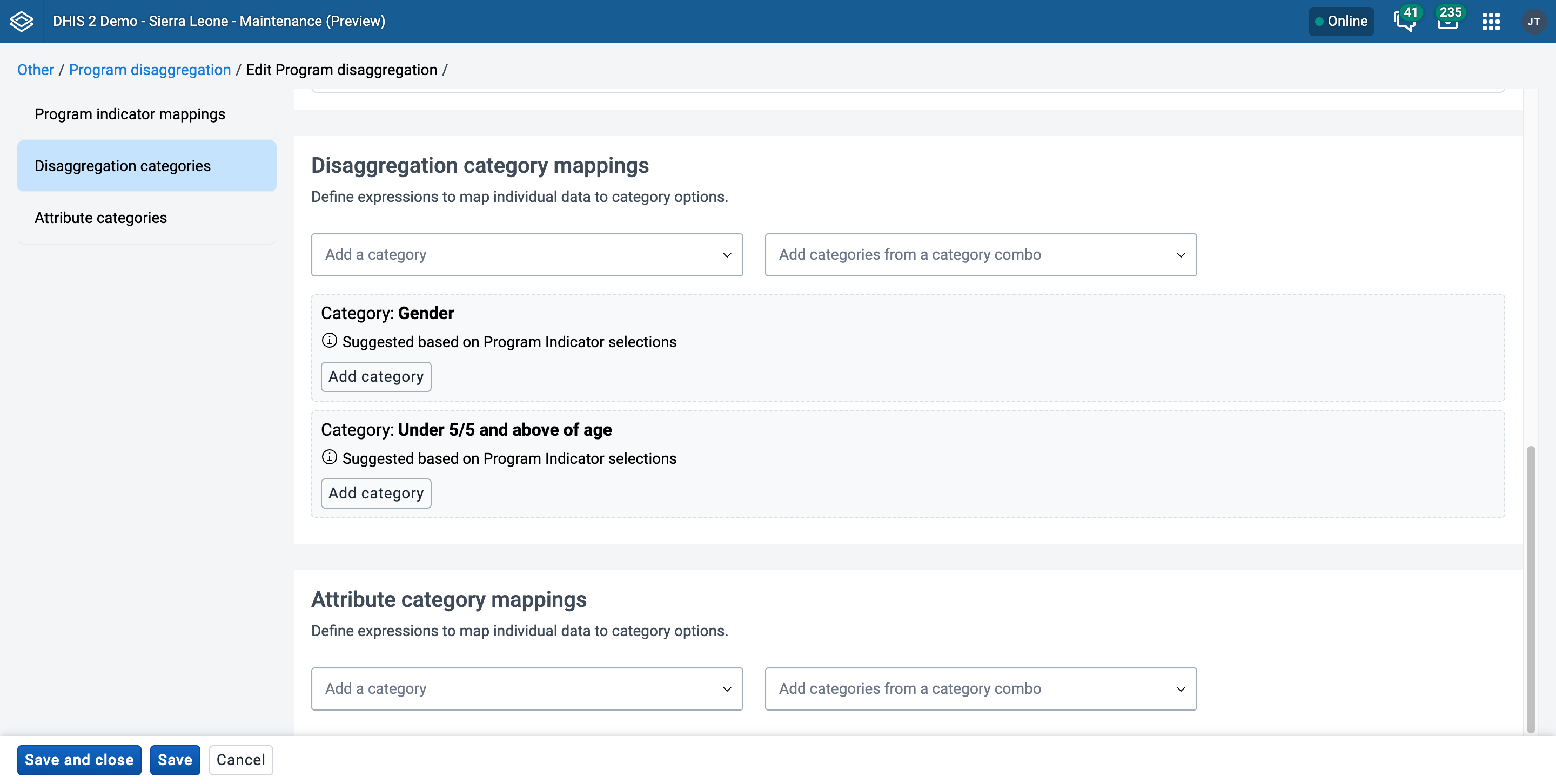
Under the Disaggregation categories section you should see both of the categories from the combination added as suggestion. Click Add category for both both Gender and U5y
Create the category mappings
-
In the text field under each Category enter an expression using the Program Data Elements and Attributes that defines the category. The expression uses the same syntax as the Filter section of the Program Indicator creation screen. It is recommended to open a Program Indicator within the Program you are mapping, use the Filter screen to construct the expression and then copy it into this field. This allows you to use the inbuilt expression validation of the Program Indicator filter builder. Program Indicator functions and Variale operators


This example is linking the value selected in the Gender data element in the Program to the category option. Since the Option set in this case is a text field the expression is set to match the text ‘Female’. The next example for age shows a different way to define the relationship.

To add the mapping for the Under 5 years and 5 years and above, since it is a numerical field you can use the operators
>>=<<===!=to define the relationship
-
When mappings for all the category options click Save and exit
-
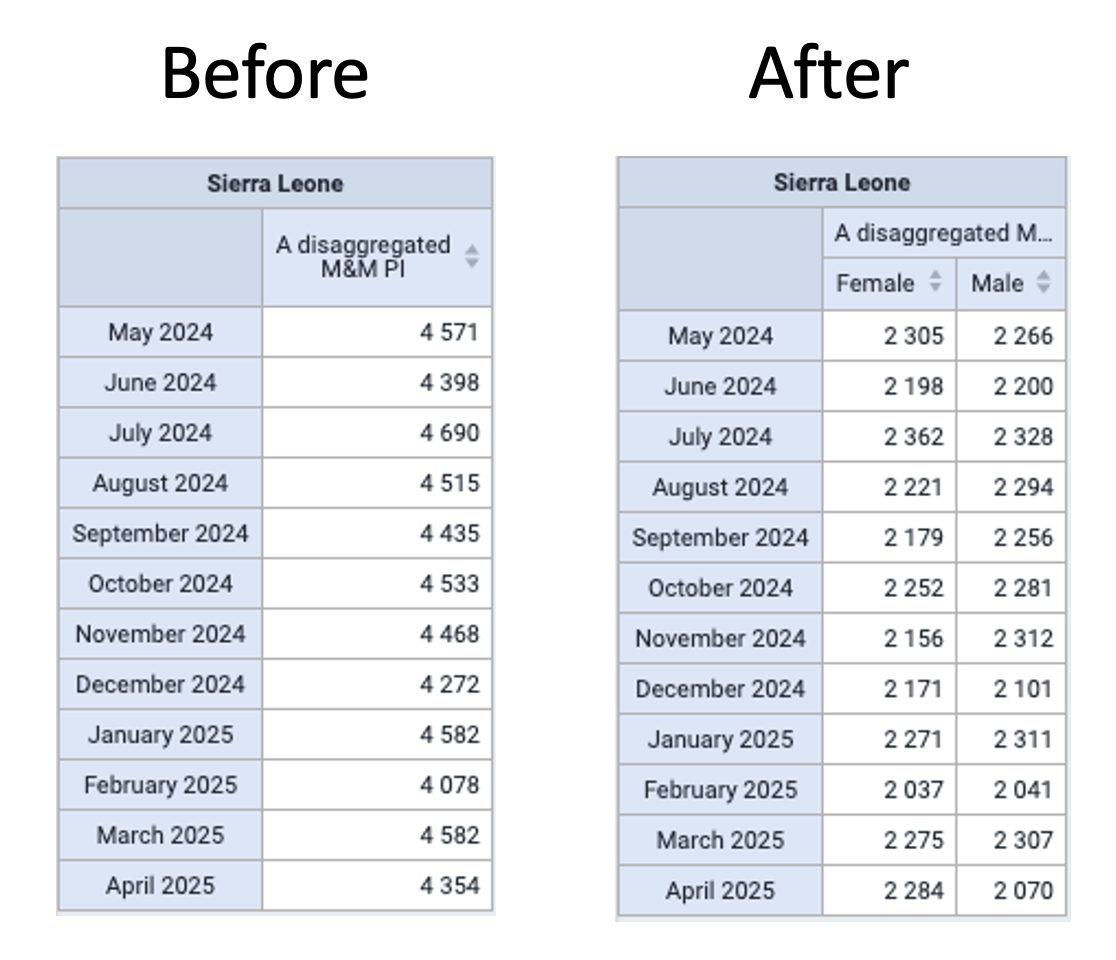
Open Data Visualizer, first let’s look at how these data were previously displayed. To do this create a visualisation to show the data of the 5 existing Program indicators with the built in disaggregations shown below.


-
Now remove the 4 Program Indicators with disaggregations specified and leave only the BMI Program Indicator.

-
You can now add Gender and Under 5/5 and above of age as disaggregation categories from the Your Dimensions column for the Program Indicator, click update and see the results.

You can now compare the data from the two separate program indicators and the single program indicator that has been disaggregated.
Transferring Program Indicator data via the Aggregate data exchange app
In addition to viewing a disaggregated Program Indicator in the Data Visualiser you can now transfer the Program Data, via the Disaggregated Program indicator, into a Data Element that shares the same Category Combination.

By adding the ID of a Data Element in the Data element for aggregate data export field and then setting up the aggregate data exchange app* to transfer data you can save Program data in the aggregate data model

Nakonfigurujte pravidla programu
O pravidlech programu
Program rules allows you to create and control dynamic behaviour of the user interface in the Tracker Capture and Event Capture apps. During data entry, the program rules expressions are evaluated each time the user interface is displayed, and each time a data element is changed. Most types of actions will take effect immediately when the user enters values in the Tracker Capture and Event Capture apps.
Tabulka: Komponenty programových pravidel
| Komponenta programového pravidla | Popis |
|---|---|
| Akce programového pravidla | Každé pravidlo programu obsahuje jednu nebo více akcí. Toto jsou chování, která se spouštějí v uživatelském rozhraní, když je výraz pravdivý. Akce budou použity okamžitě, pokud je výraz pravdivý, a budou vráceny, pokud výraz již nebude pravdivý. Existuje několik typů akcí a v jednom pravidle programu můžete mít několik akcí. |
| Výraz programového pravidla | Každé programové pravidlo má jeden výraz, který určuje, zda mají být spuštěny akce programového pravidla, pokud je výraz vyhodnocen jako pravdivý. Pokud je výraz pravdivý, programové pravidlo je platné a akce se provedou. Pokud je výraz nepravdivý, programové pravidlo již neplatí a akce se již nebudou uplatňovat. Výraz vytvoříte pomocí standardních matematických operátorů, uživatelských funkcí, uživatelem definovaných statických hodnot a proměnných programových pravidel. Proměnné programových pravidel představují hodnoty atributů a datových prvků, které budou vyhodnoceny jako součást výrazu. |
| Proměnná pravidla programu | Proměnné programových pravidel vám umožňují zahrnout datové hodnoty a hodnoty atributů do výrazů programových pravidel. Před vytvořením programového pravidla budete obvykle muset vytvořit jednu nebo několik proměnných programového pravidla. Důvodem je, že výrazy programových pravidel obvykle obsahují alespoň jeden datový prvek nebo hodnotu atributu, aby měly smysl. Proměnné programových pravidel jsou sdíleny všemi pravidly ve vašem programu. Když vytvoříte více programových pravidel pro stejný program, budou tato pravidla sdílet stejnou knihovnu proměnných programových pravidel. |
V aplikaci Údržba spravujete následující objekty pravidel programu:
| Typ objektu | Dostupné funkce |
|---|---|
| Pravidlo programu | Vytvářejte, upravujte, klonujte, odstraňujte, zobrazujte podrobnosti a překládejte |
| Proměnná pravidla programu | Vytvářejte, upravujte, klonujte, sdílejte, odstraňujte, zobrazujte podrobnosti a překládejte |
Pracovní postup
-
In the Maintenance app, create program rule variable(s) if needed.
-
V aplikaci Údržba vytvořte programové pravidlo:
-
Zadejte podrobnosti pravidla programu.
-
Vytvořte výraz pravidla programu.
-
Definujte akce pravidel programu.
-
-
In the Tracker Capture or Event Capture apps, verify that the program rule behaves as expected.
Vytvořte nebo upravte proměnnou pravidla programu
-
Open the Maintenance app and click Program > Program rule variable.
-
Klikněte na tlačítko Přidat.
-
Select a Program and enter a Name
Please note that the name of the program may not contain any of the following exlcuded keywords: -
and-or-not -
Vyberte, pokud chcete Použít kód pro sadu možností.
This option is only effective when the data element or tracked entity attribute is connected to an option set. If you don't select this option, the program rule variable will be populated with the option set's name. If you select the option, the program rule variable will be populated with the option set's code instead.
-
Vyberte Typ zdroje a zadejte požadované informace.
Depending on the source type, you'll have to select, for example, a Program stage, Data element or Tracked entity attribute.
The source types determine how the program rule variable is populated with a value.
Source type Description Data element from the newest event for a program stage This source type works the same way as Data element from the newest event in the current program, except that it only evaluates values from one program stage.
This source type can be useful in program rules where the same data element is used in several program stages, and a rule needs to evaluate the newest data value from within one specific stage.
In order to know what event is the newest, the report date (event date) is used. If you have many events with the same report date, the system choose the one with the latest createdAt property of the event.Data element from the newest event in the current program This source type is used when a program rule variable needs to reflect the newest known value of a data element, regardless of what event the user currently has open.
This source type is populated slightly differently in Tracker Capture and Event Capture apps:
Tracker Capture: the program rule variable will be populated with the newest data value collected for the given data element within the enrollment.
Event Capture: the program rule variable will be populated with the current events data.
NB Future dates are "newer" than current or past dates.
In order to know what event is the newest, the report date (event date) is used. If you have many events with the same report date, the system choose the one with the latest createdAt property of the event.Data element in current event Program rule variables with this source type will contain the data value from the same event that the user currently has open.
This is the most commonly used source type, especially for skip logic (hide actions) and warning/error rules.Data element from previous event Program rule variables with this source type will contain the value from a specified data element from a previous event. Only older events is evaluated, not including the event that the user currently has open.
This source type is commonly used when a data element only should be collected once during an enrollment, and should be hidden in subsequent events.
Another use case is making rules for validating input where there is an expected progression from one event to the next - a rule can evaluate whether the previous value is higher/lower and give a warning if an unexpected value is entered.Calculated value Program rule variable with this source type is not connected directly to any form data - but will be populated as a result of some other program rules ASSIGN action.
This variable will be used for making preliminary calculations, having a ASSIGN program rule action and assigning a value, this value can be used by other program rules - potentially making the expressions simpler and more maintanable.
These variables will not be persisted and will stay in memory only during the execution of the set of program rules. Any program rule that assigns a data value to a preliminary calculated value would normally also have a priority assigned - to make sure that the preliminary caculation is done before the rule that consumes the calculated value.Tracked entity attribute Populates the program rule variable with a specified tracked entity attribute for the current enrollment.
Use this is the source type to create program rules that evaluate data values entered during registration.
This source type is also useful when you create program rules that compare data in events to data entered during registration.
This source type is only used for tracker programs (programs with registration). -
Klikněte Uložit.
Vytvořte nebo upravte programové pravidlo
Poznámka
Pravidlo programu patří přesně jednomu programu.
-
Open the Maintenance app and click Program > Program rule.
-
Klikněte na tlačítko Přidat.
-
Enter the program rule details. These fields are not shown to the end user, they are only meant for the program administrator.
-
Program
-
Pravidlo spouštění pouze pro programovou fázi
If a program stage is selected, the program rule will only run for the selected program stage, as opposed to being run for every program stage in the program.
-
Název
-
Popis
-
Priority
Let's say you have 16 program rules in your program. You configure the program rules with the following priority settings:
-
Priorita 1 pro programové pravidlo A
-
Priorita 2 pro programová pravidla B - K
-
Žádná priorita pro programová pravidla L - P
Result: the system runs the program rules in the following order:
-
Programové pravidlo A
-
Program rules B - K (you can't find out or configure in which order the system runs these program rules)
-
Programová pravidla L - P.
-
-
-
Click Enter program rule expression and create the program rule expression with the help of variables, functions and operators.
-
Click Define program rule actions and create the actions executed when the expression is true.
-
Click the add button, select an Action and enter the required information.
Depending on the action type, you'll have to perform different types of settings. For some action types, you must also enter free text or create expressions.
Action type Required settings Description Assign value Data element to assign value to
Tracked entity attribute to assign value to
Program rule variable to assign value to
Expression to evaluate and assignUsed to help the user calculate and fill out fields in the data entry form. The idea is that the user shouldn’t have to fill in values that the system can calculate, for example BMI.
When a field is assigned a value, the user sees the value but the user can't edit it.
NOTE: To assign a value to a tracked entity attribute, the user needs to open the tracked entity profile widget for the rule to trigger.
Example from Immunization stock card i Zambia: The data element for vaccine stock outgoing balance is calculated based on the data element for incoming stock balance minus the data elements for consumption and wastage.
Advanced use: configure an 'assign value' to do a part of a calculation and then assign the result of the calculation to a program rule variable. This is the purpose with the "Calculated value" program rule variable.Display text Display widget
Static text
Expression to evaluate and display after static textUsed to display information that is not an error or a warning, for example feedback to the user. You can also use this action to display important information, for example the patient's allergies, to the user. Display key/value pair Display widget
Key label
Expression to evaluate and display as valueUsed to display information that is not an error or a warning.
Example: calculate number of weeks and days in a pregnancy and display it in the format the clinician is used to see it in. The calculation is based on previous recorded data.Error on complete Data element to display error next to
Tracked entity attribute to display error next to
Static text
Expression to evaluate and display after static textUsed whenever you've cross-consistencies in the form that must be strictly adhered to. This action prevents the user from continuing until the error is resolved.
This action differs from the regular Show error since the error is not shown until the user tries to actually complete the form.
If you don't select a data element or a tracked entity attribute to display the error next to, make sure you write a comprehensive error message that helps the user to fix the error.Hide field Data element to hide
Tracked entity attribute to hide
Custom message for blanked fieldUsed when you want to hide a field from the user.
Custom message for blanked field allows you to define a custom message displayed to the user in case the program rule hides and blanks out the field after the user typed in or selected a value.
If a hide field action hides a field that contains a value, the field will always removed. If no message is defined, a standard message will be displayed to alert the user.Hide section Program stage section to hide Used when you want to hide a section in a program stage from the user. Prevent adding new events to stage Program stage where users will not be able to add new events Used when you do not want users to add any more events to a program stage. Existing events will not be hidden. Make field mandatory Data element to make mandatory
Tracked entity attribute to make mandatoryUsed when you want to make a data element or tracked entity attribute mandatory so they have to be filled out before the form can be saved. Show error Data element to display error next to
Tracked entity attribute to display error next to
Static text
Expression to evaluate and display after static textUsed whenever there are rules which must strictly be adhered to. The show error action prevents the user from continuing until the error is resolved.
Such a strict validation should only be used when it's certain that the evaluated expression is never true unless the user has made a mistake in data entry.
It's mandatory to define a message that is shown to the user when the expression is true and the action is triggered.
You can select which data element or tracked entity attribute to link the error to. This will help the user to fix the error.
In case several data elements or attributes are involved, select the one that is most likely that the user would need to change.Show warning Data element to display warning next to
Tracked entity attribute to display warning next to
Static text
Expression to evaluate and display after static textUsed to give the user a warning about the entered data, but at the same time to allow the user to save and continue.
You can use warnings to help the user avoid errors in the entered data, while at the same time allow the user to consciously disregard the warnings and save a value that is outside preset expectations.
Static text defines the message shown to the user when the expression is true and the action is triggered.
You can select which data element or tracked entity attribute to link the error to. This will help the user to fix the error.
In case several data elements or attributes are involved, select the one that is most likely that the user would need to change.Warning on complete Data element to display warning next to
Tracked entity attribute to display warning next to
Static text
Expression to evaluate and display after static textUsed to give the user a warning if he/she tries to complete inconsistent data, but at the same time to allow the user to continue. The warning is shown in a dialog when the user completes the form.
Static text defines the message shown to the user when the expression is true and the action is triggered. This field is mandatory.
You can select which data element or tracked entity attribute to link the error to. This will help the user to fix the error.
If you don't select a data element or a tracked entity attribute to display the error next to, make sure you write a comprehensive error message that helps the user to fix the error.Send Message Message template to send Send Message triggers a notification based on provided message template. This action will be taken immediately. The message template will be parsed and variables will be substituted with actual values. Schedule Message Message template to send
Data field which contains expression to evaluate the date which notification should be sent at. If this expression results in any value other than Date, then resultant will be discarded and notification will not get scheduled.Schedule Message will schedule notification at date provided by Expression in the data field. Sample expression is given below
d2:addDays( '2018-04-20', '2' )
Message template will be parsed and variables will be substituted with actual values.Hide option Data element to hide option for
Tracked entity attribute to hide option for
Option that should be hiddenUsed to selectively hide a single option for an option set in a given data element/tracked entity attribute.
When combined with show option group the hide option takes presedence.Hide option group Data element to hide option group for
Tracked entity attribute to hide option group for
Option group that should be hiddenUsed to hide all options in a given option group and data element/tracked entity attribute.
When combined with show option group the hide option group takes precedence.Show option group Data element to show option group for
Tracked entity attribute to show option group for
Option group that should be shownUsed to show only options from a given option group in a given data element/tracked entity attribute. To show an option group implicitly hides all options that is not part of the group(s) that is shown. -
Click Save.
-
(Optional) Repeat above steps to add more actions.
-
-
Klikněte Uložit.
Příklad: Pravidla programu
Poznámka
Všechny ukázky si můžete prohlédnout na demo serveru: https://play.dhis2.org/dev/dhis-web-maintenance/#/list/programSection/programRule
This example shows how to configure a program rule which calculate number of weeks and days in a pregnancy and display the result in the format the clinician is used to see it in. The calculation is based on previous recorded data.
-

-

-

Celý výraz v poli Data:
d2:concatenate(d2:weeksBetween(#{lmp}, V{current_date}), '+',
d2:modulus(d2:daysBetween(#{lmp}, V{current_date}), 7))

This example shows how to configure a program rule to display text in the Feedback widget in the Tracker Capture app.


This example shows how to configure a program rule to always display certain data in the Feedback widget in the Tracker Capture app. This is useful when you want to make sure that vital data, for example medicine allergies, is always visible.


By using a program rule of type "Assign value" you can calculate the "Gestational age at visit" value and fill it in the data entry form. You configure the program rule to calculate "Gestational age at visit" based on either "LMP date" or "Ultrasound estimated due date".


Referenční informace: Operátory a funkce, které se mají použít ve výrazu pravidel programu
Tip
You can nest functions within each other and with sub-expressions to form more complex conditions. An example that produces the gestational age in weeks, based on last menstrual date:
d2:floor( d2:daysBetween(#{lastMenstrualDate},V{event_date}) / 7 )
Tip
The source type will determine how the d2: function calls will evaluate a (sourcefield) parameter.
Example: where #{hemoglobinCurrent} is set to source type Data element in current event. The following function call with evaluate whether haemoglobin is entered in the current event.
d2:hasValue( 'hemoglobinCurrent' )
Example: where #{hemoglobin} is set to source type Data element from the newest event in the current program. The following function call with evaluate whether there exists a value for the haemoglobin in any event in the enrollment.
d2:hasValue( 'hemoglobin' )
Example: where #{hemoglobinPrevious} is set to source type Data element from previous event . The following function call with evaluate whether there exists a value for the haemoglobin among the events preceding the current event.
d2:hasValue( 'hemoglobinPrevious' )
Tabulka: Možné operátory pro použití ve výrazu programového pravidla
| Operátor | Popis |
|---|---|
| + | Sečtěte čísla |
| - | Odečtěte od sebe čísla |
| * | Vynásobte dvě čísla |
| / | Rozdělte dvě čísla |
| % | Modul dvou čísel |
| && | Logické AND. Pravda, pouze když je pravdivý výraz na levé a pravé straně. Levá a pravá strana může být ano/ne, pouze ano nebo podvýraz v závorce. |
| || | Logické OR. True, když je pravdivý buď výraz nalevo, nebo výraz na pravé straně. Levá a pravá strana může být ano/ne, pouze ano nebo podvýraz v závorce. |
| > | Levé číslo větší než pravé číslo |
| >= | Levé číslo větší nebo rovno pravému číslu |
| < | Levé číslo menší než pravé číslo |
| <= | Levé číslo menší nebo rovno pravému číslu. |
| == | Levá strana se rovná pravé straně. Podporuje čísla, text, ano/ne a pouze ano. |
| != | Levá strana se nerovná pravé straně. Podporuje čísla, text, ano/ne a pouze ano. |
| ! | Neguje následující hodnotu. Lze použít pro ano / ne, pouze ano nebo dílčí výraz v závorkách. |
| () | Závorky se používají k seskupování dílčích výrazů. |
Tabulka: Vlastní funkce pro použití ve výrazu programového pravidla
| Funkce | Argumenty | Popis |
|---|---|---|
| d2:addDays | (datum, číslo) | Vytvoří datum na základě data prvního argumentu a přidá k druhému argumentu počet dní. Příklad výpočtu termínu těhotenství na základě poslední menstruace: d2:addDays(#{lastMenstrualDate},'283') |
| d2:ceil | (číslo) | Zaokrouhlí vstupní argument nahoru na nejbližší celé číslo. Příklad: d2:ceil(#{hemoglobinValue}) |
| d2:concatenate | (object, [,object, object,...]) | Produces a string concatenated string from the input parameters. Supports any number of parameters. Will mainly be in use in future action types, for example to display gestational age with d2:concatenate('weeks','+','gestationalageDays'). |
| d2:contains | (text,text, ...) | Searches an expression for one or more substrings. Returns true if the expression contains all the substrings. For example, the following are all true: contains("abcd", "abcd"); contains("abcd", "b"); and contains("abcd", "ab", "bc"). Comparisons are case-sensitive. |
| d2:containsItems | (text,text, ...) | Searches an expression for one or more items. The expression is made up of comma-separated elements. containsItems returns true if every item exactly matches an element in the expression. For example, containsItems("abcd", "abcd") and containsItems("ab,cd", "ab", "cd") are true, but containsItems("abcd", "b") and containsItems("abcd", "ab", "bc") are false. Comparisons are case-sensitive. containsItems can be used for multi-valued data elements to see if an item is contained in the data element values. |
| d2:count | (zdrojové pole) | Counts the number of values that is entered for the source field in the argument. The source field parameter is the name of one of the defined source fields in the program - see example Example usage where #{previousPregnancyOutcome} is one of the source fields in a repeatable program stage "previous pregnancy":d2:count('previousPregnancyOutcome') |
| d2:countIfValue | (zdrojové pole, text) | Counts the number of matching values that is entered for the source field in the first argument. Only occurrences that matches the second argument is counted. The source field parameter is the name of one of the defined source fields in the program - see example. Example usage where #{previousPregnancyOutcome} is one of the source fields in a repeatable program stage "previous pregnancy". The following function will produce the number of previous pregnancies that ended with abortion:d2:countIfValue('previousPregnancyOutcome','Abortion') |
| d2:countIfZeroPos | (zdrojové pole) | Counts the number of values that is zero or positive entered for the source field in the argument. The source field parameter is the name of one of the defined source fields in the program - see example. Example usage where #{fundalHeightDiscrepancy} is one of the source fields in program, and it can be either positive or negative. The following function will produce the number of positive occurrences:d2:countIfZeroPos('fundalHeightDiscrepancy') |
| d2:daysBetween | (datum, datum) | Vytváří počet dní mezi prvním a druhým argumentem. Když datum prvního argumentu předchází datu druhého argumentu, číslo bude kladné - v opačném případě bude číslo záporné. Statický formát data je 'yyyy-MM-dd'. Příklad výpočtu gestačního věku (ve dnech) ženy na základě poslední menstruace a aktuálního data události: d2:daysBetween(#{lastMenstrualDate},V{event_date}) |
| d2:extractDataMatrixValue | Get GS1 value based on application identifier | Given a field value formatted with the gs1 data matrix standard and a string key from the GS1 application identifiers. The function looks and returns the value linked to the provided key. Example expression: d2:extractDataMatrixValue( 'gtin', A{GS1 Value} ) |
| d2:floor | (číslo) | Rounds the input argument down to the nearest whole number. An example producing the number of weeks the woman is pregnant. Notice that the sub-expression #{gestationalAgeDays}/7 is evaluated before the floor function is executed:d2:floor(#{gestationalAgeDays}/7) |
| d2:hasUserRole | (role uživatele) | Returns true if current user has this role otherwise false Example expression: d2:hasUserRole('UYXOT4A3ASA') |
| d2:hasValue | (zdrojové pole) | Vyhodnotí se jako pravdivé pro zdrojové pole argumentu obsahuje hodnotu, false, pokud není zadána žádná hodnota. Příklad použití ke zjištění, zda je zdrojové pole #{currentPregnancyOutcome} ještě vyplněno: d2:hasValue('currentPregnancyOutcome') |
| d2:inOrgUnitGroup | (text) | Vyhodnocuje, zda je aktuální organizační jednotka ve skupině argumentů. Argument lze definovat buď pomocí ID nebo kódu skupiny organizační jednotky. Aktuální organizační jednotka bude organizační jednotkou události, když jsou pravidla spuštěna v kontextu události, a registrující organizační jednotkou, když jsou pravidla spuštěna v případě registračního formuláře TEI. Příklad výrazu: d2:inOrgUnitGroup('VYSOKÉ_RIZIKO_ZAŘÍZENÍ') |
| d2:lastEventDate | Get the last event date for entered data | Gets the event date when the underlying data element was entered in the previous event in a program stage |
| d2:left | (text, počet znaků) | Hodnotí levou část textu, num-znaky od prvního znaku. Text lze citovat nebo vyhodnotit z proměnné: d2:left(#{variableWithText}, 3) |
| d2:length | (text) | Najděte délku řetězce. Příklad: d2:length(#{variableWithText}) |
| d2:maxValue | Získejte maximální hodnotu pro poskytnutou položku | Funkce získá maximální hodnotu poskytnutého datového prvku v rámci celého zápisu. Příklad výrazu: d2:maxValue( 'blood-pressure' ) |
| d2:minValue | Získejte minimální hodnotu pro poskytnutou položku | Funkce získá minimální hodnotu poskytnutého datového prvku během celého zápisu. Příklad výrazu: d2:minValue( 'blood-pressure' ) |
| d2:modulus | (číslo, číslo) | Vytváří modul při dělení prvního argumentem druhým. Příklad udávající počet dní, po které je žena v aktuálním týdnu těhotenství: d2:modulus(#{gestationalAgeDays},7) |
| d2:monthsBetween | (datum, datum) | Vytváří počet celých měsíců mezi prvním a druhým argumentem. Když datum prvního argumentu předchází datu druhého argumentu, číslo bude kladné – v opačném případě bude číslo záporné. Statický formát data je 'yyyy-MM-dd'. |
| d2:oizp | (číslo) | Vyhodnotí argument typu číslo na jeden, pokud je hodnota nula nebo kladná, jinak nula. |
| d2:right | (text, počet znaků) | Hodnotí na pravou část textu, num-znaky od posledního znaku. Text lze citovat nebo vyhodnotit z proměnné: d2:right(#{variableWithText}, 2) |
| d2:round | (number [, decimals]) | Rounds the input argument to the nearest integer. An optional second argument can be provided to specify a number of decimal places to which the number is to be rounded. Example: d2:round(1.25, 1) = 1.3 |
| d2:substring | (text, start-char-num, end-char-num) | Vyhodnocuje se na část řetězce zadanou číslem počátečního a koncového znaku. Příklad výrazu: d2:substring(#{variableWithText}, 1, 3) Pokud by #{variableWithText} ve výše uvedeném příkladu bylo 'BC', výsledek vyhodnocení by byl 'ABCD', |
| d2:split | (text, oddělovač, číslo prvku) | Rozdělte text oddělovačem a ponechte n-tý prvek (0 je první). Text může být citován nebo vyhodnocen z proměnné, oddělovač musí být citován: d2:split(#{variableWithText}, '-', 1) Poznámka: oddělovač čárkou(,) není podporován. |
| d2:validatePattern | (text, vzor regulárního výrazu) | Evaluates to true if the input text is an exact match with the supplied regular expression pattern. The regular expression needs to be escaped. Example expression, triggering actions if a number is not on the pattern 9999/99/9: !d2:validatePattern(A{nrc},'\\d{6}\/\\d{2}\/\\d') Example expression, triggering actions that if the address is not consisting of letters or white spaces, then a white space, then a number: !d2:validatePattern(A{registrationAddress},'[\\w ]+ \\d+') Example, triggering actions if a name contains any numbers: !d2:validatePattern(A{name},'[^\\d]*') Example expression, triggering actions if a mobile number contains the illegal number sequence 555: d2:validatePattern(A{mobile} ,'.*555.*') |
| d2:weeksBetween | (datum, datum) | Vytváří počet celých týdnů mezi prvním a druhým argumentem. Když datum prvního argumentu předchází datu druhého argumentu, číslo bude kladné - v opačném případě bude číslo záporné. Statický formát data je 'yyyy-MM-dd'. |
| d2:yearsBetween | (datum, datum) | Vytváří počet let mezi prvním a druhým argumentem. Když datum prvního argumentu předchází datu druhého argumentu, číslo bude kladné – v opačném případě bude číslo záporné. Statický formát data je 'yyyy-MM-dd'. |
| d2:zing | (číslo) | Vyhodnotí argument typu číslo na nulu, pokud je hodnota záporná, jinak na samotnou hodnotu. |
| d2:zpvc | (object, [,object, object,...]) | Vrátí počet číselných nul a kladných hodnot mezi danými argumenty objektu. Lze uvést libovolný počet argumentů. |
| d2:zScoreWFA | Váha Z-Score pro indikátor věku | Calculates z-score based on data provided by WHO weight-for-age indicator. e varies between -3.5 to 3.5 depending upon the value of weight. Example expression: d2:zScoreWFA( ageInMonths, weight, gender ) Gender > Gender is considered female by default. Any of the following codes can > be used to denote male: 'Male', 'MALE', 'male', 'ma', 'm', 'M', 0, false |
| d2:zScoreHFA | Výška Z-skóre pro ukazatel věku | Vypočítá z-skóre na základě údajů poskytnutých WHO ukazatelem výšky k věku. Jeho hodnota se pohybuje mezi -3,5 až 3,5 v závislosti na hodnotě výšky. Příklad výrazu: d2:zScoreHFA( ageInMonths, height, gender ) |
| d2:zScoreWFH | Váha Z-Score pro ukazatel výšky | Vypočítá z-skóre na základě údajů odvozených z ukazatelů WHO váha k délce a váha k výšce. Údaje použité pro dívky lze nalézt zde a pro chlapce zde. Jeho hodnota se pohybuje mezi -3,5 až 3,5 v závislosti na hodnotě hmotnosti. Příklad výrazu: d2:zScoreWFH( výška, váha, pohlaví ) |
| AI | Data Title | Popis | Fixed Length |
|---|---|---|---|
| 00 | SSCC | SSCC (Serial Shipping Container Code) | 20 |
| 01 | GTIN | Global Trade Item Number | 16 |
| 02 | CONTENT | GTIN of Trade Items Contained in a logistic unit | 16 |
| 10 | LOT_NUMBER | Batch or lot number | Proměnná |
| 11 | PROD_DATE | Production date (YYMMDD) | 8 |
| 12 | DUE_DATE | Due date (YYMMDD) | 8 |
| 13 | PACK_DATE | Packaging date (YYMMDD) | 8 |
| 15 | BEST_BEFORE_DATE | Best before date (YYMMDD) | 8 |
| 16 | SELL_BY | Sell by date (YYMMDD) | 8 |
| 17 | EXP_DATE | Expiration date (YYMMDD) | 8 |
| 20 | VARIANT | Internal Product variant | 4 |
| 21 | SERIAL_NUMBER | Serial number | Proměnná |
| 22 | CPV | Consumer product variant | Proměnná |
| 235 | TPX | Third Party Controlled, Serialised Extension of Global Trade Item Number (GTIN) (TPX) | Proměnná |
| 240 | ADDITIONAL_ID | Additional product identification assigned by the manufacturer | Proměnná |
| 241 | CUSTOMER_PART_NUMBER | Customer part number | Proměnná |
| 242 | MTO_VARIANT_NUMBER | Made-to-Order Variation Number | Proměnná |
| 243 | PCN | Packaging component number | Proměnná |
| 250 | SECONDARY_SERIAL | Secondary serial number | Proměnná |
| 251 | REF_TO_SOURCE | Reference to source entity | Proměnná |
| 253 | GDTI | Global Document Type Identifier | Proměnná |
| 254 | GLN_EXTENSION_COMPONENT | GLN Extension component | Proměnná |
| 255 | GCN | Global Coupon Number (GCN) | Proměnná |
| 30 | VAR_COUNT | Variable count | Proměnná |
| 310* | NET_WEIGHT_KG | Net weight, kilograms (variable measure trade item | Proměnná |
| 311* | LENGTH_M | Length or first dimension, metres (variable measure trade item) | Proměnná |
| 312* | WIDTH_M | Width, diameter, or second dimension, metres (variable measure trade item) | Proměnná |
| 313* | HEIGHT_M | Depth, thickness, height, or third dimension, metres (variable measure trade item) | Proměnná |
| 314* | AREA_M2 | Area, square metres (variable measure trade item) | Proměnná |
| 315* | NET_VOLUME_L | Net volume, litres (variable measure trade item) | Proměnná |
| 316* | NET_VOLUME_M3 | Net volume, cubic metres (variable measure trade item) | Proměnná |
| 320* | NET_WEIGHT_LB | Net weight, pounds (variable measure trade item) | Proměnná |
| 321* | LENGTH_I | Length or first dimension, inches (variable measure trade item) | Proměnná |
| 322* | LENGTH_F | Length or first dimension, feet (variable measure trade item) | Proměnná |
| 323* | LENGTH_Y | Length or first dimension, yards (variable measure trade item) | Proměnná |
| 324* | WIDTH_I | Width, diameter, or second dimension, inches (variable measure trade item) | Proměnná |
| 325* | WIDTH_F | Width, diameter, or second dimension, feet (variable measure trade item) | Proměnná |
| 326* | WIDTH_Y | Šířka, průměr nebo druhý rozměr, yardy (obchodní položka s proměnnou mírou) | Proměnná |
| 327* | HEIGHT_I | Depth, thickness, height, or third dimension, inches (variable measure trade item) | Proměnná |
| 328* | HEIGHT_F | Depth, thickness, height, or third dimension, feet (variable measure trade item) | Proměnná |
| 329* | HEIGHT_Y | Depth, thickness, height, or third dimension, yards (variable measure trade item) | Proměnná |
| 330* | GROSS_WEIGHT_GF | Logistic weight, kilograms | Proměnná |
| 331* | LENGTH_M_LOG | Length or first dimension, metres | Proměnná |
| 332* | WIDTH_M_LOG | Width, diameter, or second dimension, metres | Proměnná |
| 333* | HEIGHT_M_LOG | Depth, thickness, height, or third dimension, metres | Proměnná |
| 334* | AREA_M2_LOG | Area, square metres | Proměnná |
| 335* | VOLUME_L_LOG | Logistic volume, litres | Proměnná |
| 336* | VOLUME_M3_LOG | Logistic volume, cubic metres | Proměnná |
| 337* | KG_PER_M2 | Kilograms per square metre | Proměnná |
| 340* | GROSS_WHEIGHT_LB | Logistic weight, pounds | Proměnná |
| 341* | LENGTH_I_LOG | Length or first dimension, inches | Proměnná |
| 342* | LENGTH_F_LOG | Length or first dimension, feet | Proměnná |
| 343* | LENGTH_Y_LOG | Length or first dimension, yards | Proměnná |
| 344* | WIDTH_I_LOG | Width, diameter, or second dimension, inches | Proměnná |
| 345* | WIDTH_F_LOG | Width, diameter, or second dimension, feet | Proměnná |
| 346* | WIDTH_Y_LOG | Width, diameter, or second dimension, yards | Proměnná |
| 347* | HEIGHT_I_LOG | Depth, thickness, height, or third dimension, inches | Proměnná |
| 348* | HEIGHT_F_LOG | Depth, thickness, height, or third dimension, feet | Proměnná |
| 349* | HEIGHT_Y_LOG | Depth, thickness, height, or third dimension, yards | Proměnná |
| 350* | AREA_I2 | Area, square inches (variable measure trade item) | Proměnná |
| 351* | AREA_F2 | Area, square feet (variable measure trade item) | Proměnná |
| 352* | AREA_Y2 | Area, square yards (variable measure trade item) | Proměnná |
| 353* | AREA_I2_LOG | Area, square inches | Proměnná |
| 354* | AREA_F2_LOG | Area, square feet | Proměnná |
| 355* | AREA_Y2_LOG | Area, square yards | Proměnná |
| 356* | NET_WEIGHT_T | Net weight, troy ounces (variable measure trade item) | Proměnná |
| 357* | NET_VOLUME_OZ | Net weight (or volume), ounces (variable measure trade item) | Proměnná |
| 360* | NET_VOLUME_Q | Net volume, quarts (variable measure trade item) | Proměnná |
| 361* | NET_VOLUME_G | Net volume, gallons U.S. (variable measure trade item) | Proměnná |
| 362* | VOLUME_Q_LOG | Logistic volume, quarts | Proměnná |
| 363* | VOLUME_G_LOG | Logistic volume, gallons U.S. | Proměnná |
| 364* | VOLUME_I3 | Net volume, cubic inches (variable measure trade item) | Proměnná |
| 365* | VOLUME_F3 | Net volume, cubic feet (variable measure trade item) | Proměnná |
| 366* | VOLUME_Y3 | Net volume, cubic yards (variable measure trade item) | Proměnná |
| 367* | VOLUME_I3_LOG | Logistic volume, cubic inches | Proměnná |
| 368* | VOLUME_F3_LOG | Logistic volume, cubic feet | Proměnná |
| 369* | VOLUME_Y3_LOG | Logistic volume, cubic yards | Proměnná |
| 37 | COUNT | Count of trade items or trade item pieces contained in a logistic unit | Proměnná |
| 390* | AMOUNT | Applicable amount payable or Coupon value, local currency | Proměnná |
| 391* | AMOUNT_ISO | Applicable amount payable with ISO currency code | Proměnná |
| 392* | PRICE | Applicable amount payable, single monetary area (variable measure trade item) | Proměnná |
| 393* | PRICE_ISO | Applicable amount payable with ISO currency code (variable measure trade item) | Proměnná |
| 394* | PRCNT_OFF | Percentage discount of a coupon | Proměnná |
| 395* | PRICE_UOM | Amount Payable per unit of measure single monetary area (variable measure trade item) | N4+N6 |
| 400 | ORDER_NUMBER | Customers purchase order number | Proměnná |
| 401 | GINC | Global Identification Number for Consignment (GINC) | Proměnná |
| 403 | ROUTE | Routing code | Proměnná |
| 410 | SHIP_TO_GLOB_LOC | Ship to / Deliver to Global Location Number (GLN) | Proměnná |
| 411 | BILL_TO_LOC | Bill to / Invoice to Global Location Number (GLN) | Proměnná |
| 412 | PURCHASED_FROM | Purchased from Global Location Number (GLN) | Proměnná |
| 413 | SHIP_FOR_LOG | Ship for / Deliver for - Forward to Global Location Number (GLN) | Proměnná |
| 414 | LOC_NUMBER | Identification of a physical location - Global Location Number (GLN) | Proměnná |
| 415 | PAY_TO | Global Location Number (GLN) of the invoicing party | Proměnná |
| 416 | PROD_SERV_LOC | Global Location Number (GLN) of the production or service location | Proměnná |
| 417 | PARTY | Party Global Location Number (GLN) | Proměnná |
| 420 | SHIP_TO_POST | Ship to / Deliver to postal code within a single postal authority | Proměnná |
| 421 | SHIP_TO_POST_ISO | Ship to / Deliver to postal code with ISO country code | Proměnná |
| 422 | ORIGIN | Country of origin of a trade item | Proměnná |
| 423 | COUNTRY_INITIAL_PROCESS | Country of initial processing | Proměnná |
| 424 | COUNTRY_PROCESS | Country of processing | Proměnná |
| 425 | COUNTRY_DISASSEMBLY | Country of disassembly | Proměnná |
| 426 | COUNTRY_FULL_PROCESS | Country covering full process chain | Proměnná |
| 427 | ORIGIN_SUBDIVISION | Country subdivision Of origin | Proměnná |
| 4300 | SHIP_TO_COMP | Ship-to / Deliver-to company name | Proměnná |
| 4301 | SHIP_TO_NAME | Ship-to / Deliver-to contact | Proměnná |
| 4302 | SHIP_TO_ADD1 | Ship-to / Deliver-to address line 1 | Proměnná |
| 4303 | SHIP_TO_ADD2 | Ship-to / Deliver-to address line 2 | Proměnná |
| 4304 | SHIP_TO_SUB | Ship-to / Deliver-to suburb | Proměnná |
| 4305 | SHIP_TO_LOCALITY | Ship-to / Deliver-to locality | Proměnná |
| 4306 | SHIP_TO_REG | Ship-to / Deliver-to region | Proměnná |
| 4307 | SHIP_TO_COUNTRY | Ship-to / Deliver-to country code | Proměnná |
| 4308 | SHIP_TO_PHONE | Ship-to / Deliver-to telephone number | Proměnná |
| 4310 | RTN_TO_COMP | Return-to company name | Proměnná |
| 4311 | RTN_TO_NAME | Return-to contact | Proměnná |
| 4312 | RTN_TO_ADD1 | Return-to address line 1 | Proměnná |
| 4313 | RTN_TO_ADD2 | Return-to address line 2 | Proměnná |
| 4314 | RTN_TO_SUB | Return-to suburb | Proměnná |
| 4315 | RTN_TO_LOCALITY | Return-to locality | Proměnná |
| 4316 | RTN_TO_REG | Return-to region | Proměnná |
| 4317 | RTN_TO_COUNTRY | Return-to country code | Proměnná |
| 4318 | RTN_TO_POST | Return-to postal code | Proměnná |
| 4319 | RTN_TO_PHONE | Return-to telephone number | Proměnná |
| 4320 | SRV_DESCRIPTION | Service code description | Proměnná |
| 4321 | DANGEROUS_GOODS | Dangerous goods flag | Proměnná |
| 4322 | AUTH_LEAV | Authority to leave | Proměnná |
| 4323 | SIG_REQUIRED | Signature required flag | Proměnná |
| 4324 | NBEF_DEL_DT | Not before delivery date time | Proměnná |
| 4325 | NAFT_DEL_DT | Not after delivery date time | Proměnná |
| 4326 | REL_DATE | Release date | Proměnná |
| 7001 | NSN | NATO Stock Number (NSN) | Proměnná |
| 7002 | MEAT_CUT | UN/ECE meat carcasses and cuts classification | Proměnná |
| 7003 | EXP_TIME | Expiration date and time | Proměnná |
| 7004 | ACTIVE_POTENCY | Active potency | Proměnná |
| 7005 | CATCH_AREA | Catch area | Proměnná |
| 7006 | FIRST_FREEZE_DATE | First freeze date | Proměnná |
| 7007 | HARVEST_DATE | Harvest date | Proměnná |
| 7008 | AQUATIC_SPECIES | Species for fishery purposes | Proměnná |
| 7009 | FISHING_GEAR_TYPE | Fishing gear type | Proměnná |
| 7010 | PROD_METHID | Production method | Proměnná |
| 7020 | REFURB_LOT | Refurbishment lot ID | Proměnná |
| 7021 | FUNC_STAT | Functional status | Proměnná |
| 7022 | REV_STAT | Revision status | Proměnná |
| 7023 | GIAI_ASSEMBLY | Global Individual Asset Identifier (GIAI) of an assembly | Proměnná |
| 703* | PROCESSOR_NUMBER | Number of processor with ISO Country Code | Proměnná |
| 7040 | UIC_EXT | GS1 UIC with Extension 1 and Importer index | Proměnná |
| 710 | NHRN_PZN | National Healthcare Reimbursement Number (NHRN) - Germany PZN | Proměnná |
| 711 | NHRN_CIP | National Healthcare Reimbursement Number (NHRN) - France CIP | Proměnná |
| 712 | NHRN_CN | National Healthcare Reimbursement Number (NHRN) - Spain CN | Proměnná |
| 713 | NHRN_DRN | National Healthcare Reimbursement Number (NHRN) - Brasil DRN | Proměnná |
| 714 | NHRN_AIM | National Healthcare Reimbursement Number (NHRN) - Portugal AIM | Proměnná |
| 723* | CERT_NUMBER | Certification reference | Proměnná |
| 7240 | PROTOCOL | Protocol ID | Proměnná |
| 8001 | DIMENSIONS | Roll products (width, length, core diameter, direction, splices) | Proměnná |
| 8002 | CMT_NUMBER | Cellular mobile telephone identifier | Proměnná |
| 8003 | GRAI | Global Returnable Asset Identifier (GRAI) | Proměnná |
| 8004 | GIAI | Global Individual Asset Identifier (GIAI) | Proměnná |
| 8005 | PRICE_PER_UNIT | Price per unit of measure | Proměnná |
| 8006 | ITIP | Identification of an individual trade item piece (ITIP) | Proměnná |
| 8007 | IBAN | International Bank Account Number (IBAN) | Proměnná |
| 8008 | PROD_TIME | Date and time of production | Proměnná |
| 8009 | OPTSEN | Optically Readable Sensor Indicator | Proměnná |
| 8010 | CPID | Component/Part Identifier (CPID) | Proměnná |
| 8011 | CPID_SERIAL | Component/Part Identifier serial number (CPID SERIAL) | Proměnná |
| 8012 | VERSION | Software version | Proměnná |
| 8013 | GMN | Global Model Number (GMN) | Proměnná |
| 8017 | GSRN_PROVIDER | Global Service Relation Number (GSRN) to identify the relationship between an organisation offering services and the provider of services | Proměnná |
| 8018 | GSRN_RECIPIENT | Global Service Relation Number (GSRN) k identifikaci vztahu mezi organizací nabízející služby a příjemcem služeb | Proměnná |
| 8019 | SRIN | Service Relation Instance Number (SRIN) | Proměnná |
| 8020 | REF_NUMBER | Payment slip reference number | Proměnná |
| 8026 | ITIP_CONTENT | Identification of pieces of a trade item (ITIP) contained in a logistic unit | Proměnná |
| 8110 | COUPON_USA | Coupon code identification for use in North America | Proměnná |
| 8111 | POINTS | Loyalty points of a coupon | Proměnná |
| 8121 | POSITIVE_OFFER_COUPON_USA | Paperless coupon code identification for use in North America | Proměnná |
| 8200 | PRODUCT_URL | Extended Packaging URL | Proměnná |
| 90 | AGREEMENT_INTERNAL | Information mutually agreed between trading partners | Proměnná |
| 91 | COMPANY_INTERNAL_1 | Company internal information | Proměnná |
| 92 | COMPANY_INTERNAL_2 | Company internal information | Proměnná |
| 93 | COMPANY_INTERNAL_3 | Company internal information | Proměnná |
| 94 | COMPANY_INTERNAL_4 | Company internal information | Proměnná |
| 95 | COMPANY_INTERNAL_5 | Company internal information | Proměnná |
| 96 | COMPANY_INTERNAL_6 | Company internal information | Proměnná |
| 97 | COMPANY_INTERNAL_7 | Company internal information | Proměnná |
| 98 | COMPANY_INTERNAL_8 | Company internal information | Proměnná |
| 99 | COMPANY_INTERNAL_9 | Company internal information | Proměnná |
Tabulka: Standardní proměnné pro použití ve výrazech programových pravidel
| Proměnná | Typ | Popis |
|---|---|---|
| V{current_date} | (datum) | Obsahuje aktuální datum při každém provedení pravidla. Příklad výrazu: d2:daysBetween(#{symptomDate},V{current_date}) < 0 |
| V{event_date} | (datum) | Obsahuje datum události aktuálního provedení události. V okamžiku, kdy je pravidlo provedeno jako součást registračního formuláře, nebude mít hodnotu. |
| V{event_status} | (řetězec) | Contains status of the current event or enrollment. Example expression to check status is: V{event_status} == 'COMPLETED' |
| V{due_date} | (datum) | Tato proměnná bude obsahovat aktuální datum, kdy je pravidlo provedeno. Poznámka: To znamená, že pravidlo může produkovat různé výsledky v různých časech, i když se nic jiného nezměnilo. |
| V{event_count} | (číslo) | Obsahuje celkový počet událostí v zápisu. |
| V{enrollment_date} | (datum) | Obsahuje datum zápisu aktuálního zápisu. Nebude mít hodnotu pro jednotlivé programy událostí. |
| V{incident_date} | (datum) | Obsahuje datum incidentu aktuálního zápisu. Nebude mít hodnotu pro jednotlivé programy událostí. |
| V{enrollment_id} | (řetězec) | Univerzální identifikační řetězec (UID) aktuálního zápisu. Nebude mít hodnotu pro jednotlivé programy. |
| V{enrollment_status} | (řetězec) | Contains status of the current enrollment. It can be ACTIVE, COMPLETED or CANCELLED. Example expression to check status is: V{enrollment_status} == 'COMPLETED' |
| V{event_id} | (řetězec) | Univerzální identifikační řetězec (UID) kontextu aktuální události. V okamžiku provedení pravidla jako součást registračního formuláře nebude mít hodnotu. |
| V{orgunit_code} | (řetězec) | Contains the code of the orgunit that is linked to the current enrollment. For single event programs the code from the current event orgunit will be used instead. Example expression to check whether orgunit code starts with WB_: d2:left(V{orgunit_code},3) == 'WB_' |
| V{environment} | (řetězec) | Obsahuje kód představující aktuální běhové prostředí pro pravidla. Možné hodnoty jsou „WebClient“, „AndroidClient“ a „Server“. Lze použít, když se pravidlo programu má spustit pouze v jednom nebo více typech klientů. |
| V{program_stage_id} | (řetězec) | Obsahuje ID aktuální programové fáze, která spustila pravidla. To lze použít ke spuštění pravidel ve specifických fázích programu nebo k zabránění provádění v určitých fázích. Při provádění pravidel v kontextu registračního formuláře TEI bude proměnná prázdná. |
| V{program_stage_name} | (řetězec) | Obsahuje název aktuální programové fáze, která spustila pravidla. To lze použít ke spuštění pravidel ve specifických fázích programu nebo k zabránění provádění v určitých fázích. Při provádění pravidel v kontextu registračního formuláře TEI bude proměnná prázdná. |
| V{completed_date} | (řetězec) | Tato proměnná obsahuje datum dokončení události, která spustila toto pravidlo. Pokud událost ještě není dokončena, pak "completed_date" neobsahuje nic. |
Nakonfigurujte typy vztahů
O typech vztahů
A relationship represents a link between two entities in the Tracker-model. A relationship is considered data in DHIS2 and is based on a Relationship Type, similar to how a Tracked Entity is based on a Tracked Entity Type.
Relationships always include two entities, and these entities can include Tracked Entities, Enrollments and Events, and any combination of these.
[!NOTE] Note that not all of these combinations are available in the current apps. Currently in the Capture app, you can create: * Tracked Entity to Tracked Entity Relationships * Event in Event Programs to Tracked Entity Relationships (Only from the Event side) * Event in one Program Stage to Event in another Program Stage in the same Program (Related stages - see more information here)
Kromě toho lze vztahy definovat jako jednosměrné nebo obousměrné. Jediným funkčním rozdílem je v současné době to, že jejich vytvoření vyžaduje různé úrovně přístupu. Jednosměrné vztahy vyžadují, aby měl uživatel přístup k zápisu dat do entity „od“ a přístup ke čtení dat pro entitu „komu“, zatímco obousměrné vztahy vyžadují přístup k zápisu dat pro obě strany.
Další informace o konfiguraci a významu 'Od omezení' a 'Do omezení' viz Relationship model.
Vytvořte nebo upravte typ vztahu
-
Open the Maintenance app and click Program > Relationship type.
-
Klikněte na tlačítko Přidat.
-
Zadejte název typu vztahu.
-
(Volitelné) Přiřaďte kód.
-
(Volitelné) Uveďte popis vztahu.
-
(Volitelné) Vyberte, zda má být vztah obousměrný
-
Uveďte Název vztahu při pohledu od iniciující entity. Toto je název vztahu, který se zobrazí v aplikaci Zadávání dat na „levé“ straně vztahu. Např. ve vztahu matka-dítě by to mohla být „matka“.
-
(Volitelné) Uveďte Název vztahu pohledem od přijímající entity. Toto je název vztahu, který se zobrazí na „pravé“ straně vztahu v aplikaci Data Entry. Např. ve vztahu nadřazený-podřazený by to mohl být „nadřazený“.
-
Select a 'From constraint'. This limits what kind of entities can be included in the relationship. Relationship model. After selecting a 'From constraint', you have the option to choose which attributes or data elements should be shown in the relationship widget in Tracker Capture and Capture for the "From constraint". The list will vary based on the constraint:
- When selecting “Tracked Entity Instance”, then a Tracked Entity Type only, choose between the configured Tracked Entity Type Attributes
- When selecting “Tracked Entity Instance”, then a Tracked Entity Type and a Program, choose between the the attributes that have been configured for both the Tracked Entity Type and for the Program
- When selecting “Enrollment in program”, choose between the attributes that have been configured for the Program
- When selecting “Event in program or program stage”, choose between the data elements that have been configured for that Event program or Program stage
-
Select a 'To constraint'. This limits what kind of entities that can be included in the relationship. Relationship model. Repeat the selection of attributes or data elements that should be shown in the relationship widget for the "To constraint".
-
Klikněte Uložit.
Nakonfigurujte typy trasovaných entit
O typech trasovaných entit
A tracked entity is a types of entities which can be tracked through the system. It can be anything from persons to commodities, for example a medicine or a person.
A program must have one tracked entity. To enroll a tracked entity instance into a program, the tracked entity type and tracked entity type of a program must be the same.
Tracked entity attributes are used to register extra information for a tracked entity. Tracked entity attributes can be shared between programs.
Vytvořte nebo upravte atribut trasované entity
-
Open the Maintenance app and click Program > Tracked entity attribute.
-
Klikněte na tlačítko Přidat.
-
Do pole Název zadejte název atributu trasované entity.
-
(Volitelné) Zadejte Zkrácený název.
-
(Volitelné) Zadejte Název formuláře.
-
(Volitelné) V poli Kód přiřaďte kód.
-
(Volitelné) Zadejte Popis.
-
(Optional) In the Field mask field, you may type a template that's used to provide hints for correct formatting of the attribute. NOTE: So far only implemented in the DHIS2 Android Capture app, not in the Capture and Tracker Capture web apps. Následují speciální znaky, které lze v masce použít. Speciální znaky odpovídají přesně jednomu znaku daného typu.
| Znak | Odpovídá |
|---|---|
| \d | číslice |
| \x | malé písmeno |
| \X | velké písmeno |
| \ w | jakýkoli alfanumerický znak |
For example, the pattern can be used to show hyphens as needed in the input field of the data element. E.g "\d\d\d-\d\d\d-\d\d\d, would show an hyphen for every third digit.
-
Vyberte sadu možností.
-
In the Value type field, select the type of data that the tracked entity attribute will record.
Value types Value type Description Age Dates rendered as calendar widget OR by entering number of years, months and/or days which calculates the date value based on current date. The date will be saved in the backend. Coordinate A point coordinate specified as longitude and latitude in decimal degrees. All coordinate should be specified in the format "-19.23 , 56.42" with a comma separating the longitude and latitude. Date Dates render as calendar widget in data entry. Date & time Is a combination of the DATE and TIME data elements. E-mail Valid email address. File A file resource where you can store external files, for example documents and photos. Image A file resource where you can store photos.
Unlike the FILE data element, the IMAGE data element can display the uploaded image directly in forms.Integer Any whole number (positive and negative), including zero. Letter A single letter. Long text Textual value. Renders as text area with no length constraint in forms. Negative integer Any whole number less than (but not including) zero. Number Any real numeric value with a single decimal point. Thousands separators and scientific notation is not supported. Percentage Whole numbers inclusive between 0 and 100. Phone number Phone number. Positive integer Any whole number greater than (but not including) zero. Positive of zero integer Any positive whole number, including zero. Organisation unit Organisation units rendered as a hierarchy tree widget.
If the user has assigned "search organisation units", these will be displayed instead of the assigned organisation units.Unit interval Any real number greater than or equal to 0 and less than or equal to 1. Text Textual value. The maximum number of allowed characters per value is 50,000. Time Time is stored in HH:mm format.
HH is a number between 0 and 23
mm is a number between 00 and 59Tracker associate - Username DHIS2 user. Rendered as a dialog with a list of users and a search field. The user will need the "View User" authority to be able to utilise this data type. Yes/No Boolean values, renders as drop-down lists in data entry. Yes only True values, renders as check-boxes in data entry. -
Vyberte Typ agregace.
Aggregation operators Aggregation operator Description Average Average the values in both the period as and the organisation unit dimensions. Average (sum in organisation unit hierarchy) Average of data values in the period dimension, sum in the organisation unit dimensions. Count Count of data values. Min Minimum of data values. Max Maximum of data values. None No aggregation is performed in any dimension. Sum Sum of data values in the period and organisation unit dimension. Standard deviation Standard deviation (population-based) of data values. Variance Variance (population-based) of data values. -
Select Unique to specify that the values of the tracked entity attribute is unique.
Existují dvě možnosti jedinečného nastavení:
-
Entire system: The values of the tracked entity attribute can duplicate with values which belong to other tracked entity attributes. But the values in this tracked entity attribute must not duplicate.
Select Automatically generated to allow automatic generation of the tracked entity attribute value. When the generate setting is selected on, an optional field for specifying pattern also displays. This field should contain a pattern based on the TextPattern syntax. When the value is automatically generated, it will be unique for this attribute for the entire system. See the TextPattern section for more information on how it works.
-
Organisation unit: The values of the tracked entity attribute must not duplicate in the same organisation unit.
-
-
Select Inherit to registry a new entity for relationship with an available entity, all inherit entity attribute values of the entity will be pre-filled in the registration form.
-
(Volitelné) Vyberte Důvěrné.
This option is only available if you have configured encryption for the system.
-
(Volitelné) Vyberte Zobrazit v seznamu bez programu.
-
(Volitelné) Přiřaďte jednu nebo více legend.
-
Klikněte Uložit.
Vytvořte nebo upravte typ trasované entity
-
Open the Maintenance app and click Program > Tracked entity type.
-
Click the add button or an already existing tracked entity type.
-
Zadejte Název trasované entity.
-
(Optional) select a Color and an Icon that will be used by the data capture apps to identify this tracked entity type.
-
(Volitelné) Zadejte Popis trasované entity.
-
(Optional) Enter a Minimum number of attributes required to search. This specifies the amount of attributes that need to be filled out in order to be able to search for this tracked entity type in a global search. See Configure Search for more information.
-
(Optional) Enter a Maximum number of tracked entities to return in search. This specifies the number of tracked entities that will be returned in when searching outside capture scope. See Configure Search for more information.
-
(Optional) Add Tracked entity type attributes. This is used to configure search, see Configure Search for more information.
-
(Volitelné) Zadejte alternativní název trasované entity.
-
Klikněte Uložit.
Konfigurujte hledání
Users can be given search organisation units, which makes it possible to search for tracked entity instances outside their data capture organisation units.
Searching can be done either in the context of a program, or in the context of a tracked entity type. To be give users the option of searching in the context of a program, it is necessary to configure which of the programs tracked entity attributes is searchable. To give users the option of searching in the context of a tracked entity type, you will have to configure which of the tracked entity type attributes is searchable.
Nakonfigurujte vyhledávání sledovacího programu
To be able to search with a program, you will have to make some of the program attributes searchable. Unique program attributes will always be searchable.
-
Otevřete aplikaci Údržba a klikněte na Program
-
Otevřete nebo vytvořte program Tracker
-
Přejít na Atributy
-
Pokud nemáte žádné atributy, přidejte jeden
-
Nastavte atribut prohledávatelný
Atributy prohledávatelného programu budou přiřazeny skupině vyhledávání.
-
Unique group. One group per unique program attribute. Unique attributes cannot be combined with other program attributes in a search. The result from the search can only be 0 or 1 tracked entity instance.
-
Non-unique group. This group contains all non-unique program attributes and makes it possible to combine multiple attributes in a search.
There are two limits that can be set for a program search, as part of the Program details configuration.
- Minimum number of attributes required to search: This property defines how many of the non-unique attributes that must be entered before a search can be performed.
-
Maximum number of tracked entities to return: This property defines how specific a search must be, by limiting the number of matching tracked entities a user is allowed to get for their search criteria. If the number of matching records is larger than this setting, they will not be returned. The user must then provide more specific search criteria, in order to reduce the number of matching records, before they are returned. More on limits here.
NOTE
This maximum limit setting is only applied to search results when searching outside the users capture org unit. Within the capture scope, the user can see any number of results.
Nakonfigurujte vyhledávání pro typ trasované entity
Poznámka
TET = Typ trasované entity, Tracked entity type
To be able to search without a program, you will have to make some of the TET attributes searchable. Unique TET attributes will always be searchable.
-
Otevřete aplikaci Typ trasované entity
-
Otevřete typ trasované entity
-
Pokud TET nemá žádné atributy, přidejte jeden
-
Nastavte atribut prohledávatelný
Atributy TET s možností vyhledávání budou přiřazeny skupině vyhledávání.
-
Unique group. One group per unique TET attribute. Unique attributes cannot be combined with other TET attributes in a search. The result from the search can only be 0 or 1 tracked entity instance.
-
Nejedinečná skupina. Tato skupina obsahuje všechny nejedinečné atributy TET and makes it possible to combine multiple attributes in a search.
Pro vyhledávání TET lze nastavit dva limity
- Minimum number of attributes required to search: This property defines how many of the non-unique attributes that must be entered before a search can be performed.
-
Maximální počet typů trasovaných entit, které se mají vrátit: Tato vlastnost definuje, jak konkrétní musí být vyhledávání, omezením počtu shodných typů trasovaných entit, které má uživatel povoleno získat pro svá vyhledávací kritéria. Pokud je počet odpovídajících záznamů větší než toto maximum, nebudou vráceny. Uživatel musí před vrácením poskytnout konkrétnější kritéria vyhledávání, aby snížil počet odpovídajících záznamů.
NOTE
This maximum is only applied to search results outside the users capture org unit. Within the capture scope, the user can see any number of results.
Nakonfigurujte vyhledávací organizační jednotky pro uživatele
To be able to search in other organisation units than the users data capture organisation units, the user must be assigned with search organisation units. Giving a user a search organisation unit will also give it access to search in all children of that organisation unit.
-
Otevřete aplikaci Uživatelé
-
Klikněte na uživatele
-
Otevřít Přiřadit vyhledávací organizační jednotky
-
Vyberte organizační jednotky
-
Klikněte na Uložit
Klonujte objekty metadat
Klonování datového prvku nebo jiných objektů může ušetřit čas při vytváření mnoha podobných objektů.
-
Otevřete aplikaci Údržba a najděte typ objektu metadat který chcete klonovat.
-
V seznamu objektů klikněte na nabídku možností a vyberte Klonovat.
-
Upravte požadované možnosti.
-
Klikněte Uložit.
Odstraňte objekty metadat
Poznámka
Datový prvek a další objekty datových prvků můžete odstranit, pouze pokud k samotnému datovému prvku nejsou přidružena žádná data.
Varování
Jakákoli sada dat, kterou ze systému odstraníte, je nenávratně ztracena. Odebrány budou také všechny formuláře pro zadávání údajů a formuláře oddílů, které mohly být vyvinuty. Před odstraněním jakékoli datové sady se ujistěte, že jste vytvořili zálohu své databáze, pro případ, že byste ji v určitém okamžiku potřebovali obnovit.
-
Otevřete aplikaci Údržba a najděte typ objektu metadat které chcete smazat.
-
V seznamu objektů klikněte na nabídku možností a vyberte Odstranit.
-
Klikněte na Potvrdit.
Změňte nastavení sdílení pro objekty metadat
Objektům metadat můžete přiřadit různá nastavení sdílení, například organizační jednotky a atributy sledovaných entit. Tato nastavení sdílení určují, kteří uživatelé a skupiny uživatelů mohou zobrazit nebo upravit objekt metadat.
Některé objekty metadat také umožňují změnit nastavení sdílení zadávání dat pro objekt. Tato další nastavení určují, kdo může pomocí metadat zobrazit nebo zadat data do polí formuláře.
Poznámka
Výchozí nastavení je, že každý (Veřejný přístup) může najít, prohlížet a upravovat objekty metadat.
-
Otevřete aplikaci Údržba a najděte typ objektu metadat chcete upravit.
-
In the object list, click the context menu and select Sharing settings.
-
(Optional) Add users or user groups: search for a user or a user group and select it. The user or user group is added to the list.
-
Změňte nastavení sdílení pro skupiny přístupu, které chcete upravit.
-
Can edit and view: The access group can view and edit the object.
-
Může pouze zobrazit: Přístupová skupina může zobrazit objekt.
-
No access (only applicable to Public access): The public won't have access to the object.
-
-
Change data sharing settings for the access groups you want to modify.
-
Can capture data: The access group can view and capture data for the object.
-
Can view data: The access group can view data for the object.
-
No access: The access group won't have access to data for the object.
-
-
Klikněte na Zavřít.
Zobrazit podrobnosti o objektech metadat
-
Otevřete aplikaci Údržba a najděte typ objektu metadat které chcete zobrazit.
-
In the object list, click the options menu and select Show details.
Přeložte objekty metadat
DHIS2 poskytuje funkce pro překlady obsahu databáze, například datových prvků, skupin datových prvků, indikátorů, skupin indikátorů nebo organizačních jednotek. Tyto prvky můžete přeložit na libovolný počet národních prostředí. Národní prostředí představuje konkrétní geografickou, politickou nebo kulturní oblast.
Tip
Chcete-li aktivovat překlad, otevřete aplikaci Nastavení systému a klikněte na > Vzhled a vyberte jazyk.
-
Otevřete aplikaci Údržba a najděte typ objektu metadat you want to translate.
-
V seznamu objektů klikněte na nabídku možností a vyberte Přeložit.
Tip
If you want to translate an organisation unit level, click directly on the Translate icon next to each list item.
-
Vyberte národní prostředí.
-
Zadejte Název, Zkrácený název a Popis.
-
Klikněte Uložit.