Použití aplikace Tracker Capture
O aplikaci Tracker Capture

The Tracker Capture app is an advanced version of the Event Capture app.
-
Zachycení událostí: zpracovává jednotlivé události bez registrace
-
Tracker Capture: zpracovává více událostí (včetně jedné event) with registration.
-
Zaznamenáváte data událostí pro registrovanou instanci trasované entity (TEI).
-
You only see programs associated with the organisation unit you've selected and programs you've access to view through your user role.
-
The options you see in the search and register functions depend on the program you've selected. The program attributes control these options. The attributes also decide the columns names in the TEI list.
Pokud nevyberete program, systém vybere výchozí atributy.
-
Both skip-logic and validation error/warning messages are supported during registration.
-
When you close an organisation unit, you can't register or edit events to this organisation unit in the Tracker Capture app. You can still search for TEIs and filter the search results. You can also view the dashboard of a particular TEI.
O ovládacích panelech instance trasované entity (TEI)

TEI spravujete z ovládacího panelu TEI v aplikaci Tracker Capture.
-
The dashboard consist of widgets. Drag and drop the widgets to place them in the order and in the position you want.
-
Click the pin icon to stick the right column of widgets to a fix position. This is useful especially during data entry.
If you have many data elements or big form to fill in, stick the right widget column. Then all the widgets you've placed in the right column remain visible while you scroll in the data entry part.
-
Any indicator defined for the program you've selected will have its value calculated and displayed in the Indicators widget.
-
Navigace:
-
Zpět: vrací vás zpět na stránku vyhledávání a registrace
-
Previous and next buttons: takes you to the previous or next TEI dashboard in the TEI search results list
- Other programs field: if the TEI is enrolled in other programs, they're listed here. Click a program to change the program for which you enter data for the selected TEI. When you change programs, the content in the widgets change too.
-
Pracovní postup
Working process of Mother and child health program

-
Vytvořte nový nebo najděte stávající TEI.
Můžete vyhledávat podle definovaných atributů, například jména nebo adresy.
-
Zaregistrujte TEI do programu.
-
Based on the services of the program by the time, the app creates an activity plan for the TEI.
-
The TEI is provided with various services depending on the program. All services are recorded.
-
Informace o jednotlivých případech použijte k vytváření zpráv.
Propojení s aplikací Tracker Capture
Odkaz na konkrétní program na domovské obrazovce
Výběr programu můžete sdílet na domovské obrazovce.
-
Otevřete aplikaci Tracker Capture = Trasovač sběru dat.
-
Vyberte program, na který chcete odkazovat.
-
Zkopírujte adresu URL.
- Zkontrolujte, zda adresa URL obsahuje parametr „program“.
-
Paste the URL in the sharing method of your choice, for example an e-mail or a message within DHIS2.
Note: If the program does not exist in the selected organisation unit (that is stored in the local cache) the system will instead select the first available program for that organisation unit. If the local cache is empty/clean and the root organisation unit of the current user does not have the specified program, the system will also here select the first available program for the root organisation unit.
Propojení s ovládacím panelem TEI
Ovládací panel TEI můžete sdílet prostřednictvím jeho webové adresy.
-
Otevřete aplikaci Tracker Capture = Trasovač sběru dat.
-
Otevřete ovládací panel, který chcete sdílet.
-
Zkopírujte adresu URL.
Make sure that the URL contains "tei", "program" and "ou" (organisation unit) parameters.
-
Paste the URL in the sharing method of your choice, for example an e-mail or a message within DHIS2.
If you're not logged in to DHIS2 when you click the link, you'll be asked to do so and then taken to the dashboard.
Vytvořte TEI a zapište jej do programu
Můžete vytvořit TEI a zapsat jej do programu v jedné operaci:
-
Otevřete aplikaci Tracker Capture = Trasovač sběru dat.
-
In the organisation unit tree in the left hand pane, select an organisation unit.
-
Vyberte program.
-
Klikněte na Registrovat.
-
Vyplňte požadované informace.
Both tracked entity type and program can be configured to use a feature type. This makes it possible to capture geometry for either the TEI or the enrollment. Supported feature type is Point and Polygon. Please see How to use geometry.
-
If the selected program is configured to display first stage during registration, all mandatory fields in the stage will have to be filled in. At the end of the stage budete také dotázáni, zda chcete dokončit fázi, pro kterou jste zadali data. If you select Yes, the stage will have the status completed once saved. If you select No, the stage will have the status active.
-
If searching for program is configured, a background search will be performed on searchable fields to help you prevent registering duplicates. If there is any matching TEIs, a blue box will be displayed on the right side of the form with the possibility to view these matching TEIs.

If there is any matching TEIs, click Continue to review possible duplicates before registering a new one.
If there is no matching TEIs, click Save and continue or Save and add new
-
Uložit a pokračovat: dokončí registraci a otevře ovládací panel registrovaných TEI
-
Uložit a přidat nový: dokončí registraci, ale zůstane na téže stránce. Tuto možnost použijte, když chcete zaregistrovat a zapsat jednoho z nich. TEI po sobě bez zadávání údajů.
Note: All mandatory attributes have to be filled in to be able to save. Mandatory attributes are marked with a red star next to the attribute label. If the user has the authority called "Ignore validation of required fields in Tracker and Event Capture" you will not be required to fill in the mandatory attributes and will not see the red star next to the attribute label. Note that super user that have the "ALL" authority automatically have this authority.
Otevřete existující ovládací panel TEI
There are multiple ways to find a TEI: Using the "Lists" which is predefined lists in the current selection, or "Search" for global lookup.
Seznamy
Lists is used to find and display TEIs in the selected organisation unit and program.
-
Otevřete aplikaci Tracked Capture
-
In the organisation unit tree in the left hand pane, select an organisation unit
-
Vyberte program
-
Pokud již není vybráno, klikněte na tlačítko „Seznamy“
Pokud není nakonfigurováno, bude k dispozici sada předdefinovaných seznamů:
-
Libovolný TEI s jakýmkoli stavem registrace
-
TEI s aktivním zápisem do aktuálního programu
-
TEI s dokončeným zápisem do aktuálního programu
-
TEI se zrušeným zápisem do aktuálního programu

You can select which columns to show or hide in the lists for each program. This will be saved in your user settings.
-
Klikněte na tlačítko s ikonou mřížky
-
Zaškrtněte sloupce, které chcete zahrnout
-
Klikněte na Uložit
There is also an option to create a custom working list with own filters. This can be used to create custom lists on the fly.
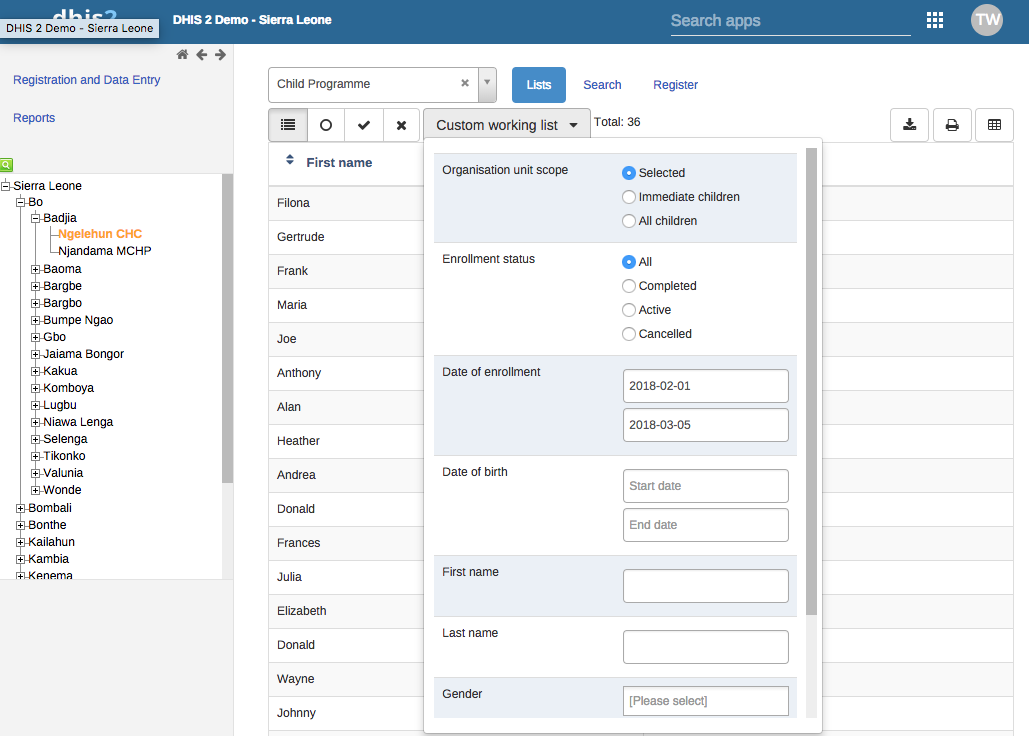
Seznamy lze také stáhnout nebo vytisknout.

Vlastní předdefinované seznamy
If the program has any custom tracked entity filters associated with it, these will take the place of the four predefined lists mentioned above. The predefined lists will when well configured be an effective way to find or work with the data relevant for the user in that program.
Working lists can be defined with a wide variety of options, here are some examples:
- Zobrazte všechny TEI s alespoň jednou akcí v dané fázi programu, která má datum splatnosti k aktuálnímu datu.
- Zobrazit všechny TEI, které mají alespoň jednu událost přiřazenou přihlášenému uživateli.
- Zobrazit všechny TEI, které jsou aktivní, ale nejsou přiřazeny žádnému uživateli.

See the API documentation for a full list of functionality supported for these predefined tracked entity instance filters.
Hledání
Search is used to search for TEIs in the organisation units the user has search access to. This can be used if you want to find a TEI, but you don't know which organisation unit or program the TEI was enrolled in. There are two ways of doing this: With and without a program context. Searchable fields needs to be configured. For configuring searching with program context, this is done individually for each program in the program maintenance app. For configuring searching without a program context, this is done individually for each tracked entity type in the tracked entity type maintenance app.
Hledání bez kontextu programu:
-
Otevřete aplikaci Tracker Capture
-
Klikněte na tlačítko Hledat
-
Searchable fields will be displayed in groups. Unique attributes is only individually searchable. Non-unique attributes can be combined.
-
Vyplňte kritéria hledání a klikněte na tlačítko s ikonou hledání.
Hledání v kontextu programu:
-
Otevřete aplikaci Tracker Capture
-
Select an organisation unit which has the program you wish to search in
-
Vyberte program
-
Klikněte na tlačítko Hledat
-
Searchable fields will be displayed in groups. Unique attributes is only individually searchable. Non-unique attributes can be combined.
-
Vyplňte kritéria hledání a klikněte na tlačítko s ikonou hledání

After the search has been done, you will be presented with the search result. Whats displayed depends on the outcome of the search.
Pro vyhledávání jedinečných atributů:
-
If no matching TEI found, you will get the possibility to open the registration form.
-
If the TEI was found in the selected organisation unit, the TEI dashboard will automatically open.
-
If the TEI was found in outside the selected organisation unit, you will get the possibility to open the TEI.
Pro hledání nejedinečných atributů:
-
If no matching TEI's found, you will get the possibility to open the registration form.
-
If matching TEI's found, you can either click on any TEI in the result list, or open the registration form.
-
If a too large number of matches was found, you will be prompted to refine your search criteria

The search results have functionality for flagging tracked entity instances as possible duplicates, see next chapter.
When choosing to open the registration form, the search values will automatically be filled into the registration form.
Označení trasované instance entity jako potenciálního duplikátu
When searching for tracked entity instances in the tracker capture app, the user will sometimes suspect that one or more of the search hits are duplicates of other tracked entity instances. The user has the option of clicking on the flag possible duplicate link in the rightmost column of the search result grid.
Tracked entity instances flagged in this way will be marked as "possible duplicate" in the DHIS2 database. The flag indicates that the tracked entity instance is/has a duplicate. The presence of such a flag is visible to the user in two places. One is the result list itself (in this example Mark Robinson is already flagged as a potential duplicate):
Druhé místo je v ovládacím panelu instance trasované entity:

In addition to informing users about the tracked entity instance potentially being a duplicate, the flag will be used by the underlying system for finding and merging duplicates in coming versions of DHIS2.
Rozbití skla
If the program is configured with access level protected, and the user searches and finds tracked entity instances that is owned by organisation unit that the user does not have data capture authority for, the user is presented with the option of breaking the glass. The user will give a reason for breaking the glass, then gain temporary ownership of the tracked entity instance.
Zapište existující TEI do programu
-
Otevřete aplikaci Tracker Capture = Trasovač sběru dat.
-
Otevřete existující ovládací panel TEI.
-
Vyberte program.
-
Ve widgetu Zápis klikněte na Přidat nový.
-
Vyplňte požadované informace a klikněte na Zaregistrovat.
Zadejte data události pro TEI
Widgety pro zadávání dat

In a TEI dashboard, you enter event data in the Timeline Data entry or Tabular data entry widgets.
Tabulka: Widgety pro zadávání dat v aplikaci Tracker Capture
| Název widgetu | Popis |
|---|---|
| Zadávání dat na časové ose | Pro zadávání dat pomocí výchozích nebo vlastních formulářů. V závislosti na definici programu, v jednotlivých fázích programu, budou události zobrazovány včas. Kliknutím na kterýkoli z nich se zobrazí odpovídající údaj. Pokud scéna potřebuje novou událost, zobrazí se ikona plus pro vytvoření nové události. Chcete-li pokračovat v zadávání dat, je povinné mít datum události. Jakmile je zadáno datum události, není možné datum splatnosti změnit. Předpokladem je, že zadáním data události již událost proběhla. Pokud událost ještě nenastala, je možné změnit datum splatnosti – nejde v podstatě o nic jiného než o přeplánování. Tlačítka ve spodní části pomáhají změnit stav vybrané události. Další klíčovou funkcí tohoto widgetu je přidání více poznámek k události. Běžně se záznam dat provádí prostřednictvím datových prvků, existují však případy, kdy je nutné zaznamenat další informace nebo komentáře. Zde se hodí sekce poznámek. Poznámku však není možné smazat. Myšlenka je taková, že poznámky jsou spíše deníky. Během zadávání dat jsou podporovány jak logika přeskočení, tak chybové/varovné zprávy ověření. V položce Data časové osy je také zahrnuta možnost porovnat zadaná data s předchozími položkami. To lze povolit kliknutím na tlačítko „Přepnout na porovnávací formulář“ (dva listy papíru) v pravém horním rohu widgetu pro zadávání dat časové osy. |
| Tabulkové zadávání dat | Pro zadávání dat v tabulkovém stylu. Widget zobrazuje seznam fází programu jako štítky na levé straně. Události budou uvedeny v tabulce pro opakovatelnou fázi programu a umožňují přímé úpravy hodnot dat událostí. |
Vytváření události
Událost pro TEI můžete vytvořit:
-
Otevřete aplikaci Tracker Capture = Trasovač sběru dat.
-
Otevřete existující ovládací panel TEI.
-
In the Timeline Data entry or Tabular data entry widget, click the +-button.
-
Vyberte Fázi programu a nastavte Datum hlášení.
Program stages can be configured to use a feature type. This makes it possible to capture geometry for an event. Supported feature type is Point and Polygon. Please see How to use geometry.
-
Klikněte Uložit.
Naplánujte událost
Událost můžete naplánovat na budoucí datum:
-
Otevřete aplikaci Tracker Capture = Trasovač sběru dat.
-
Otevřete existující ovládací panel TEI.
-
In the Timeline Data entry or Tabular data entry widget, click the Calendar icon.
-
Vyberte Fáze programu a nastavte Datum plánu.
-
Klikněte Uložit.
Odkázat na událost
Sometimes it might be necessary to refer a patient to a different Organisation unit. To refer a TEI:
-
Otevřete aplikaci Tracker Capture = Trasovač sběru dat.
-
Otevřete existující ovládací panel TEI.
-
In the Timeline Data entry or Tabular data entry widget, click the Arrow icon.
-
Select a Program stage, Organisation unit and set a ****Datum hlášení****.
-
Click either One-time referral which will only refer TEI for one single event or Move permanently which will move TEI ownership to the selected Organisation Unit. Further access to the TEI will be based on the ownership organisation unit.
Povinné datové prvky v událostech
Some data elements in an event might be mandatory (marked with a red star next to the data element label). What this means is that all mandatory data elements must be filled in before the user is allowed to complete the event. The exception to this is if the user has the authority called "Ignore validation of required fields in Tracker and Event Capture". If the user has this authority, the mandatory data elements will not be required to be filled in before saving and the red star will not be displayed next to the data element label. Note that super user that have the "ALL" authority automatically have this authority.
Jak používat geometrii
Tracked entity type, program and program stage can be configured to use a feature type. This makes it possible to capture geometry for a TEI, program or event. Supported feature types are Point and Polygon.
Zachyťte souřadnici
Možnost 1: Vyplňte do pole zeměpisnou šířku a délku.
Možnost 2: 1. Klikněte na ikonu mapy 2. Požadované místo najdete buď vyhledáváním, nebo na mapě 3. Klikněte pravým tlačítkem na požadované místo a vyberte Nastavit souřadnici 4. Dole klikněte na Zachytit
Polygon zachycení
- Klikněte na ikonu mapy
- Požadované místo najdete buď vyhledáváním, nebo na mapě
- Vlevo nahoře na mapě klikněte na ikonu polygonu
- Nakreslete na mapu polygon. Na závěr připojte poslední bod pomocí první bod
- Dole klikněte na Zachytit

Polygony lze také smazat 1. Klikněte na ikonu mapy 2. Klikněte na ikonu koš v levé části mapy a vyberte možnost Vymazat vše
Jak přiřadit uživatele k události
In the Maintenance App a program stage can be configured to allow user assignment. If user assignment is enabled, you will be able to assign a user to an event.
- Klikněte na pole Přiřazený uživatel.
- Procházejte nebo vyhledejte uživatele.
- Klikněte na uživatele.
Spravujte zápisy TEI
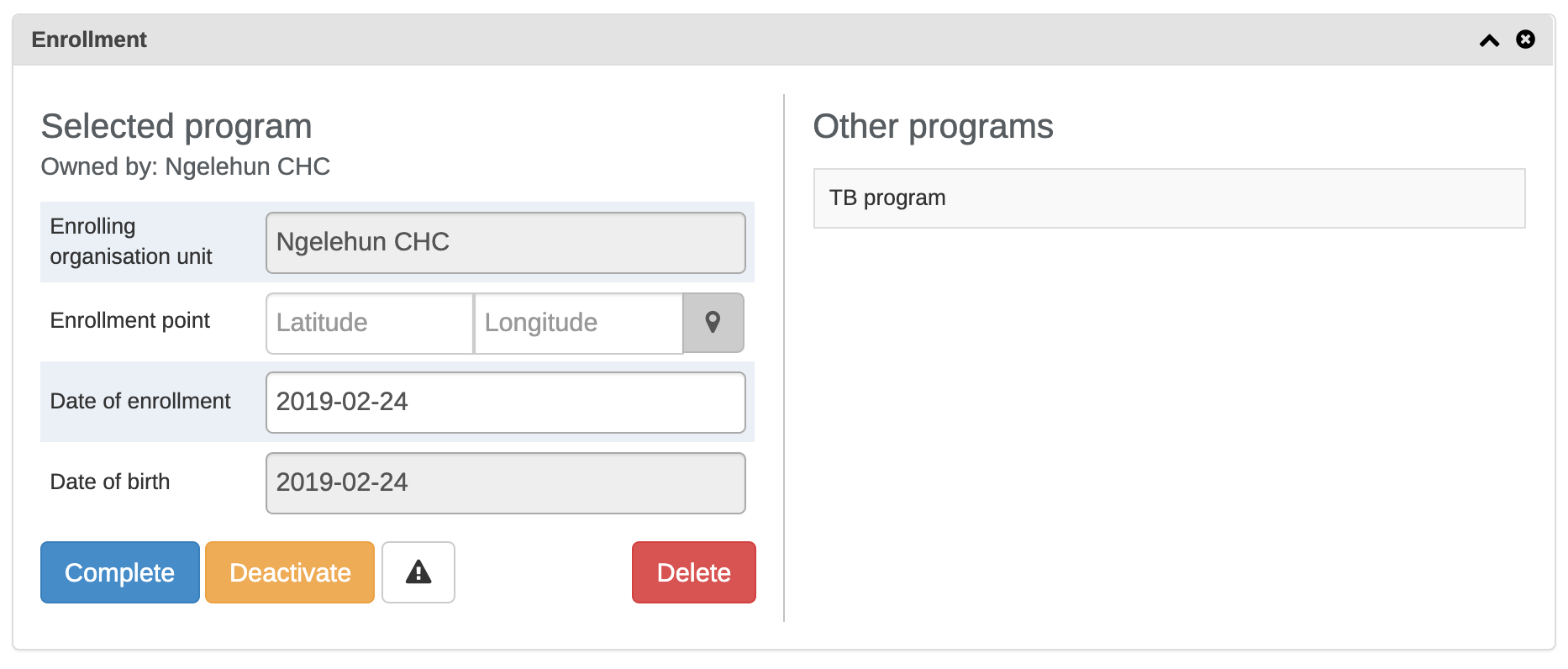
The Enrollment widget gives access to information and functionality for the enrollment in the selected program.
Vlastnictví TEI
The current ownership of all enrollments in the selected program is displayed in the "Owned by" part of the enrollment widget. The ownership will always start out as the organisation unit that first enrolled the TEI into the given program.
Ownership can be different for a TEIS different programs, for example one clinic can follow up a patient in HIV, while another clinic follows up the same patient in MCH.
To update the ownership for a TEI/program combination, the user has to utilize the referral functionality and select the "Move permanently" option while referring.
A user that has capture access to the organisation unit that is the current owner of the TEI/Program will have write access to all enrollments for that TEI/Program combination. A user that has search access to the organisation unit that is the current owner will have access to search and find the TEI/Program combination.
Deaktivujte zápis TEI
If you deactivate a TEI dashboard, the TEI becomes 'read-only'. You can't enter data, enroll the TEI or edit the TEI's profile.
-
Otevřete aplikaci Tracker Capture = Trasovač sběru dat.
-
Otevřete existující ovládací panel TEI.
-
Ve widgetu Zápis klikněte na Deaktivovat.
-
Potvrďte kliknutím na Ano.
Aktivujte zápis TEI
-
Otevřete aplikaci Tracker Capture = Trasovač sběru dat.
-
Otevřete existující ovládací panel TEI.
-
Ve widgetu Zápis klikněte na Aktivovat.
-
Klikněte na tlačítko Ano. pro potvrzení.
Označte zápis TEI jako dokončený
-
Otevřete aplikaci Tracker Capture = Trasovač sběru dat.
-
Otevřete existující ovládací panel TEI.
-
Ve widgetu Zápis klikněte na Dokončit.
-
Klikněte na tlačítko Ano. pro potvrzení.
Znovu otevřete dokončený zápis
-
Otevřete aplikaci Tracker Capture = Trasovač sběru dat.
-
Otevřete existující ovládací panel TEI.
-
Ve widgetu Zápis klikněte na Znovu otevřít.
-
Klikněte na tlačítko Ano. pro potvrzení.
Zobrazte historii zápisu TEI
-
Otevřete aplikaci Tracker Capture = Trasovač sběru dat.
-
Otevřete existující ovládací panel TEI.
-
Ve widgetu Profil klikněte na ikonu Historie auditu.
Vytvořte poznámku k zápisu TEI
An enrollment note is useful to record information about for example why an enrollment was cancelled.
-
Otevřete aplikaci Tracker Capture = Trasovač sběru dat.
-
Otevřete existující ovládací panel TEI.
-
Ve widgetu Poznámky zadejte poznámku a klikněte na Přidat.
Odeslat zprávu TEI
-
Otevřete aplikaci Tracker Capture = Trasovač sběru dat.
-
Otevřete existující ovládací panel TEI.
-
Ve widgetu Zprávy a vyberte SMS nebo E-mail.
-
Zadejte požadované kontaktní informace.
Pokud profil TEI obsahuje e-mailovou adresu nebo telefonní číslo, tato pole se vyplňují automaticky.
-
Napište zprávu.
-
Klikněte na Odeslat
Označte TEI pro další sledování
You can use mark a TEI's enrollment for follow-up and then use this status as a filter when you create Upcoming events and Overdue events reports. This can be useful for example to monitor high-risk cases during a pregnancy program.
-
Otevřete aplikaci Tracker Capture = Trasovač sběru dat.
-
Otevřete existující ovládací panel TEI.
-
Ve widgetu Zápis klikněte na ikonu Označit pro následné kroky.
Upravte profil TEI
You edit a TEI's profile or tracked entity attributes in the Profile widget.
-
Otevřete aplikaci Tracker Capture = Trasovač sběru dat.
-
Otevřete existující ovládací panel TEI.
-
Ve widgetu Profil klikněte na Upravit.
-
Upravte profil a klikněte na Uložit.
Přidejte vztah k TEI
You can create a relationship from one TEI to another, for example linking a mother and a child together or a husband and a wife. Depending on how the relationship type is configured, the relative can inherit attributes.
Assume there are two programs: Antenatal care for the mother and Immunization for the child. If first name, last name and address attributes are required for both programs, it is possible to configure last name and address attributes as inheritable. Then during child registration, there is no need to enter these inheritable attributes. You can add them automatically based on the mother's value. If you want to have a different value for the child, you can override the automatically generated value.
-
Otevřete aplikaci Tracker Capture = Trasovač sběru dat.
-
Otevřete existující ovládací panel TEI.
-
Ve widgetu Vztahy klikněte na Přidat.
-
Vyberte typ vztahu.
-
Vyhledejte příbuzného a vyberte jej. Hledání se řídí stejným vzorem jako při hledání instancí trasovaných entit z titulní stránky trasovače. Vyhledávání standardně pokrývají rozsah hledání uživatelů.
-
Vyberte ve vyskakovacím okně trasovanou instanci entity, která odpovídá kritériím vyhledávání.
-
Klikněte Uložit.
Note: If the relationship is a bi-directional relationship, the relationship will be displayed in the TEI that the relationship was created in and in the TEI that the relationship was linked to. Also, if the relationship is bi-directional, each end of the relationship will have a unique name that will be displayed in the relationship widget under the "Relationship" column.
Sdílejte ovládací panel TEI
Ovládací panel TEI můžete sdílet prostřednictvím jeho webové adresy.
-
Otevřete aplikaci Tracker Capture = Trasovač sběru dat.
-
Otevřete ovládací panel, který chcete sdílet.
-
Zkopírujte adresu URL.
Make sure that the URL contains "tei", "program" and "ou" (organisation unit) parameters.
-
Paste the URL in the sharing method of your choice, for example an e-mail or a message within DHIS2.
If you're not logged in to DHIS2 when you click the link, you'll be asked to do so and then taken to the dashboard.
Deaktivace TEI
If you deactivate a TEI, the TEI becomes 'read-only'. Data associated with the TEI is not deleted.
-
Otevřete aplikaci Tracker Capture = Trasovač sběru dat.
-
Otevřete existující ovládací panel TEI.
-
In the top right corner, click the
 button > Deaktivovat.
 -
Potvrďte kliknutím na Ano.
Aktivujte TEI
-
Otevřete aplikaci Tracker Capture = Trasovač sběru dat.
-
Otevřete existující ovládací panel TEI.
-
In the upper top corner, click the
button > Aktivovat. -
Potvrďte kliknutím na Ano.
Smazání TEI
Varování
Když odstraníte TEI, vymažete všechna data spojená s TEI.
-
Otevřete aplikaci Tracker Capture = Trasovač sběru dat.
-
Otevřete existující ovládací panel TEI.
-
In the top right corner, click the
button > Delete. -
Klikněte na tlačítko Ano. pro potvrzení.
Nakonfigurujte ovládací panel TEI
Zobrazení nebo skrytí widgetů
-
Otevřete aplikaci Tracker Capture = Trasovač sběru dat.
-
Otevřete existující ovládací panel TEI.
-
Klikněte na ikonu Nastavení a vyberte Zobrazit / skrýt widgety.
-
Vyberte widgety, které chcete zobrazit nebo skrýt.
-
Klikněte na Zavřít.
Uložte rozložení ovládacího panelu jako výchozí
Rozložení ovládacího panelu můžete uložit jako výchozí nastavení pro program.
-
Otevřete aplikaci Tracker Capture = Trasovač sběru dat.
-
Otevřete existující ovládací panel TEI.
-
Click the Settings icon, and select Save dashboard layout as default.
Uzamkněte rozložení ovládacího panelu
If you are the administrator you have the option of locking the layout of the dashboard for all users.
-
Otevřete aplikaci Tracker Capture = Trasovač sběru dat.
-
Otevřete existující ovládací panel TEI.
-
Organize the widgets to the desired layout and save it as default (see section above).
-
Click the Settings icon, and select Lock layout for all users.
Users will still be able to reorganize the widgets temporarily, but the layout will be reset to the admin's saved layout after page refresh. The remove widget buttons will be hidden when the dashboard layout is locked.
Horní lišta
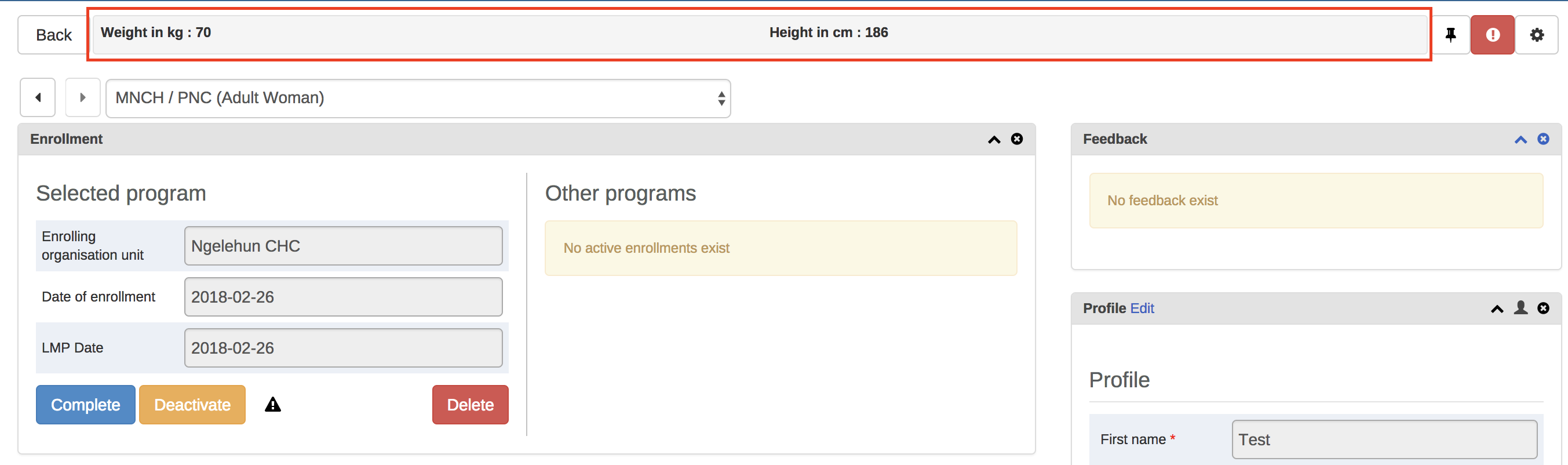
The top bar can be a helpful tool to see important data in a quick and easy way. To start using the top bar:
-
Otevřete aplikaci Tracker Capture = Trasovač sběru dat.
-
Otevřete existující ovládací panel TEI.
-
Klikněte na ikonu Nastavení a vyberte Nastavení horní lišty.
-
Click Activate top bar and click the data you would like to display in the top bar.
Změňte režim zobrazení tabulky pro widget Zadání dat na časovou osu
Widget Timeline Data Entry má 5 různých režimů zobrazení tabulky, které lze vybrat. Různé možnosti jsou: - Výchozí formulář – Zobrazuje všechny datové prvky svisle.
-
Porovnat formulář předchozí - Zobrazí předchozí (opakovatelnou) fázi programu vedle aktuálně vybrané fáze programu.
-
Porovnat všechny formuláře - Zobrazí všechny předchozí (opakovatelné) fáze programu vedle aktuálně vybrané fáze programu.
-
Mřížkový formulář – Zobrazuje datové prvky vodorovně.
-
POP-over form - Stejné jako Grid form, ale po kliknutí se datové prvky zobrazí ve vyskakovacím okně.
Chcete-li změnit aktuální režim zobrazení, klikněte na druhou ikonu v horní liště widgetů (viz obrázek níže):

Once an option is selected the selection is stored for that specific program stage. This mean that you can have different table modes for the different program stages in a program.
Notes: 1. The Compare form options will function best if you have multiple repeatable events (of the same program stage) present. 2. The Grid form and POP-over form options are not selectable if the program stage has more than 10 data elements. 3. The icon in the widgets bar will change depending on the option you have selected.
Vytvářejte zprávy
-
Otevřete aplikaci Tracker Capture = Trasovač sběru dat.
-
Klikněte na Zprávy.
-
Vyberte typ zprávy.
Report types in the Tracker Capture app Report type Description Program summary A summary report for a particular program, organisation unit and time frame. The report consist of a list of TEIs and their records organised based on program stages. Program statistics A statistics report for a particular program. The report provides for example an overview of drop-outs or completion rates in a given time frame at a particular organisation unit. Upcoming events A tabular report showing tracked entity instances and their upcoming events for a selected program and time. You can sort the columns and search the values. Show/hide operations are possible on the columns. You can also export the table to Microsoft Excel. Overdue events A list of events for a selected program. The report displays a list of TEIs and their events that are not completed on time. You can sort the columns and search the values You can also export the table to Microsoft Excel.

The summary report displays a list of TEIs and their records for "MNCH/PNC (Adult Woman)" program. The records are organized in the form of tabs where each tab is a program stage. The columns in the table are data elements which are configured to be displayed in reports under program stage definition.