Mobilní IT
Tato kapitola pokrývá různé mobilní technologie včetně Web, J2ME, SMS Služby a SMS příkazy.
Úvod do DHIS2 Mobile
DHIS2 poskytuje řadu možností umožňujících zadávání dat z mobilních zařízení, včetně vyhrazeného klienta GPRS / 3G J2ME a dvou verzí DHIS2, které byly optimalizovány speciálně pro mobilní prohlížeče. Každé z těchto řešení bude podrobně popsáno v následujících částech. DHIS2 nabízí několik klientů se systémem Android, které jsou podrobně popsány v dalších částech této příručky.
Sběr dat v terénu může být technicky náročný a nákladný. Řešení mobilních telefonů mohou výrazně snížit náročnost nasazení distribuovaného systému sběru dat. Pomocí jednoduchého klienta Java nainstalovaného v mobilním telefonu nebo webového prohlížeče, který funguje v mobilním telefonu, mohou terénní pracovníci podávat hlášení přímo do databáze DHIS2 prostřednictvím svého mobilního zařízení.
Přestože řešení mobilních telefonů mají velký potenciál, jejich nasazení je složité. Telefony nemají dostatečný výpočetní výkon a mají malý displej, musí se nabíjet a často má takové nasazení největší smysl v oblastech se špatným nebo přerušovaným pokrytím sítě.
Níže jsou stručně představena jednotlivá mobilní řešení, která jsou podrobně rozebrána v samostatných oddílech:
-
DHIS2 Light: Modul pro zadávání dat optimalizovaný pro mobilní prohlížeč pro všechny zařízení
This module allows for data entry directly with the browser of the mobile device. A wide range of devices and mobile browsers are supported including: Opera mini 3 & 4 (basic and advanced) - Opera mini 4, Nokia S40 mobiles ,Windows Phone 7, Window Mobile 6, Palm Pre, Blackberry (v5 and v6), Firefox mobile, iOS devices (iPhone) and Android devices. This client does not have offline-support, and an active GPRS/3G connection is required. It does not require a new application installation on the phone to support new features, but does require a stable data connection for use. This solution is described in Mobile browser based data entry
-
DHIS2 Smartphone client: A mobile browser optimized data entry module for Smartphone devices
This module allows for data entry directly with the browser of a Smartphone. Offline data entry is supported and it does not require any installation of a special client on the phone itself.
-
Klient J2ME GPRS / 3G
DHIS-mobile includes two separate J2ME clients supporting GPRS/EDGE/3G as a transport mechanism. One clients supports facility aggregate reporting and the second client supports name-based program tracking. These clients are split into separate applications to make deployment easier. Some health workers may have both applications installed on their phone. Both of these clients support offline-storage of data and work on J2ME enabled devices (feature phones). .?>
An active GPRS/3G connection is required in order to send data to the DHIS2 database, but data can be entered offline and transmitted when a connection is present. This client is intended primarily for low-end devices which support J2ME applications, although the offline-supports adds some memory requirements which limits the handset selection. While the solution is primarily tested on Nokia phones, it also works on several other J2ME capable handsets.
The facility reporting J2ME client is described in the chapter "J2ME GPRS/3G Client"
Zadávání dat pomocí mobilního prohlížeče
Začínáme se zadáváním údajů v mobilním prohlížeči
Tento přístup slouží k zadávání dat na chytrém telefonu s mobilním prohlížečem pomocí navigace na adresu URL instance DHIS2, například: úplný odkaz URL pro ukázku na dhis2.org http://apps.dhis2.org/dev/mobile/index.action . A váš mobilní prohlížeč automaticky zjistí aplikaci DHIS2, kde je uvedena adresa URL serveru (např.: http://apps.dhis2.org/dev). Zde je přihlašovací formulář pro přístup do aplikace s uživatelským jménem a heslem. Klepnutím na "Login" pokračujte nebo "Reset" proveďte reset:

Po přihlášení je tu seznam funkcí:

- Aggregate Reporting: Entries for aggregate data with defined/assigned dataset by organisation-units
- Trasování:
-
Find Person: find person based on Name, Phone Number or ID, and Organization unit.
-
Activity Plan: Entries data for the persons by organisation-units, persons and programs/program-stages
-
Registrace osoby: Zaregistrujte novou osobu
-
Anonymní: Záznamy pro anonymní osobu na základě programů
- Messages: Manage the messages and discussions from the server. Message reply is available. User can send feedback message in Messages.
- Zprávy: Výstupní zprávy ze serveru.
- Settings: User-information (e.g.: First-name, Surname, Phone number, E-mail) and the Interface language.
- Odhlášení: pro odhlášení aplikace.
- Desktop version: navigate to the desktop version of DHIS2 for administration. This require a lot of resources from the client mobile, for example: the sufficient memory to load the pages. Not recommended for the normal GPRS/3G/... phones.
Výše uvedený seznam bude podrobně vysvětlen:
-
Aggregate Reporting: Entries for aggregate data with defined/assigned dataset by organisation-units.

Click on the "Aggregate Reporting", then choose an Organisation Unit from the list and the list of the datasets will be appeared for entering aggregate data. See the below example:
Step 1: Select an Organisation Unit from the list

Step 2: Select a Dataset (entry form) from the list

Step 3: Select a period (based on the period type of the chosen dataset) from the list

Step 4: Entering the data

Step 5: Save the data entered after completing the data, choose the option for data completeness if having.

-
Tracking: Find/Add Person, Visit Schedule, Person Registration, Anonymous

2.1 Find/Add Person: find person based on Name, Phone Number or ID, and Organization unit.
-
Step 1: insert Name, Phone Number or ID and select the Organization Unit, then click Search.

-
Step 2: select a person

Poté se zobrazí všechny informace o dané osobě
-
Step 3: choose the next program stage for entering the data

To view all the program stages, click on the name of that program (Child Heath Program as the screen shot)

2.2: Visit Schedule: Choose An Organization Unit


-
Current Activity Plan: the list of the beneficiaries registered, enrolled, not yet finish/complete a/many program and there is at least a program-stage open for data-entry.
+ Step 1: Choose a Person for entry

+ Step 2: Choose a current and active program-stage for entering the data

You can also see the person's information (ID, gender, Date of Birth, and Blood Group) by clicking on the Details (on top of the list appeared)

The details information of the chosen person:

-
All Activity Plan: the list of all beneficiaries registered, enrolled, not yet finish/complete a/many program.
-
Single Event:

2.3: Registrace osob: Zaregistrujte novou osobu
-
Step 1: Entry personal information

-
Step 2: Enrol program for the person just been registered, then click "Enroll".

-
Step 3: Entry required information for the chosen program, then click "Zápis"

Here is the výsledek:

2.4: Anonymous: Entries for anonymous person based on specific programs

-
-
Messages: Manage the messages and discussions from the server. Message reply is available.

The number showed is the unread messages. Click on that to view the list of the messages (the unread messages are in bold and dark blue color):

Then you can pick up the message/topic for the discussions by leaving the reply message, see this example:

User can create and send a feedback to server in messages section. After sending out the new feedback, the message (feedback) will be listed under "Messages" for further following up.
-
Reports: The output reports from the server

(bude aktualizován)
-
Settings: User-information (e.g.: First-name, Surname, Phone number, E-mail) and the Interface language.

Here is the form for setting the user account/access and the interface language. Click on "SAVE" for completing the settings, see the example níže:

-
Logout: to log out the application

-
Desktop version: navigate to the desktop version of DHIS2 for administration.

Here is the GUI of the desktop version (which require much memory for loading), not recommended for normal mobile. The example with DHIS2 Demo (od dhis2.org)

-

After clicking on the "Namebased Data Entry", the next will guiding to the selections in the following steps:
Step 1: Choose an Organisation Unit
Step 2: Choose the Activity Type

(the screen-shot with an example with "Current Activity Plan" option)
Obvykle budou tyto dva typy aktivit:
+ "Current Activity Plan": the list of the beneficiaries registered, enrolled, not yet finish/complete a/many program and there is at least a program-stage open for data-entry.
+ "All Activity Plan": the list of all beneficiaries registered, enrolled, not yet finish/complete a/many program.
Step 3: Choose a Beneficiary for entry
(snímek obrazovky s příkladem s možností „Hybia Welde“)
Step 4: Choose a current and active program-stage for entering the data
(the screen-shot with an example with "16-24 months after birth" option)
You can also see the beneficiary's information (ID, gender, Date of Birth, and Blood Group) by clicking on the Details (on top of the list appeared)
The details information of the chosen beneficiary:
-
Beneficiary Registration: Registry a new beneficiary

Step 1: Choose an Organizační jednotka

Step 2: Fill in the Beneficiary Registration form

There necessary information: Full Name, Gender, Date of Birth (and Blood Group).
Kliknutím na „ULOŽIT“ zaregistrujete nového příjemce.
A message "Successfully Saved" will appear when the beneficiary is created/registered successfully.

-
Beneficiary Enrollment: Enrol a beneficiary to one or many programs

Before enrolling a beneficiary to a program, the search function for a beneficiary is provided:
If the beneficiary is found, the result will be listed. The simply click on the beneficiary name for navigating to the programs in which the beneficiary enrolled:
The below screen-shot example describes the beneficiary named "Nguyen Van A":
- Has not enrolled any programs before
- There is one program: "Child Health Program" available for enrolment
The list of the available programs for enrolment will be listed. Just click on the program for enrolment by specifying the date of enrolment and the date of incident. See the example:
After clicking on the "ENROLL" button, if successful, the program enrolled will be listed under "Enrolled Programs for" + \<Name of the beneficiary>, see the example:
-
Messages: Manage the messages and discussions from the server. Message reply is available.

The number showed is the unread messages. Click on that to view the list of the messages (the unread messages are in bold and dark blue color):

Then you can pick up the message/topic for the discussions by leaving the reply message, see this example:
-
Reports: The output reports from the server
(bude aktualizován)
-
Settings: User-information (e.g.: First-name, Surname, Phone number, E-mail) and the Interface language.
Here is the form for setting the user account/access and the interface language. Click on "SAVE" for completing the settings, see the example níže:
-
Feedback: the extra function for creating a new message to send to the server. The new created feedback from this will be listed under "Zprávy"

After clicking on the "Feedback", there will be a form for editing/sending out a new message/discussion. See the example níže:

After sending out the new feedback, the message (feedback) will be listed under "Messages" for further following up.

-
Logout: to log out the application
-
Desktop version: navigate to the desktop version of DHIS2 for administration.
Here is the GUI of the desktop version (which require much memory for loading), not recommended for normal mobile. The example with DHIS2 Demo (od dhis2.org)
Klient J2ME GPRS / 3G
The DHIS2 GPRS/3G mobile module provides a mechanism for remote clients using mobile phones to enter data directly into the DHIS2 system. There are two functions of the client, namely:
The solution relies on the mobile phone having a data connection available (i.e. GPRS, Edge, 3G), over which it communicates with a DHIS2 instance which must be publicly available on the internet, as any other web server. The client application on the phone downloads the data entry forms to the phone from the server, and the forms can therefore be updated without installing a new application. This is also a crucial feature for community reporting, which relies on regularly downloading activity plans from the server.
-
Facility reporting, for data entry and reporting of regular DHIS2 aggregate data,
-
Activity reporting, for supporting individual activity reporting with the Community module.
Dostupnost datového připojení
Data connection availability can be a problem in many of the contexts where DHIS2 mobile reporting would otherwise be a good solution for getting data directly into DHIS2. If that is the case for you, you might want to consider trying the SMS based solution described in a separate document. Keep in mind that even though a data connection is currently required for communication between the server and the mobile phone, it is only required when initializing or updating the mobile application and when sending reports to the server. The phone stores all entered data locally, so it can work fine with only temporary access to a data connection on a regular basis.
Klient pro hlášení zařízení J2ME GPRS 3G
The server side component of the web based solution is included in the general build of DHIS2.
In order to configure the DHIS2 web-based mobile reporting, you should follow the following steps.
-
Set the "Available for Mobile Reporting" flag for the data sets you want reported: Under Maintenance->DataSet->Edit mark the “Available for Mobile Reporting” check box and save.
-
Create a user role for the mobile user. Select Maintenance->Users->User Role->Add new. Add a user role name and description. Add the desired data sets for the role. The mobile user role will need to have at least privileges for DHIS2 Web API. Save the user role by clicking "Save".
-
Create a user which will be used by the client to login from Maintenance->Users->User ->Add new. Fill in all of the required details, keeping in mind that the password must be at least 8 digits long, contain one capital letter,and one digit. Assign the desired user role to the user which was created in the previous step.
Important
Assign the user to exactly one organisation unit. Each mobile reporting client will need their own user name and password.
Podrobná konfigurace souborů údajů a formulářů pro hlášení
Though the previous steps is all that should be needed for testing the solution more detail configuration of the datasets may be required and are described in the following sections.
Mapování souborů dat do rozložení formuláře v telefonu
By default, a data set is mapped to a single form on the phone. If the data set is divided into sections, each section is displayed as a separate page on the phone. If a data element has more than one category option combo it will be displayed as a heading with the category combination options following.
| Prvek designu formuláře | DHIS2 Metadata | Prvek metadat |
| Název formuláře | Datová sada | Krátký název, pokud existuje, jinak Název |
| Dlaždice stránky | Sekce | Název sekce (nebo název formuláře, pokud žádné sekce) |
| Otázka | Datový prvek | Alternativní název, pokud existuje, jinak Název |
| Název otázky v případě kombinací | Kombinace možnosti kategorie | název |
Třídění formulářů
Ve výchozím nastavení budou datové prvky seřazeny podle globálního třídění přiřazeného v DHIS2. Pokud se používají sekce, použije se jejich pořadí řazení specifické pro jednotlivé sekce. V některých případech, když se oddíly nepoužívají, může být datový prvek použit ve více sadách dat a konflikt ve způsobu, jakým by měl být tříděn v jednotlivých sadách dat. Řešení této situace spočívá v zabalení celé datové sady do jedné sekce (všimněte si, že to bude fungovat pouze v případě, že datové prvky mají stejnou kombinaci možností kategorie)
Správa verzí souborů dat
To make it possible to compare and update the data sets on the mobile phone with the version on the server, data sets are automatically versioned when you edit the data set structure. Some changes which occur on the DHIS2 server, will cause the mobile client to update its forms with a new version.
-
Vytvořit DataSet
-
Upravit datovou sadu
-
Vytvořit / upravit / odstranit sekci v DataSet
-
Pořadí řazení sekcí
-
Aktualizovat DataElement (ovlivnit mnoho souvisejících datových sad)
-
Odstranit DataElement (ovlivnit mnoho souvisejících datových sad)
-
Upravit kategorii DataElement
-
Upravit kombinaci kategorie DataElement
Jazyková podpora
K dispozici je vícejazyčná podpora.
DataSet and DataElement are translated through web-based function. Default language on server is used on mobile in cases requested language from mobile is not available.
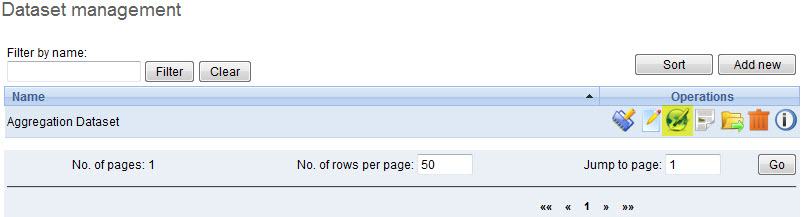
Nastavení mobilní aplikace
Instalace a inicializace
Instalace
Download the jar packages from the DHIS2 homepage: https://www.dhis2.org/downloads
Inicializace
Initialization should be performed before the phones are delivered end-users. Given the large variation in possible phone configurations, it is impossible to describe the exact steps which are required in order to enable the client on the phone. However, for most phones, simply copying the DHIS2 Web Mobile client "JAR" file to the phone with a USB cable or via Bluetooth is sufficient. Of course, GPRS/3G connectivity must be enabled. Contact your mobile service provider for exact details on the configuration of the phones and networks.

Once the client has been installed on the phone, an initialization process must occur by providing a user name, password and server URL.
-
První přihlášení k serveru.
The first time the client logins to the server, or if the client is reinitialized, the username, password and server URL must be entered.
If the client is unable to login, there could be several possible error messages which you see.
-
Connection Not Found: The specified server URL is not correct. Check the server address, ensure that the server is actually reachable, and try again.
-
Invalid User Name Or Password: the username or password is incorrect
-
Application not authorized to access restricted APIs : The server can be contacted, but the user does not have the necessary permissions to access the mobile reporting module
-
-
Setting the PIN number: After the initial login process, a PIN number can be entered by the user. This will make the login process much easier, as the user only has to remember the four digit pin number, as opposed to typing in the user name and password each time. The PIN number can be preset if the phone is initialized prior to delivery, or it can be set by the users themselves if they have been provided with usernames and passwords.

After entering the PIN, press (Menu)->Next.
-
Download all forms: After the PIN has been specified, all forms will be downloaded from the server and stored locally on the phone..
If the user has been configured to report on aggregate datasets, a list of appropriate datasets will be displayed. If the user is responsible for community based reporting, the list of assigned activities is displayed.
Notes: If the Health Worker is responsible for both Facility Reporting and Community Reporting, DHIS2 server will send all forms of both Facility Reporting and Community Reporting to mobile and on mobile, there will be a screen to choose whether displaying Facility Reporting or Community Reporting.
Chyby:
Přihlášení (pro běžné použití)
Po spuštění aplikace se zobrazí formulář PIN.
-
PIN: Zadejte čtyřmístné číslo PIN.
-
Reinitialize Command: this function will clear all data on mobile and we start from the login screen with username and password.
-
Errors: Invalid PIN: If the user has entered an invalid PIN, they will need to enter the correct PIN, or reinitialize the application with the correct username and password.
Modul hlášení zařízení
Zadávání údajů
After selecting an aggregate dataset from the "Select report form" window, the user will need to select an appropriate time period. A list of available time periods is automatically generated.
-
After the user has entered their PIN, they can select from a list of available datasets. Select the appropriate dataset and press "Next".

-
Choosing periods: A list of available periods will be automatically displayed to the user. They can select the appropriate period from the list.

-
Fill in values: After choosing the period, the form can be displayed in two modes, depending on the
-
Formulář se sekcemi
Each form section is displayed in a single screen with the name of the section in the title window.
Chcete-li procházet z obrazovky na obrazovku, stiskněte tlačítko „Další“.
-
Formuláře bez sekce (datové sady bez sekcí)
All fields are displayed on one screen with the title that is the name of DataSet
The user simply fills in each data element with the appropriate value.

-
-
Uložit a dokončit:
After finishing data entry, the user can choose to save the data locally on the phone or to upload the data directly to the DHIS2 server.

If the user saves the data form, they can edit the form at a later point in time if they need to. When selecting a period once again, the period will be marked as "Saved' as seen in the next screen shot.

If the user selects "Complete", and the data entry form is not complete, the user will be asked if they are certain they wish to submit the form as incomplete. Once the form has been submitted, a message should be displayed informing the user that the transmission was successful.

Poznámky
-
Seznam období:
Periods marked with an asterisk (*) is the period that is completed or saved, depending on the status of the data entry.

All periods that are not in period list are considered old and will be deleted automatically.
-
Ukládání trvání hodnot
The number of saved forms on mobile are limited only by the effective amount of storage of the mobile device.
Forms are saved for limited period only, depending on the frequency of collection of the particular dataset.
-
Denní formuláře: 2 měsíce (aktuální a předchozí měsíc)
-
Týdenní formuláře: 4 týdny (aktuální a 3 předchozí týden)
-
Měsíční formuláře: 2 měsíce (aktuální a předchozí měsíc)
-
Čtvrtletní formuláře: 2 čtvrtletí (aktuální a předchozí čtvrtletí)
-
Roční formuláře: 2 roky (aktuální a předchozí rok)
-
-
Vyplněné formuláře - neupravitelné formuláře
If the form has been completed, the user can view the form on their phone, but they cannot make any subsequent edits to the form. Each field is greyed out and inactive for editing.
-
Znovu upravené vyplněné formuláře
If the user wishes to edit data which has already been submitted to the server, they can do so by pressing the "Edit" button. They are allowed to do this assuming that the dataset has not been locked for the period in question. If they attempt to upload the data, the user will be informed that the dataset has been locked, and it is not possible to upload the data.

-
Aktualizovat formuláře:
This function is used to synchronize the forms on mobile and on server. The process is automatically triggered after entering PIN number.
Note: Checking and downloading updated forms process run in background. After finished, prompt is displayed to ask user whether refresh form list or stay where they are.
-
Vícejazyčná podpora:
This function help user to choose language of mobile's GUI (graphical user interface) and content's language (Forms).
The forms must be translated on server, otherwise, default language is used.
Default language of first login is English. Change language in Setting menu will affect both interface and content.


Multi-Language Interface: In Setting menu, there are list of supported language (downloaded from server). Language of GUI is only changed after restart application.
Multi-Language Content (forms): Form's language is change after click "Save". In case there are many forms, it take several minutes to save setting.
Řešení problémů
-
Data byla zadána do telefonu, ale na serveru se nezobrazí
This usually occurs when users enter data on the phone, but cannot send it to the server. This may be because of the configuration of the phone, lack of credit on the phone, or lack of coverage. Usually an error message is displayed as shown below.

Users should be informed that if they see this error, then it means that their data has not been transmitted.
SMS Command { #mobile_sms_command } 
SMS command feature helps DHIS2 system receiving SMS from users, patients, or even anonymous. A SMS command is an object containing the configurations for each SMS form: reporting data from phones or j2me apps, alerting users, registering patient or user, etc.
Nastavte příkaz SMS
This is where you can create a new SMS command


Usually each SMS command has it own property, then the setting up process may be different from each other. Currently, we have 4 types of SMS command:

With KEY_VALUE_PARSER and J2ME_PARSER, the SMS command will have dataset because those are used for reporting data. If data is reported for a Period which is already approved then SMS response will be sent back containing information about approval status of the period.

With ALERT_PARSER and UNREGISTERED_PARSER, the SMS command will have user group because those are used for sending message such as SMS, DHIS2 conversation, email.

There are certain parameters which are common to all SMS Command types. These parameters have default values configured in the system, if user does provide any value to these parameters then those default ones will be used. Here is the list of those parameters
Tabulka: Společné parametry
| Parametr | Typ | Popis |
|---|---|---|
| Oddělovač hodnoty kódu | Řetězec | Chcete-li poskytnout vlastní oddělovač hodnoty kódu. Výchozí je "=" |
| Oddělovač pole | Řetězec | Chcete-li poskytnout vlastní oddělovač polí. Výchozí je „|“ |
| Odpověď na zprávu, pokud nejsou odeslány žádné kódy (pouze příkaz) | Řetězec | Chcete-li odeslat zprávu, pokud není v zadávání textu SMS nalezen žádný kód. Výchozí hodnota je "Chybí parametr" |
| Nesprávný formát zprávy | Řetězec | Poskytnout zprávu, pokud příkaz není správně naformátován. Příkaz by měl být naformátován podle oddělovače hodnot kódu. Tato zpráva bude také odeslána zpět, pokud chybí některý povinný parametr. |
| Žádná uživatelská zpráva | Řetězec | Poskytnout zprávu, pokud není telefonní číslo pro odesílání registrováno v DHIS2. |
| Uživatel patří do více než jedné zprávy Org. jednotky | Řetězec | Některé typy SMS příkazů vyžadují, aby uživatel (načtený z telefonního čísla odesilatele) byl spojen pouze s jednou organizační jednotkou. Tuto zprávu lze nakonfigurovat tak, aby byla odeslána zpět v případě, že požadavek není splněn. |
| Zpráva o úspěchu | Řetězec | Poskytnout zprávu, která bude odeslána po úspěšném dokončení procesu. |
Typ příkazu SMS
The SMS command is basically defined by its parser type. In other word, each SMS command has one unique parser to parse the plain text SMS, then the result will be used for the purpose of that SMS command.
SMS příkaz pro hlášení dat
In order to report data for example data set (aggregation), we use SMS commands which have KEY_VALUE_PARSER (for phone's plain text), or J2ME_PARSER (for j2me apps)

If the command has name "report", and a list of data element with code like above. The format should be: [command's name] [code][value] [code][value] [code][value]....,the [value] of course might be changed depends on real data, so you have to prepare an SMS text like this example: report vo2 vn5 a2 b6 z3 x1
In case the command has a separator for instance ".", the SMS text should be:
report vo.2.vn.5.a.2.b.6.z.3.x.1
nebo report vo.2|vn.5|a.2|b.6|z.3|x.1
Moreover in SMS text input, orgUnit can be specified like this org orgUnitCode If no orgUnit is specified in SMS then user is retrieved first from the sending phoneNumber and then orgUnit from that user. As far as PeriodType is concerned it should be specified in this format "ddMM" for example 3108, but in case its not specified then PeriodType will be retrieved from DataSet attached to SMSCommand
With the J2ME_PARSER, you don't need to prepare those SMS text, because the J2ME will do this job

User can set the custom response message for "Wrong format message", "No User Message", "User belong to more than one OrgUnit message" and "Success message". If no custom message is being set, system will use the default message.
SMS příkaz pro zápis entity
TRACKED_ENTITY_REGISTRATION_PARSER can be used to enrol tracked entity into the system.

Command name will be followed by tracked entity attributes pertaining to specific program which this command is associated with. Program selection will be done while creating this command.
Default text pattern ( if field separator and codevalue separator is not provided ) for this parser would look like this. childProgram fn=xmen|ln=xmen2|age=4
In case field separator is for example "," then text would look like this.childProgram fn=xmen,ln=xmen2,age=4
Rest of the behavior is same as for other commands. If user does not provide those parameters then default ones will be used.
SMS příkaz pro zadávání dat fáze programu
PROGRAM_STAGE_DATAENTRY_PARSER can be used to enter program stage related data for a specific tracked entity instance.

Command name will be followed by data elements pertaining to specific program stage which this command is associated with. Program and program stage selection will be done while creating this command.
Default text pattern ( if field separator and codevalue separator is not provided ) for this parser would look like this. programstage bcgd=1|opvd=2|wght=34
In case field separator is for example "," then text would look like this.programstage bcgd=1,opvd=2,wght=34
Rest of the behavior is same as for other commands. If user does not provide those parameters then default ones will be used.
SMS příkaz pro upozornění, registraci
In order to alert users, we use SMS commands which have ALERT_PARSER (for phone's plain text), or UNREGISTERED_PARSER (for j2me apps). UNREGISTERED_PARSER can also be used for registering IDSR rumour.

The format of those command will be: [command's name] [text], for example:
upozornit na jeden nouzový případ ve městě
Commands which has ALERT_PARSER will be received from users only
SMS příkaz pro registraci události
Event Registration can be used to register anonymous event into the system based on the data collected through SMS. This command type is associated with Programs of type WITHOUT_REGISTRATION. For example Birth events can be tracked using this parser.

The format of those command will be: [command's name] [code][separator][value], for example:
birth A=1,B=2,G=Male
Code/Value separator is configurable. Pipe "|" is by default taken as field separator. Commands which has EVENT_REGISTRATION_PARSER will be received from DHIS2 users only. Once command is successfully received then data received in SMS will be parsed and event will be registered in DHIS2.
SMS služba
SMS Service is a generic service used for sending/receiving SMS. Any other DHIS2 module can include this service and utilize it to send and receive SMS from users or workers in the field.
Nastavení služby SMS
There are few pre-requisites in order to make this service functional. There are two ways to complete these steps. One way is to configure gateway from the GUI in Mobile Configuration Module. The other way is to use SMS Web Api.
- Nakonfigurujte bránu SMS
Nakonfigurujte bránu SMS
There are five different types of Gateways supported by SMS Service. SMS can be sent if any one of the gateway is configured. If more than one gateways are present, then they will be used in round-robin fashion for load balancing. There are different parameters for different type of gateway. The Gateway can be configured in GUI in Mobile Configuration Module as shown in the figure. More information about parameters needed to configure gateway can be found in [Gateway Configurations] section of new SMS app.(#gateway.configuration)

Nakonfigurujte bránu GenericHttp
Many DHIS2 instances are using GenericHttpGateway to connect to their local gateways. These local gateways provides HTTP APIs for sending SMS. In new GenericHttpGateway it is now possible to configure generic configuration template for gateway configuration. This template is converted into request payload by replacing place holders with actual values taken from gateway key value parameters.

Konfigurace brány
Níže uvedená tabulka zobrazuje parametry potřebné pro konfiguraci brány.
Tabulka: Parametry konfigurace brány
| Parametr | Brána BulkSMS | Brána Clickatell | Obecná brána HTTP | SMPP Brána | Popis |
|---|---|---|---|---|---|
| Název brány | Volitelný | Volitelný | Volitelný | Volitelný | Používá se jako identita brány. V případě, že tento parametr není nakonfigurován, bude uložen výchozí název. Jeho použití se doporučuje |
| Uživatelské jméno | Požadované | Volitelné (pokud je použit token) | Požadované | Požadované | Používá se pro ověřování API |
| Heslo | Požadované | Volitelné (pokud je použit token) | Požadované | Požadované | Používá se pro ověřování API |
| Auth-Token | Nedostupné | Volitelné (pokud je použito heslo) | Nedostupné | Nedostupné | Používá se pro ověřování API |
| URL šablona | Nedostupné | Nedostupné | Požadované | Požadované | Url Tempalte je vyžadován pouze v případě GenericHttpGateway . Například „http://smsgatewa1.com“ |
| Záhlaví | Nedostupné | Nedostupné | Volitelný | Nedostupné | Možnost Header lze zaškrtnout pro odeslání vybraného parametru jako http hlavičky. Například uživatelské jméno/heslo/token lze odeslat v hlavičce http. |
| useGet | Nedostupné | Nedostupné | Volitelný | Nedostupné | Metoda HTTP POST se standardně používá pro odesílání dat směrem k bráně. Ale v určitých případech, pokud je k tomu vyžadována metoda HTTP GET, lze parametr useGet nastavit na hodnotu true. Výchozí hodnota pro useGet je false. |
| systemType | Nedostupné | Nedostupné | Nedostupné | Požadované | Pro bránu SMPP je vyžadován parametr SystemType. Výchozí hodnota je 'cp' |
| typeOfNumber | Nedostupné | Nedostupné | Nedostupné | Požadované | Parametr TypeOfNumber je vyžadován pro bránu SMPP. Výchozí hodnota je 'UNKNOWN'. Další možné hodnoty jsou UNKNOWN, INTERNATIONAL, NATIONAL, NETWORK_SPECIFIC, SUBSCRIBER_NUMBER, ALPHANUMERIC a ABBREVIATED |
| numberPlanIndicator | Nedostupné | Nedostupné | Nedostupné | Požadované | Parametr NumberPlanIndicator je vyžadován pro bránu SMPP. Výchozí hodnota je UNKNOWN. Další možné hodnoty jsou UNKNOWN, ISDN, DATA, TELEX, LAND_MOBILE, NATIONAL, PRIVATE, ERMES, INTERNET a WAP |
| bindType | Nedostupné | Nedostupné | Nedostupné | Požadované | Pro bránu SMPP je vyžadován parametr BindType. Výchozí hodnota je TX. Další možné hodnoty jsou BIND_TX, BIND_RX a BIND_TRX |
| compressed | Nedostupné | Nedostupné | Nedostupné | Volitelný | Komprimovaný parametr je pro bránu SMPP volitelný. Výchozí hodnota je false |
| sendUrlParameters | Nedostupné | Nedostupné | Volitelný | Nedostupné | Parametry brány budou doplněny o adresu URL, například https://samplegateway.com/messages?apiKey={apiKey}&to={recipients},content={text},deliveryreport={dp} |
| contentType | Nedostupné | Nedostupné | Volitelný | Nedostupné | Typ, ve kterém budou data odesílána na sms bránu. Výchozí hodnota je application/x-www-form-urlencoded. Další podporované typy jsou application/json, application/xml a text/plain |
| configurationTemplate | Nedostupné | Nedostupné | Volitelný | Nedostupné | Obecnou konfigurační šablonu lze použít k poskytnutí dat ve formě přijatelné pro externí bránu. Například username=${username}&password=${password}&to=${recipients}&countrycode=880&message=${text$}&messageid=0. Lze také poskytnout šablonu Json/xml. |