Use Case Configuration Web App
Overview
This section focuses on the Use Case Configuration Web App implementation.
The Use Case Configuration Web App will connect the components of use cases, like Pharmacy stock management (LMIS), such as the Tracker Program and Data elements, to the Android Capture App. This app ensures configuration flexibility and avoids hard coding various metadata in the actual mobile application.
Based on the configuration, any program of the DHIS2 server can be set as a stock management system or any other use case.
Please note that in this version of the Web App, only users with "ALL" authority are able to define the configuration. Other users will not have access to the web app or see the configuration.
Warning
Be aware that the app can only be used in instances using the 2.39.1 DHIS2 API version onward.

Installation
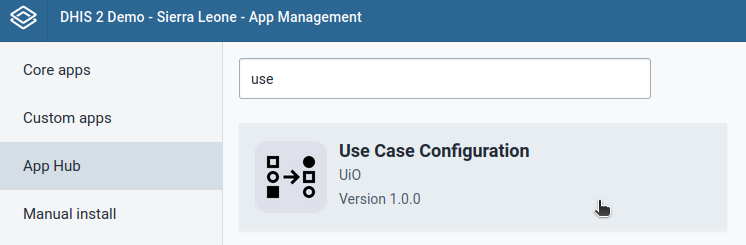
A user can easily install the Use Case Configuration Web App by logging into the DHIS2 and going to App Management.
- Klikněte na App Hub
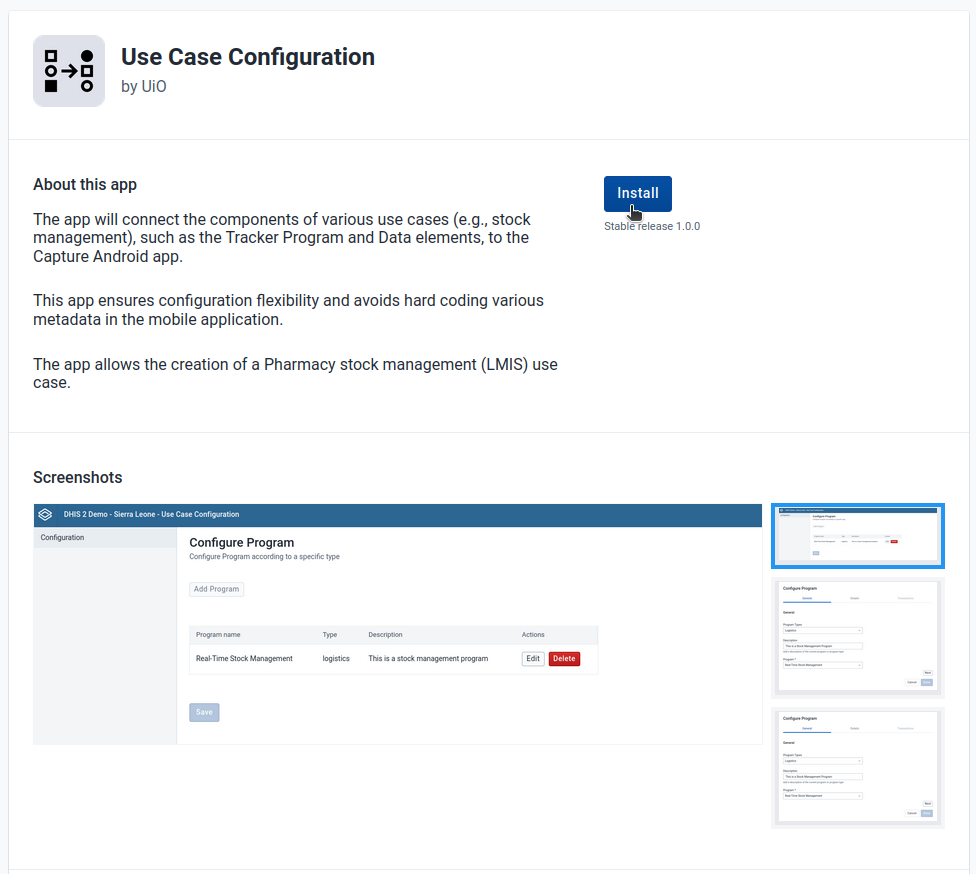
- Go to Use Case Configuration App
- Click on Install V1.X.X
Log in and first time setup
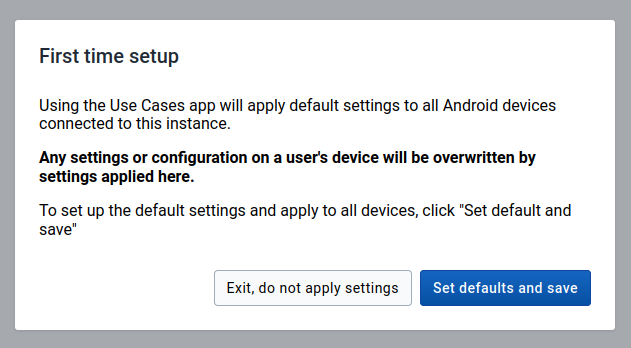
After a user installs and launches the Use Case Configuration Web App for the first time, the web app will require saving the default values of the configuration. This will allow android devices connect to the instance.
Warning
Only users with 'ALL' authority are able to save or update the configuration, users with no authority will not have view access to the app even if it is already created.

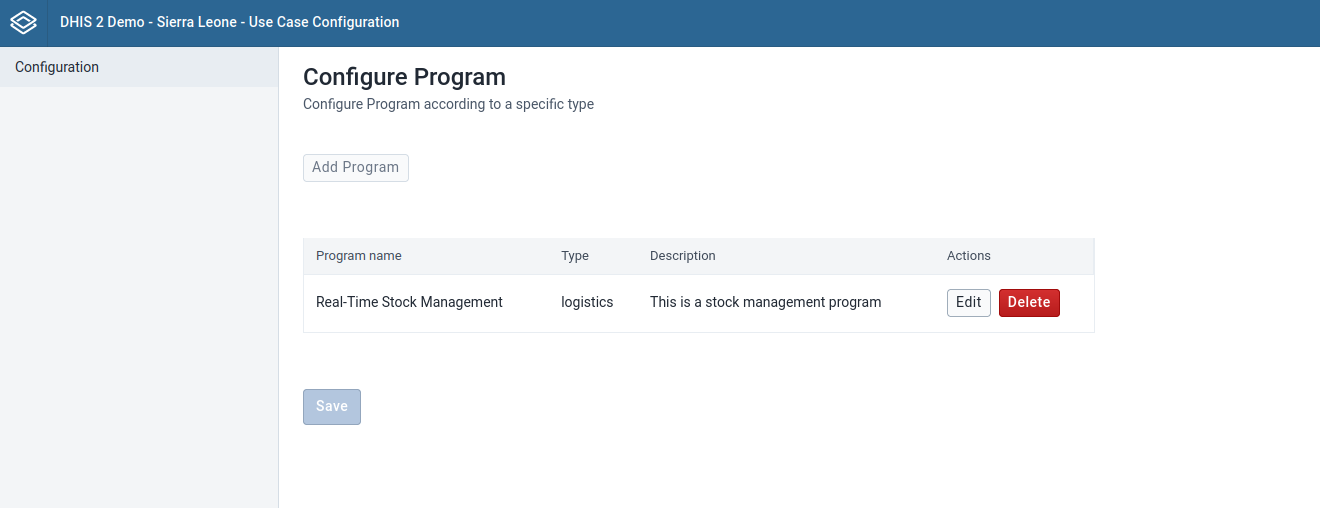
Configure Program
It allows admin users to configure programs to use the stock management system use case.
Note: (New 1.1)
- Effective from version 1.1.0 of this web application, it is mandatory that Data Elements such as "Stock on Hand" and "Corrected Stock" possess a value type of "Positive or Zero Integer."
- To modify the value type of these Data Elements, users must use the Maintenance app.
- Following the adjustment of the value type, users are required to update or edit the program configuration via the Use Case Configuration web application. This ensures synchronization and coherence across the system.
This ensures that these crucial data elements maintain consistency and accuracy within the system.
Create configuration
The DHIS2 Use Case Configuration App assigns the use case, like Real Time Stock Management, to any Tracker Program. When the user opens the application in the Android Capture app the DHIS2 RTS is started instead of a conventional Tracker Program.
To create a Program Configuration:
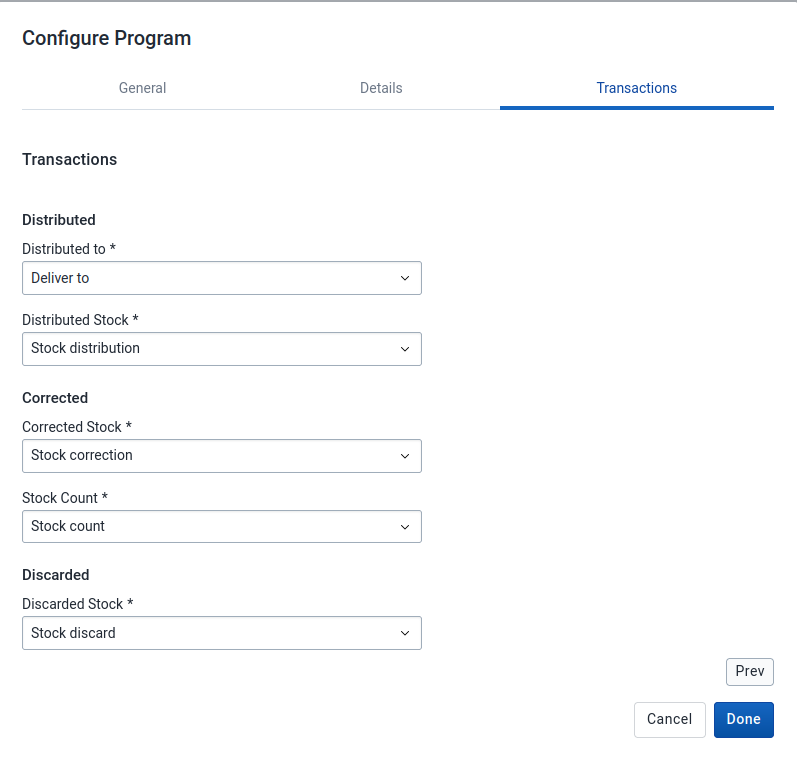
- Select a program type, a program, and add a description.
- Click on Next button or Details tab.
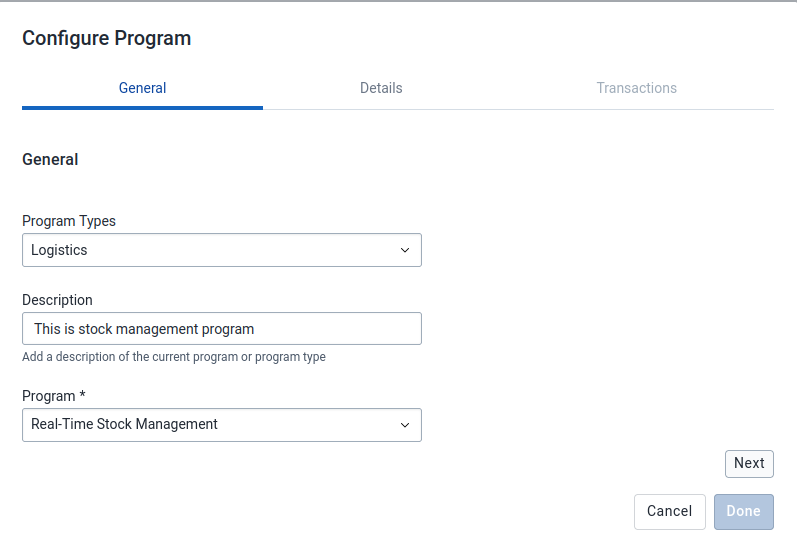
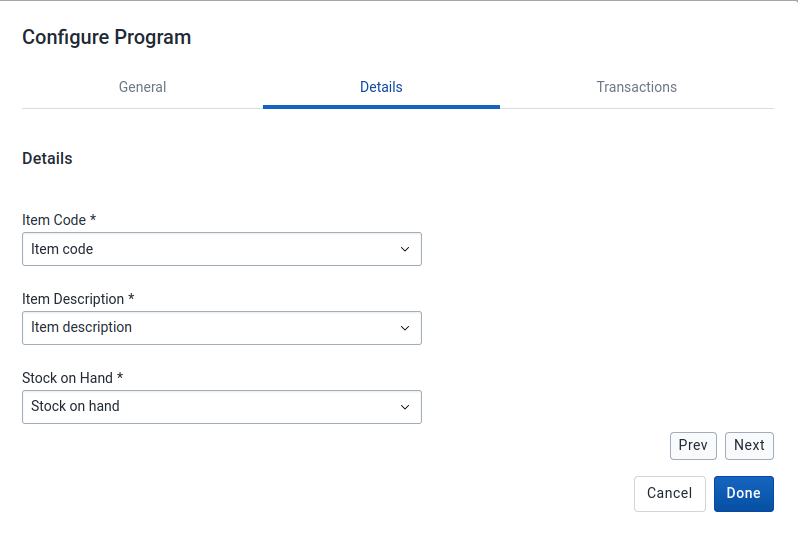
- Select the tracked entity attributes and data elements that represent Item code, Item Description and Stock on Hand. You have then to click on Next button or Transactions Tab.
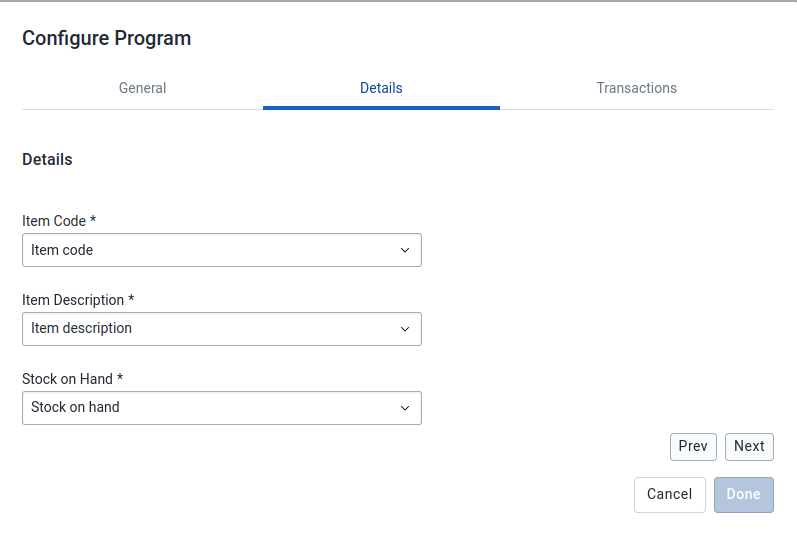
- Choose the data element/tracked entity attribute that will represent the Distributed Transaction.
- Choose the data element/tracked entity attribute that will represent the Corrected Transaction.
- Choose the data element/tracked entity attribute that will represent the Discarded Transaction.
- Click on the "Done" button.
Note:
When all the valid programs are already configured, the Add Program button will be disabled.
The compatible and supported programs for a RTSM use case are: - Tracker program with one repeatable program stage. - Program rules to provide the real time stock on hand update. - Data elements and Tracker Entity Attributes assign to program and program stage.

The following is a comprehensive list of the main metadata configurations and settings for the Tracker Program on which the customized DHIS2-RTS is based on.
| CATEGORY | SYSTEM DEFAULT SETTINGS |
|---|---|
| Organizační jednotka | According to national protocols and policies and/or existing DHIS2 configuration |
| Datový prvek | Name: - "Deliver to": Text / Option set = "Deliver to" - "Previous stock balance": Positive integer - "Stock correction": Positive or Zero integer (New 1.1) - "Stock count": Positive integer - "Stock discard": Positive integer - "Stock distribution": Positive integer - "Stock on hand": Positive or Zero integer (New 1.1) - "Stock received": Positive integer Domain type: Tracker Value type: see above |
| Sada možností | Name: "Deliver to" Value type: Text |
| Atribut trasované entity | Name: - "Item barcode" - "Item code" - "Item description" "Value type": Text "Aggregation type": None |
| Typ trasované entity | Name: Item "Feature type": None |
| Program | Type: Tracker Tracked entity type: Item Program tracked entity attributes: - Item barcode - Item code - Item description Program stages: Name: "Stock on Hand" Scheduled days from start: 0 Repeatable |
| Pravidlo programu | Name: "Assign Stock correction" Condition: "d2:hasValue( #{Stock count} )” Action: "Assign value" Name: "Assign Stock on Hand" Condition: "true" Action: "Assign value" Name: "Assign previous stock balance" Condition: "d2:hasValue( #{Initial stock on hand - Previous event} )" Action: "Assign value" |
More information related to DHIS2 for logistic in the user guide.
Edit configuration
To edit a Program Configuration:
- Search for the program configuration to edit.
- Click the "Edit" button next to the program's name.
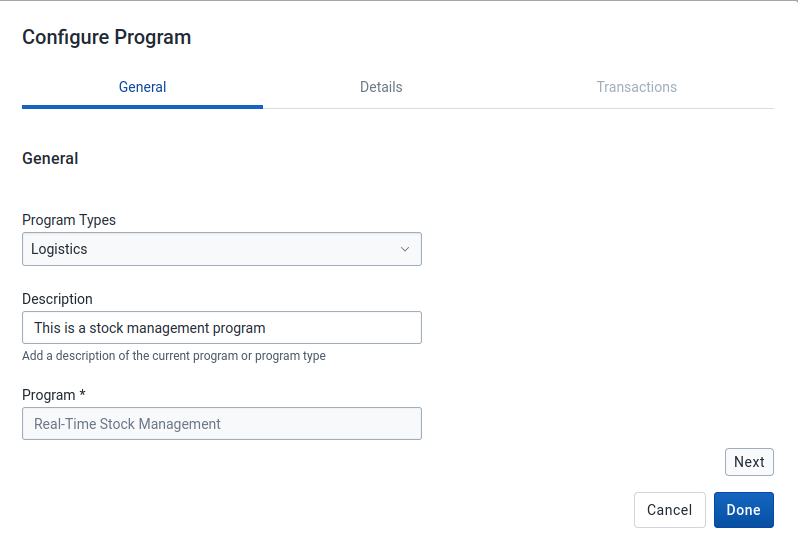
- A pop-up with only the description field in the General tab will be available, the other fields will be disabled. If wanted, change the visualization title.
- All fields in Details and Transactions tabs will be available to edit if needed.
- Click on the "Done" button.
Note: (New 1.1)
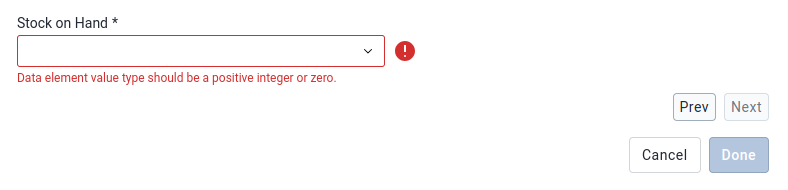
- While editing the configuration of a program containing Data Elements with a previously accepted value type, users will encounter a warning indicating the need for attention to these fields. These flagged fields will need reconfiguration by selecting new Data Elements.
- The "Next" and "Done" buttons within the configuration interface will remain disabled until users have selected Data Elements that comply with the new valid value type. This precaution ensures that only compatible Data Elements are used.
This process ensures seamless transition and adherence to updated system requirements, minimizing errors and ensuring data accuracy.
Delete configuration
To remove a Program Configuration:
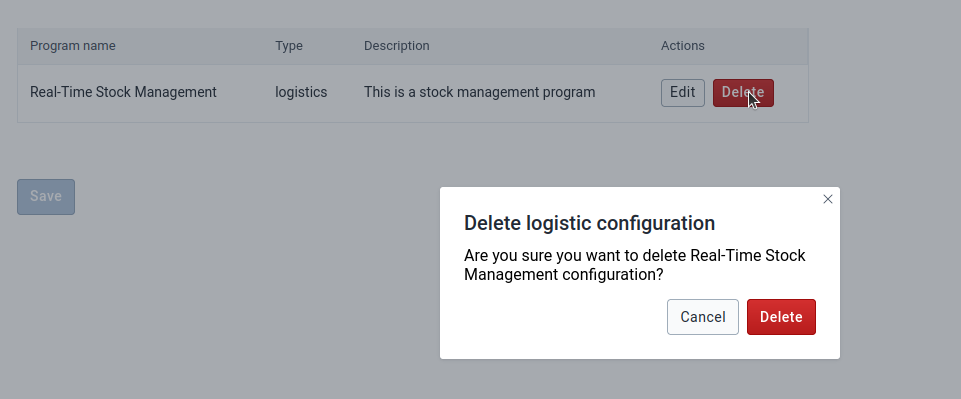
- Search for the program configuration to delete.
- Click on "Delete".
- Click on the "Delete" button.
Enter and save configuration parameters
Datastore
Internally all program configurations are stored in Datastore in JSON format.
Struktura datového úložiště:
| Položka | Popis | Datový typ |
|---|---|---|
| Jmenný prostor | Jmenný prostor pro organizaci záznamů | Řetězec |
| Klíč | Klíč pro identifikaci hodnot | Řetězec |
| Hodnota | Hodnota obsahující informace pro záznam | JSON |
Save configuration parameters
At the footer of the configuration section, admin users can find a Save button.

Only when an admin user clicks on this button, all changes made are saved on the Datastore. These changes will apply to the Android Capture Apps when they synchronize their configuration.
Uninstall the app
In case of needing to uninstall the Use Case Configuration App it is recommended to also delete all the data from the datastore namespace.
Delete data
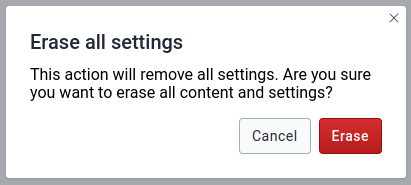
- Click on Erase all settings
- A modal will pop up, click on Erase
Uninstall app
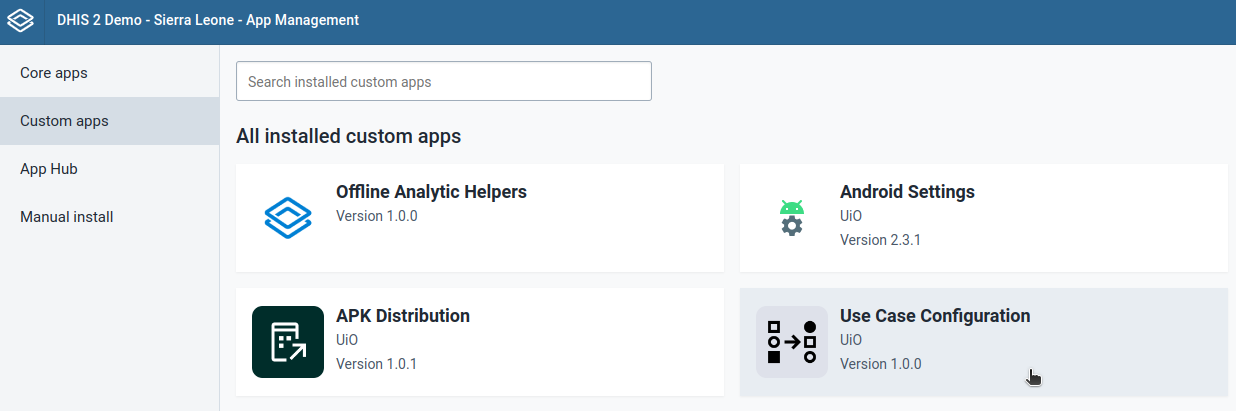
- Go to App Management
- Click on Custom Apps
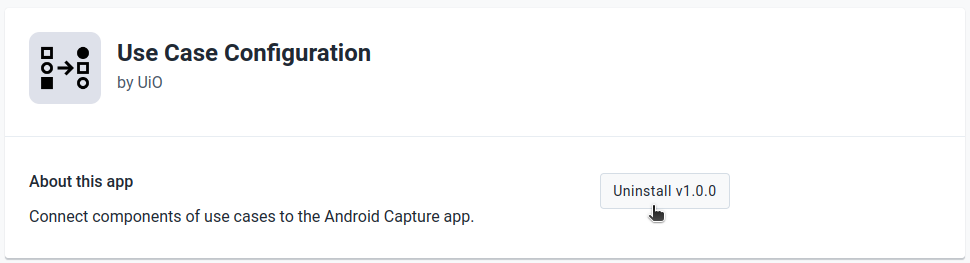
- Go to Use Case Configuration
- Click on Uninstall V1.X.X
Warning
This is a critical action, be aware that by doing this, all previous configurations will be permanently deleted.