Obecné funkce
Přihlášení
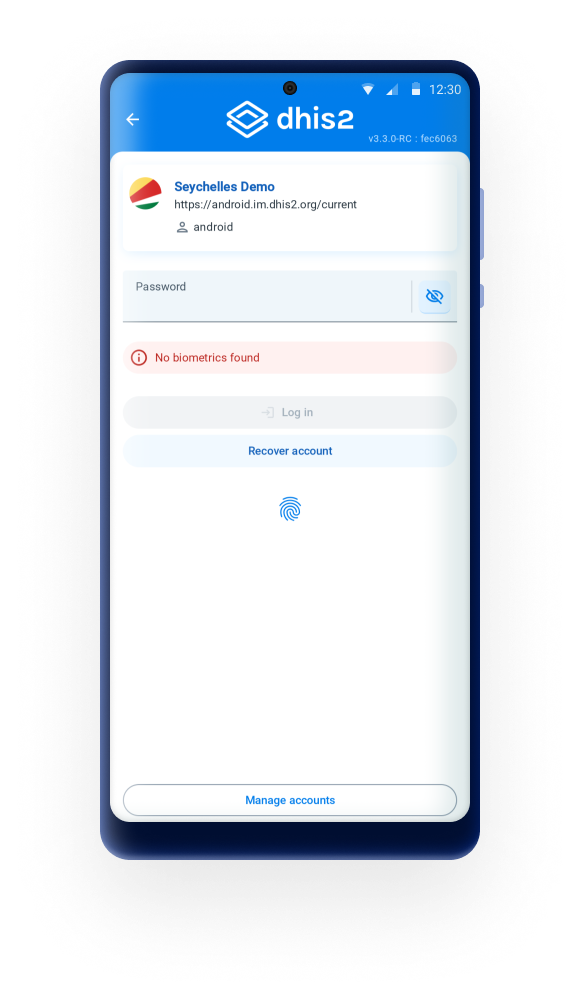
In version 3.3.0 the login screen was redesigned with a modern interface and improved usability in order to support future OAuth-based two-factor authentication (2FA), ensuring the app is ready for upcoming security improvements.
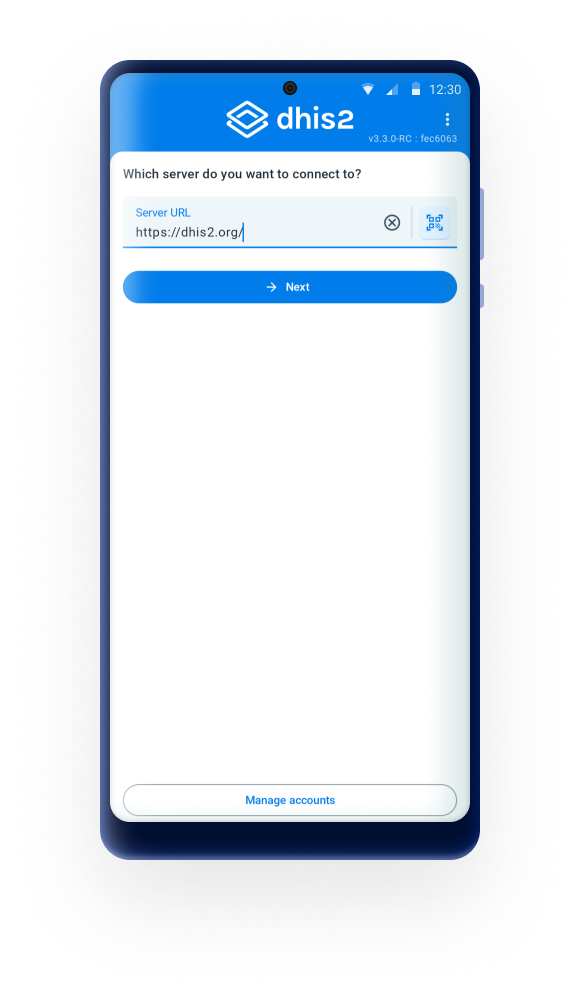
The first step to the login is to enter the server URL. This can be done in two ways:
-
Manual: The user must type the corresponding URL of the server to be used
Note
Take note that login is only possible with servers from version 2.29.
-
QR: Uživatel může místo zadávání adresy URL použít QR kód, ale uživatelské jméno a heslo je nutné zadat ručně.
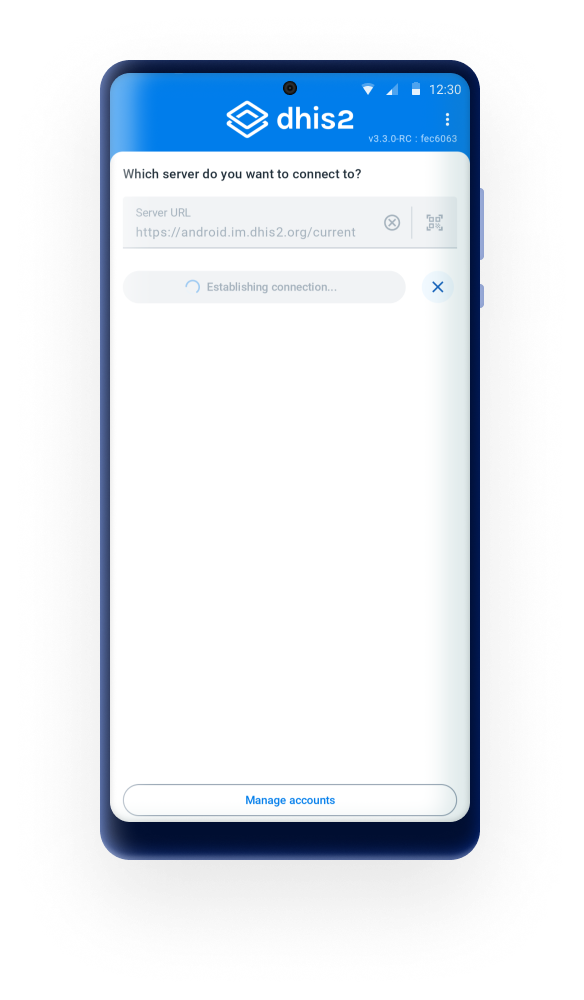
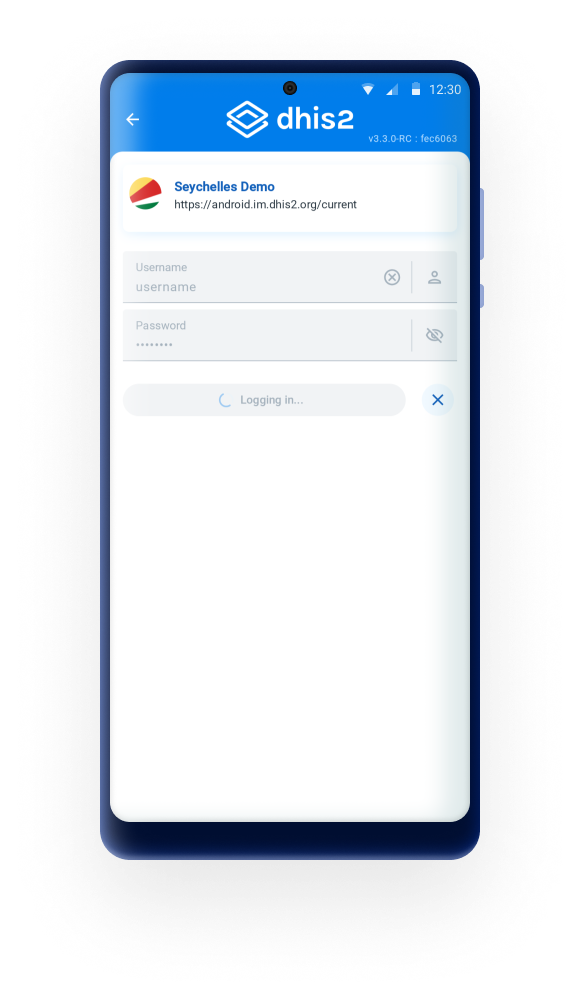
The second step is to add the username and password.
Note
- After a succesful login the DHIS2 Android App will keep these values cached (URL and username) and will suggest them for future connections without having to type them.
After a succesful login the user should be able to perform an offline login only (only avaialble for the last combination of URL/Username). Offline usage gives the possiblity of using the application withou any type of connectivity. All data will still be stored and user can perform a synchornization once the connection is restablished or avaialble.
Warning
In DHIS2 versions up to 2.30 if a user attemps an on-line login and their account has been disabled as explained in the DHIS 2 Manual - Disable User all the data will be wiped from the phone. Make sure that before disabling a user all the data has been synced or that you are using this feature to remotely wipe sensitive data in case of a device getting lost.
Due to a change in the login API this feature is not available from 2.31.
Offline Multi-user
The Manage Accounts screen has been redesigned to align with the updated login experience introduced in version 3.3.0. Saved accounts now appear as clearer, more structured cards that display key information retrieved from each DHIS2 instance. Each card now includes:
- Application title (as configured in System Settings → Appearance)
- Server URL
- Uživatelské jméno
- Country flag, when configured in System Settings
This redesign improves readability, makes it easier to distinguish between multiple saved accounts, and ensures visual consistency with the new authentication flow.
The users will need to have access to the internet for the first login of each account and will be able to switch accounts after without requiring access to the Internet.
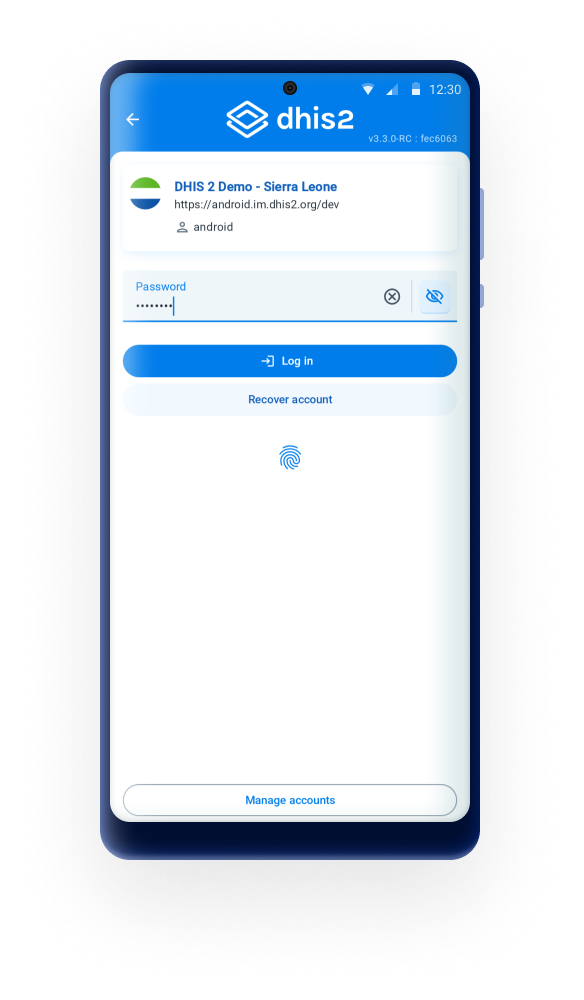
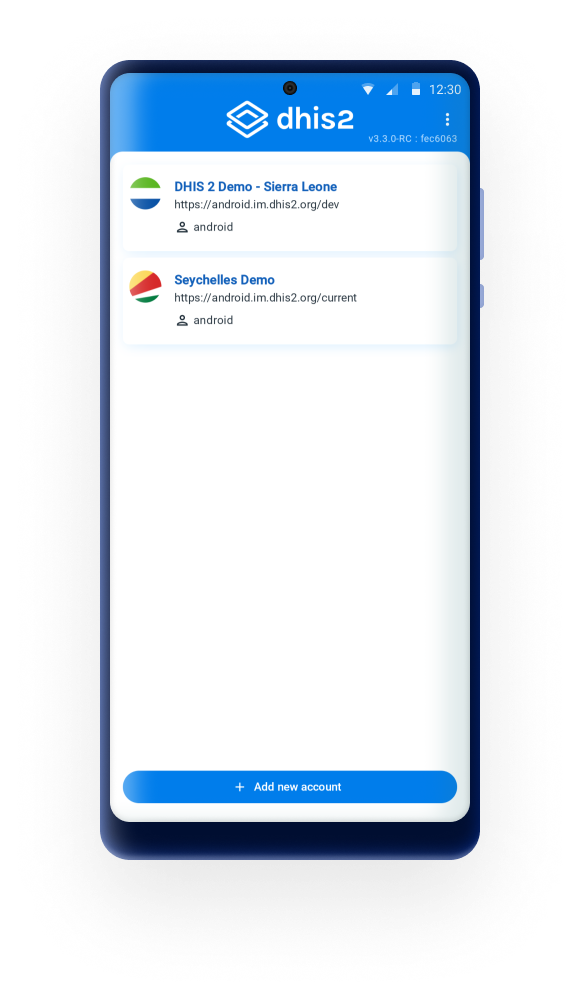
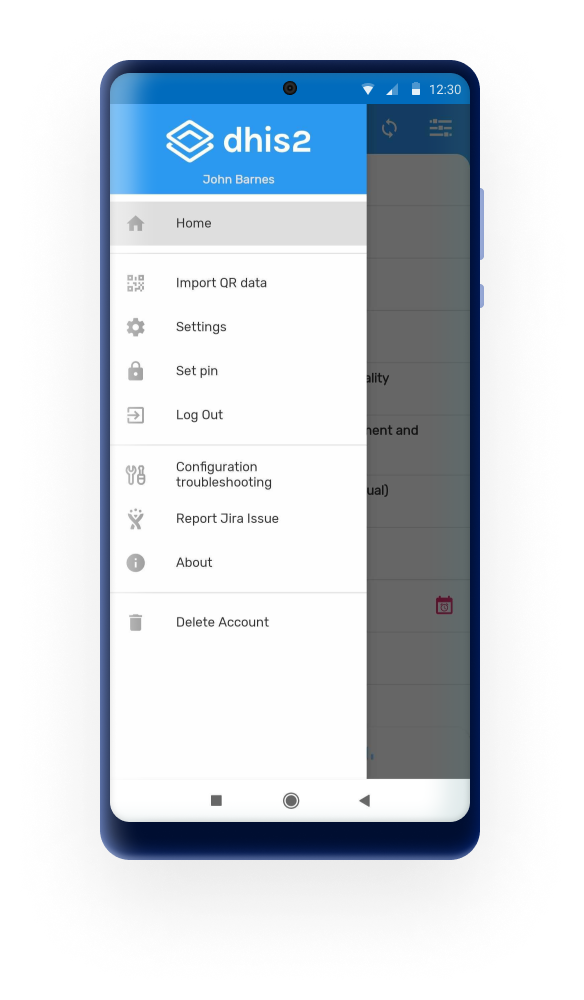
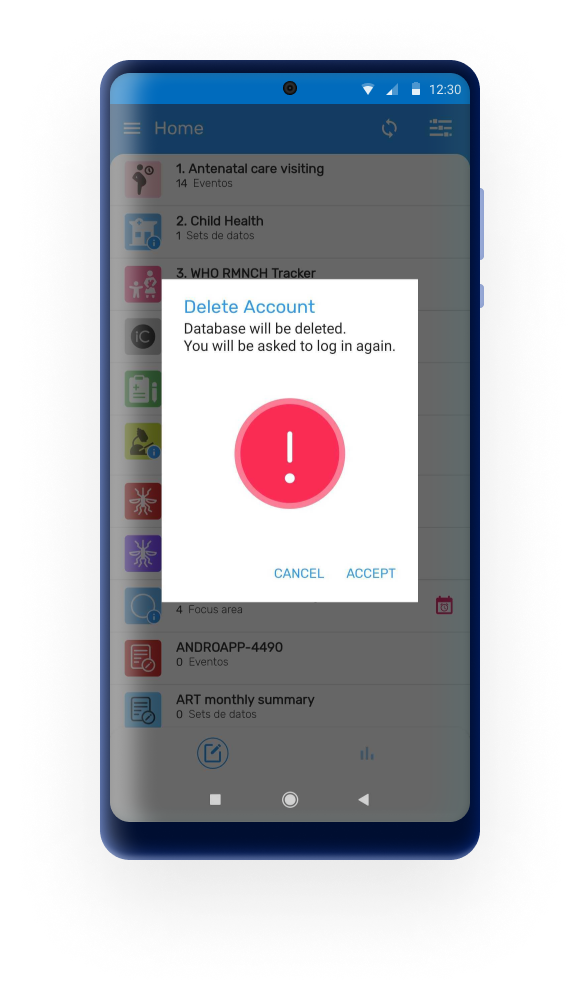
The users will be able to manage the user accounts and delete accounts if needed.
Obnova účtu
Uživatelé budou moci obnovit své vlastní heslo, pokud mají povolené nastavení: Povoleno Obnovení uživatelského účtu.

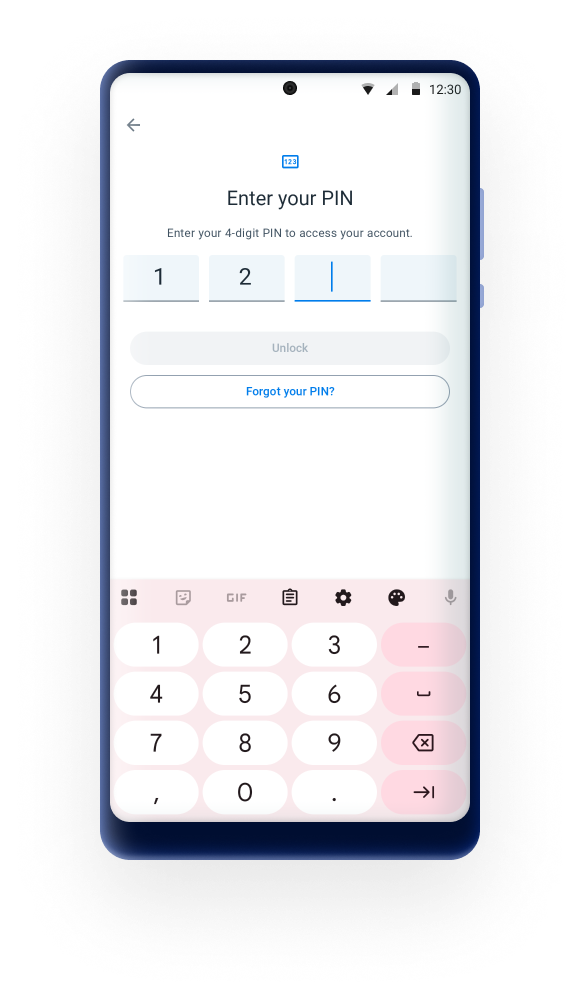
Blocking session (PIN) (Improved 3.4.0)
User is able to lock the session using a 4 digit PIN. This allows to move to other apps in your phone without deleting the local data.
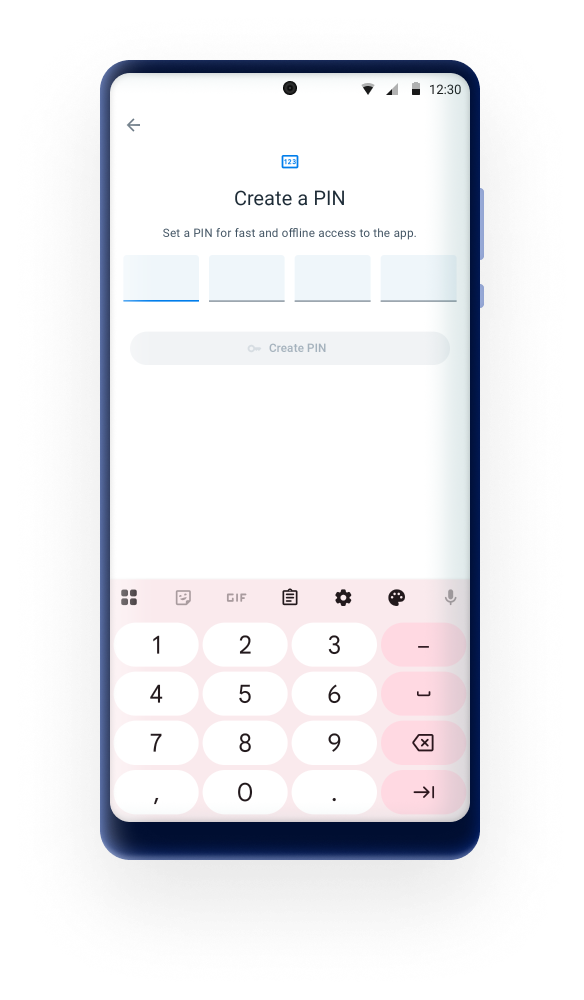
If the user forgets the PIN number, log in by entering the credentials is also available. After 3 invalid attempts, the app will ask the user to login using the password.
Biometrics login
User is able to use the fingerprint scanner or face id if the feature is activated in the device. This will only be available if there is only one account (not supported for multple accounts)
- Když je povolen snímač otisků prstů, a ne PIN, pokaždé, když se aplikace zavře, přejde na pozadí nebo je zařízení blokováno, relace bude uzamčena. Jakmile je aplikace znovu otevřena, uživatel musí klepnutím na ikonu otisku prstu aktivovat snímač.
- Pokud je nastaven PIN a otisk prstu, bude při uzamčení relace a opětovném otevření aplikace uživatelem PIN vyzván.
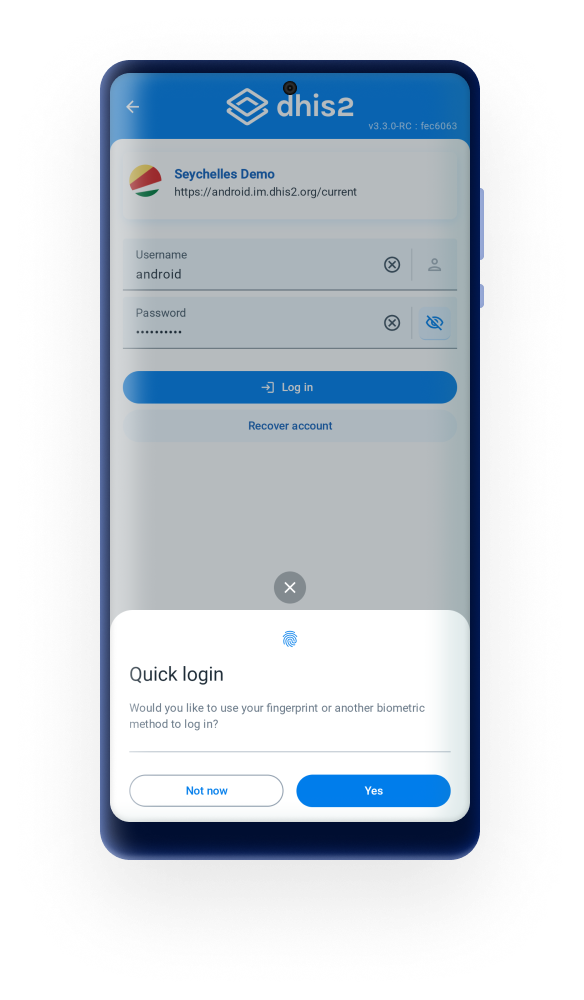
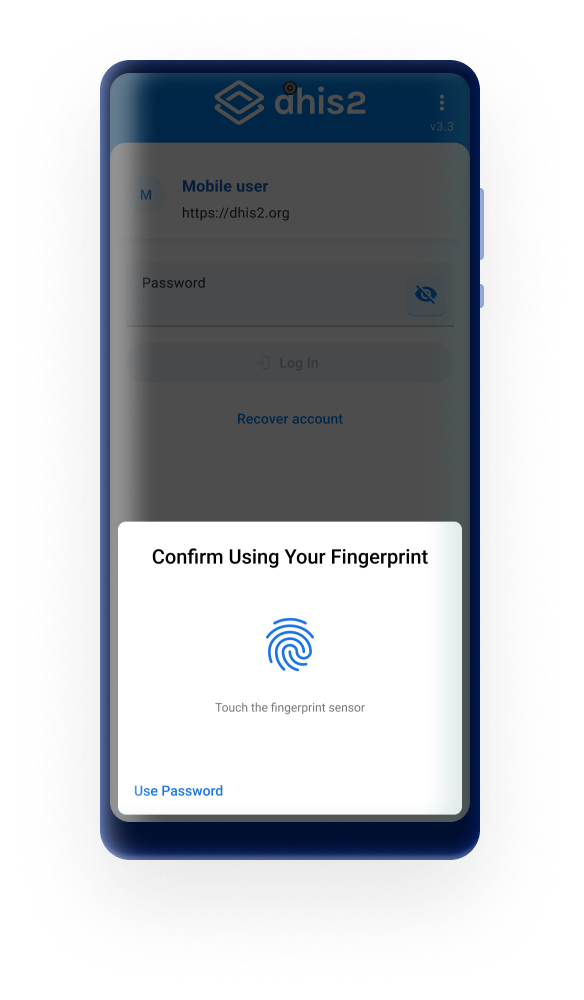
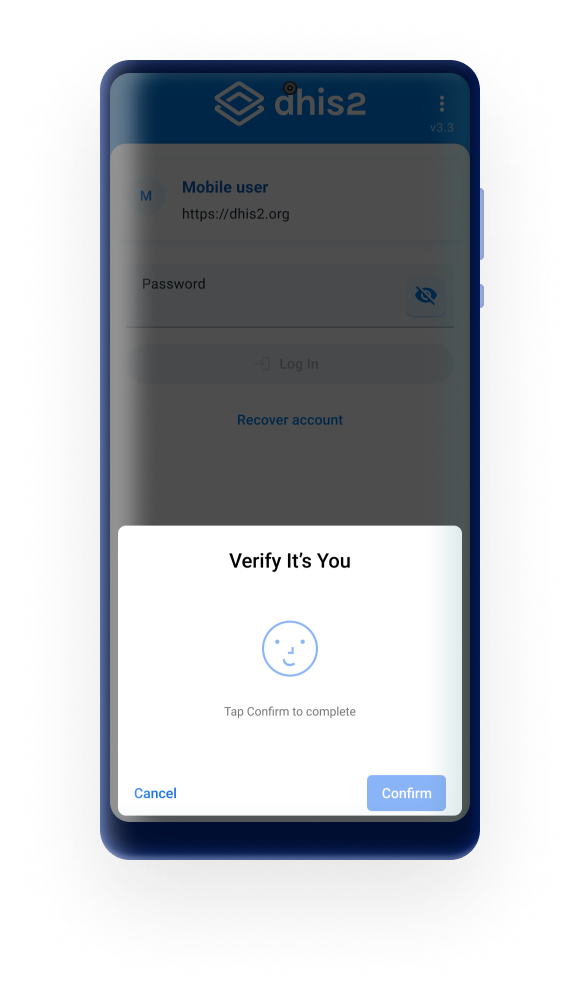
If the biomtric authentication fails, the user will be asked to enter password to finish the login process.
Pokyny / informační tlačítka
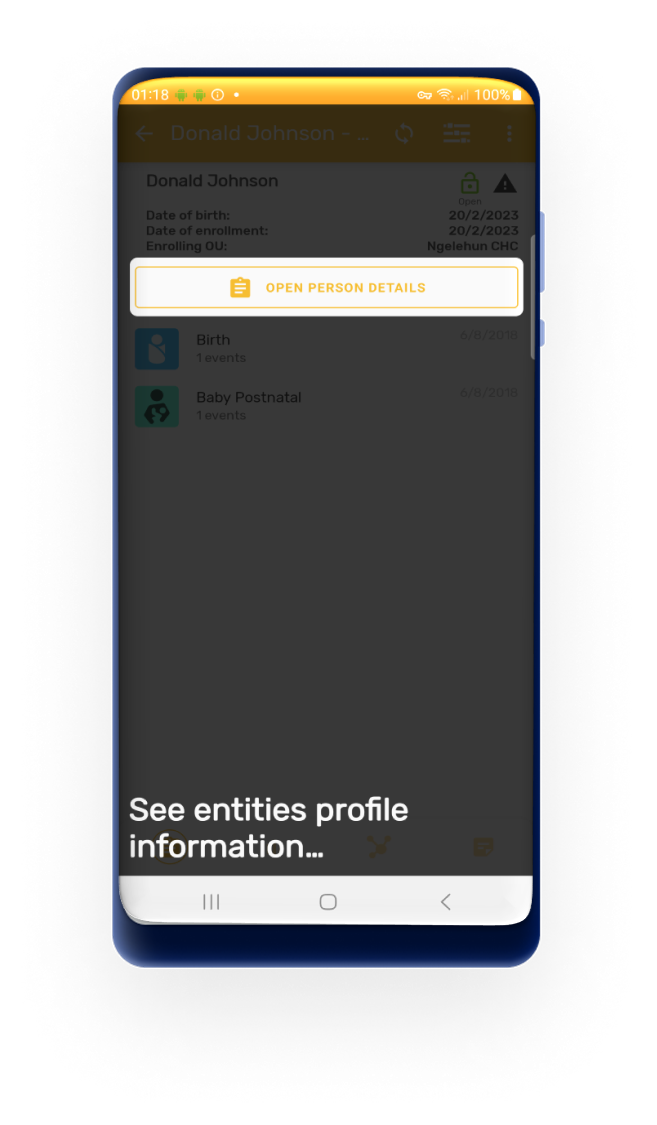
A contextual guide is available in TEI dashboard screen.
Tip
Uživatel je schopen znovu otevřít pokyny kliknutím na tři tečky v pravém horním rohu obrazovky.
Filtr
Na všech obrazovkách výpisů (úvodní strana, výpis událostí, hledání tei a dataSets) lze použít filtr, který zužuje zobrazovaná data. Dostupné filtry jsou: období, org. jednotka, stav synchronizace, stav události, kombinace možností kategorie a „přiřazeno mně“.
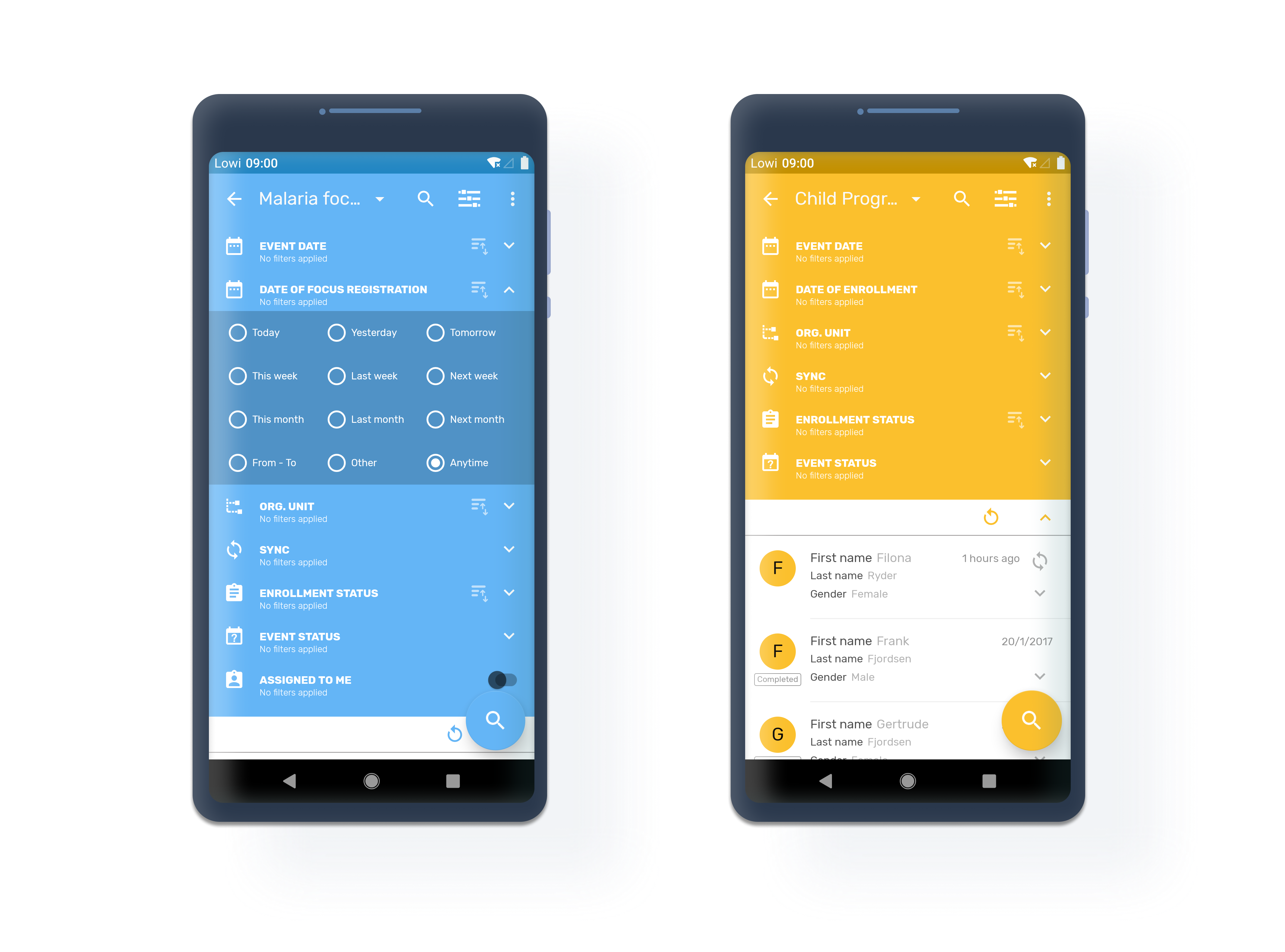
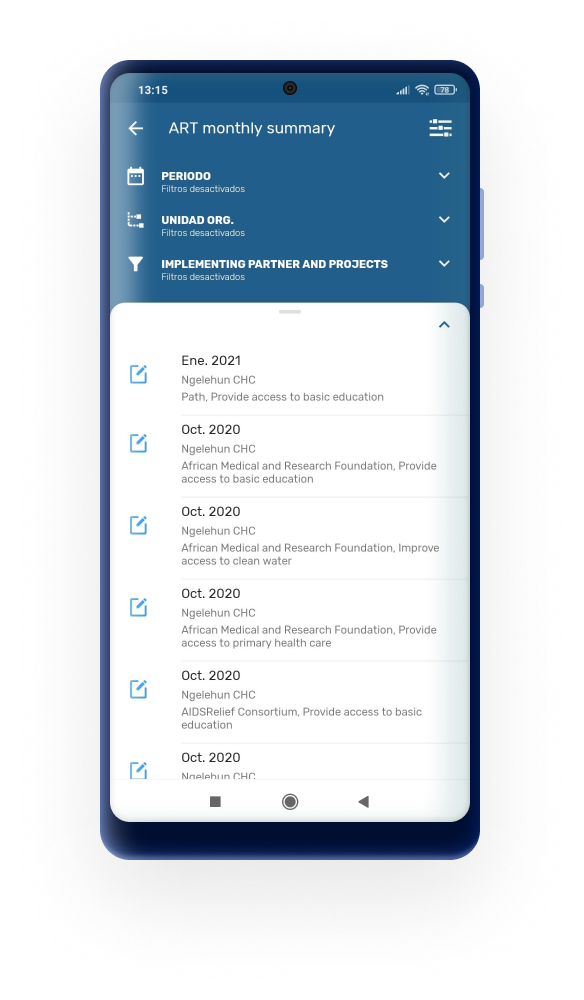
Filtry se přizpůsobí různým programům a souborům dat.
- Program bez registrace: Datum, Org. jednotka, stav synchronizace, stav události a kombinace kategorií.
- Program s registrací: Datum akce, Datum přihlášení, Org. Unit, Sync, Enrollment Status, Event Status a Assigned to me. Ikona filtru se zobrazí pouze v případě, že je k dispozici seznam událostí (funkce zobrazení seznamu na úvodní stránce nebo vyhledávání)
- Datové Sady: období, Org. jednotka a Stav synchronizace.
Přiřazeno ke mně
Je možné filtrovat události na základě jejich přiřazení aktuálnímu uživateli. Filtr „Přiřazeno mně“ byl přidán do seznamu jednotlivých událostí, seznamu TEI a ovládacího panelu TEI a zobrazení mapy. Zobrazí se pouze v případě, že je aktivní program nakonfigurován pro přiřazování událostí uživatelům.
Note The Android app can only filter and display events by their existing assignment. Assigning or reassigning a user to an event must be done from the web Capture app or Tracker Capture app — this is not currently supported within the Android app itself.
Datum události / datum / období
Filtrujte události, TEI (na základě jejich událostí) a datové sady, jsou k dispozici následující časové úseky: - Dnes - Tento týden - Tento měsíc - Včera - Minulý týden - Minulý měsíc - Zítra - Příští týden - Příští měsíc - Od-do - Jiný (otevře výběr data) - Kdykoli
Org. Jednotka
Umožňuje uživateli zadat vyhledávání nebo vybrat organizační jednotku ze stromu. Filtr nebude viditelný, pokud má uživatel nakonfigurovanou pouze jednu organizační jednotku.
Synchronizace
Filtrovat podle - Synchronizované (události, TEI, datové sady) - Nesynchronizováno - Chyba synchronizace - SMS synchronizováno
Stav události
Filtrovat Události podle: - Otevřít - Plánování - Po vypršení termínu - Dokončeno - Přeskočeno
Je povolen výběr více stavů. Jakmile otevřete TEI, filtr se zachová na ovládacím panelu a zobrazí pouze události se zvoleným stavem.
Zobrazené události jsou staré až 5 let.
Datum registrace
„Datum zápisu“ se použije k datu zápisu TEI do programu. Pokud existuje více než jedno datum zápisu, mělo by seřadit výsledky podle nejnovějšího. Je-li k dispozici, zobrazí se štítek tohoto filtru.
Stav zápisu
The filter 'Enrollment status' offers three options: Active, Completed, Cancelled. Only one option can be selected at time. If you filter by "completed" and the TEI has more than one enrollment, the app will open the "active" enrollment. To see the completed one, select the three dot menu at the top right corner of the dashboard and select "program enrollments".
Follow-Up
Filtr 'Follow Up' umožňuje uživateli odfiltrovat TEI, které byly označeny jako 'Follow-up'. TEI mohou být označeny k sledování v TEI Ovládacím panelu.
Filtrování přidáno do ovládacího panelu TEI:
Na ovládací panel TEI byly přidány filtry. Je možné filtrovat události registrace instance trasované entity podle období, organizační jednotky, stavu synchronizace, stavu události a přiřazení uživatele.
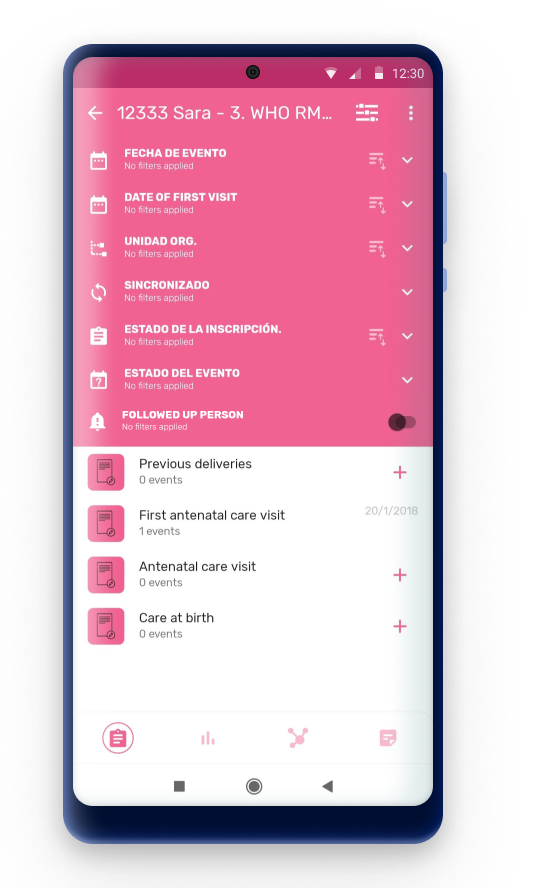
Řazení
Třídění bylo integrováno do nabídky filtrů.
Tlačítko řazení bude na pruzích filtrů s následujícím chováním: - Najednou platí pouze jedno třídění. Pokud uživatel klikne na jiné, předchozí je deaktivováno. - The icon for applied sorting shows it is active, the others are inactive.
- Opakovaná kliknutí mění směr řazení na opačné.
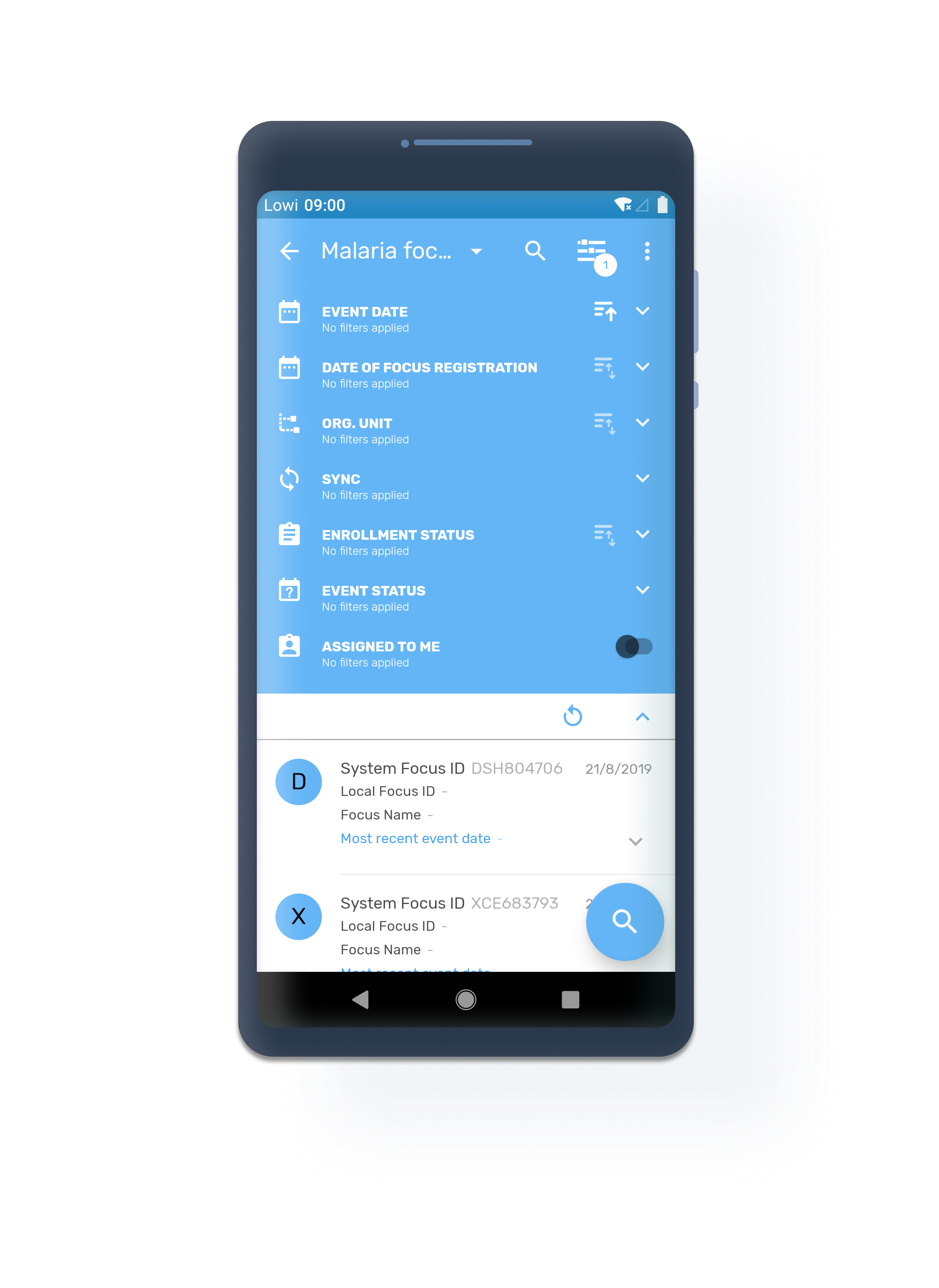
Data (období, datum, datum události nebo datum registrace)
- Datum události předchází datu vypršení, datum vypršení použijte pouze v případě, že neexistuje datum události.
- Řazení od nejnovějšího ke staršímu. Budoucí události (s vypršením) jsou na prvním místě.
Org. Jednotka
- Seznam bude řazen v abecedním pořadí podle názvu organizační jednotky.
Stav zápisu
- Seznam bude seřazen v abecedním pořadí podle názvu stavu.
Synchronizovat informace
Login Sync
During the metadata download, the app will remain in the splash screen and will open the home screen once the metadata is in the device.
In the home screen, the app will inform with a loading spinner on each program when the data is downloading. After the sync process finishes, the app will display one of the two possible icons:
- A green checkmark if the program downloads data successfully and without errors (the icon will disappear after three seconds) or,
- A gray arrow if there is an error during the sync process and the total or partial data isn't donwloaded
The user will be able to see how many programs are downloading data, or completed, making the waiting process more transparent and informative about its progress.
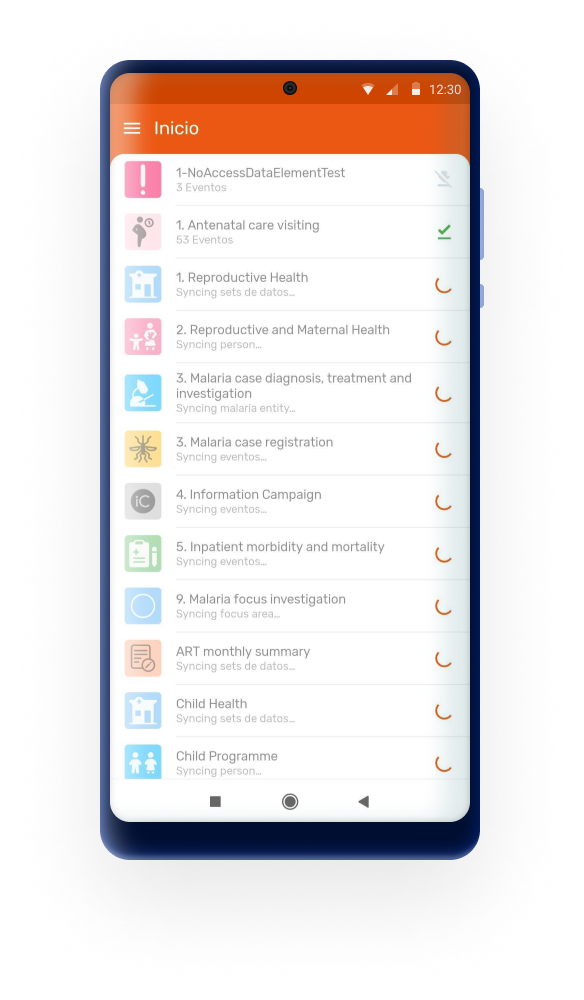
NOTE: All programs and data sets will be blocked until the sync process is fully finished.
Subsequent logins
The application will launch a sync process for data and metadata only for the first time the user logs in. In order to facilitate the work in the most difficult cases, the sync process have been removed for the subsequent logins. This means that when the user opens the app, it will open without performing a full sync even if the user logs out of the account.
If the user deletes the account, then the next login will launch the sync process.
Also, users have the option to sync with the server through the Refresh button any time they wish.
Sync Status
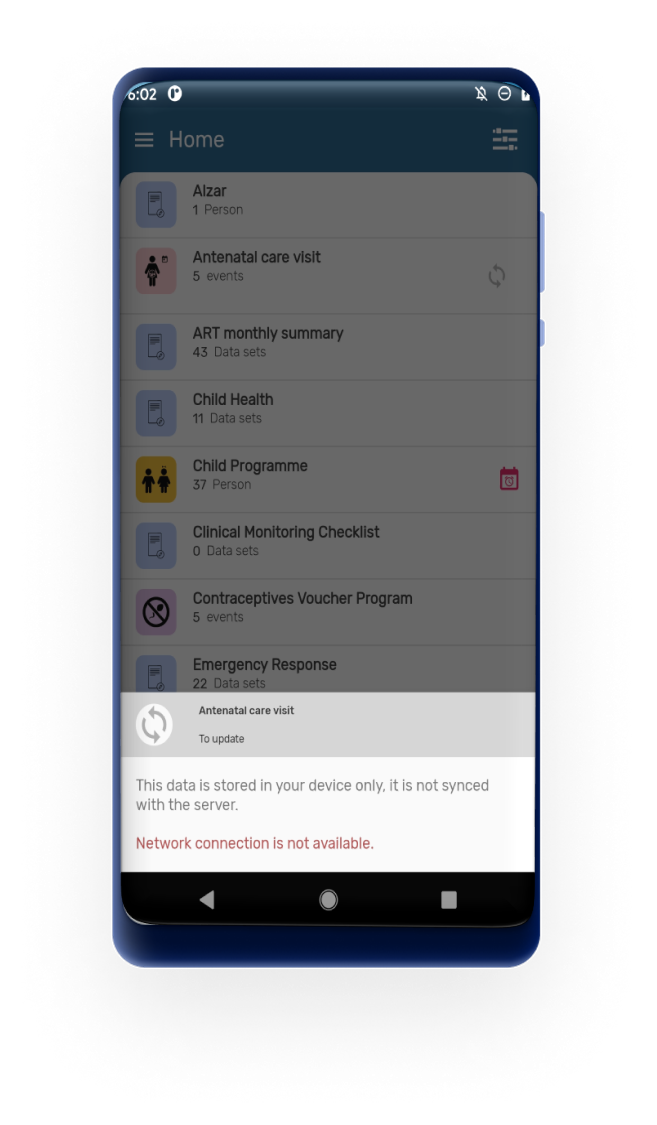
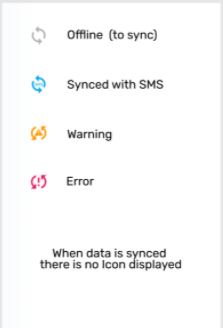
Vedle každého programu nebo souboru dat se zobrazí ikona, která uživateli umožňuje zkontrolovat informace o synchronizaci. U synchronizovaných záznamů se nezobrazí žádná ikona. Podle stavu se zobrazují ikony nesynchronizované (šedé šipky), chyba (červené šipky), varování (oranžová) nebo SMS (modrá včetně slova SMS uvnitř).

Granulární synchronizace
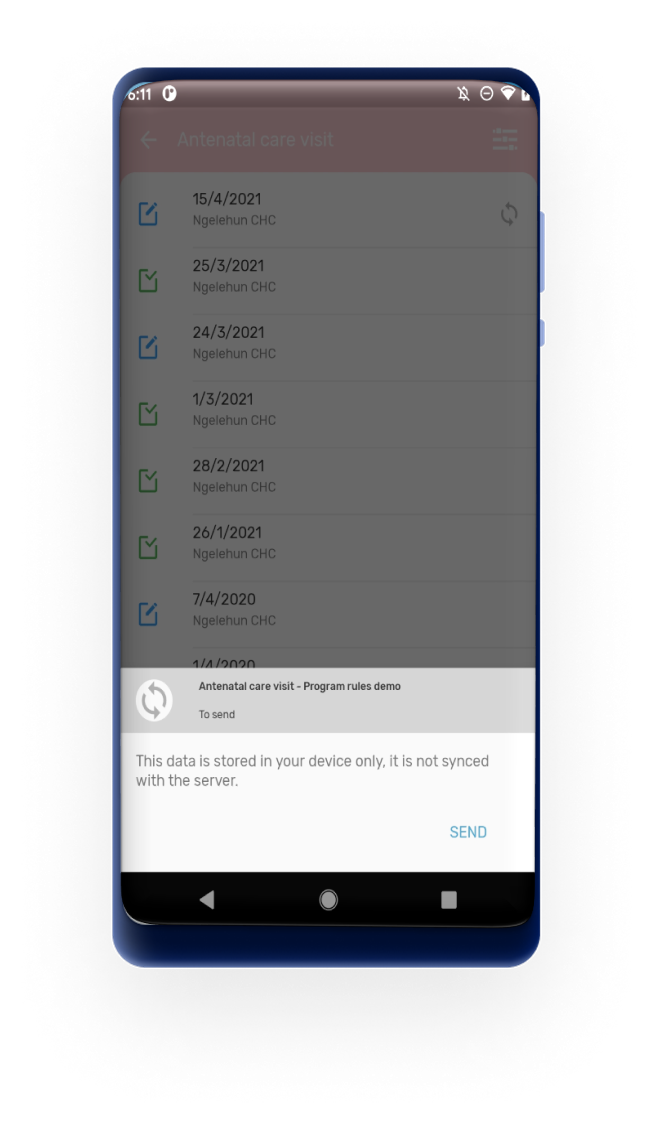
Uživatelé mohou kliknout na šedé šipky (což znamená záznam(y) uložené online v zařízení) a provést synchronizaci. Tyto možnosti jsou dostupné na nejvyšší úrovni (programy/dataset) nebo jednotlivě (TEI, události, datové hodnoty).
SMS Sync
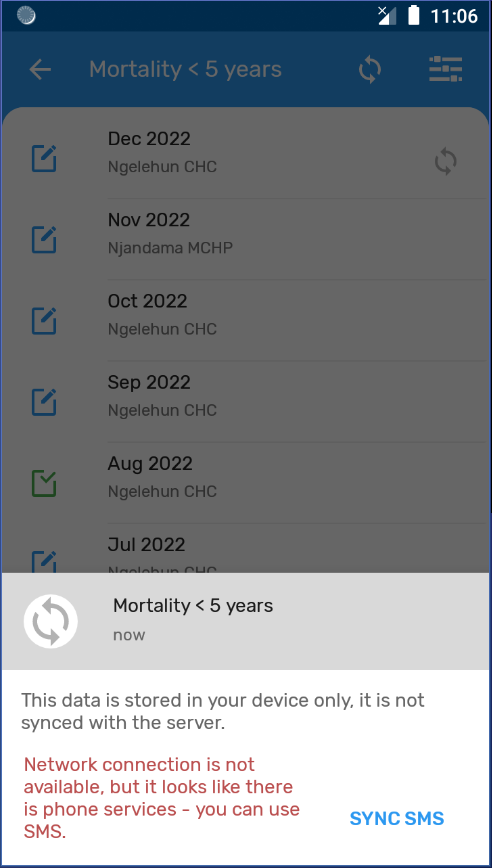
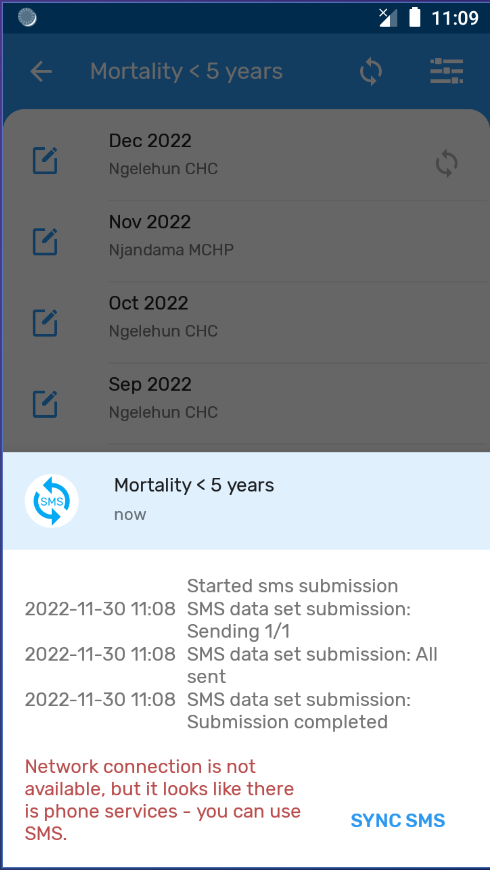
When there is no Internet conection (either via WiFi or Mobile Data) but there is still mobile conectivity, users can synchronize via SMS if the gateway has been previously established in the app and properly configured at server level.
If the app has been downloaded from Google Play users will have to send manually the SMS from their default SMS app (their default SMS application will open with the message composed). Users should send the message without modifying it and then switch back to the DHIS2 app to confirm that the message was sent.
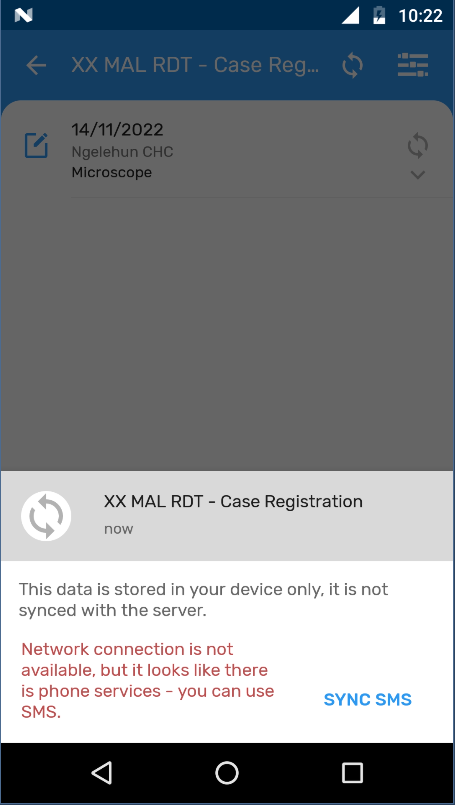
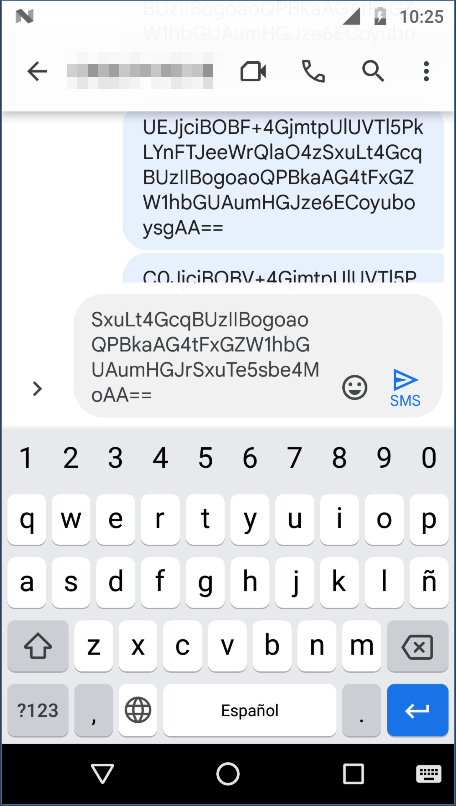

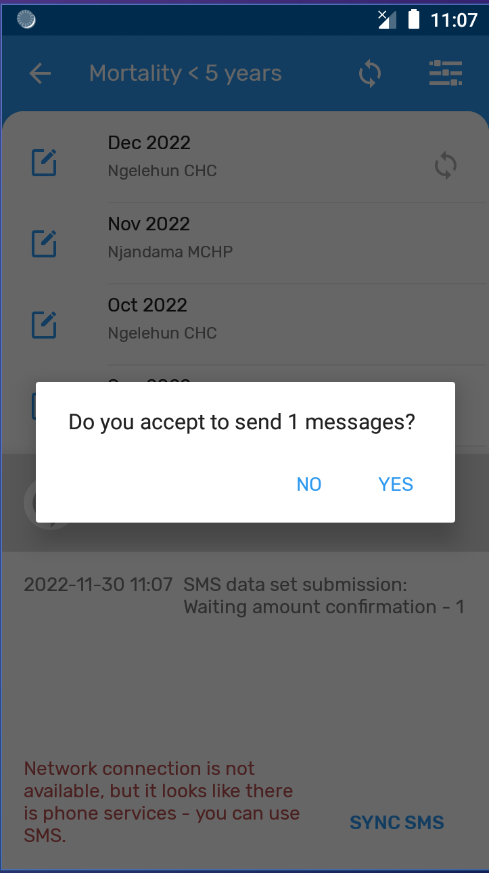
However, if the app has been downloaded from Github (or the training version is being used) the App will just ask for a confirmation to send one or several messages (SMS) and will send them in the background (without opening the default SMS application).
Tip
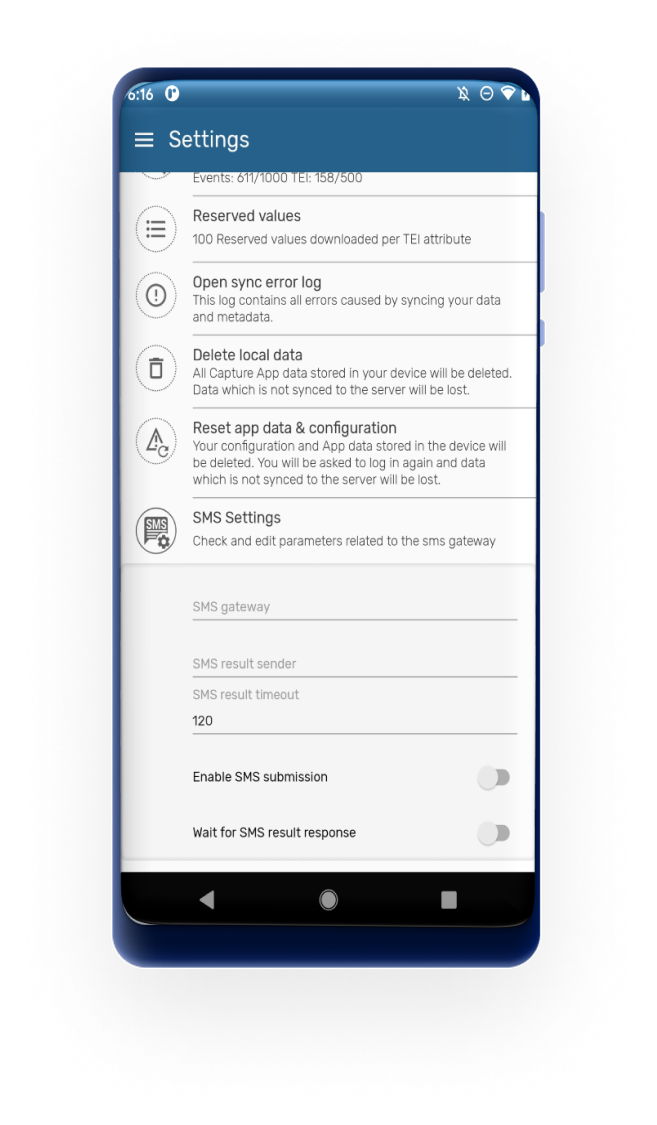
Edit parameters related to SMS gateway in the SMS Settings (Settings Menu) or set this globally via the #capture_app_android_settings_webapp_general
Note
Note that in order to user the SMS sync capabilities the SMS services needs to be enabled in the server side as described in the https://docs.dhis2.org/master/en/dhis2_user_manual_en/mobile.html#sms-service. You can also find more information on how to use different gateways in the https://docs.dhis2.org/master/en/dhis2_android_implementation_guideline/about-this-guide.html
Chyba synchronizace metadat
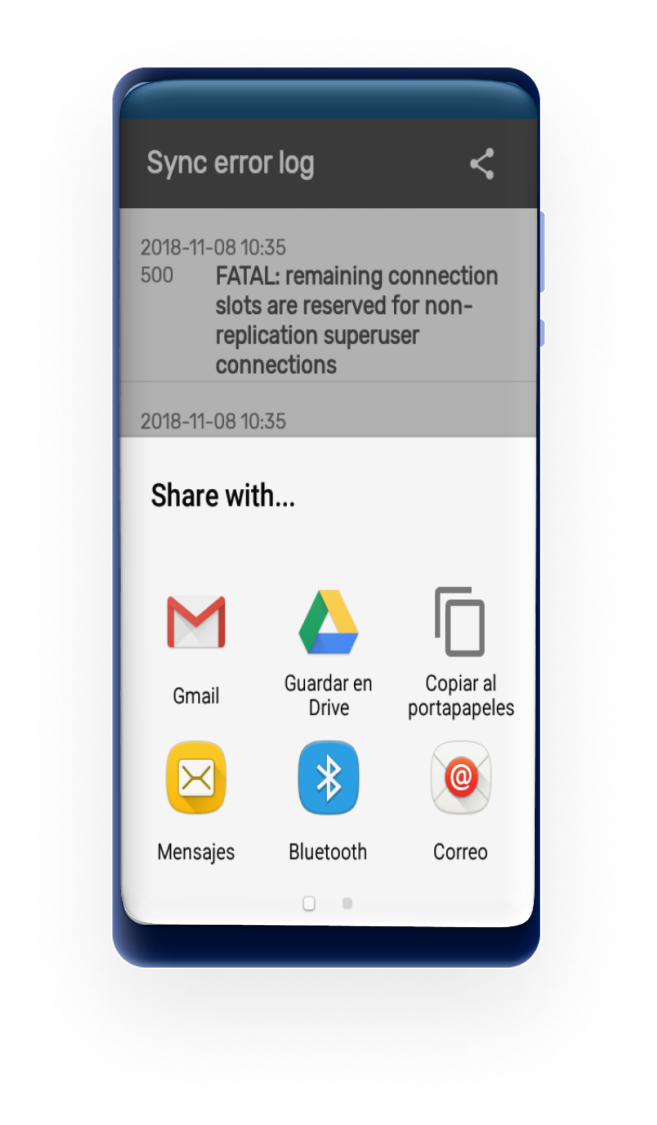
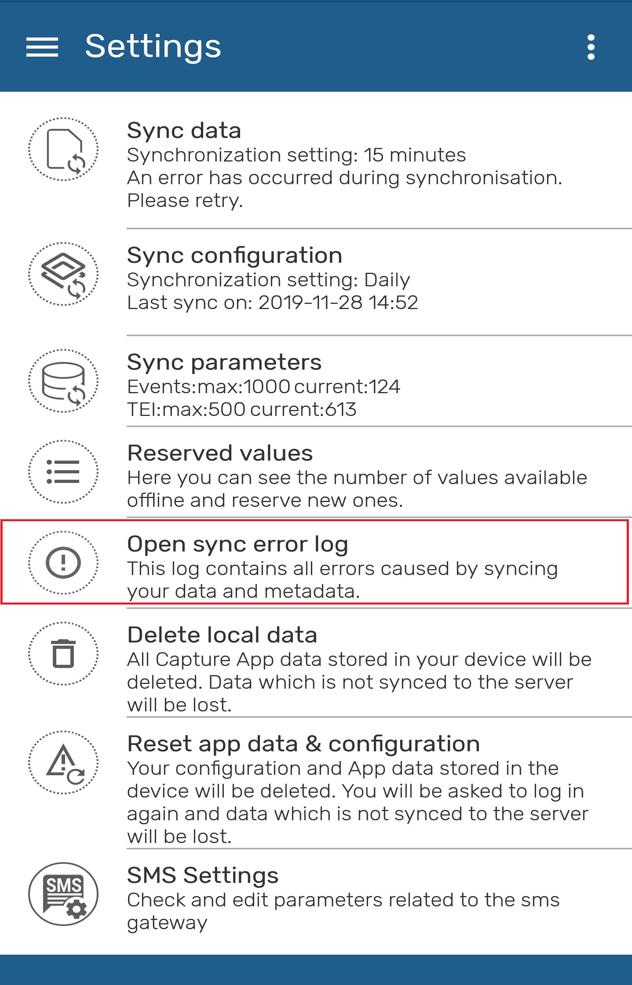
V případě chyb během procesu synchronizace se v nabídce nastavení zobrazí zpráva (část „Synchronizovat data“ nebo „Konfigurace synchronizace“). Vedle programu na domovské obrazovce se také zobrazí červená ikona synchronizace. Protokol chyb synchronizace poskytuje podrobnosti o chybě a je připraven ke sdílení s administrátory.

Protokol chyb synchronizace můžete také otevřít z Nastavení:
Refresh data
Users can now retrieve the latest data from the server before entering new data. A refresh button is now located to trigger a granular synchronization in the following screens:
- Domácí strana
- Hledání
- Ovládací panel TEI
- Seznam programu akce
- Podrobnosti o události
- Výpis datové sady
- Podrobnosti datové sady
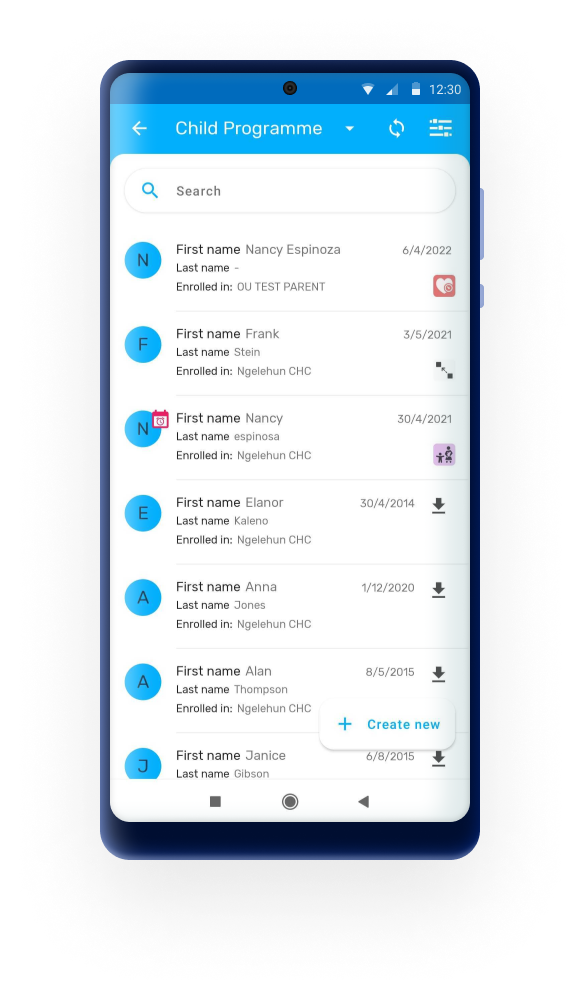
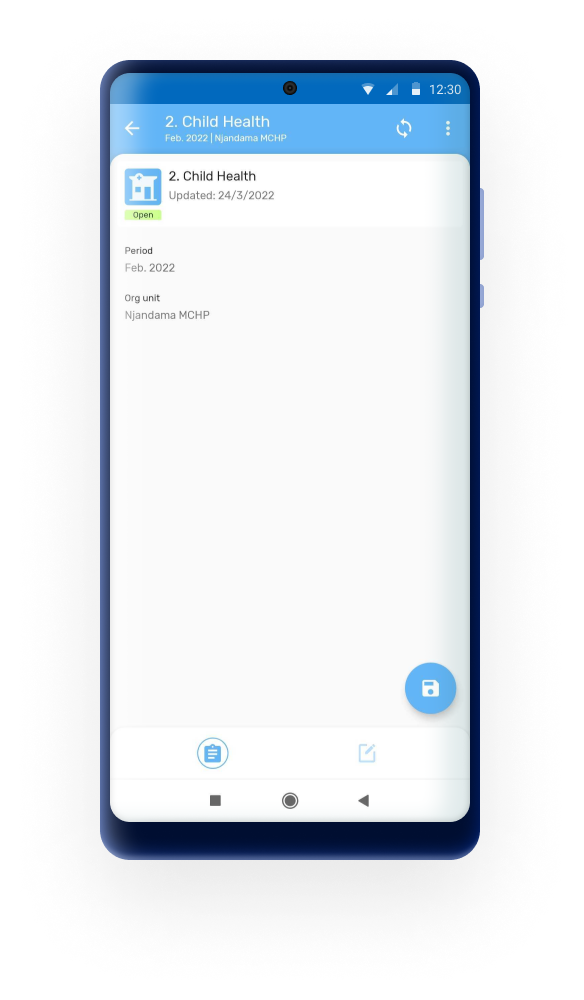
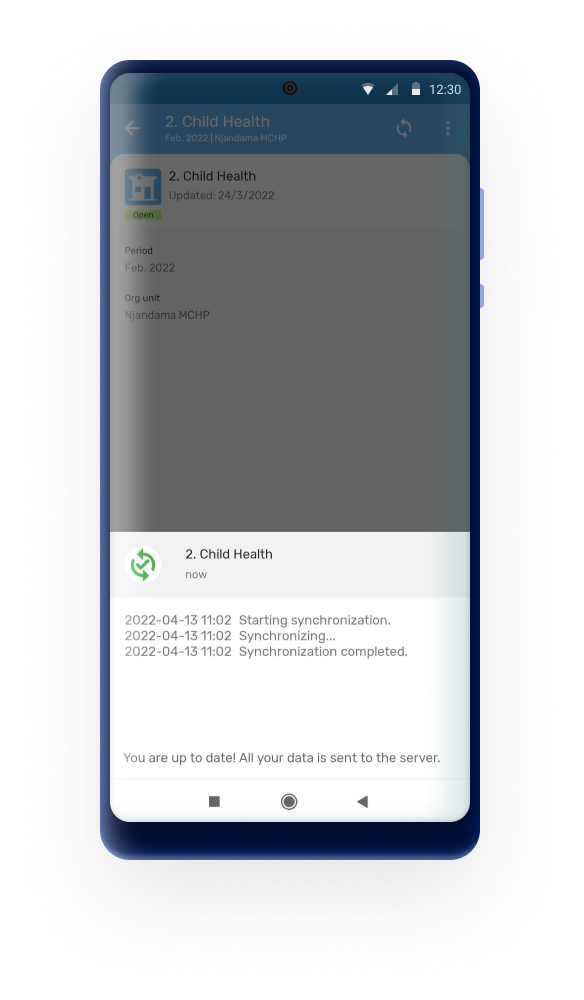
Org. jednotka
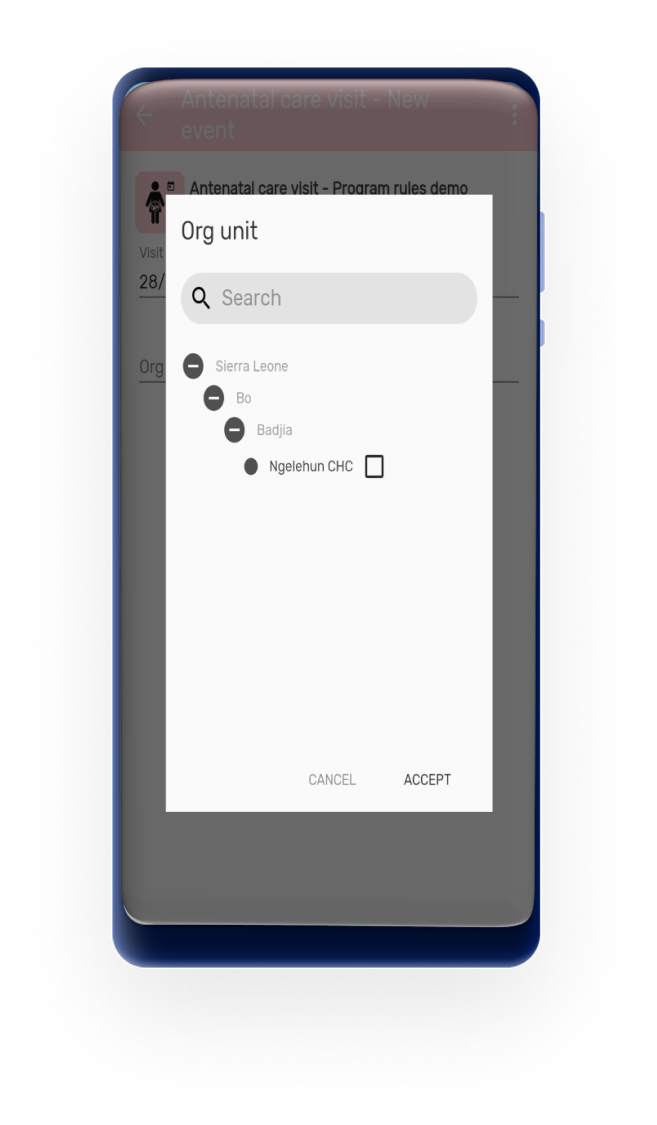
The whole organisation unit tree is displayed. Organisation units not available for data entry will be colored in grey. User must check the box to select the org unit wanted. After an organisation unit is selected, the parents will be marked in bold to show hint of the organisation unit selection when opening the hierarchy.
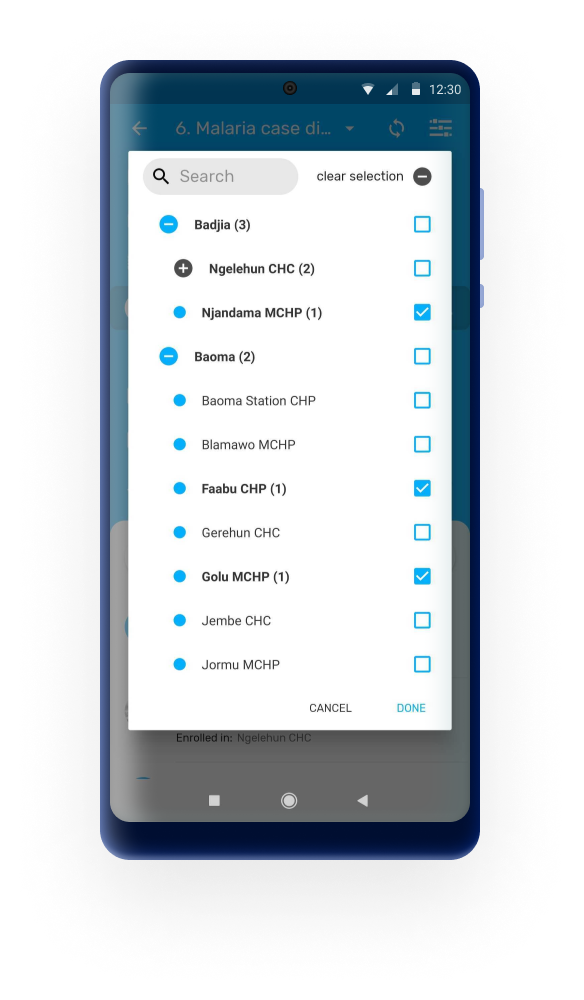
Pozor
Od mobilních uživatelů se neočekává přístup k organizační jednotce hierarchie celé země. Maximální počet organizačních jednotek je obtížné nastavit, protože aplikace nestanoví limit, ale prostředky v zařízení (paměť, procesor). Dalo by se říci, že 250 organizačních jednotek by mělo být bezpečných, ale přesto věříme, že je to velmi velké číslo pro případ použití v mobilu.
Datové sady
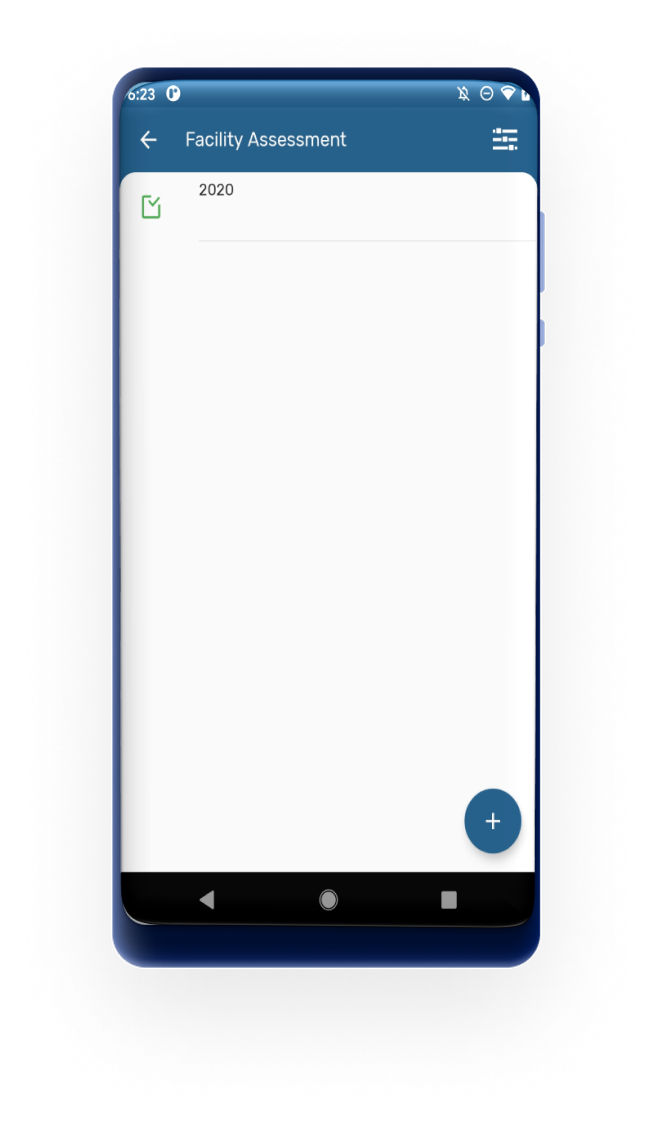
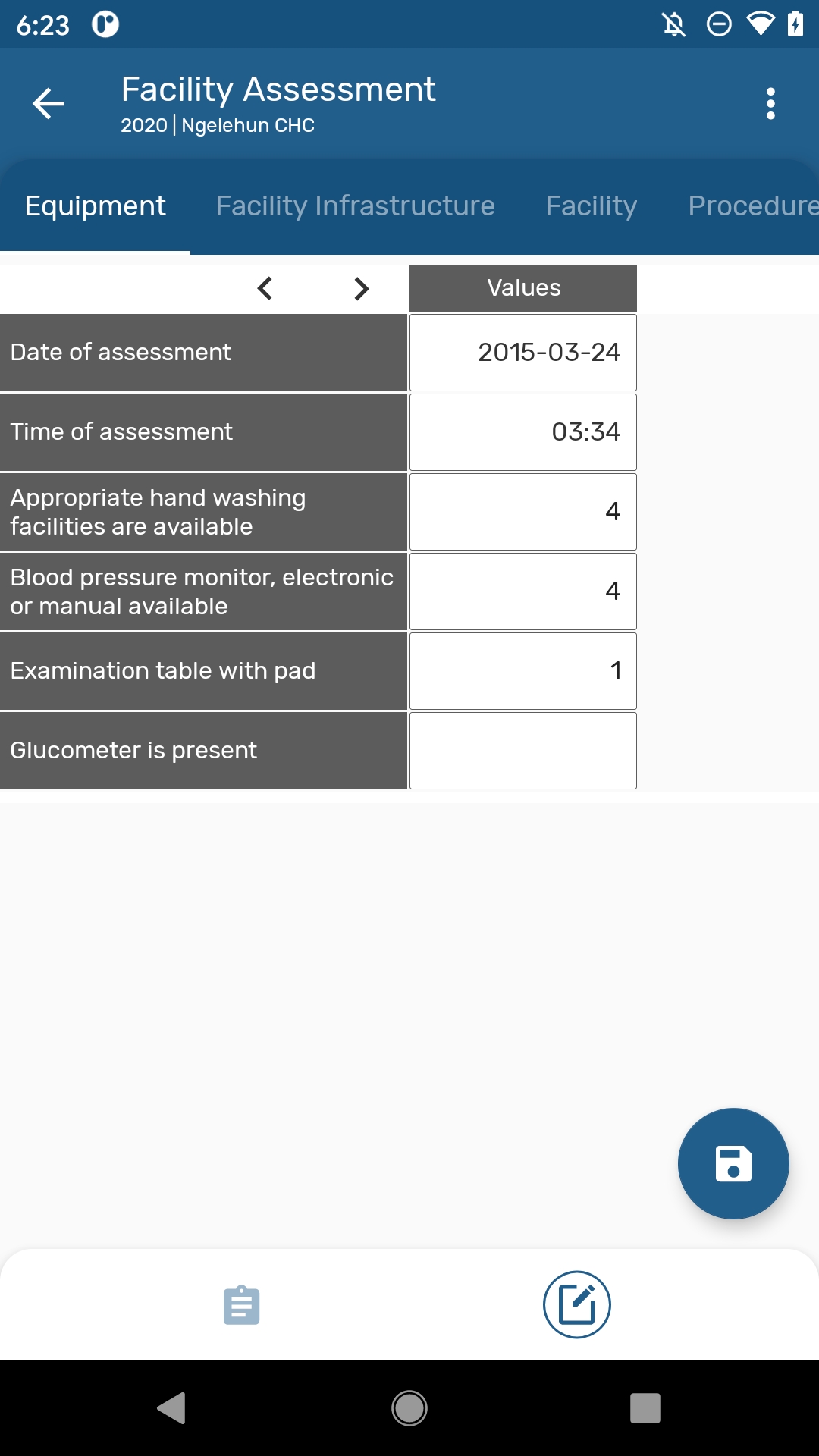
Uživatel nyní může zadat agregovaná data pro organizační jednotku, období a sadu datových prvků a odeslat je na server.
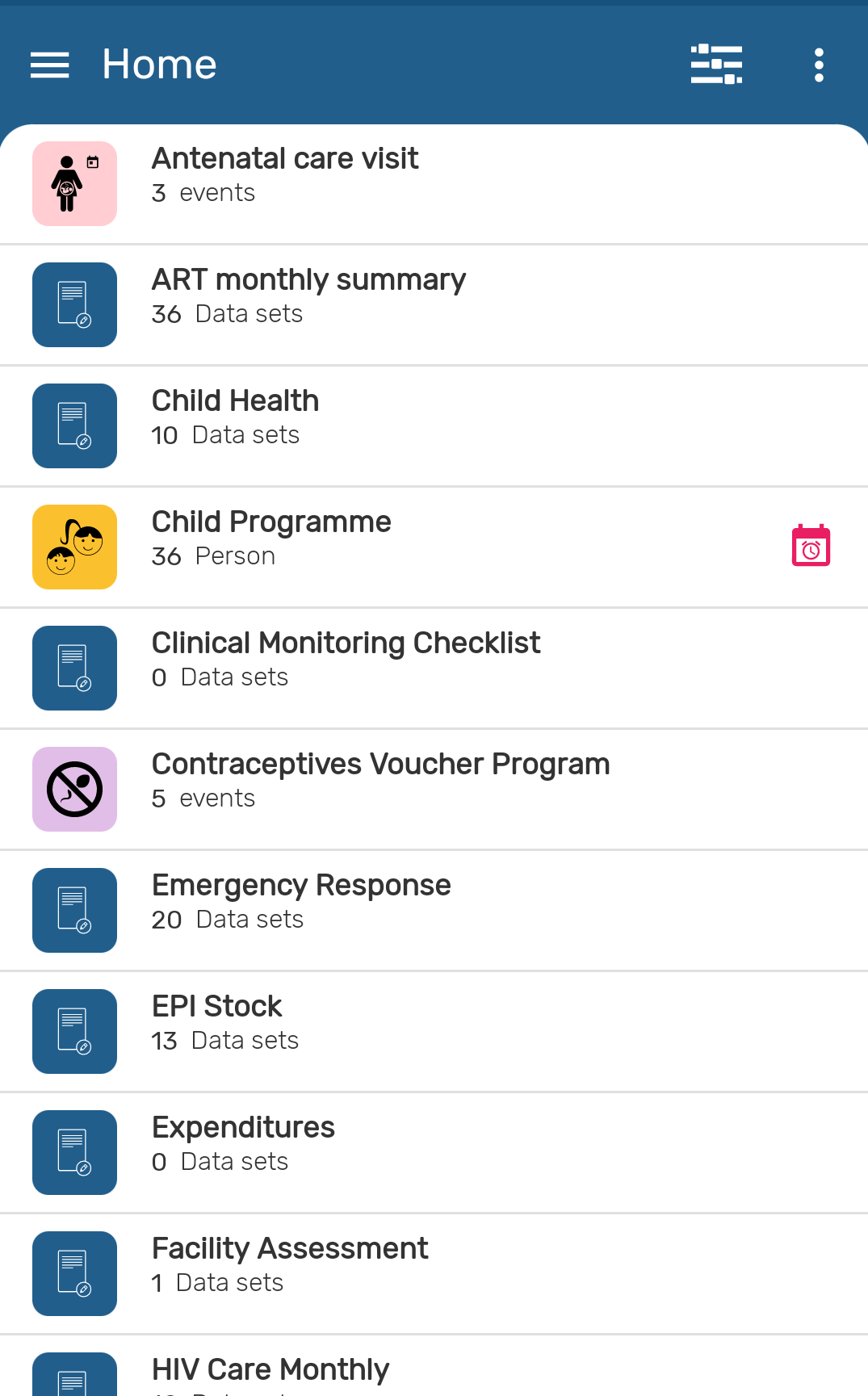
Home
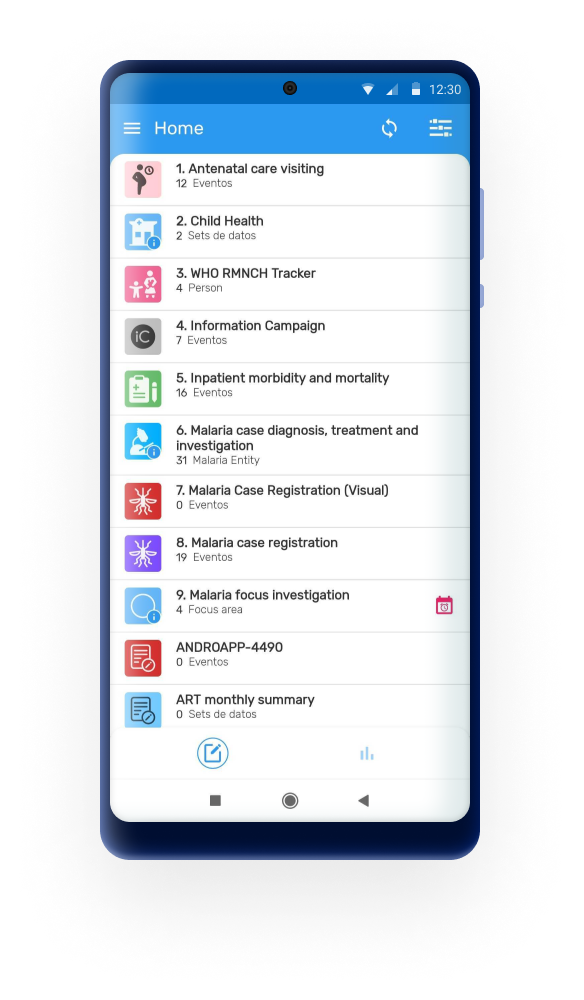
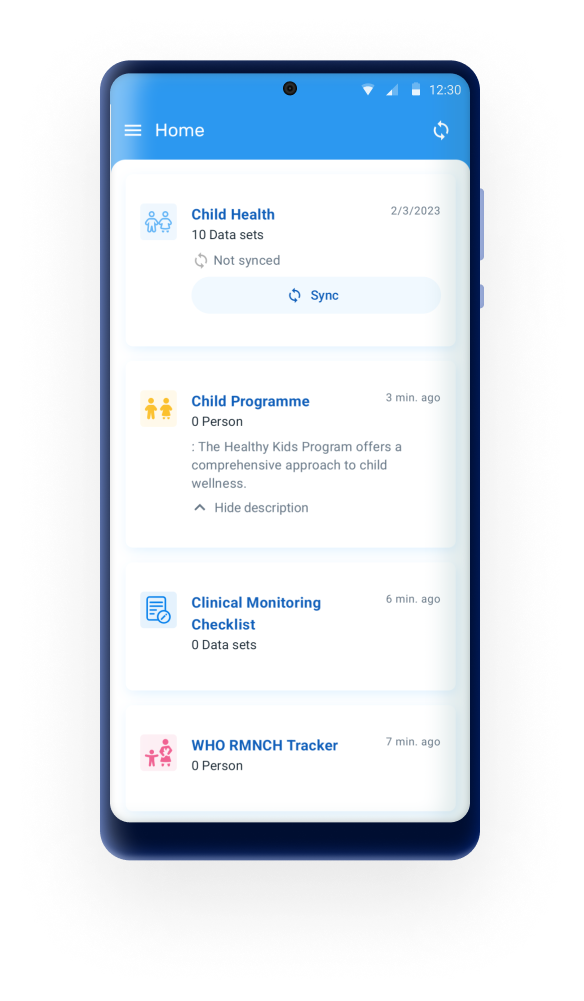
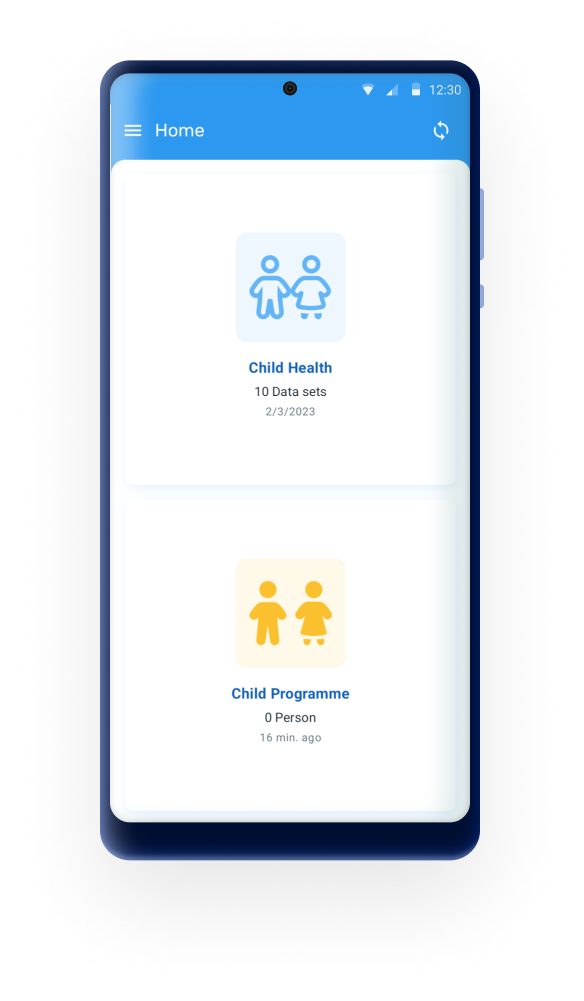
The home screen of the DHIS2 Android App shows the list of programs and data sets available for the user. The first thing the user does when collecting data in this case is to select the program or data set to work with.
In 3.1.0, a new dynamic home screen that adapts to the number of programs (up to 4 programs) available has been implemented. This update replaces the old static list that didn’t adjust to the screen, providing a more responsive and user-friendly interface.The responsive design makes better use of screen real estate, providing a more engaging and functional home screen layout.
Tip
Snadným způsobem, jak je odlišit, je pohled na slovo v levém dolním rohu. Slovo „Událost“ bude v programech událostí vždy. V nástroji pro trasování se zobrazí název typu trasované entity (osoba, pacient, budova atd.). U souborů dat se vedle počtu záznamů zobrazí slovo „DataSets“.
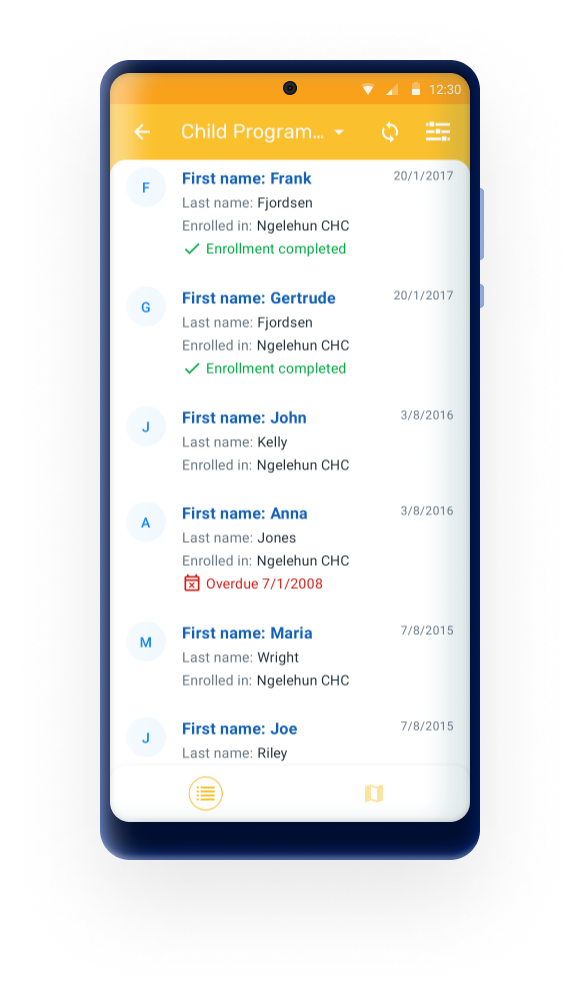
For those implementations where the users have access to only one program or dataset, the App will skip the home and will open directly the program or datasaset screen with the event, TEI or dataset list to reduce the number of clicks and streamline the process of data entry.
Sdílení dat
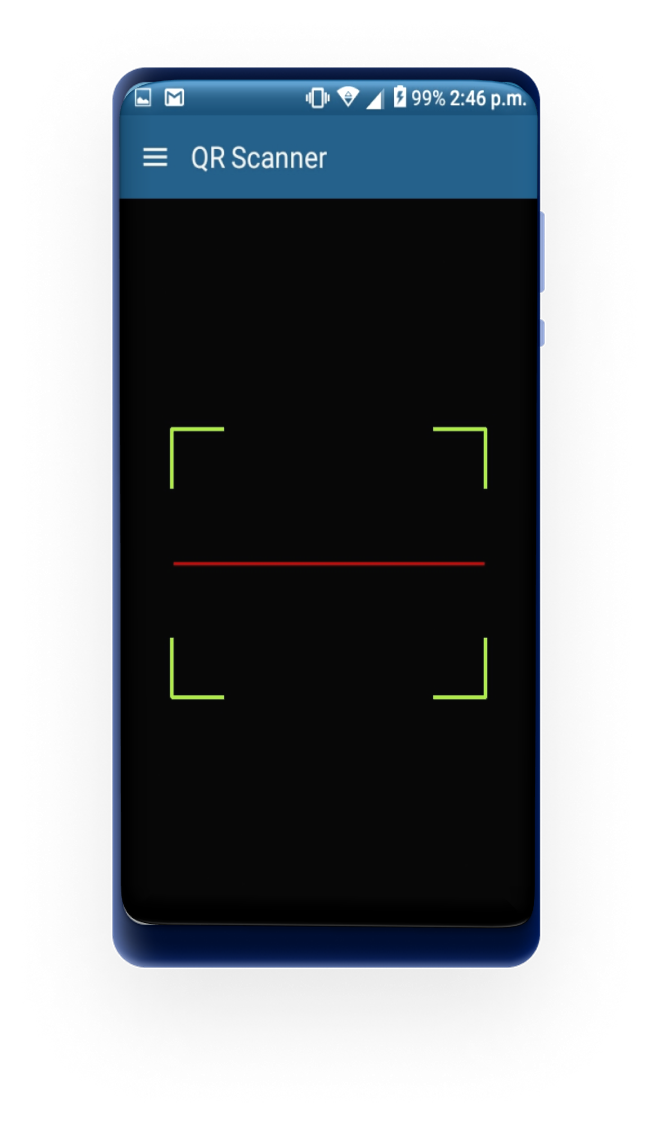
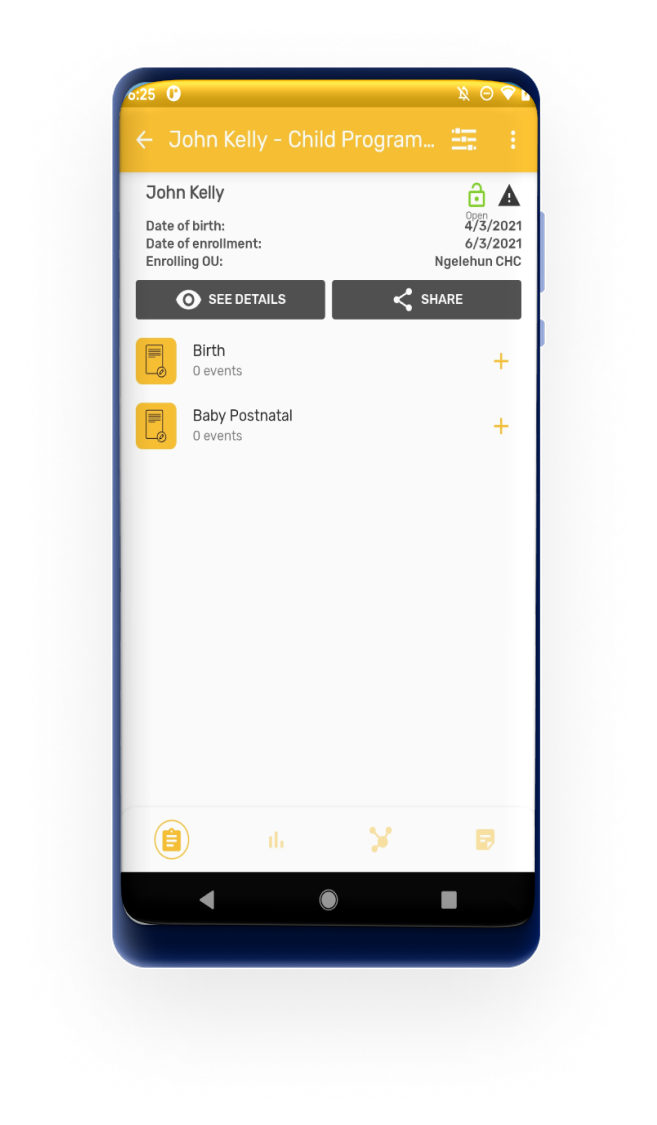
Users can share TEI via QR codes. This allows transferring/sharing information between devices without the need of transferring via the server (useful when connecitivity might be missing). To do this users should open any TEI and click on the SHARE button.
Zachycení souřadnic
Souřadnice TEI
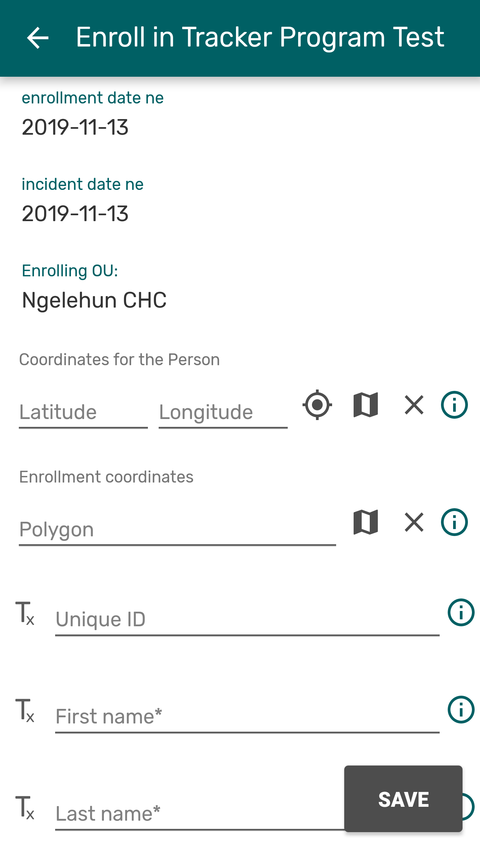
Zachyťte souřadnice TEI v registračním formuláři. Povolte tuto funkci v typu funkce TET.
Polygony
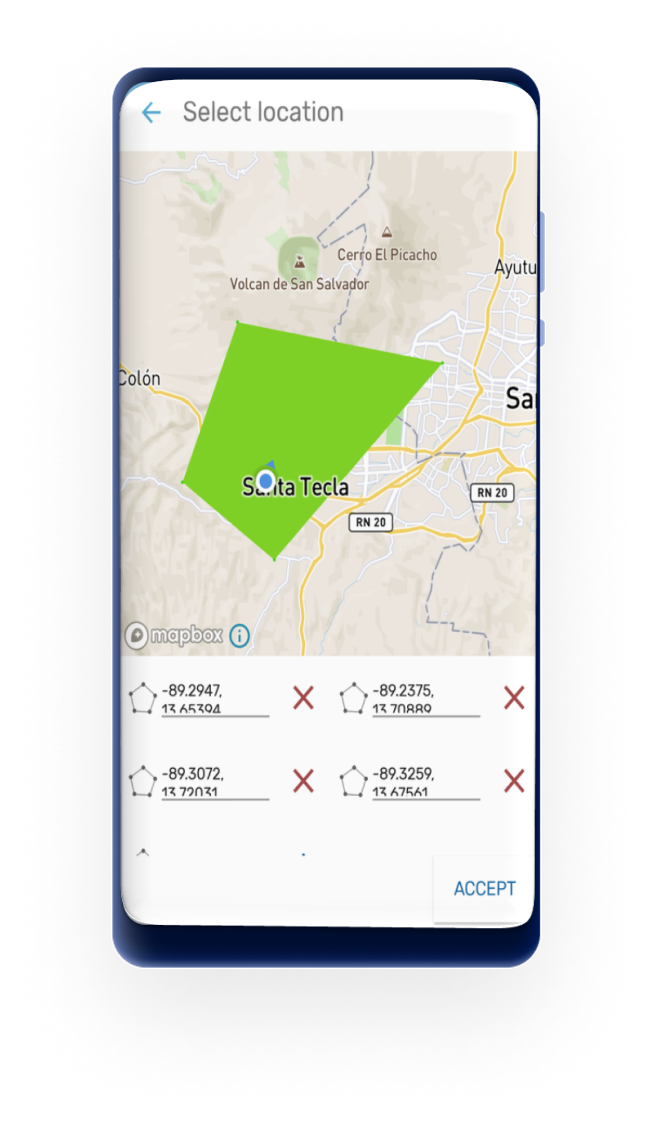
Aplikace nyní podporuje formát geoJSON a uživatel je schopen zachytit polygony.
Obrázky
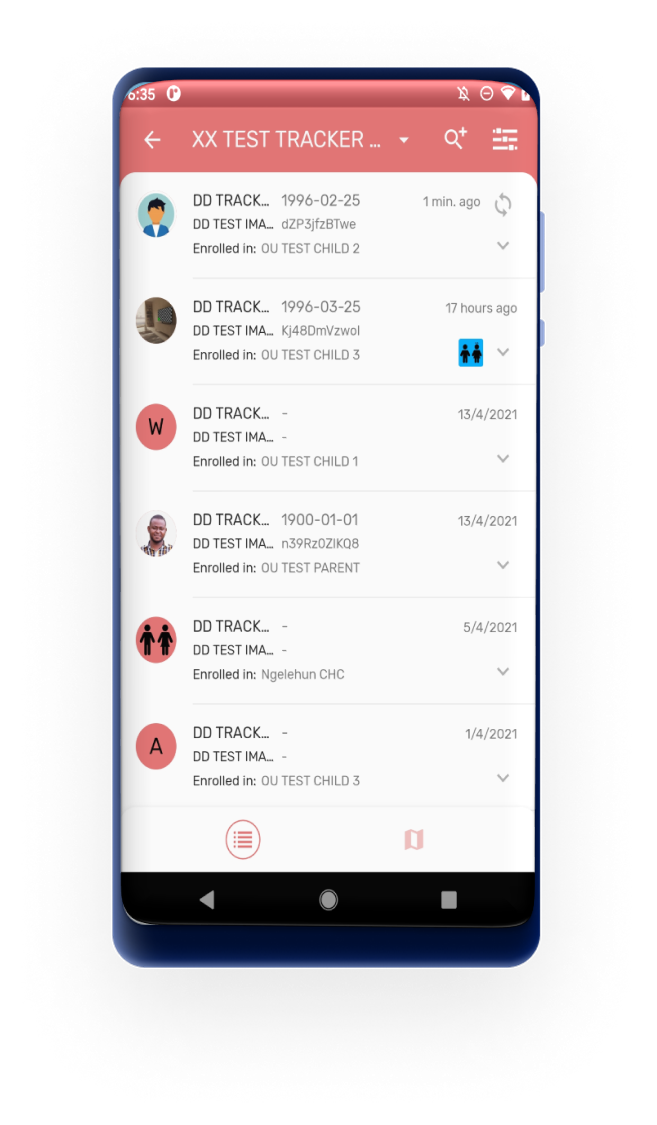
Obrázek ValueType lze použít v systému Android k zachycení dat a také v závislosti na konfiguraci programu, která se zobrazí na ovládacím panelu TEI. Když tato hodnota napíše první datový prvek / atribut označený jako zobrazený v konfiguraci programu, bude použit jako obrázek profilu TEI.
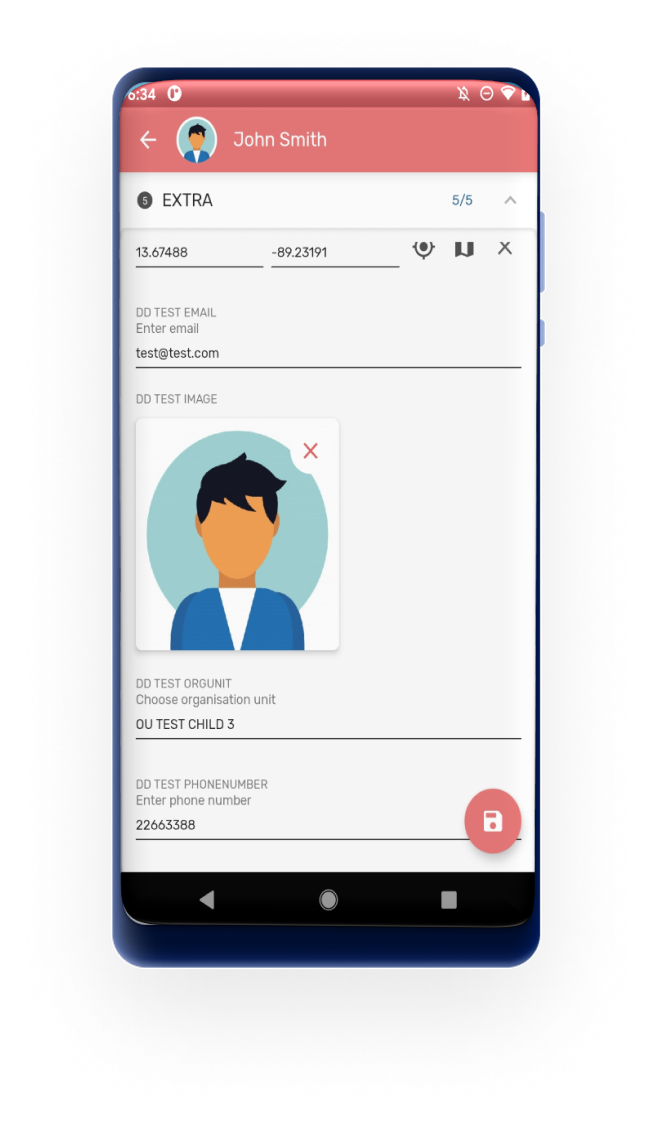
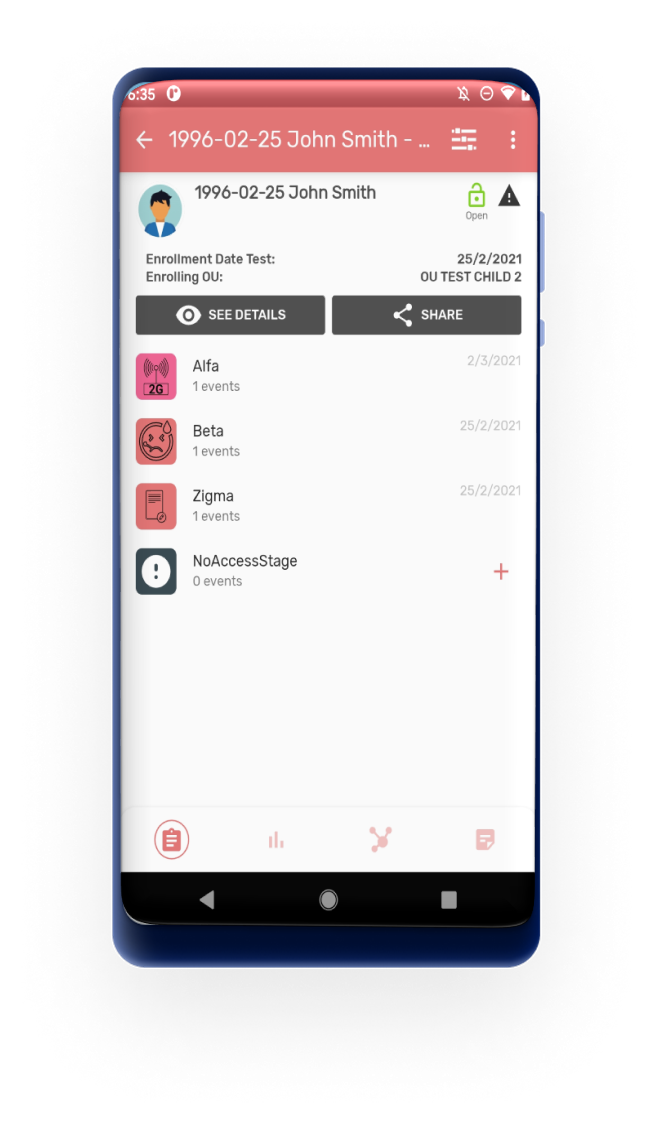
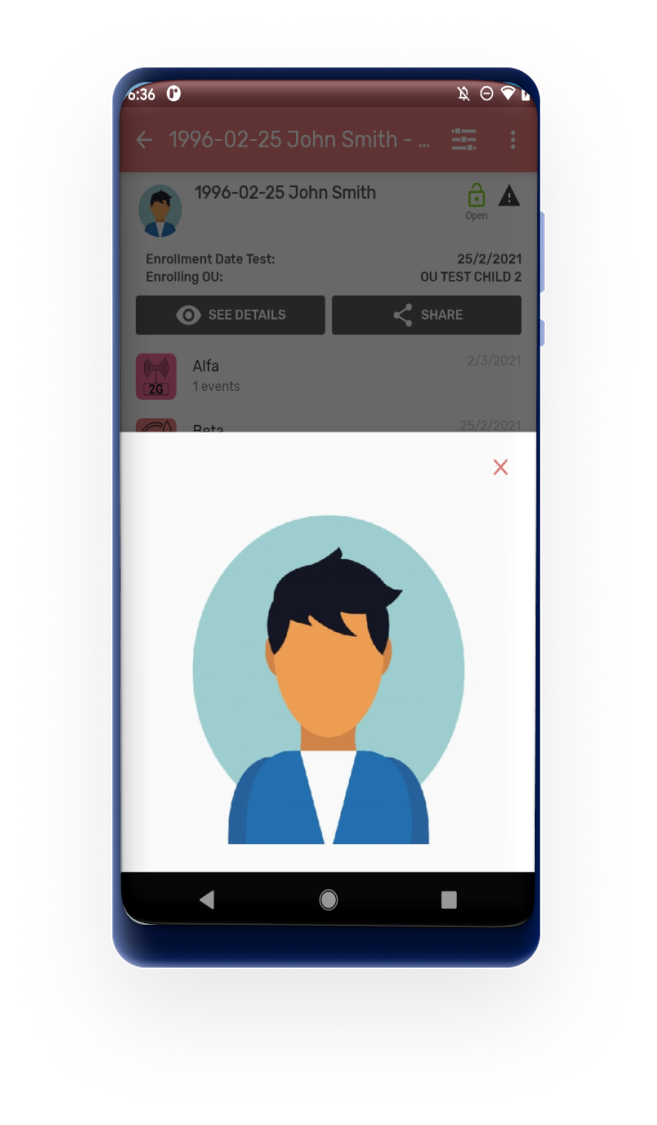
Otevřete profilový obrázek TEI kliknutím na něj.
Zobrazovat události a TEI v mapách
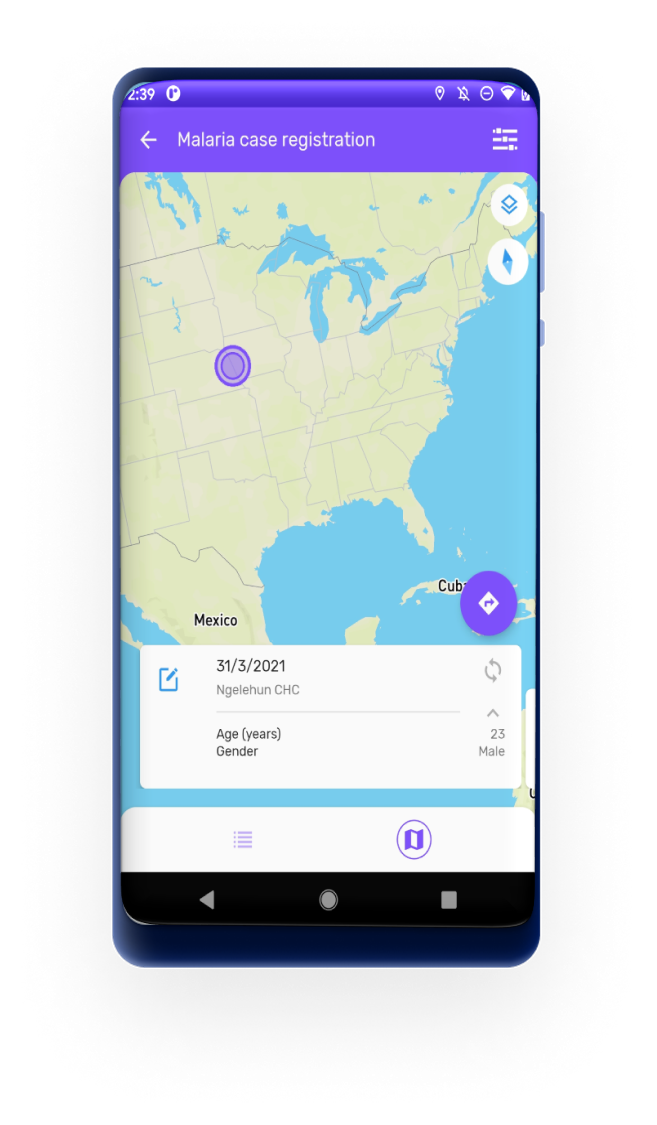
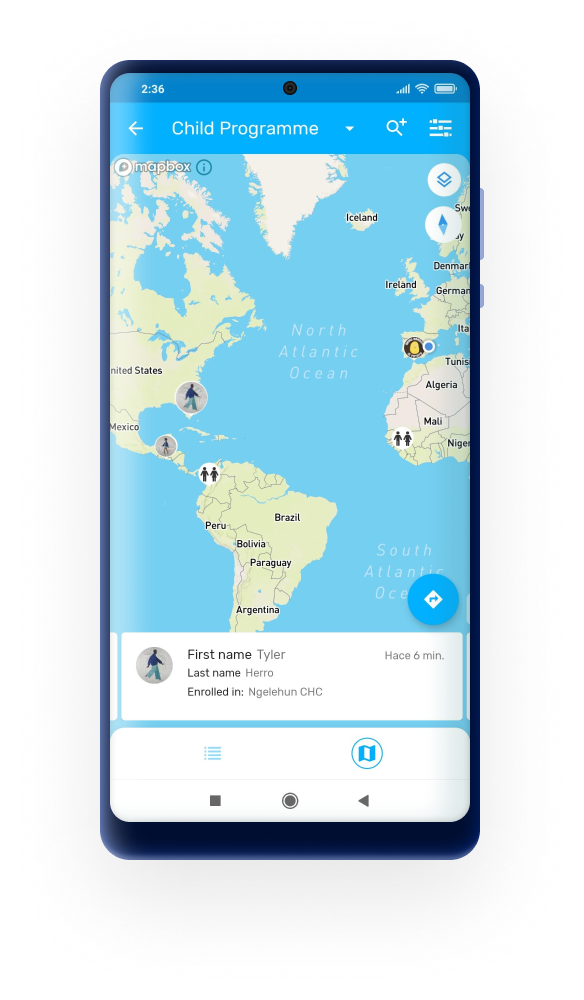
Pokud má fáze programu nebo typ trasované entity typ funkce (a pro programy s registrací je povolena možnost displayFrontPageList), lze výpisy přepnout na zobrazení informací v mapě. Přepněte kliknutím na ikonu mapy na navigačním panelu.
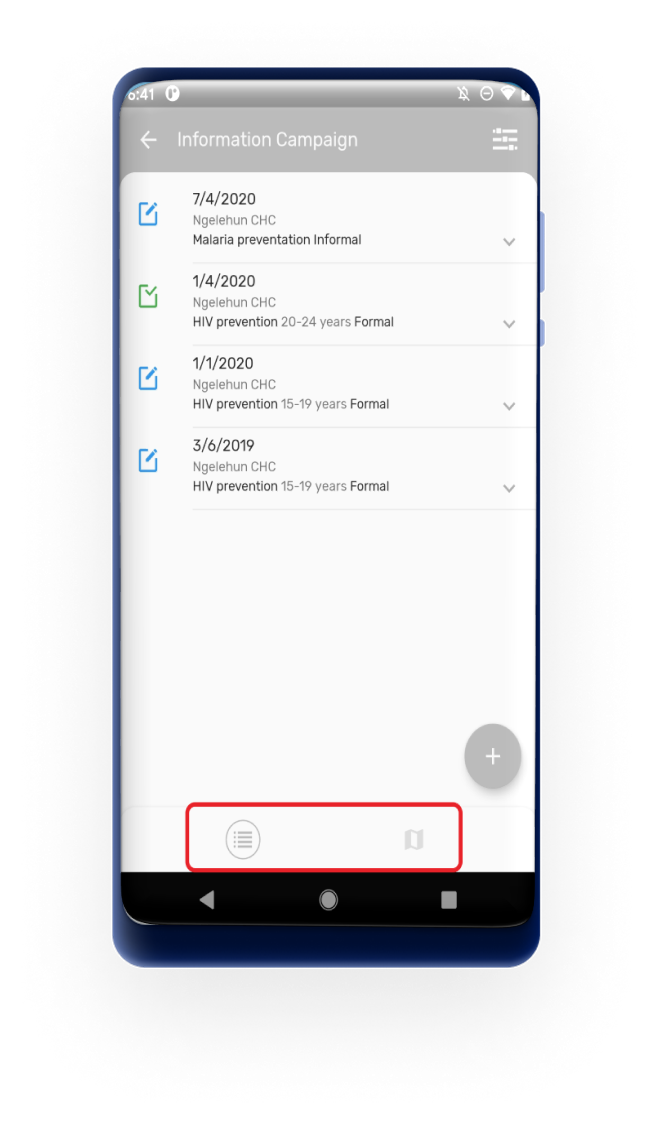
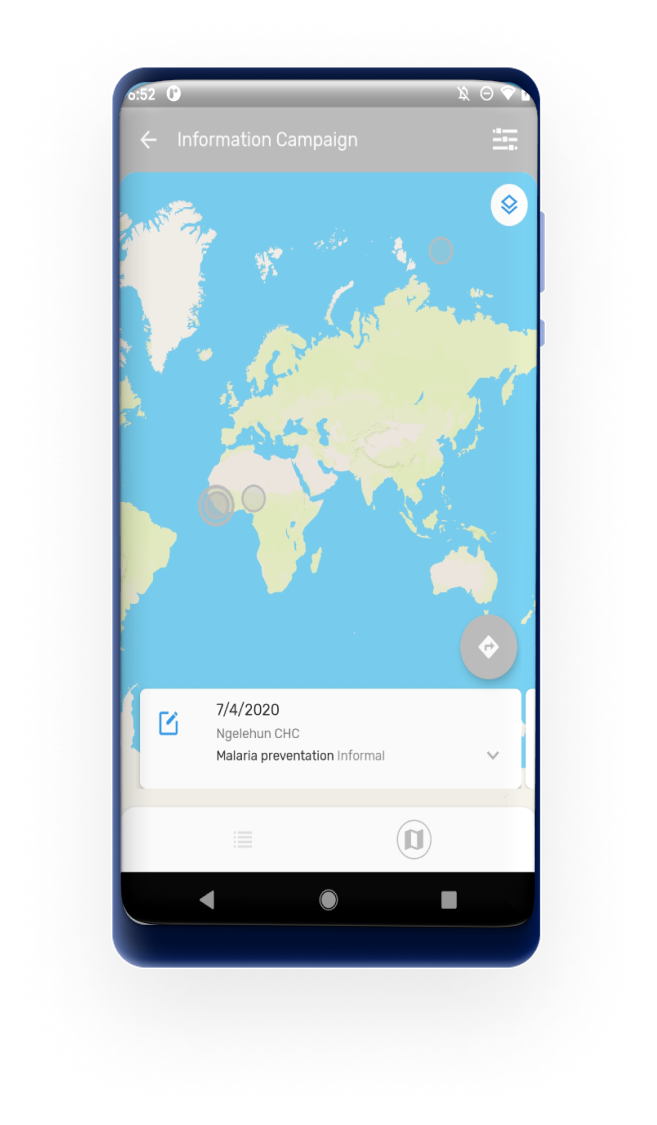
Pokud má TEI profilový obrázek, zobrazí jej mapa.
Personalized Calendar View
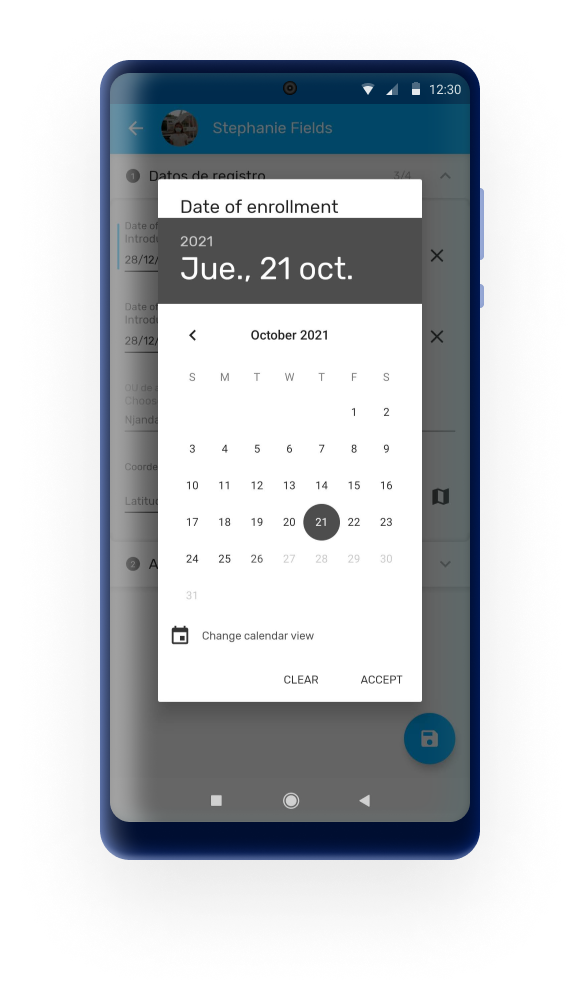
V aplikaci DHIS2 Android Capture mohou uživatelé přepínat výběr data z číselníku na zobrazení kalendáře. V této verzi si aplikace bude pamatovat poslední vizualizaci vybranou uživatelem a použije ji, až bude uživatel příště potřebovat vybrat datum.
Reason for non-editable data
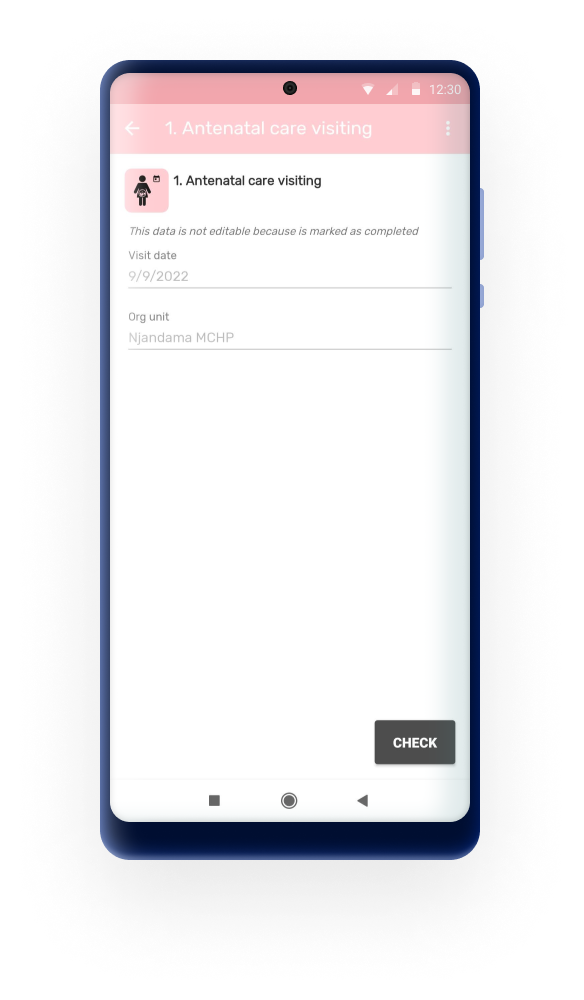
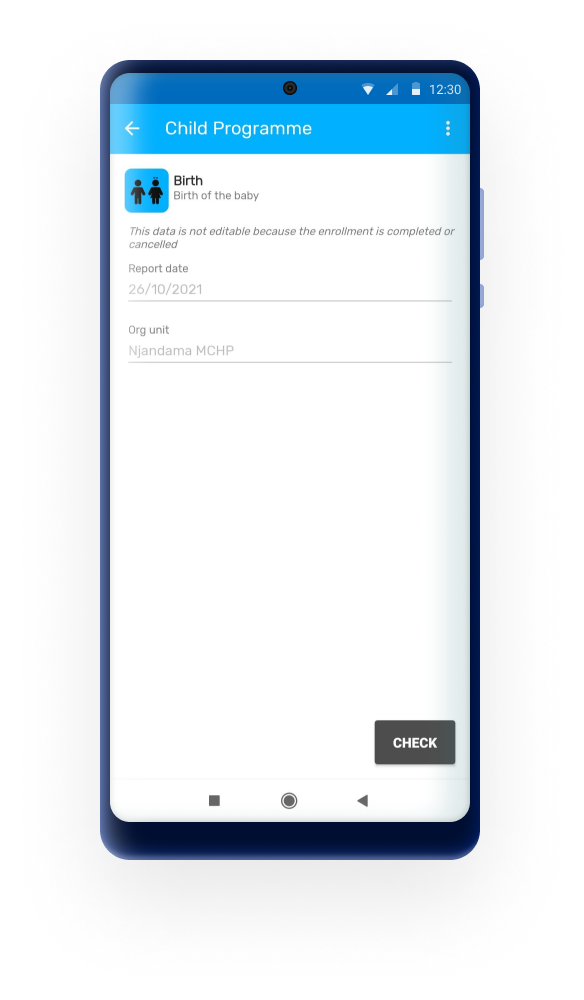
Data mohou být v DHIS2 blokována z mnoha důvodů, mimo jiné z důvodu omezení přístupu nebo vypršení platnosti. Pokud událost, TEI nebo soubor dat nelze upravovat, uživatel bude moci najít důvod v sekci „Podrobnosti“.
Následující seznam obsahuje všechny možné důvody:
- Dokončení akce
- Dokončení zápisu
- Událost vypršela
- Uzavřená organizační jednotka
- Organizační jednotka mimo rozsah zachycení
- Žádný přístup k zachycení dat v programu nebo datové sadě
- Žádný přístup k možnosti kategorie v programu nebo datové sadě
Configuration troubleshooting
The Configuration Troubleshooting feature is available only in the DHIS2 Android Training App. It is not included in the production version of the Capture App.
This tool is intended for administrators and implementers who need to test and troubleshoot program rules or translations during setup or training. It does not require a special user role or authority.
You can download the latest version of the DHIS2 Android Training App (APK) from the DHIS2 Training App on GitHub (look for the APK labeled Training).
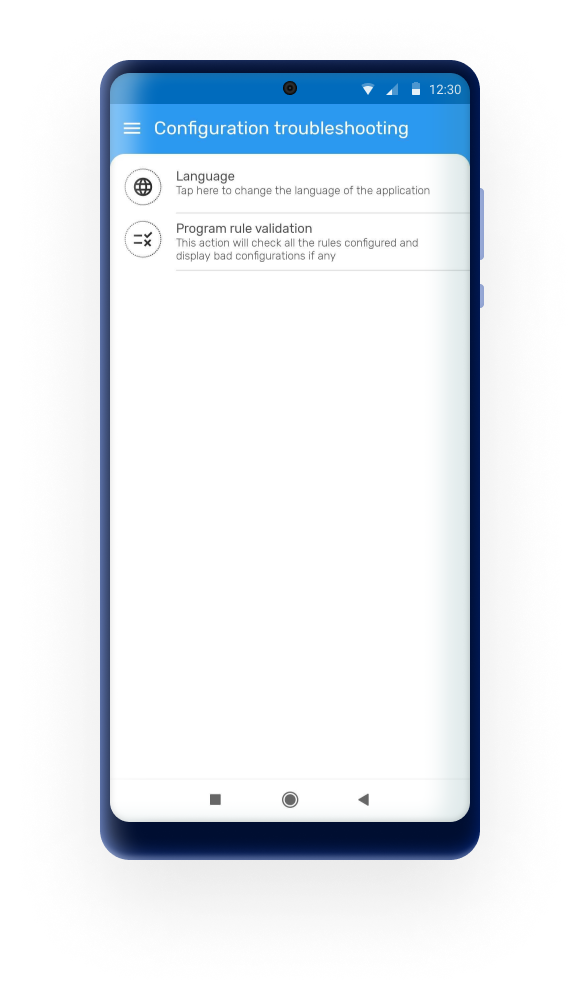
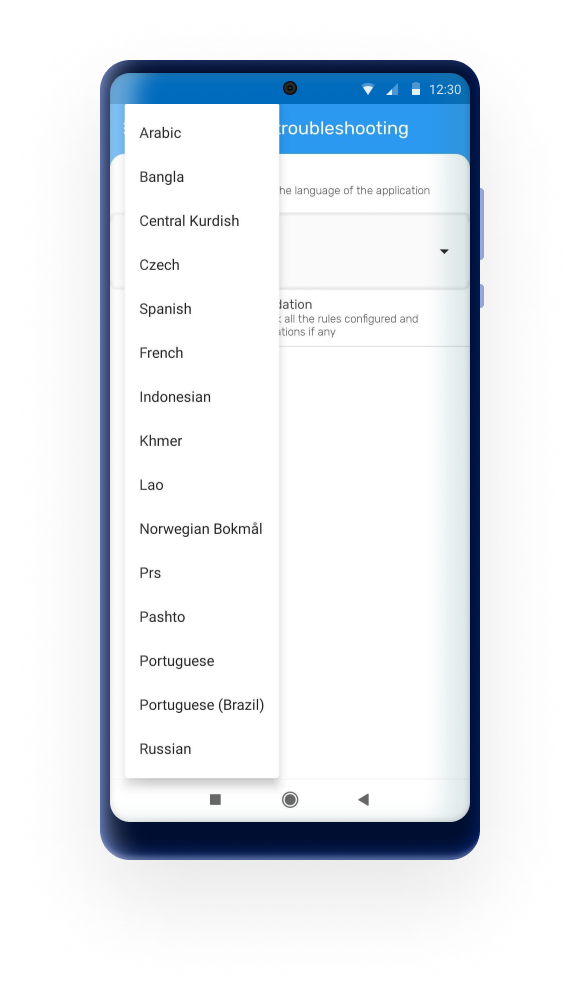
- Language: the user will be able to change the language of the application user interface to identify labels, buttons or prompts with errors or without translation.
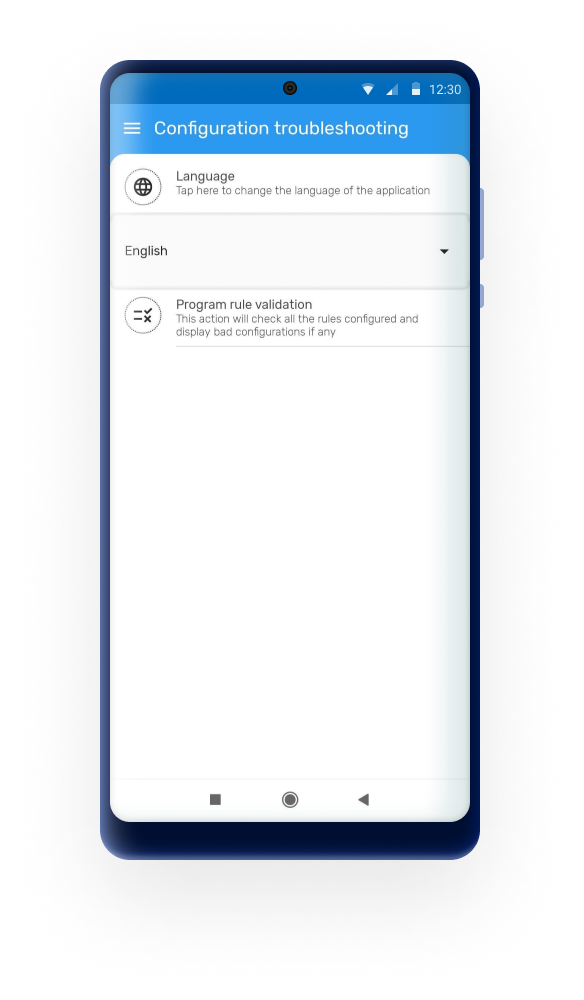
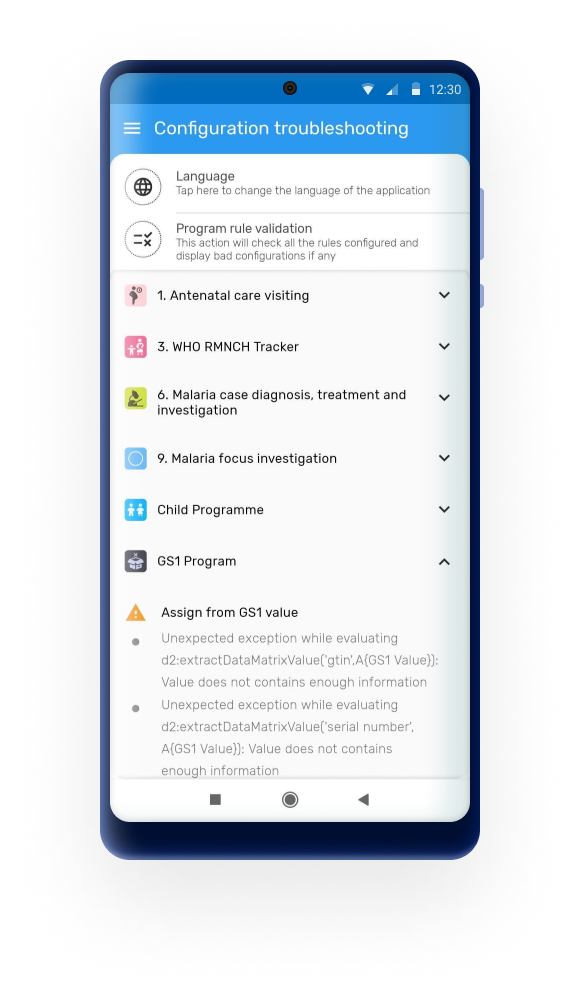
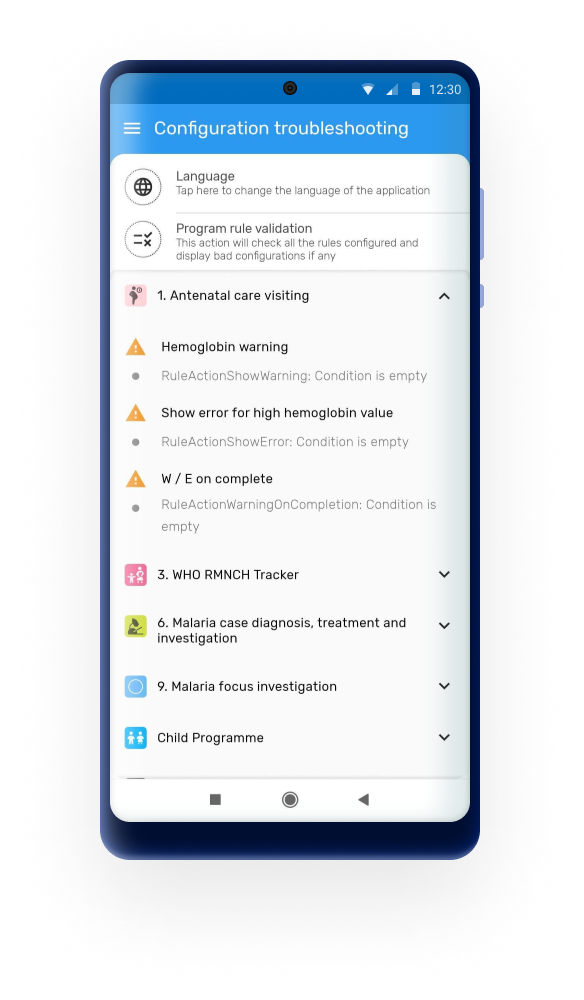
- Program rule validation: this validator will check the program rules in the device and display configuration inconsistencies.
Error Navigation
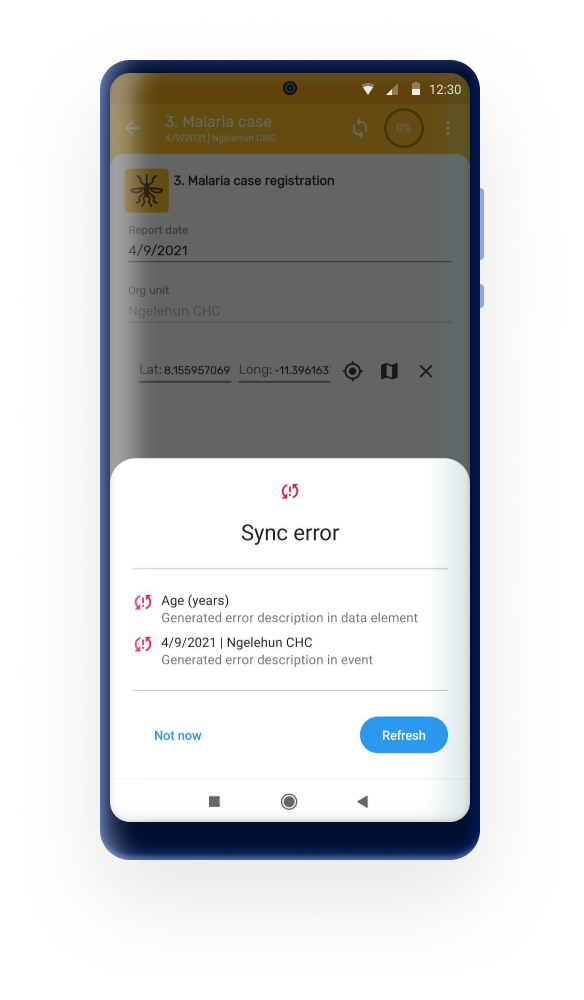
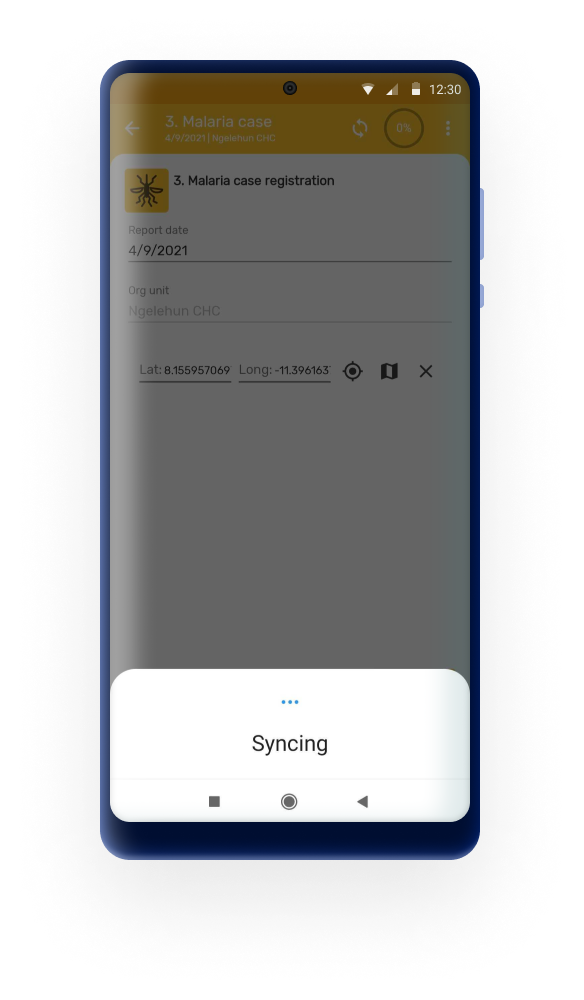
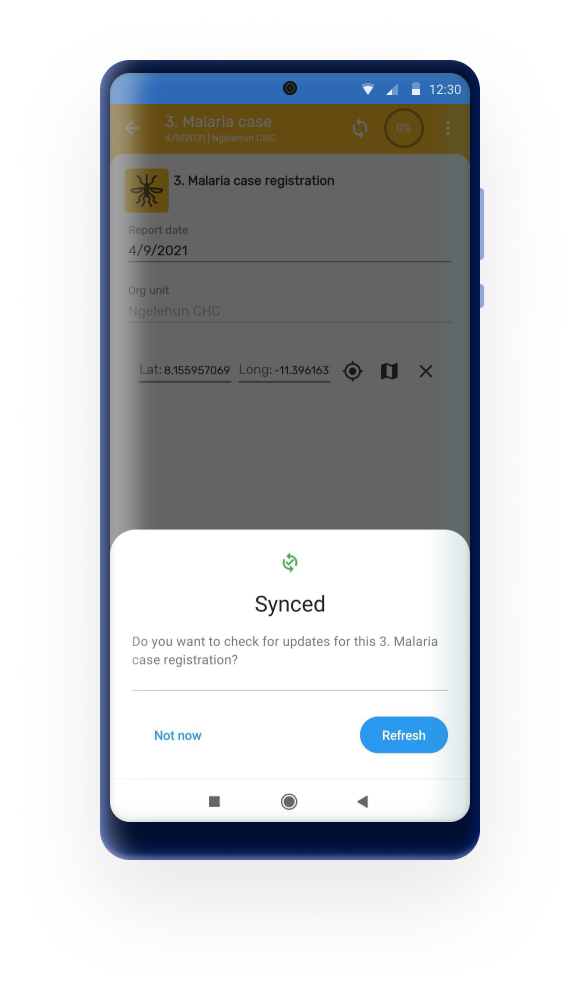
The Android App has improved the navigation of sync errors on the user interface. The app will display the sync errors in a simple and clean manner allowing the user to navigate from the home screen to the exact field that is causing the error inside the event or data set.
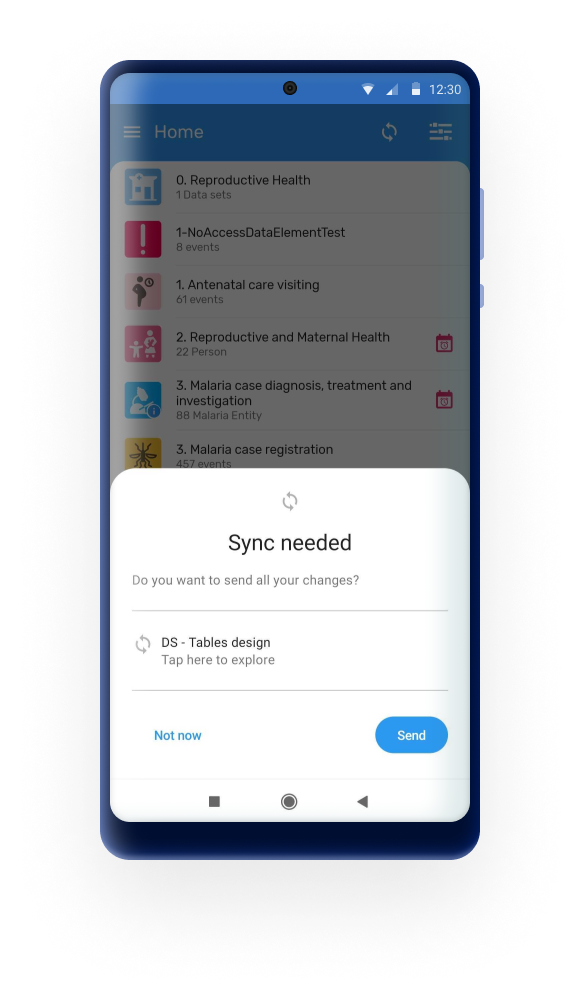
User must tap on any of the errors listed and the app will move to the correspondent screen. Once the error is located and fixed, the user can synced by tapping on the "Refresh" button.
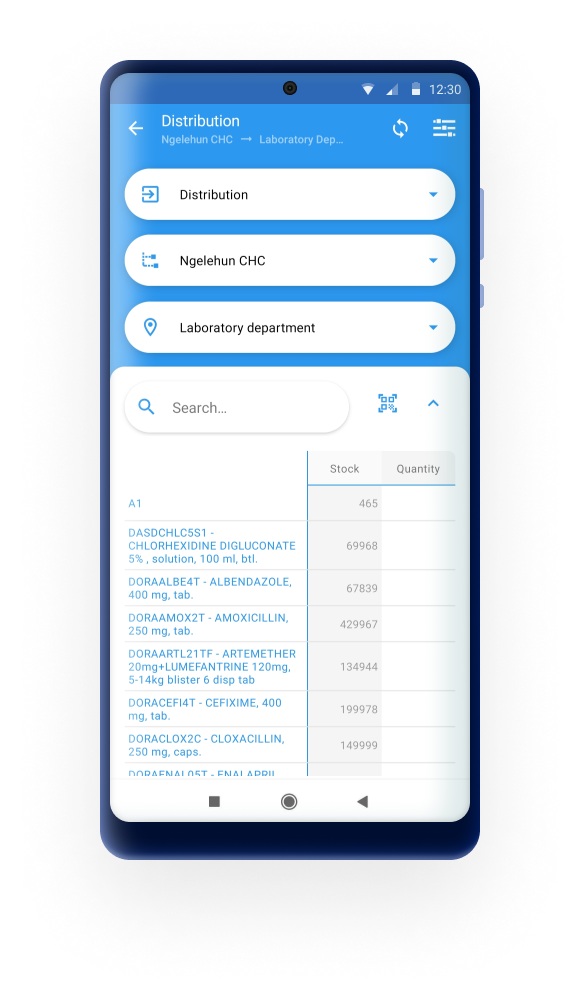
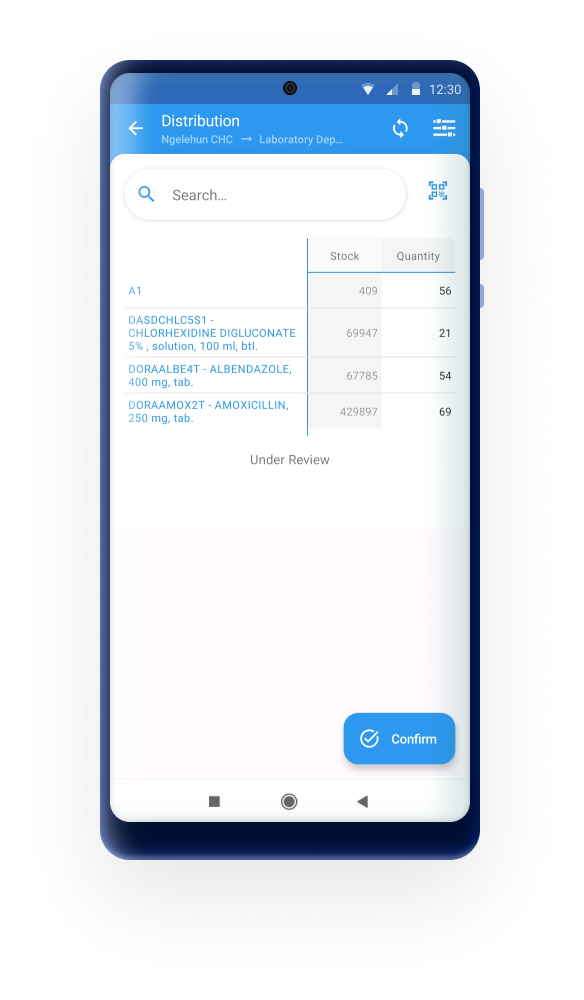
LMIS Module
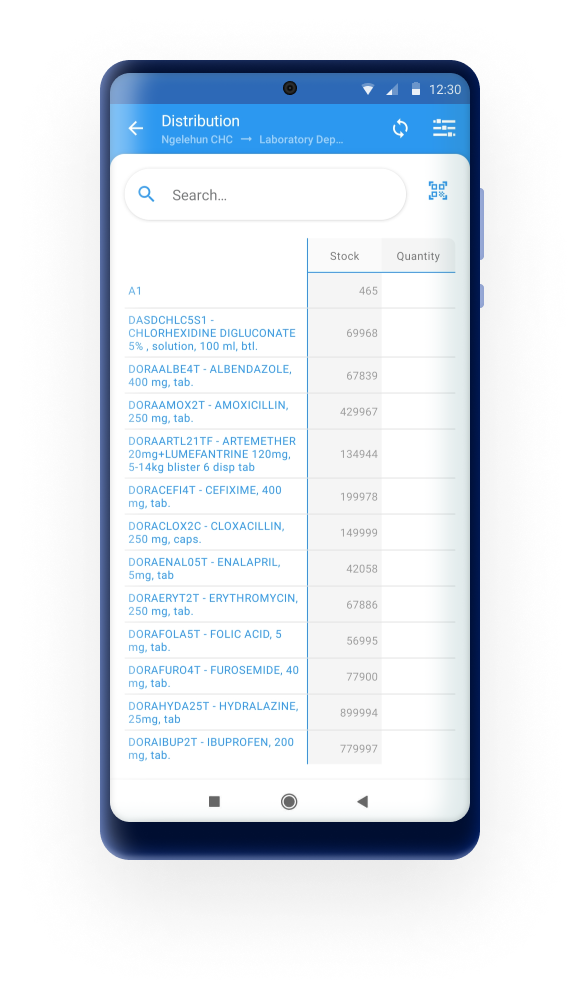
The new module for real stock monitoring use case enables users to manage and monitor their stock levels in real-time. Integrating a module implies that the app will open a completely new and different user interface and experience to respond to a different data entry flow. To use this modules the program will need to be configured using the new web app for program use case configuration.
Event upload behavior
The Android app will upload events with status COMPLETED by default. If the program configuration prevents the event from being completed on the server (for example, due to mandatory data elements or “error on complete” program rules), the app will upload the event with status ACTIVE instead. This prevents failed uploads caused by server side misconfiguration while still ensuring that data is sent.
Event ordering alignment across platforms (Improved in 3.4.0)
With this update, event ordering has been aligned across Web, Android, and API sources. This ensures that events are processed in the correct sequence during synchronization, improving data consistency and calculation reliability across the system.