AEFI Tracker Installation Guide
Přehled
Balíček AEFI tracker byl vyvinut pomocí DHIS2.33.2. To bylo provedeno za účelem podpory některých nejnovějších funkcí v DHIS2. Abyste mohli balíček použít, doporučujeme jej nainstalovat do instance DHIS2 pomocí DHIS2 2.33.2 nebo vyšší. Pokud to nastavujete na nové instanci, nahlédněte do instalačního průvodce DHIS2.
Instalace
Instalace modulu se skládá z několika kroků:
- Příprava souboru metadat s metadaty DHIS2.
- Import souboru metadat do DHIS2.
- Konfigurace importovaná metadata.
- Adaptace programu po importu
Před zahájením procesu instalace a konfigurace v DHIS2 se doporučuje nejprve si přečíst každou část. Byly identifikovány oddíly, které nelze použít, v závislosti na tom, zda importujete do nové instance DHIS2 nebo instance DHIS2 s již existujícími metadaty. Postup popsaný v tomto dokumentu by měl být testován v testovacím / fázovacím prostředí před opakováním nebo přenesením do produkční instance DHIS2.
Požadavky
K instalaci modulu je vyžadován uživatelský účet správce na DHIS2. Postup popsaný v tomto dokumentu by měl být testován v testovacím / fázovém prostředí před provedením na produkční instanci DHIS2.
Je třeba věnovat velkou pozornost tomu, aby samotný server a aplikace DHIS2 byly dobře zabezpečeny, aby se omezil přístup ke shromažďovaným datům. Podrobnosti o zabezpečení systému DHIS2 jsou mimo rozsah tohoto dokumentu a odkazujeme na dokumentaci DHIS2.
Příprava souboru metadat
POZNÁMKA: Pokud instalujete balíček na novou instanci DHIS2, můžete přeskočit část „Příprava souboru metadat“ a okamžitě přejít do části „Import souboru metadat do DHIS2.“
I když to není vždy nutné, může být často výhodné provést určité úpravy souboru metadat před jeho importem do DHIS2.
Výchozí dimenze dat
V dřívějších verzích DHIS2 byl automaticky vygenerován UID výchozí datové dimenze. Zatímco tedy všechny instance DHIS2 mají výchozí možnost kategorie, kategorii datových prvků, kombinaci kategorií a kombinaci možností kategorie, UID těchto výchozích hodnot se mohou lišit. Novější verze DHIS2 mají pevně zakódované UID pro výchozí dimenzi a tyto UID se používají v konfiguračních balíčcích.
Aby nedocházelo ke konfliktům při importu metadat, je vhodné vyhledat a nahradit celý soubor .json pro všechny výskyty těchto výchozích objektů a nahradit identifikátory UID souboru .json identifikátory UID databáze, do které bude soubor importován. Tabulka 1 ukazuje UID, která by měla být nahrazena, a také koncové body API pro identifikaci stávajících UID
| Objekt | UID | Koncový bod API |
|---|---|---|
| Kategorie | GLevLNI9wkl | ../api/categories.json?filter=name:eq:default |
| Možnost kategorie | xYerKDKCefk | ../api/categoryOptions.json?filter=name:eq:default |
| Kombinace kategorií | bjDvmb4bfuf | ../api/categoryCombos.json?filter=name:eq:default |
| Kombinace možností kategorie | HllvX50cXC0 | ../api/categoryOptionCombos.json?filter=name:eq:default |
Například pokud importujete konfigurační balíček do https://play.dhis2.org/demo, UID výchozí kombinace možností kategorie lze identifikovat prostřednictvím https://play.dhis2.org/demo/api/categoryOptionCombos.json?filter=name:eq:default jako bRowv6yZOF2.
Poté můžete vyhledat a nahradit všechny výskyty HllvX50cXC0 s bRowv6yZOF2 v souboru .json, protože to je ID výchozího v systému, do kterého importujete. Upozorňujeme, že tato operace hledání a nahrazení musí být provedena pomocí editoru prostého textu, nikoli pomocí textového editoru, jako je Microsoft Word.
Typy indikátorů
Typ indikátoru je další typ objektu, který může způsobit konflikt importu, protože se v různých databázích DHIS2 používají určité názvy (např. „Procento“). Vzhledem k tomu, že typy indikátorů jsou definovány jednoduše podle jejich faktoru a bez ohledu na to, zda se jedná o jednoduchá čísla bez jmenovatele, jsou jednoznačné a lze je nahradit pomocí vyhledávání a nahrazení UID. Tím se vyhnete možným konfliktům při importu a vyhnete se vytváření duplicitních typů indikátorů. Tabulka 2 ukazuje identifikátory UID, které lze nahradit, a také koncové body API pro identifikaci stávajících identifikátorů UID
| Objekt | UID | Koncový bod API |
|---|---|---|
| Pouze čitatel (číslo) | CqNPn5KzksS | ../api/indicatorTypes.json?filter=number:eq:true&filter=factor:eq:1 |
TrackedEntityType
Stejně jako typy indikátorů můžete mít ve své databázi DHIS2 již existující trasované typy entit. Odkazy na typ trasované entity by měly být změněny tak, aby odrážely to, co je ve vašem systému, abyste nevytvářeli duplikáty. Tabulka 3 ukazuje identifikátory UID, které lze nahradit, a také koncové body API pro identifikaci stávajících identifikátorů UID
| Objekt | UID | Koncový bod API |
|---|---|---|
| Osoba | MCPQUTHX1Ze | ../api/trackedEntityTypes.json?filter=name:eq:Person |
Hlášení událostí organizační Jednotky{ #event-report-organisation-unit }
V balíčku metadat AEFI jsou zprávy o událostech svázané s jednotkou kořenové úrovně stromu organizační jednotky. Odkaz na organizační jednotku je třeba ve vašem systému nahradit identifikátorem UID kořenové jednotky stromu organizační jednotky. Tabulka 4 ukazuje UID, které je třeba vyměnit, a také koncový bod API pro identifikaci existujícího UID stávající organizační jednotky
| Objekt | UID | Koncový bod API |
|---|---|---|
| Organizační jednotka | GD7TowwI46c | ../api/organisationUnits.json?level=1 |
Import metadat
Soubor metadat .json se importuje prostřednictvím aplikace Import / Export DHIS2. Před pokusem o skutečný import metadat je vhodné použít funkci „běh nasucho“ k identifikaci problémů. Pokud „běh nasucho“ hlásí jakékoli problémy nebo konflikty, přečtěte si níže část konflikty importu. Pokud import „běh nasucho“ / „ověření“ funguje bez chyby, pokuste se importovat metadata. Pokud je import úspěšný bez jakýchkoli chyb, můžete pokračovat v modulu configure. V některých případech se konflikty nebo problémy s importem nezobrazí během „běhu nasucho“, ale objeví se při pokusu o skutečný import. V tomto případě bude souhrn importu obsahovat seznam všech chyb, které je třeba vyřešit.
Řešení konfliktů importu
POZNÁMKA: Pokud importujete do nové instance DHIS2, nebudete se muset starat o konflikty importu, protože v databázi, do které importujete, není nic, co by bylo v konfliktu. Při importu metadat postupujte podle pokynů, poté pokračujte do části „Další konfigurace“.
Může nastat řada různých konfliktů, i když nejběžnější je, že v konfiguračním balíčku jsou objekty metadat se jménem, zkratkou a / nebo kódem, který již v cílové databázi existuje. Existuje několik alternativních řešení těchto problémů s různými výhodami a nevýhodami. Který z nich je vhodnější, bude záviset například na typu objektu, pro který dojde ke konfliktu.
Alternativa 1
Přejmenujte existující objekt v databázi DHIS2, u kterého došlo ke konfliktu. Výhodou tohoto přístupu je, že není nutné upravovat soubor .json, protože změny se místo toho provádějí prostřednictvím uživatelského rozhraní DHIS2. Pravděpodobně to bude méně náchylné k chybám. To také znamená, že konfigurační balíček je ponechán tak, jak je, což může být výhodou, například když se použije školicí materiál a dokumentace založená na konfiguračním balíčku.
Alternativa 2
Přejmenujte objekt, u kterého došlo ke konfliktu v souboru .json. Výhodou tohoto přístupu je, že stávající metadata DHIS2 jsou ponechána tak, jak jsou. To může být faktor, když existuje školicí materiál nebo dokumentace, jako jsou SOP datových slovníků propojených s daným objektem, a to nezahrnuje žádné riziko záměny uživatelů úpravou metadat, se kterými jsou obeznámeni.
Všimněte si, že pro alternativu 1 i 2 může být modifikace stejně jednoduchá jako přidání malého pre / post-fix k názvu, aby se minimalizovalo riziko záměny.
Alternativa 3
Třetím a komplikovanějším přístupem je úprava souboru .json pro opětovné použití existujících metadat. Například v případech, kdy pro určitý koncept již existuje sada možností (např. „Pohlaví“), by tato sada možností mohla být odstraněna ze souboru .json a všechny odkazy na jeho UID nahrazeny odpovídající sadou možností již v databázi. Velkou výhodou tohoto (která se neomezuje na případy přímého konfliktu importu) je vyhnout se vytváření duplicitních metadat v databázi. Při provádění tohoto typu modifikace je třeba provést několik klíčových úvah:
- vyžaduje odborné znalosti podrobné struktury metadat DHIS2
- přístup nefunguje u všech typů objektů. Zejména určité typy objektů mají závislosti, které se tímto způsobem komplikovaně řeší, například v souvislosti s rozčleněními.
- budoucí aktualizace konfiguračního balíčku budou komplikované.
Další konfigurace
Po úspěšném importu všech metadat existuje několik kroků, které je třeba provést, než bude modul funkční.
Sdílení
Nejprve budete muset pomocí funkce Sdílení DHIS2 konfigurovat, kteří uživatelé (skupiny uživatelů) by měli vidět metadata a data spojená s programem a kdo může registrovat / zadávat data do programu. Ve výchozím nastavení bylo sdílení nakonfigurováno pro následující:
- Typ trasované entity
- Program
- Fáze programu
- Ovládací panely
Balíček obsahuje šest skupin uživatelů, poslední tři jsou příjemci oznámení o fázi programu:
- Přístup AEFI
- Správce AEFI
- AEFI Sběr dat
- AEFI Okres
- národní AEFI
- AEFI Rozhodování na první úrovni
Ve výchozím nastavení je těmto skupinám uživatelů přiřazeno následující
| Objekt | Uživatelská skupina | ||
|---|---|---|---|
| AEFI access | AEFI admin | AEFI data capture | |
| Typ trasované entity | Metadata : lze zobrazit Data: lze zobrazit | Metadata: lze upravovat a prohlížet Data: lze zobrazit | Metadata: lze zobrazit Data: lze zachytit a zobrazit |
| Program | Metadata : lze zobrazit Data: lze zobrazit | Metadata: lze upravovat a prohlížet Data: lze zobrazit | Metadata: lze zobrazit Data: lze zachytit a zobrazit |
| Fáze programu | Metadata : lze zobrazit Data: lze zobrazit | Metadata: lze upravovat a prohlížet Data: lze zobrazit | Metadata: lze zobrazit Data: lze zachytit a zobrazit |
| Ovládací panely | Metadata : lze zobrazit | Metadata : lze upravovat a prohlížet | Metadata : žádná |
Budete chtít přiřadit uživatele k příslušné skupině uživatelů na základě jejich role v systému. Možná budete chtít povolit sdílení pro další objekty v balíčku v závislosti na vašem nastavení. Další informace o konfiguraci sdílení naleznete v Dokumentaci DHIS2.
Uživatelské role
Uživatelé budou potřebovat uživatelské role, aby mohli pracovat s různými aplikacemi v rámci DHIS2. Doporučují se následující minimální role:
- Analýza dat trasovače: Může zobrazit analytiku událostí a přistupovat k ovládacím panelům, zprávám o událostech, vizualizátorům událostí, vizualizátorům dat, kontingenčním tabulkám, zprávám a mapám.
- Zachycování dat Trasovače: Může přidávat datové hodnoty, aktualizovat trasované entity, prohledávat trasované entity napříč organizačními jednotkami a přistupovat k zachycení trasovačů
Další informace o konfiguraci uživatelských rolí naleznete v Dokumentaci DHIS2.
Organizační jednotky
Program musíte přiřadit organizačním jednotkám v rámci vaší vlastní hierarchie, aby bylo možné program vidět v záznamu trasovače.
Duplikovaná metadata
POZNÁMKA: Tato část platí pouze v případě, že importujete do databáze DHIS2, ve které již existují metadata. Pokud pracujete s novou instancí DHIS2, přeskočte tuto část a přejděte na Přizpůsobení trasovacího programu.“
I když byla metadata úspěšně importována bez jakýchkoli konfliktů při importu, v metadatech mohou existovat duplikáty - datové prvky, trasované atributy entit nebo sady voleb, které již existují. Jak bylo uvedeno v části výše o řešení konfliktů, je třeba mít na paměti důležitý problém, že rozhodnutí o provádění změn metadat v DHIS2 musí také zohledňovat další dokumenty a zdroje, které jsou různými způsoby spojeny s existujícími metadaty a metadata, která byla importována prostřednictvím konfiguračního balíčku. Vyřešení duplikátů tedy není jen otázkou „vyčištění databáze“, ale také zajištěním toho, aby se tak dělo například bez narušení potenciálu integrace s jinými systémy, možnosti použít školicí materiál, rozbití SOP atd. To bude velmi záviset na kontextu.
Je třeba mít na paměti jednu důležitou věc, že DHIS2 má nástroje, které mohou skrýt některé složitosti možných duplikací v metadatech. Například pokud existují duplicitní sady možností, lze je skrýt pro skupiny uživatelů prostřednictvím sdílení.
Přizpůsobení trasovacího programu
Po importu programu můžete provést určité úpravy programu. Mezi příklady místních úprav, které lze provést, patří:
- Přidání dalších proměnných do formuláře.
- Přizpůsobení názvů datových prvků / možností podle národních konvencí.
- Přidávání překladů do proměnných nebo do formuláře pro zadávání údajů.
- Úprava indikátorů programu na základě místních definic případů
Důrazně se však doporučuje věnovat velkou pozornost, pokud se rozhodnete změnit nebo odebrat některý ze zahrnutých formulářů / metadat. Existuje nebezpečí, že by úpravy mohly narušit funkčnost, například pravidla programu a indikátory programu.
Výpis řádků
Z důvodu technických problémů nejsou v obecném balíčku zahrnuty dva základní seznamy řádků. Implementátoři jsou povinni konfigurovat tyto seznamy řádků podle následujících kroků
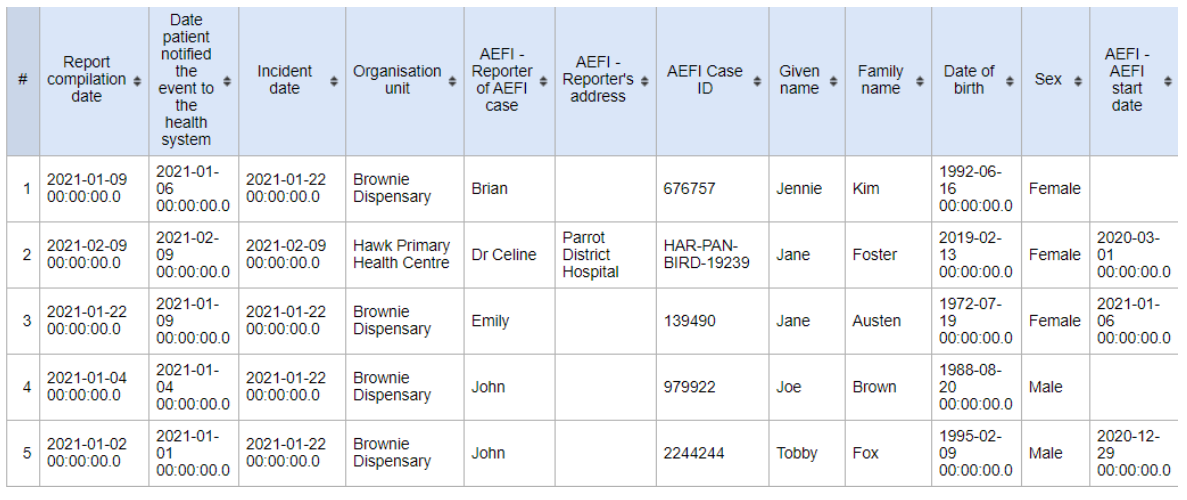
AEFI Výpis řádků (zpráva o události)
-
poznámka: výše uvedený snímek obrazovky nepředstavuje úplný řádkový výpis
-
Přejděte na aplikaci DHIS 2 Hlášení Událostí
- Vyberte styl tabulky Seznam řádků
- Vyberte výstupní styl Událost
- V části Data vyberte program Nežádoucí události s imunizací (AEFI)
- Vyberte fázi AEFI
- Použijte níže uvedenou tabulku a přidejte Datové prvky / Atributy programu v navrhovaném pořadí.
- V sekci Období vyberte Tento rok
- V části Organizační jednotky vyberte Organizační jednotka uživatele
- Klikněte na tlačítko Oblíbené a Uložit.
- Přidat Jméno - VÝPIS ŘÁDEK AEFI - letos
- Klikněte na tlačítko Oblíbené a Uložit.
- Klikněte na Sdílet. Omezte externí a veřejný přístup a sdílejte zprávu o události s příslušnými skupinami uživatelů: přístup AEFI (lze zobrazit) a správce AEFI (lze upravovat a zobrazovat)
- Přejděte na AEFI Ovládací panel a přidejte zprávu o události na ovládací panel.
| Pole / číslo sloupce | Proměnný název | Zdrojová fáze | Typ objektu | |
|---|---|---|---|---|
| 1 | Číslo | |||
| 2 | DOR (datum zprávy - datum sestavení zprávy) | |||
| 3 | DON (Datum oznámení - datum, kdy pacient událost oznámil zdravotnímu systému) | |||
| 4 | Datum incidentu | |||
| 5 | Organizační jednotka | |||
| 6 | AEFI - reportér případu | AEFI Fáze | Datový prvek | uZ9c4fKXuNS |
| 7 | AEFI - adresa reportéra | AEFI Fáze | Datový prvek | Q20pEixZxCs |
| 8 | ID případu AEFI | Atribut programu | h5FuguPFF2j | |
| 9 | Křestní jméno | Atribut programu | TfdH5KvFmMy | |
| 10 | Příjmení | Atribut programu | aW66s2QSosT | |
| 11 | Datum narození | Atribut programu | BiTsLcJQ95V | |
| 12 | Pohlaví | Atribut programu | CklPZdOd6H1 | |
| 13 | AEFI - datum zahájení AEFI | AEFI Fáze | Datový prvek | vNGUuAZA2C2 |
| 14 | AEFI_Vážná nežádoucí událost po imunizaci | AEFI Fáze | Datový prvek | kQCVFWE2MPb |
| 15 | AEFI - výsledek AEFI | AEFI Fáze | Datový prvek | yRrSDiR5v1M |
| 16 | AEFI - Očkování 1 datum | AEFI Fáze | Datový prvek | dOkuCjpD978 |
| 17 | AEFI - název vakcíny 1 | AEFI Fáze | Datový prvek | uSVcZzSM3zg |
| 18 | AEFI - číslo šarže/šarže (vakcína 1) | AEFI Fáze | Datový prvek | LNqkAlvGplL |
| 19 | AEFI - číslo / šarže ředidla 1 | AEFI Fáze | Datový prvek | FQM2ksIQix8 |
| 20 | AEFI - datum očkování 2 | AEFI Fáze | Datový prvek | VrzEutEnzSJ |
| 21 | AEFI - název vakcíny 2 | AEFI Fáze | Datový prvek | g9PjywVj2fs |
| 22 | AEFI - číslo / šarže (vakcína 2) | AEFI Fáze | Datový prvek | b1rSwGRcY5W |
| 23 | AEFI - ředidlo / šarže číslo 2 | AEFI Fáze | Datový prvek | ufWU3WStZgG |
| 24 | AEFI - datum očkování 3 | AEFI Fáze | Datový prvek | f4WCAVwjHz0 |
| 25 | AEFI - název vakcíny 3 | AEFI Fáze | Datový prvek | OU5klvkk3SM |
| 26 | AEFI - číslo / šarže (vakcína 3) | AEFI Fáze | Datový prvek | YBnFoNouH6f |
| 27 | AEFI - číslo / šarže ředidla 3 | AEFI Fáze | Datový prvek | MLP8fi1X7UX |
| 28 | AEFI - Bolest břicha | AEFI Fáze | Datový prvek | T6tsxbKzikz |
| 29 | AEFI - Absces | AEFI Fáze | Datový prvek | wce39JmsjIK |
| 30 | AEFI - anafylaxe | AEFI Fáze | Datový prvek | MkIgCrCTFyE |
| 31 | AEFI - Bellova obrna | AEFI Fáze | Datový prvek | BKxtyqhIDkB |
| 32 | AEFI - Zimnice | AEFI Fáze | Datový prvek | TPSvWhUfib3 |
| 33 | AEFI - Vrozená anomálie | AEFI Fáze | Datový prvek | lSBsxcQU0kO |
| 34 | AEFI - Kašel | AEFI Fáze | Datový prvek | ZdFB8xUhOUM |
| 35 | AEFI - průjem | AEFI Fáze | Datový prvek | NAiZTRCHRWL |
| 36 | AEFI - Závratě | AEFI Fáze | Datový prvek | XluNAFG1wj6 |
| 37 | AEFI - Ospalost | AEFI Fáze | Datový prvek | rjjRNU5yDhT |
| 38 | AEFI - encefalopatie | AEFI Fáze | Datový prvek | pdpAEuUS1W9 |
| 39 | AEFI - Mdloby | AEFI Fáze | Datový prvek | OhHYABXmGGe |
| 40 | AEFI - Únava | AEFI Fáze | Datový prvek | owRcSysyioE |
| 41 | AEFI - Horečka | AEFI Fáze | Datový prvek | rzhHSqK3lQq |
| 42 | AEFI - Bolest hlavy | AEFI Fáze | Datový prvek | HY6NIt2FX4A |
| 43 | AEFI - bolestivost místa vpichu | AEFI Fáze | Datový prvek | P4oSprWWqrn |
| 44 | AEFI - citlivost v místě vpichu | AEFI Fáze | Datový prvek | KqlCtmOWt4G |
| 45 | AEFI - Podrážděnost | AEFI Fáze | Datový prvek | PWOzcN7UCfW |
| 46 | AEFI - Svědění | AEFI Fáze | Datový prvek | FC54HsGMErl |
| 47 | AEFI - Bolest kloubů | AEFI Fáze | Datový prvek | vCfZD893IVe |
| 48 | AEFI - Ztráta apetitu | AEFI Fáze | Datový prvek | QFMRugi3fm6 |
| 49 | AEFI - lymfadenopatie | AEFI Fáze | Datový prvek | dDWYBYUNpaQ |
| 50 | AEFI - Zvětšení lymfatických uzlin | AEFI Fáze | Datový prvek | GEkI9NzxTmM |
| 51 | AEFI - Mírná horečka | AEFI Fáze | Datový prvek | nKLO8ZNdR0B |
| 52 | AEFI - Bolest svalů | AEFI Fáze | Datový prvek | pzOF4lGIyTU |
| 53 | AEFI - ucpaný nos | AEFI Fáze | Datový prvek | wWDenTQ5xBR |
| 54 | AEFI - Nevolnost | AEFI Fáze | Datový prvek | KOt0J61mF61 |
| 55 | AEFI - Specifikujte jiné (Nežádoucí událost) | AEFI Fáze | Datový prvek | iTm5wvq16iq |
| 56 | AEFI - Specifikujte jiné (závažná událost) | AEFI Fáze | Datový prvek | AfrWB2ofm7l |
| 57 | AEFI - vytrvalý pláč | AEFI Fáze | Datový prvek | GTyK3p976de |
| 58 | AEFI - Špatné kojení | AEFI Fáze | Datový prvek | sX1SvRadOmn |
| 59 | AEFI - typ záchvatu | AEFI Fáze | Datový prvek | Zz4KYO4AsSY |
| 60 | AEFI - Záchvaty | AEFI Fáze | Datový prvek | wCGZpudXuYx |
| 61 | AEFI - Sepse | AEFI Fáze | Datový prvek | tUmgO1Ugv6U |
| 62 | AEFI - Silná lokální reakce | AEFI Fáze | Datový prvek | UNmEidE6M9K |
| 63 | AEFI - Silná lokální reakce > 3 dny | AEFI Fáze | Datový prvek | We87rvcvd8J |
| 64 | AEFI - Silná lokální reakce mimo nejbližší kloub | AEFI Fáze | Datový prvek | f8hjxmHOtAB |
| 65 | AEFI - Kožní vyrážka | AEFI Fáze | Datový prvek | xgqzqv0p2Us |
| 66 | AEFI - Bolest v krku | AEFI Fáze | Datový prvek | seXW1hERwOo |
| 67 | AEFI - Únava | AEFI Fáze | Datový prvek | JaZ9yf1dDy3 |
| 68 | AEFI - trombocytopenie | AEFI Fáze | Datový prvek | GGLLaieVChK |
| 69 | AEFI - syndrom toxického šoku | AEFI Fáze | Datový prvek | Apq4JaueuWR |
| 70 | AEFI - Zvracení | AEFI Fáze | Datový prvek | cMEIyp0rMo1 |
| 71 | AEFI - Smrt | AEFI Fáze | Datový prvek | DOA6ZFMro84 |
| 72 | AEFI - hospitalizace | AEFI Fáze | Datový prvek | Il1lTfknLdd |
| 73 | AEFI - život ohrožující | AEFI Fáze | Datový prvek | lATDYNmTLKD |
| 74 | AEFI - trvalé nebo závažné postižení | AEFI Fáze | Datový prvek | lsO8n8ZmLAB |
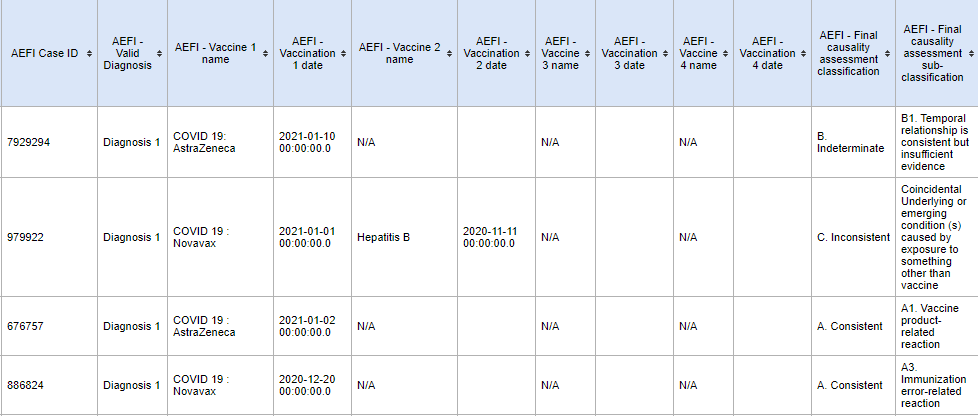
Souhrn národní úrovně AEFI (zpráva o události)
-
poznámka: výše uvedený snímek obrazovky nepředstavuje úplný seznam řádek
-
Přejděte na aplikaci DHIS 2 Hlášení Událostí
- Vyberte styl tabulky Seznam řádků
- Vyberte výstupní styl Zápis
- V části Data vyberte program Nežádoucí události s imunizací (AEFI)
- Vyberte příslušnou fázi. Viz tabulka níže
- Použijte níže uvedenou tabulku a přidejte Datové prvky / Atributy programu v navrhovaném pořadí.
- V sekci Období vyberte Posledních 12 měsíců
- V části Organizační jednotky vyberte Organizační jednotka uživatele
- Klikněte na tlačítko Oblíbené a Uložit.
- Přidejte Název - souhrn národní úrovně AEFI (letos)
- Klikněte na tlačítko Oblíbené a Uložit.
- Klikněte na Sdílet. Omezte externí a veřejný přístup a sdílejte zprávu o události s příslušnými skupinami uživatelů: přístup AEFI (lze zobrazit) a správce AEFI (lze upravovat a zobrazovat)
- Přejděte na AEFI Ovládací panel a přidejte zprávu o události na ovládací panel.
| Pole / číslo sloupce | Proměnný název | Zdrojová fáze | Typ objektu | UID |
|---|---|---|---|---|
| 1 | Číslo | |||
| 2 | DON (Datum oznámení - datum, kdy pacient událost oznámil zdravotnímu systému) | |||
| 3 | Datum incidentu | |||
| 4 | Organizační jednotka | |||
| 5 | ID případu AEFI | Atribut programu | h5FuguPFF2j | |
| 6 | AEFI - Datum, kdy je viděno ke schválení na národní úrovni | Fáze národní úrovně | Datový prvek | cWMUoQEuvtR |
| 7 | AEFI - Datum konečné klasifikace | Fáze národní úrovně | Datový prvek | wDijUvPYVne |
| 8 | AEFI - platná diagnóza | Fáze národní úrovně | Datový prvek | IZoGGNUkNl0 |
| 9 | AEFI - název vakcíny 1 | AEFI Fáze | Datový prvek | uSVcZzSM3zg |
| 10 | AEFI - Očkování 1 datum | AEFI Fáze | Datový prvek | dOkuCjpD978 |
| 11 | AEFI - název vakcíny 2 | AEFI Fáze | Datový prvek | g9PjywVj2fs |
| 12 | AEFI - datum očkování 2 | AEFI Fáze | Datový prvek | VrzEutEnzSJ |
| 13 | AEFI - název vakcíny 3 | AEFI Fáze | Datový prvek | OU5klvkk3SM |
| 14 | AEFI - datum očkování 3 | AEFI Fáze | Datový prvek | f4WCAVwjHz0 |
| 15 | AEFI - název vakcíny 4 | AEFI Fáze | Datový prvek | menOXwIFZh5 |
| 16 | AEFI - datum očkování 4 | AEFI Fáze | Datový prvek | H3TKHMFIN6V |
| 17 | AEFI - Závěrečná klasifikace hodnocení kauzality | Fáze národní úrovně | Datový prvek | DpgoIsq65SW |
| 18 | AEFI - Subklasifikace závěrečného posouzení kauzality | Fáze národní úrovně | Datový prvek | D42M2tdJo7R |
Vizualizace
Vizualizace spojené s fází AEFI jsou podrobně uvedeny v přehledu seznamu linek úrovně zařízení AEFI. S klasifikací a subklasifikací kauzality jsou spojeny dvě klíčové vizualizace.