BNA App architecture
The BNA Application is built on architecture that eases the user interactions by having a design concept that promotes the user to follow their intuition complemented with high performance that considers the lowest internet connection scenarios with descriptive notification messages if the user misses a step along the way.
BNA App Design concepts
Do more with less steps
Most of the operations in the application can be achieved in three steps or less. The BNA App gives a district user or any user at any level with no administrative privilege the ability to perform operations without a need to switch between modules or drop ongoing activities. Users can bookmark interventions, filter interventions by organization unit or period and more with everything being just a click away.
Trust your intuition
The BNA App has been built from the ground app, to make functionalities more accessible, more intuitive and most importantly more capable. The App follows a minimalistic design that minimizes any chances of the user getting lost in the middle of performing their usual operations.
Layout of the BNA App
The BNA App is flexible to adapt to any number of user journeys depending on the country's implementations. The primary two users are:
- Administrators: can manage interventions with operations such as creating interventions, applying data filters for interventions, making legend definitions and many more administrative operations.
- District users: analyzing the bottlenecks can switch through their interventions, bookmark their favorite interventions and perform root cause analysis through the root cause analysis widget.
Other bottleneck App users can be national, and regional/counties users who can only analyse bottlenecks, sub-nation analysis, route causes for each bottleneck and their solutions.
Global DHIS2 Menu
To browse the BNA app, access the DHIS2 demo server with the login credentials provided on the page. Once logged in, search for Bottleneck Analysis App on the Search bar.

Search for Bottleneck Analysis application and click on it 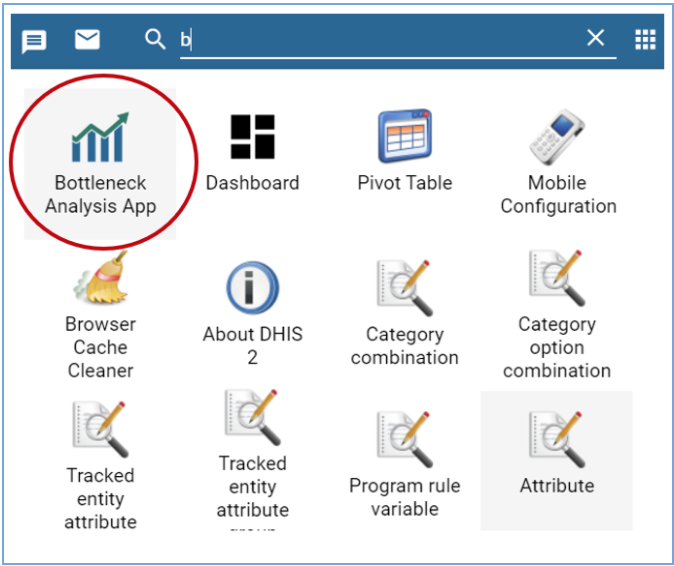
Interventions list
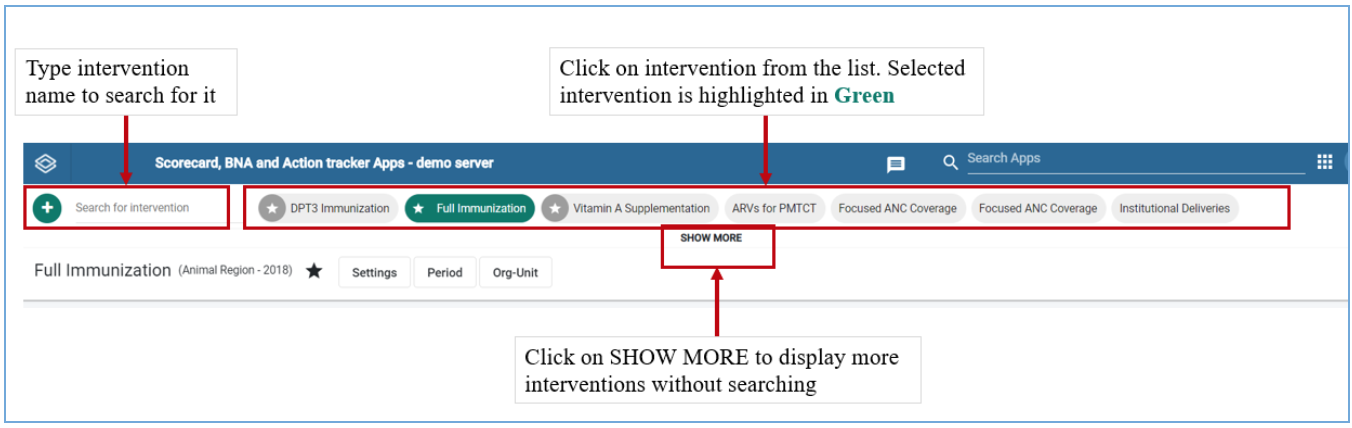
Upon loading the BNA App, users will have access to available interventions and an option to search for more interventions which may not be displayed upon loading. Accessing the shared interventions is limited to the access level they are shared.
Interventions Global filters
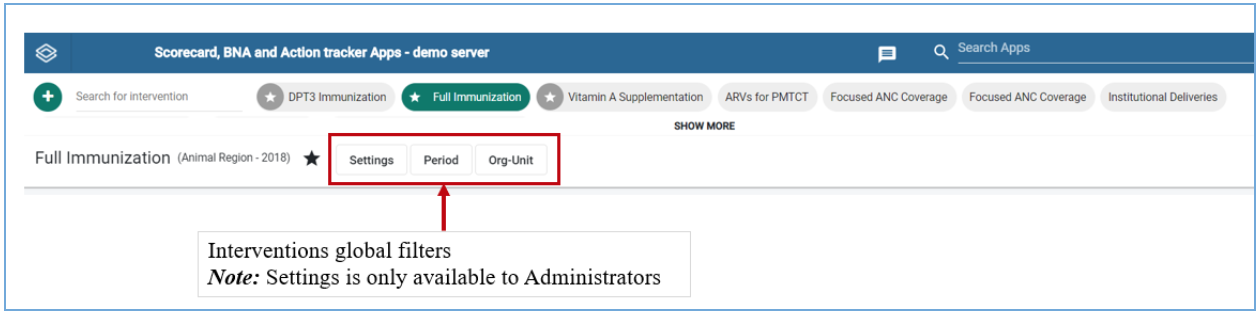
Right under the interventions list there are controls for the active interventions. The filter control when clicked expands to offer the user an ability to make data selections, period selections, organisation unit selections, and legend configurations. However, all users except administrators have access to Period Organisation unit filters only. More details on these operations can be found on chapter 4 section 4.
Intervention items
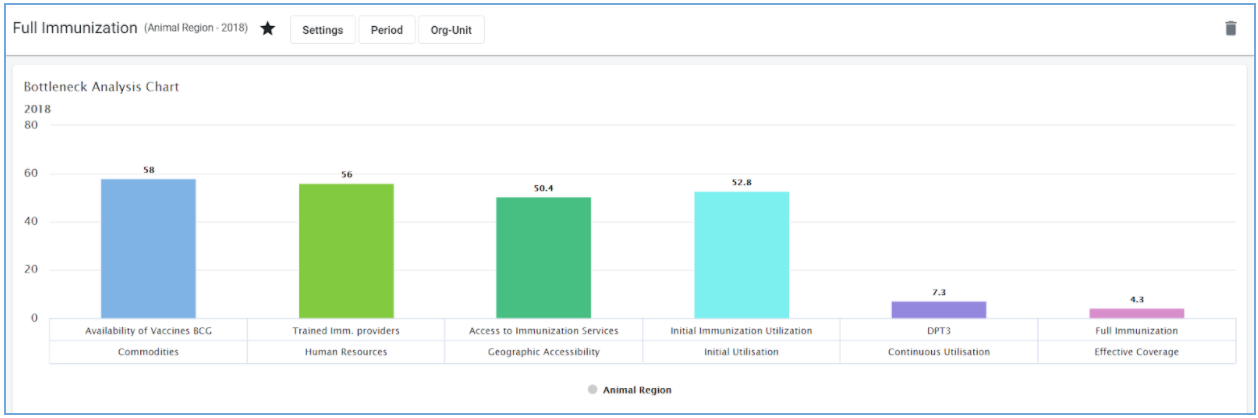
All interventions in the BNA App contains three items, namely:
- The Bottleneck Analysis Chart
- The Sublevel Analysis Table
- The Root Cause Analysis Widget
These intervention items will be empty when an intervention is created. The administrator is expected to configure the intervention items by making selections on the global filters. More details on how to configure interventions can be found on Chapter 4 Section 5. The district user is expected to enter data into the root cause analysis widget as explained in the next chapters.