Learner's Guide to Organisation Unit Groups and Group Sets
ما هو هذا الدليل؟
This guide contains all exercises and detailed steps to perform them related to the review of organisation unit groups and group sets for the Design for Data Use Level 1 academy. Please perform each of the exercises when prompted to by your instructors
الأهداف التعليمية لهذه الجلسة
- Review the concept of organisation units
- Describe what organisation unit groups are
- Describe what organisation unit group sets are
- Use organisation unit groups in analysis apps
- Use organisation unit group sets in analysis apps
- Describe the limitations of creating organisation unit groups in maintenance
- Add organisation units to organisation unit groups via import/export
- Configure organisation unit group sets in maintenance
Exercise 1 - Review how organisation unit groups and group sets can be used to visualize data
Perform this exercise in the DEMONSTRATION system.
Review and create the chart "EPI - BCG Doses Given < 1 Donor 1, Last 12 months"
You will start the session by recreating the following chart.

You can open this chart by navigating to data visualizer and opening the chart "EPI - BCG Doses Given < 1 Donor 1, Last 12 months"
This chart has two organisation unit group sets that are being applied to it, located in the filter of the chart. In analysis, we can apply as many combination of data dimensions as required to create our intended input and organisation unit groups/group sets can help with this.
They can also support the disaggregation of our data.
Move the org unit group set "Type" from the filter to the category and update the chart.
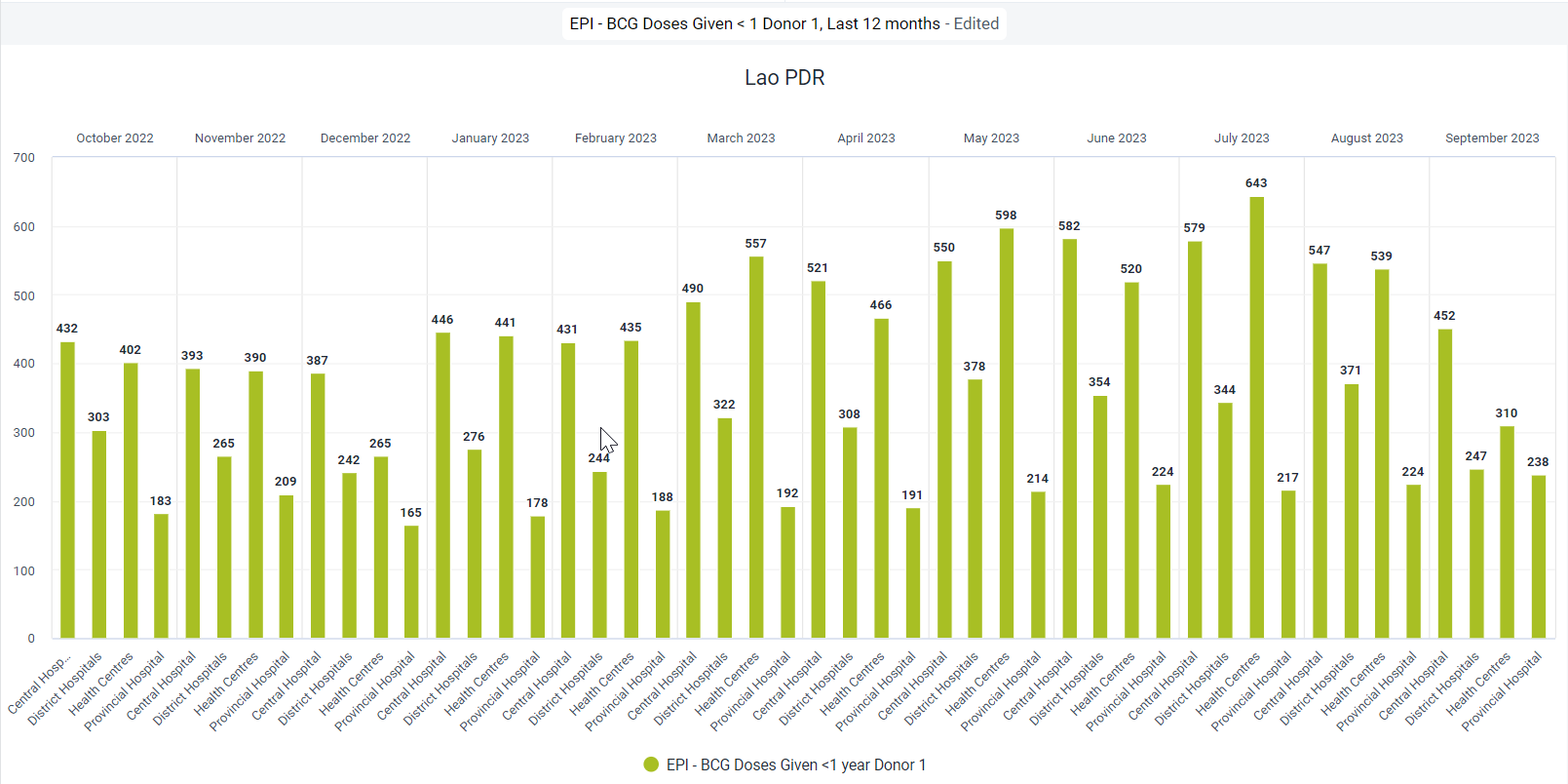
We can now see the chart is disaggregated by the org unit groups within the group set "Type"
Create a new chart
To create a new chart select File - > New
Here are the inputs for the chart:
Chart Type - Column
Data - Data Type : Indicator - Indicator group: Immunization - Indicator name: EPI - BCG Doses Given < 1 Donor 1

Period - Last 12 months
Organisation unit
When opening the org unit pane, explain that org unit groups can also be used to select relevant organisation units to include in your analysis. Using this option, we can not use the compound filtering options we observed in the first chart we were shown; however if you just want to quickly select a group of organisation units to use in analysis, this can be done. This is another reason why it is very useful to group your organisation units. Note that you can select multiple org unit groups in this selector.

As an example, you can select Central Hospital and District Hospitals as the org unit groups and update the chart.

Have a close look at the chart. The org unit groups are not added as data dimensions in this scenario so we can't disaggregate the data any further; however a filter is being applied to only show data from the org unit groups being shown.
Clear the selection of any org unit groups selected here and just ensure Lao is selected as the org unit

Add in the org unit groups Central Hospital, District Hospitals, Health Centres and Provincial Hospital options from the type org unit group set data dimension

Alter the chart layout to look like the following

Then update the chart

Using the org unit group sets we have added, we can filter the chart further. As an example, we can remove some of the org unit types from the filter.

Update the chart and you will see the data is refined further

We can also use these dimensions to disaggregate our date in visualizations. Update the layout to the following

And update the visualization

From these examples, we can see there is a lot of flexibility introduced by using org unit groups and group sets in data analysis; and having them configured correctly will prove very useful.
Exercise 2 - Manage OU Groups in Maintenance
Perform this exercise in the CUSTOMIZATION system
In order to create org unit groups and group sets in DHIS2, we can use the maintenance app. This should be a review for most participants.
Navigate to maintenance -> organisation unit and create a new organisation unit group.
Try to create a group for all health centres using your initials as a prefix.
When you go to filter organisation units by name type in "HC."

After you have filtered out your organisation units, you need to select them manually by selecting the checkbox next to the orgunit name to add them to your group. This can take some time so for exercise purposes you may only select a couple and proceed to Save the org unit group.

Exercise 3 - Create org unit group sets via maintenance
Perform this exercise in the CUSTOMIZATION system
To finalize this process, you would normally have to create at least one more org unit group; however the steps you follow are the same as what we have shown now. Instead, we will use the org unit group you just made plus existing groups in order to create an org unit group set. Within the group set, exclusivity is a key principle. This means an org unit should not belong to more then one org unit group within an org unit group set. Also, each of the org units in the entire system should be within one of the org unit groups belonging to the group set as well. This is so when we perform analysis with these org unit groups and group sets, we are not excluding org units from our totals.
Navigate to org unit group set and create a new one within maintenance (maintenance -> organisation unit -> add new org unit group set).
Add in the following groups, using the health centre group you created rather then the existing one.

Save it when you are finished.
Exercise 4 - Use the created groups in visualizer
Chart type - Stacked column
Data - Data Type : Indicator - Indicator group: Immunization - Indicator name: EPI - BCG Doses Given < 1 Results
Period - Last 12 months
Organisation unit - Lao PDR
Organistion unit group set - the one you just made
You can now use your groups for selecting org units and your group sets as dimensions to disaggregate your data!
