Using JIRA for DHIS2 issues
Sign up to JIRA - it's open to everyone!
-
Go to: https://jira.dhis2.org.
-
Create an account with your name and email address.
Report an issue
Tip
Uncertain whether something is a missing feature, a bug or deprecated? We'd really appreciate that you ask on the developer list before reporting a bug directly. Thanks!
-
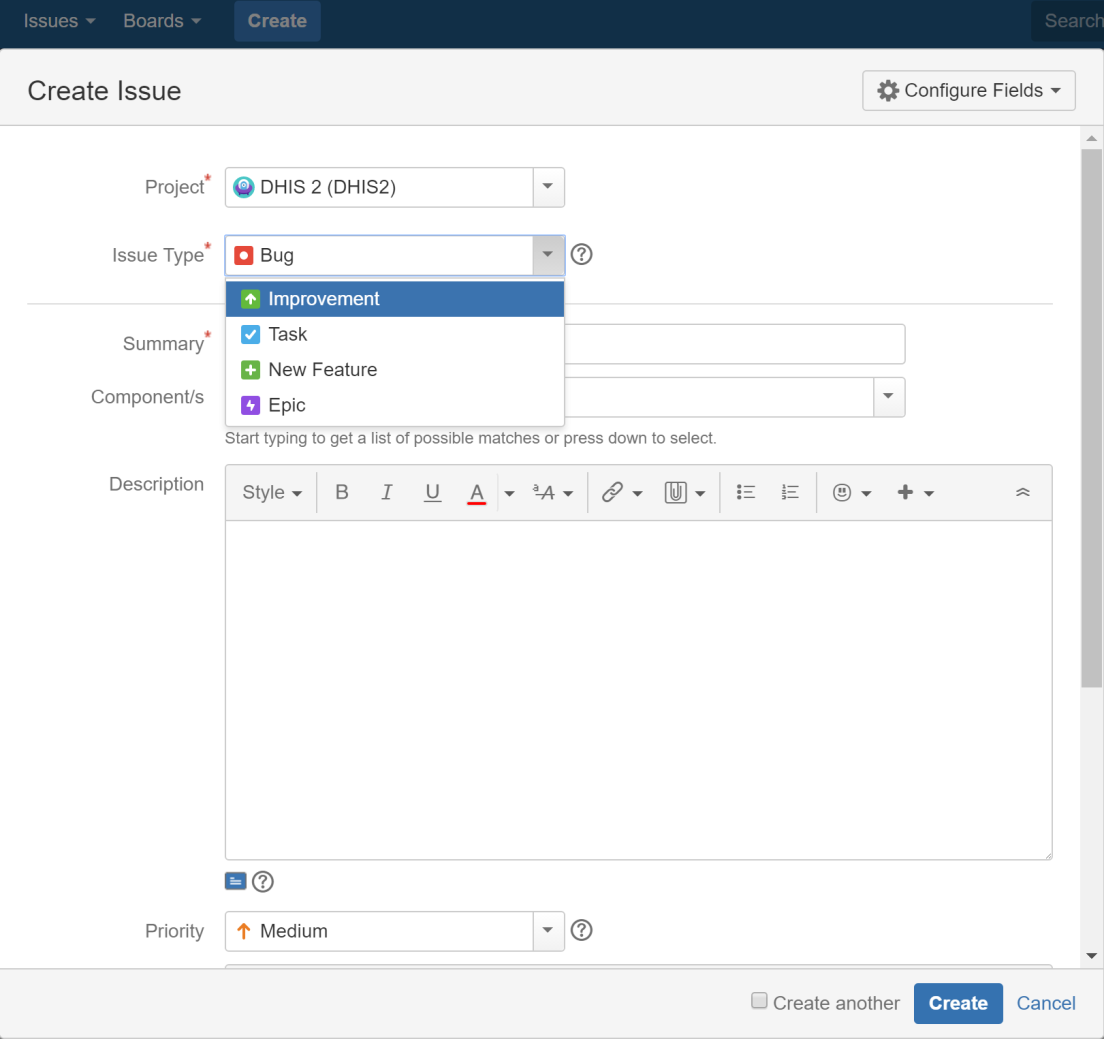
Click Create in the top menu.
-
Select a Project from the list.
-
Select an Issue Type:
-
Improvement - if you’d like to tell us about something that could be better such as usability or design suggestions.
-
New feature - if you want to suggest a feature.
-
Task - if you’ve been asked to work on a DHIS2 task.
-
Bug - if you’ve found something that needs fixing.
-
Epic - if you’d like to submit an idea for a new DHIS2 area such as an app. Epic is used for issues more complex than new features.
-
-
Click Create.
Tip
To create several issues in one go, select Create another.
-
Fill out the issue form. Please give us plenty of context! Include server logs, JavaScript console logs, the DHIS2 version and the web browser you’re using.
Search for issues
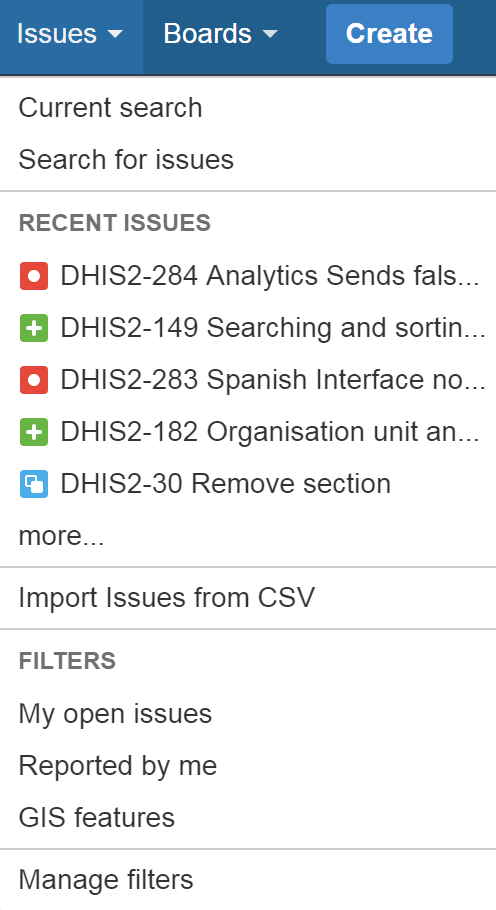
Click Issues > Search for issues.
If you click Advanced, you can order your search criteria using the predefined fields. You can also enter search terms in the search field. See also: Search syntax for text fields.
About filters
You can save your search results as filters to get back to them faster. A filter is very similar to a favorite. We’ve created filters for features intended for release numbers 2.26, 2.27 and 2.28 and for all open bugs.
Create a filter
-
To create a filter, go to Issues > Search for issues.
-
Add filters to your search such as:
-
Project – the main software project is DHIS 2.
-
Type – you can filter by Standard Issue Types such as New Features, Improvements, Bugs or Epic or Sub-Task Issue Types.
-
Status – filter by To Do (not started) and Done, for example.
-
Version - click More > All Criteria > Fix version to filter by DHIS2 release number.
-
Internal- click More > Internal feature to exclude low-level (back end) features from your search.
-
-
Click Save As. This button is at the top of the Search pane.

-
Enter a name for your search filter and click Submit. Your filter is now available in Favorite Filters. Use the arrow to modify your filter. Your filter is also available on the System Dashboard.

Add a filter to your profile
To add a filter to your profile, click Issues > Manage filters and click the star icon next to each filter.

Remove search filter terms from your search
Click the cross to remove search filter terms you previously added from your search.

Communicate with us
To share information, clarify requirements, or discuss details about an issue, do this using issue comments.
-
Select the issue you want to comment.
-
In the Issue Detail view click Comment and enter your text.
To email others about your comment, simply enter @User's Name in the comment field. An email will be sent to the users' email addresses that are registered with their JIRA accounts.
-
Click Add.