Submitting quick document fixes
For small changes to a document, it's actually very easy for anyone to submit changes without going through the whole process of raising a JIRA issue against DHIS 2. This can be done directly in GitHub and requires no knowledge of git. All you need is a GitHub account!.
This section is intended as a walk-through guide to making simple changes.
Typo fix walk-through
In this scenario, we are reading the documentation and find a typo (the word manditory should be mand**a**tory):

This is in the chapter on "Using the Capture app" in the DHIS 2 User Manual. We want to fix this, so...
-
We log on to GitHub: https://github.com/dhis2/dhis2-docs
If you don't have an account, follow the
Sign uplink on the GitHub site
(public accounts are free)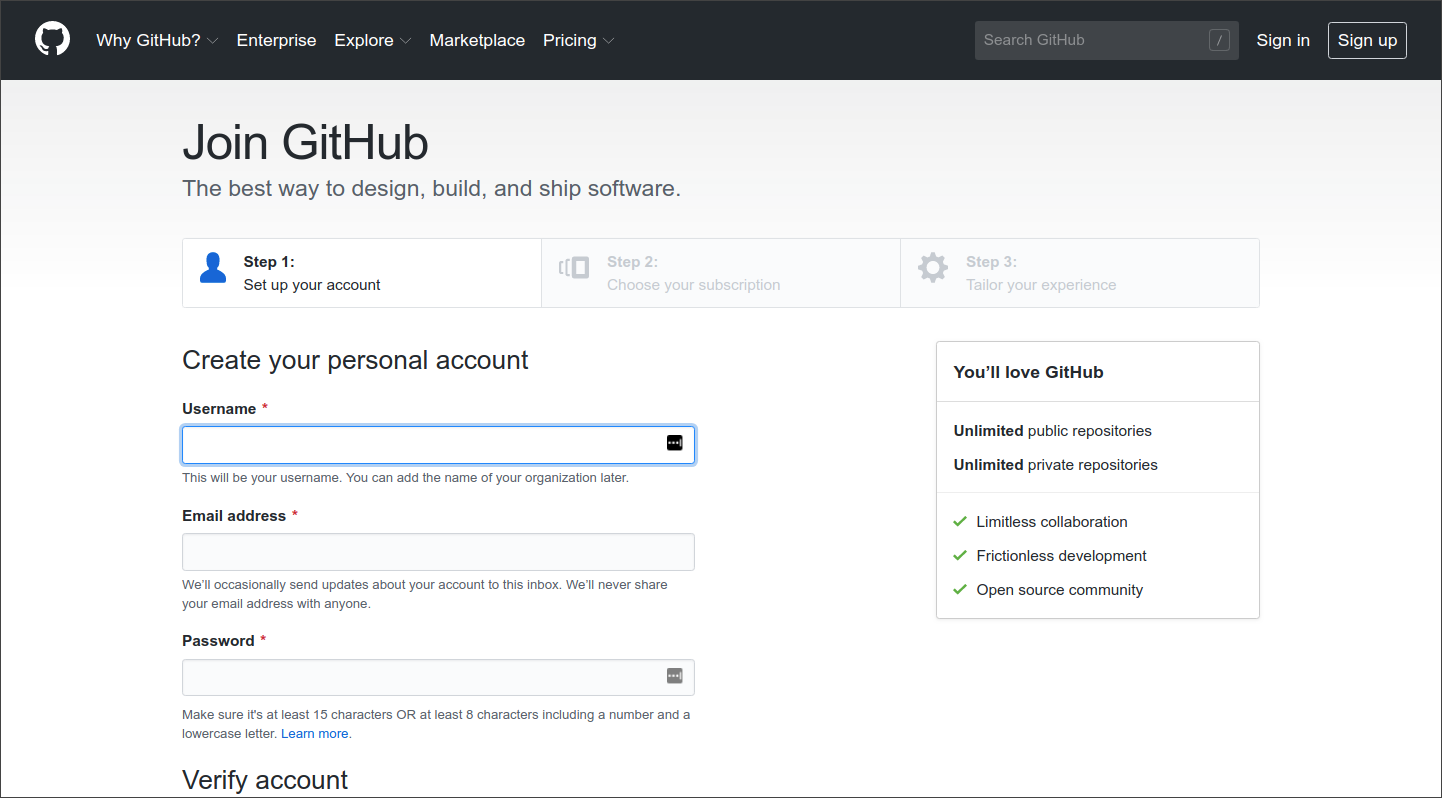
GitHub sign in -
Now we need to find the chapter that we want to change in GitHub. We simply go to the page we want to change on the DHIS2 documentation site and scroll to the top of the page. On the right side, above the main content, is an edit (pencil) icon. For pages with multiple versions, we select the one we want before editing; here we have selected the
masterversion.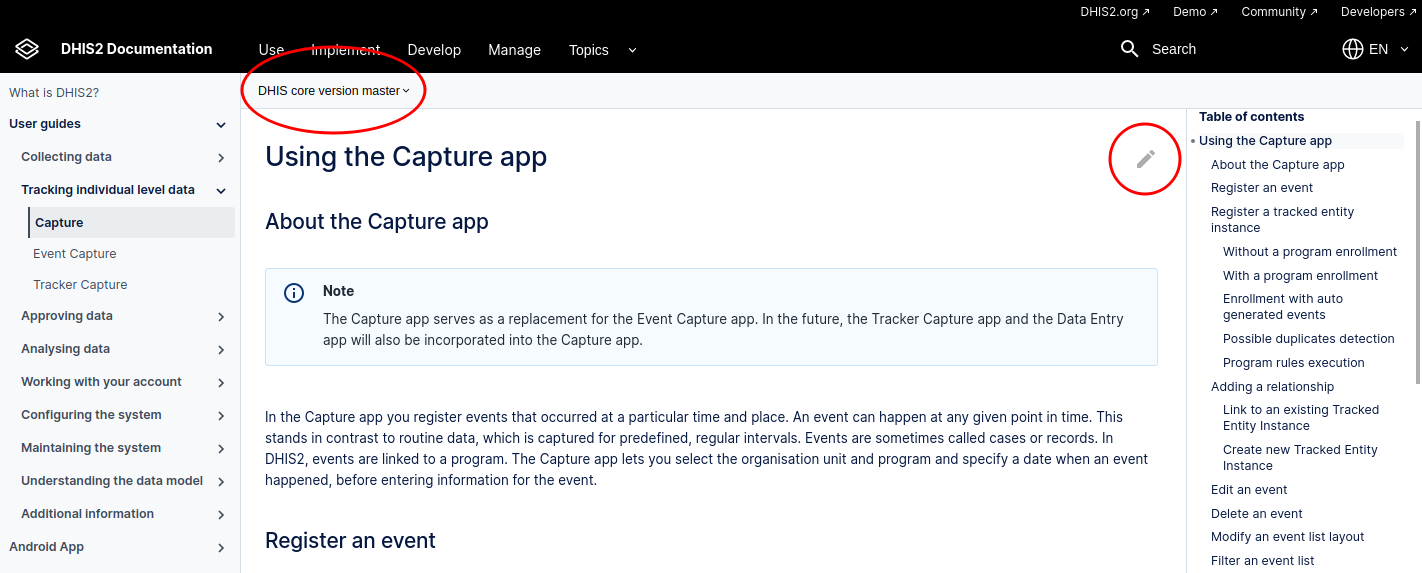
Page on documentation site -
Clicking the edit icon on the docs site takes us directly to the relevant file in GitHub.
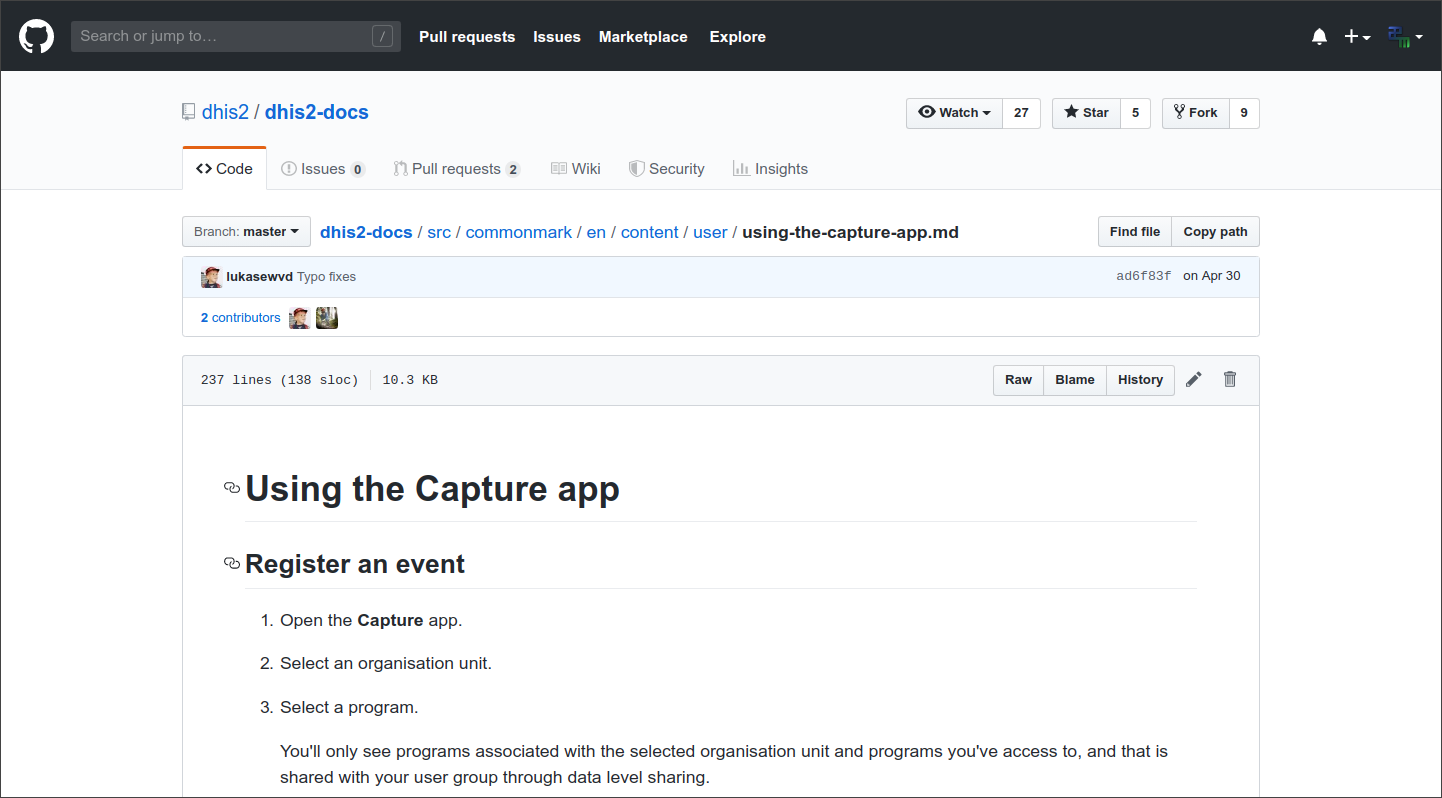
Capture app chapter on GitHub -
From here we can choose to edit the file (pencil icon). An edit panel is displayed:
Here we have found and highlighted the offending word!
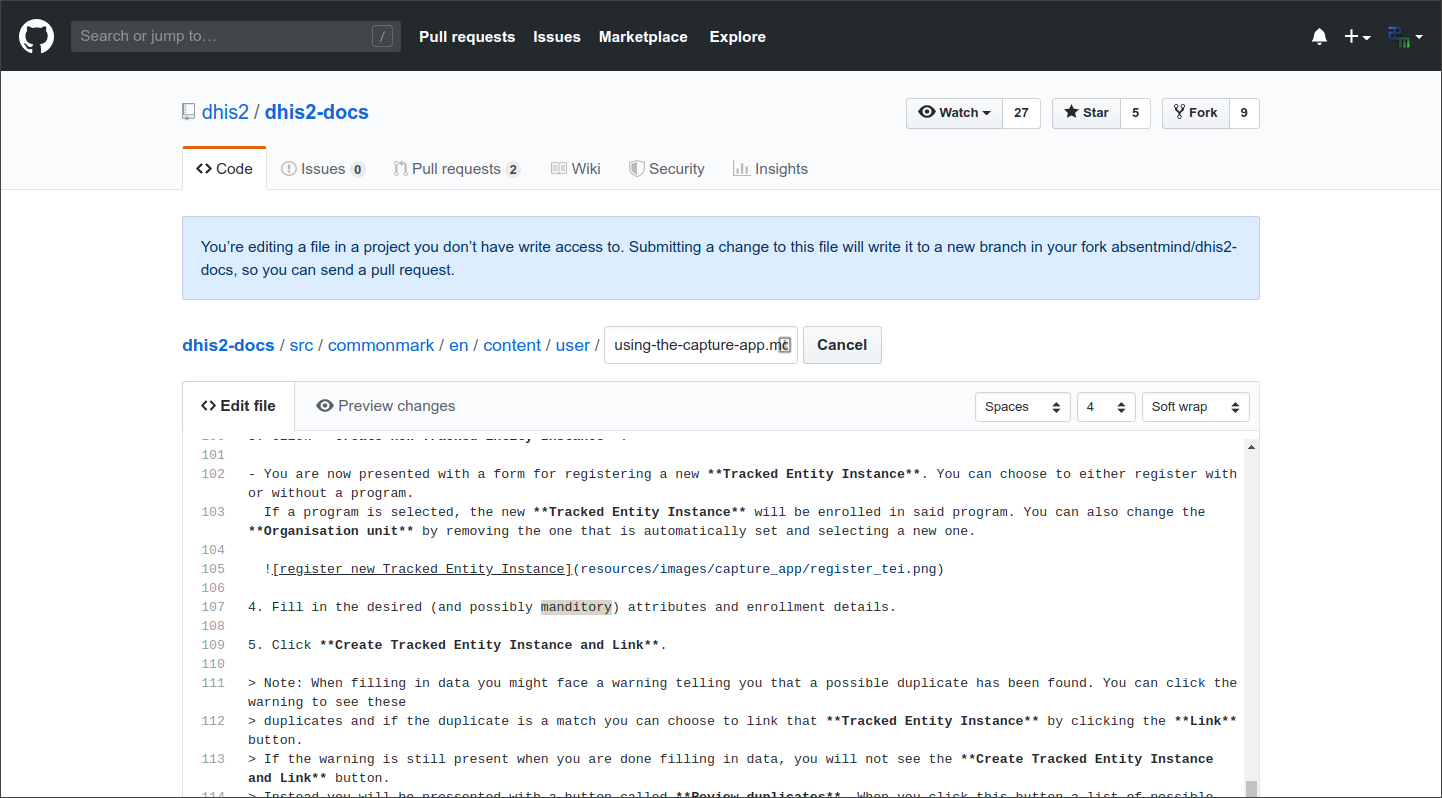
Edit Don't worry about the blue warning at the top that says we don't have write access to the file!
We can make the change and preview it in the
Preview changestab if we want.
Here is the preview: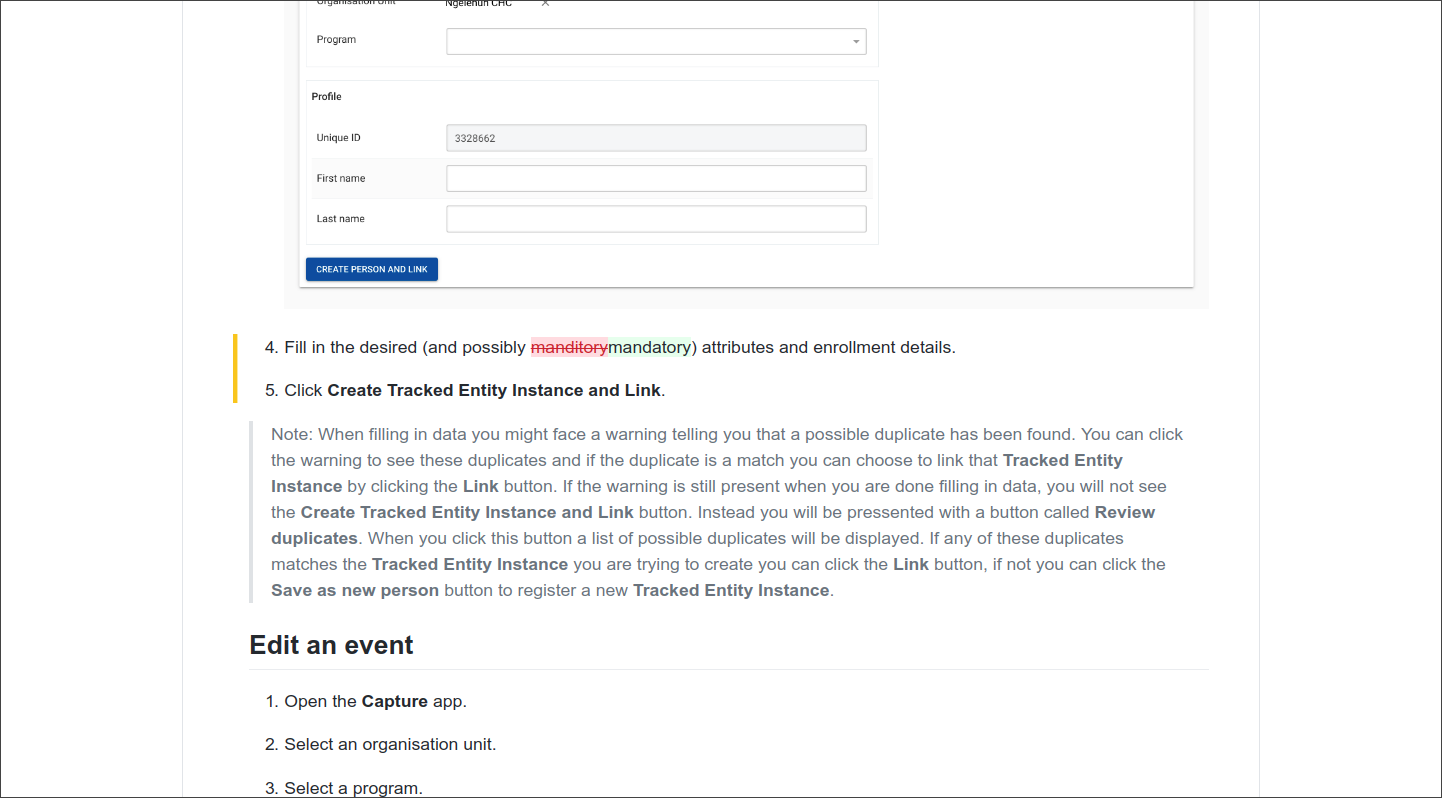
Preview -
Finally we can submit our change as a Pull Request (PR). We add a title for the change (and an optional description) and click
Propose file change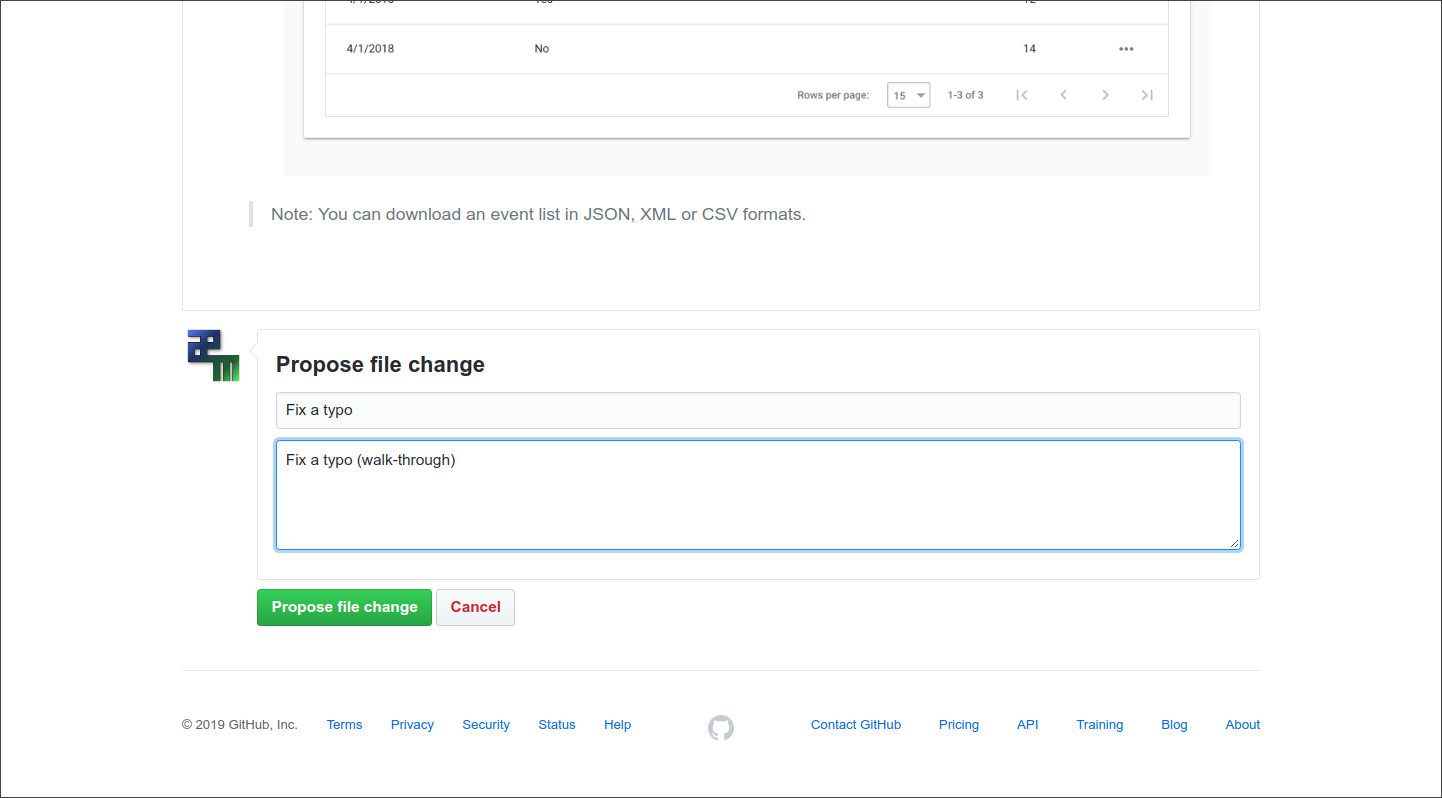
Submit the change a. We see a summary of our changes and click
Create pull request: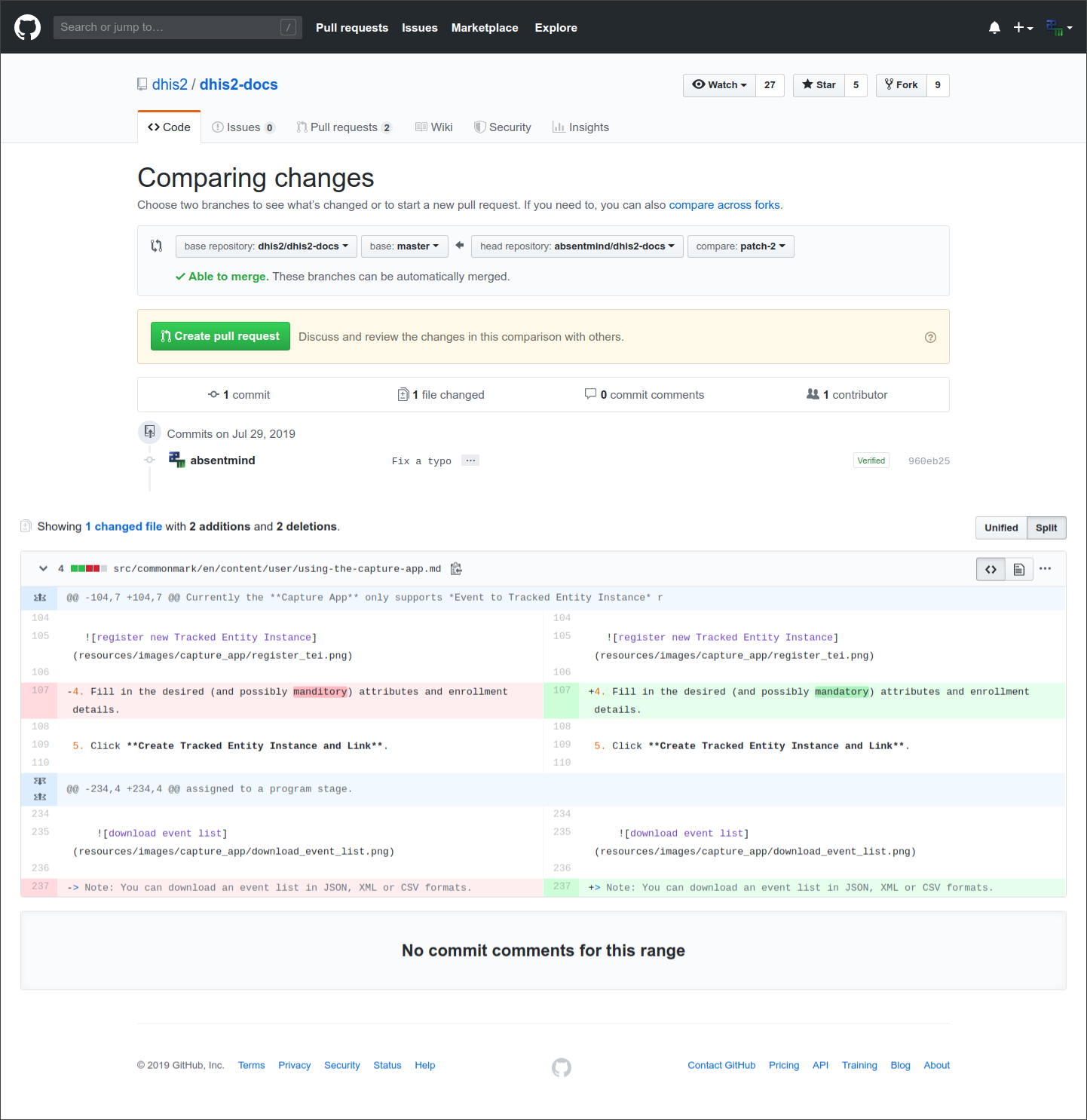
Submit the change -
All done!
A pull request is now in the system, which can be easily reviewed and accepted by the DHIS 2 team. 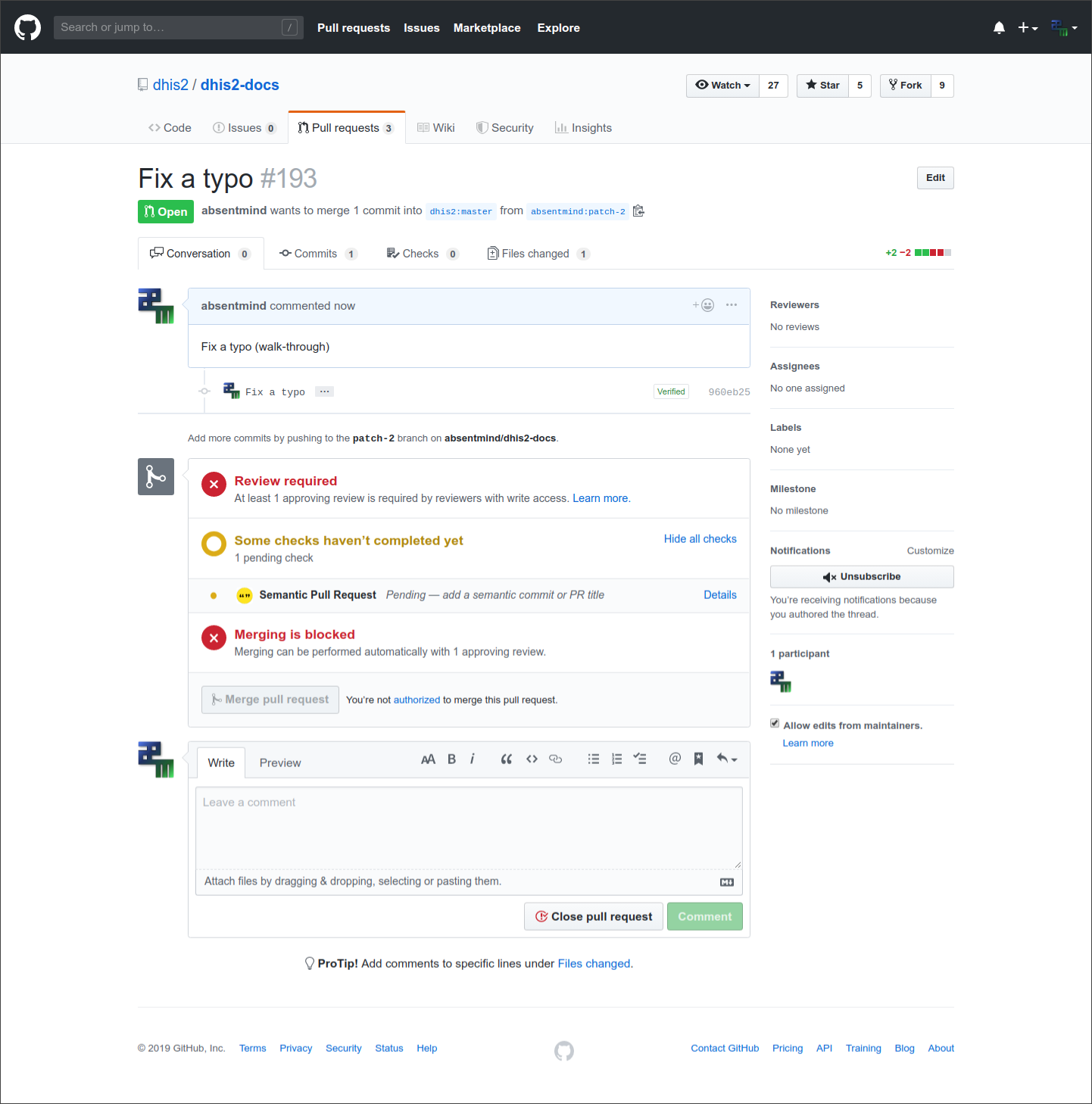
Once accepted, the change will appear in the next build of the documentation!