BIOMEDICAL ENGINEERING LIFE CYCLE MANAGEMENT / Tracker program
Introduction
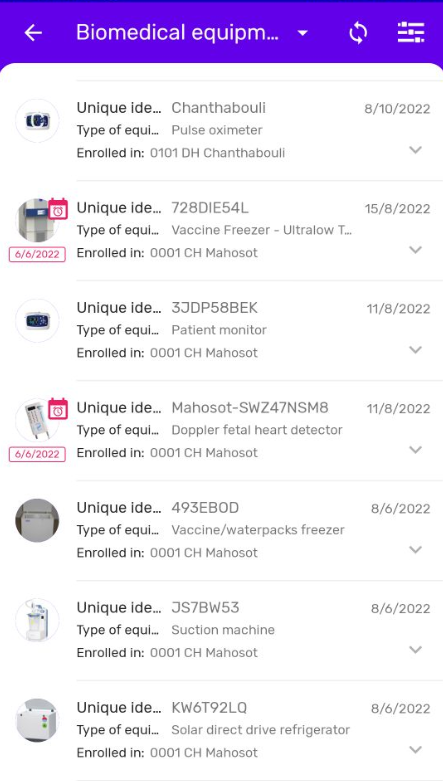
This simple Tracker program provides an asset register similar to the product catalogue which can be customized to any type of biomedical equipment, including but not limited to cold chain equipment. In addition, this mobile application allows maintaining a detailed record of installation, alarm record, equipment status, servicing, repair and disposal and thereby covering the entire life cycle of biomedical equipment with records available to health care facility staff off-line and to any other other authorized staff anywhere in the country through the web portal.
Use case
The biomedical engineering or cold chain technician team establishes a detailed asset register for each health care facility or uploads data from a national database. Biomedical engineers or technicians document the installation, testing, commissioning and initial training when setting up new pieces of equipment. Health staff and/or technicians carry out period (daily/weekly/monthly) equipment checks and document alarm events, causes as well as resolution. Biomedical engineers and/or technicians maintain a detailed record for each servicing or repair which documents works, parts repaired or replaced and testing. Finally, when the equipment reaches the end of its useful life time, the decommissioning and disposal of equipment is documented before removing it from the asset register.
Maintenance Web App - DHIS2 metadata configuration
This application is configured as a "Tracker program" which uses only simple, native DHIS2 functionality. The number, description and contents of each of the stages can be very easily customized to national protocols and needs without the need for any programming knowledge. The "aggregate" Data entry form is used for storing and visualizing aggregate daily and monthly data but not used for entering data.
Metadata overview
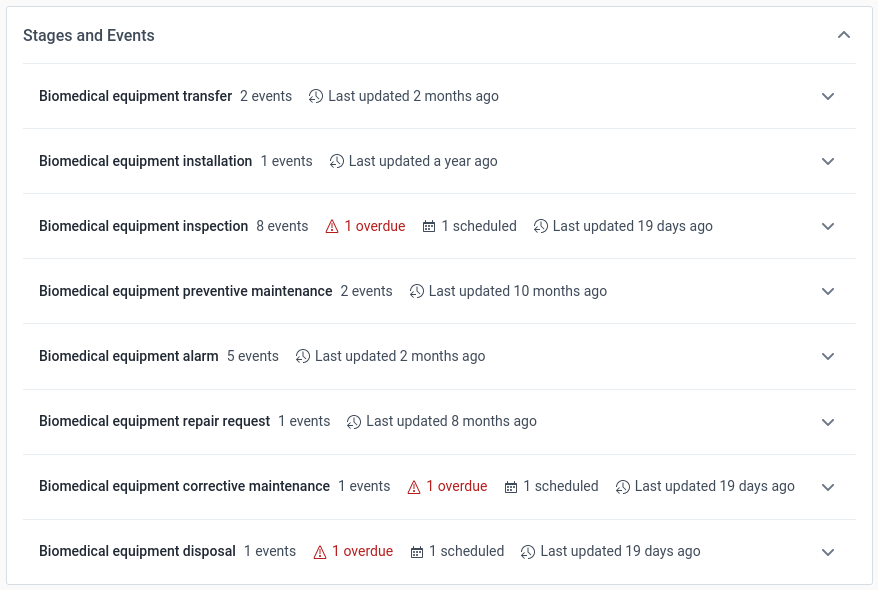
The required metadata settings seetings are presented in the order in which it is presented in the DHIS2 Maintenance Web App.
1 CATEGORY
1.1 Category option
1.2 Category
1.3 Category combination2 DATA ELEMENT
2.1 Data element - "Aggregate"
2.2 Data element - "Tracker"3 DATA SET
3.1 Data set
4 INDICATOR
4.1 Program indicator
5 ORGANISATION UNIT
5.1 Organisation unit
6 PROGRAM
6.1 Program
6.2 Tracked entity attribute
6.3 Relationship type
6.4 Tracked entity type
1 CATEGORY
1.1 Category option
1 Xx
Name (*): "Xx "
Short name (*): "Xx "
Organisation units selected: (select as for the Tracker Program)2 Xx
Name (*): "Xx"
Short name (*): "Xx"
Organisation units selected: (select as for the Tracker Program)
1.2 Category
1 Xx
Name (*): "Xx"
Short name (*): "Xx "
Data dimension type: "Disaggregation"
Category options: "Xx"
1.1 Category combination
Name (*): Xx
Data dimension type (*): "Disaggregation"
Skip category total in reports: tag Categories: "Xx"
2 DATA ELEMENT
2.1 Data element - "Aggregate"
1 Xx
Name (*): "Xx"
Short name (*): "Xx"
Domain Type (*): "Aggregate"
Value type (*): "Number"
Aggregation type (*): "Sum"
Store zero data values: tag
Category combination (*): "Xx"
Aggregation levels: "Facility"
2.2 Data element - "Tracker"
Name - for Program stages
"Biomedical equipment alarm"
"Biomedical equipment disposal"
"Biomedical equipment installation"
"Biomedical equipment repair"
"Biomedical equipment servicing"
"Biomedical equipment status"Name - for questions
"Biomedical equipment alarm"
"Alarm cause"
"Alarm corrective action"
"Alarm escalated and supervisor informed"
"Alarm resolved"
"Alarm type"
"Audible or visible alarm"
"Equipment switches on"Short name (*): same as "Name (*) - CCE"
Domain Type (*): "Tracker"
Value type (*): "Long text" Aggregation type (*): "None"
2.3 Data element group
The creation of Data element groups is a DHIS2 best practice but also a precondition for using the "Group Predictor" functionality which allows using a placeholder and the Data element group ID for creating a single Predictor which is automatically applied to all Data elements in the respective Data element group. For example for calculating the stock coverage time.
1 Xx
Name (*): "Xx"
Short name (*): "Xx" Data elements (*): select all Data elements with the "DAY" suffix"
X
Name (*): "X"
Short name (*): "Xx" Data elements (*): select all Data elements with the "MTH" suffix"
3 DATA SET
3.1 Data set
Data sets for each Organisation unit are required both for recording daily and monthly "snapshots" of Tracker Program .
Xx
Name (*): "Xx"
Short name (*): "Xx"
Expiry days: "5"
Open future periods for data entry: "1"
Days after period to qualify for timely submission: "5"
Period type: "Monthly"
Category combination: "None"
Data elements"Data elements: add all Data elements with the suffix "XXX" required for the respective health facility.
Organisation units selected: (select as for the Tracker Program)
4 INDICATOR
The Indicator functionality is used to configure the "Stock coverage time". In principle it would be preferable to configure the "Stock coverage time" as Predictor (as it would allow using the "Group predictor" function) but because the "Stock coverage time" requires displaying decimals and the Data Entry form only allows a single number format for all Category Options, an indicator is used instead. This approach allows freely setting the number of decimals in the Indicator settings.
4.1 Program indicator
Program indicators in conjunction with Predictors allow automatically aggregating Tracker Program data and recording daily and monthly aggregate values in the respective Data Entry forms for analysis and reporting.
A separate Program indicator has to be created for every "pair" of item description and transaction type and one example is given below for each of the transactions for one item:
1 [Data element] - Xx
1 Program indicator details
Program (*): "Xx"
Name (*): "[Data element] - Xx"
Short Name (*): "[Item code] - XX"
Aggregation type (*): "Sum"
Analytics type: "Event"
Organisation unit field: "Event organisation unit (default)
Analytics period boundariesBoundary target: "Event date"
Analytics period boundary target: "Before end of reporting period"
Offset period by amount: "0"
Boundary target: "Event date"
Analytics period boundary target: "After start of reporting period"
Offset period by amount: "0"Display in form: tag (appears as white tick in blue square)
5 ORGANISATION UNIT
5.1 Organisation Unit
The Organisation Unit, Organisation Unit group and Organisation Unit level are created and added according to national protocols and policies and/or existing DHIS2 configuration and there are no specific requirements for using the Biomedical EQuipment Life Cycle Management program.
6 PROGRAM
The DHIS2 Tracker Program, which lies at the core of the DHIS2-RTS application, is very simple to configure, uses only native DHIS2 functionality and governs the customized user interface on the mobile device.
6.1 Program
1 Program details
Name (*): "Biomedical equipment life cycle management"
Short name (*): "Biomedical equipment life cycle management"
Color: "#6200EA"
Icon: "Factory worker outline"
Version: (automatically numbered by the system) Tracked entity type (*): select "Biomedical equipment"
Category combination (*): select "None"
Display front page list: tag (appears as a white tick in a blue square) Access level: "Open"
Completed events expiry days: "0"
Expiry days: "0"
Minimum number of attributes required to search: "1"
Maximum number of treacked entity instances to return in search: "0"2 Enrollment details
Allow future enrollment dates: do not tag
Allow future incident dates: do not tag
Only enrol once (per tracked entity instance lifetime): do not tag
Show incident date: tag (appears as a white tick in a blue square)
Description of incident date: "Biomedical equipment life cycle management report"
Ignore overdue events: do not tag
Feature type: select "Point"3 Attributes 1 Assign attributes
Program tracked entity attributes: select and arrange in the following order:
"Item code"
"Item description"
Note that the item code is separate as it is needed as a distinct field for scanning the barcode.
Display in list: tag all
Searchable: tag "Item description" ("Item code tagged by the system)
Mobile render type: "Default" Desktop render type: "Default"2 Create registration form
Name: "Biomedical life cycle equipment monitoring" ADD SECTION TO FORM
"SECTION" assign Tracked entity attributes in the following order:"Type of equipment"
"Department of installation"
"Unique identifier"
"Manufacturer"
"Brand name"
"Equipment model"
"Equipment code"
"Serial Number"
"Country of Origin"
"Provided by"
"Equipment image"
"Warranty expiry date"4 Program stages 1 Biomedical equipment transfer
1 Stage details
Name (*): "Biomedical equipment transfer"
Scheduled days from start (*): "0"
Repeatable: tag (appears as white tig in a blue square)2 Assign data elements
Search available/selected items:
Assign attributes in the following order"Unique identification number" "Type of equipment" "Equipment image" "Department of installation" "Manufacturer" "Brand name" "Equipment model" "Equipment code" "Product number" "Serial number" "Country of Origin" "Provided by" "Warranty expiry date"
Compulsory: tag
Display in reports: make visible3 Create data entry form
"BASIC" (configured by the system by default, no configuration is needed)
2 Biomedical equipment installation 1 Stage details
Name (*): "Biomedical equipment installation"
Scheduled days from start (*): "0"
Repeatable: do not tag2 Assign data elements
Search available/selected items:
"Biomedical equipment installation"
Compulsory: tag
Display in reports: make visible3 Create data entry form
"BASIC" (configured by the system by default, no configuration is needed)
3 Biomedical equipment inspection 1 Stage details
Name (*): "Biomedical equipment inspection"
Scheduled days from start (*): "0"
Repeatable: tag (appears as white tick in a blue square)2 Assign data elements
Search available/selected items:
"Biomedical equipment inspection"
Compulsory: tag
Display in reports: make visible3 Create data entry form
"BASIC" (configured by the system by default, no configuration is needed)
4 Biomedical equipment preventive maintenance 1 Stage details
Name (*): "Biomedical equipment preventive maintenance"
Scheduled days from start (*): "0"
Repeatable: tag (appears as white tick in a blue square)2 Assign data elements
Search available/selected items:
"Biomedical equipment preventive maintenance"
Compulsory: tag
Display in reports: make visible3 Create data entry form
"BASIC" (configured by the system by default, no configuration is needed)
5 Biomedical equipment alarm 1 Stage details
Name (*): "Biomedical equipment alarm"
Scheduled days from start (*): "0"
Repeatable: tag (appears as white tick in a blue square)2 Assign data elements
Search available/selected items:
"Alarm type"
"Alarm cause"
"Alarm corrective action"
"Alarm resolved"
"Alarm escalated to supervisor"
"Delete - alarm count"Compulsory: tag for all Display in reports: make all visible
3 Create data entry form
"BASIC" (configured by the system by default, no configuration is needed)
6 Biomedical equipment repair request 1 Stage details
Name (*): "Biomedical equipment repair request"
Scheduled days from start (*): "0"
Repeatable: tag (appears as white tick in a blue square)2 Assign data elements
Search available/selected items:
"Reason for repair request"
"Urgency of repair request"
"Report iamge"
"Biomedical engineer notification"Compulsory: tag "Reason for repair request" and "Urgency of repair request" Display in reports: make visible
3 Create data entry form
"BASIC" (configured by the system by default, no configuration is needed)
7 Biomedical equipment corrective maintenance 1 Stage details
Name (*): "Biomedical equipment installation"
Scheduled days from start (*): "0"
Repeatable: tag (appears as white tick in a blue square)2 Assign data elements
Search available/selected items:
"Assessment of technical fault"
"Interventions"
"Technical fault resolved"
"Equipment restored to service"Compulsory: tag all
Display in reports: make visible3 Create data entry form
"BASIC" (configured by the system by default, no configuration is needed)
8 Biomedical equipment disposal 1 Stage details
Name (*): "Biomedical equipment installation"
Scheduled days from start (*): "0"
Repeatable: tag (appears as white tick in a blue square)2 Assign data elements
Search available/selected items:
"Reason for disposal"
"Method of disposal"
"Equipment removed from cold chain appliance inventory"Compulsory: tag all
Display in reports: make visible3 Create data entry form
"BASIC" (configured by the system by default, no configuration is needed)
5 Access
Organisation units: tag the health care facilities where the Tracker Program is used
Roles and access: "Biomedical equipment life cycle management" appears by defaultBiomedical equipment transfer: tag
Biomedical equipment installation: tag
Biomedical equipment inspection: tag
Biomedical equipment preventive maintenance: tag
Biomedical equipment alarm: tag
Biomedical equipment repair request: tag
Biomedical equipment corrective maintenance: tag
Biomedical equipment disposal: tag6 Notifications
(not applicable)

6.2 Tracked entity attribute
The DHIS2-BLM uses the "Biomedical equipment" as the Trached entity type with various attributes.
1 Brand name
Name (*): "Brand name"
Short name (*): "Brand name"
Value type: "Text"
Aggregation type: "None"
Unique: do not tag Inherit: tag (appears as white tick in a blue square)2 Country of Origin
Name (*): "Country of Origin"
Short name (*): "Country of Origin"
Value type: "Text"
Aggregation type: "None"
Unique: do not tag Inherit: tag (appears as white tick in a blue square)3 Department of installation
Name (*): "Department of installation"
Short name (*): "Department of installation"
Value type: "Text"
Aggregation type: "None"
Unique: do not tag Inherit: tag (appears as white tick in a blue square)4 Country of Origin
Name (*): "Country of Origin"
Short name (*): "Country of Origin"
Value type: "Text"
Aggregation type: "None"
Unique: do not tag Inherit: tag (appears as white tick in a blue square)5 Equipment code
Name (*): "Equipment code"
Short name (*): "Equipment code"
Value type: "Text"
Aggregation type: "None"
Unique: do not tag Inherit: tag (appears as white tick in a blue square)6 Equipment image
Name (*): "Equipment image"
Short name (*): "Equipment image"
Value type: "Image"
Aggregation type: "None"
Unique: do not tag Inherit: tag (appears as white tick in a blue square)7 Equipment model
Name (*): "Equipment model"
Short name (*): "Equipment model"
Value type: "Text"
Aggregation type: "None"
Unique: do not tag Inherit: tag (appears as white tick in a blue square)8 Manufacturer
Name (*): "Manufacturer"
Short name (*): "Manufacturer"
Value type: "Text"
Aggregation type: "None"
Unique: do not tag Inherit: tag (appears as white tick in a blue square)9 Provided by
Name (*): "Provided by"
Short name (*): "Provided by"
Value type: "Text"
Aggregation type: "None"
Unique: do not tag Inherit: tag (appears as white tick in a blue square)10 Serial Number
Name (*): "Serial Number"
Short name (*): "Serial Number"
Value type: "Text"
Aggregation type: "None"
Unique: do not tag Inherit: tag (appears as white tick in a blue square)11 Type of equipment
Name (*): "Type of equipment"
Short name (*): "Type of equipment"
Value type: "Text"
Aggregation type: "None"
Unique: do not tag Inherit: tag (appears as white tick in a blue square)11 Warranty expiry date
Name (*): "Warranty expiry date"
Short name (*): "Warranty expiry date"
Value type: "Text"
Aggregation type: "None"
Unique: do not tag Inherit: tag (appears as white tick in a blue square)
6.3 Tracked entity type
1 Biomedical equipment:
Name (*): "Biomedical equipment"
Enable tracked entity instance audit log: not checked Minimum number of attributes required to search: 1
Maximum number of tracked entity instances to return in search: 0
Feature type: "None"
Tracked entity type attributes: assign the following Tracked entity attributes in this order:"Equipment image" "Type of equipment" "Brand name" "Equipment model" "Equipment code" "Manufacturer" "Country of Origin" "Department of installation" "Provided by" "Serial Number" "Warranty expiry date" "Unique identifier" Display in list: tag all
Searchable: tag all except for "Equipment image"
LL - Line Listing Web App - Transaction Analytics and Visualizations
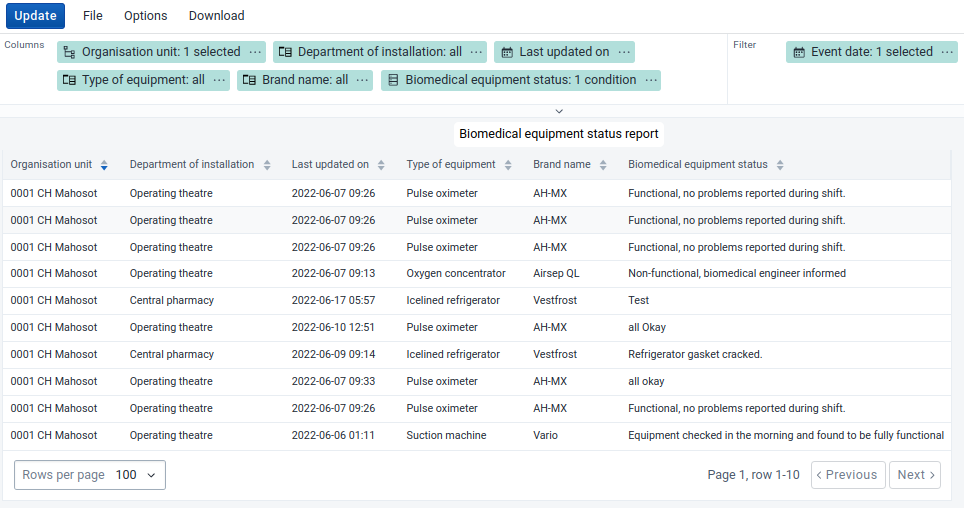
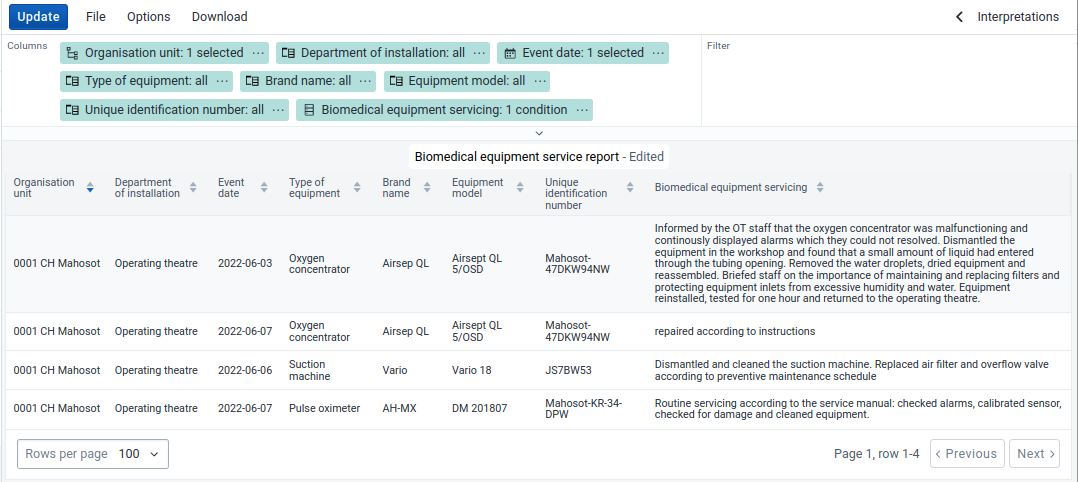
The Line Listing reports provide details of individual transactions but are not able to provide any type of aggregation.
Important notice: the "Last updated on" date and time stamp indicates the actual date that respective transaction was made on the mobile device (and not the date and time of synchronization). The time indicated in the Line Listing corresponds to the time set on the mobile device (which should ideally corresopnd to the DHIS2 server time).
BLM LL 1 - Biomedical equipment alarm report
This report provides a chronological record of all alarms with their details. Name (*): "BLM LL 1 - Biomedical equipment alarm report"Input: "Event"
Program: "Biomedical equipment life cycle management" Stage: "Biomedical equipment alarm" Columns Organisation Unit: tag "User organisation unit" "Department of installation" Last updated on: "Today", "Last 90 days" "Type of equipment" "Brand name" "Alarm type" "Alarm cause" / Condition: "is not empty / not null" "Alarm corrective action" "Alarm resolved" "Alarm escalated and supervisor informed"
BLM LL 2 - Biomedical equipment corrective mainteance report
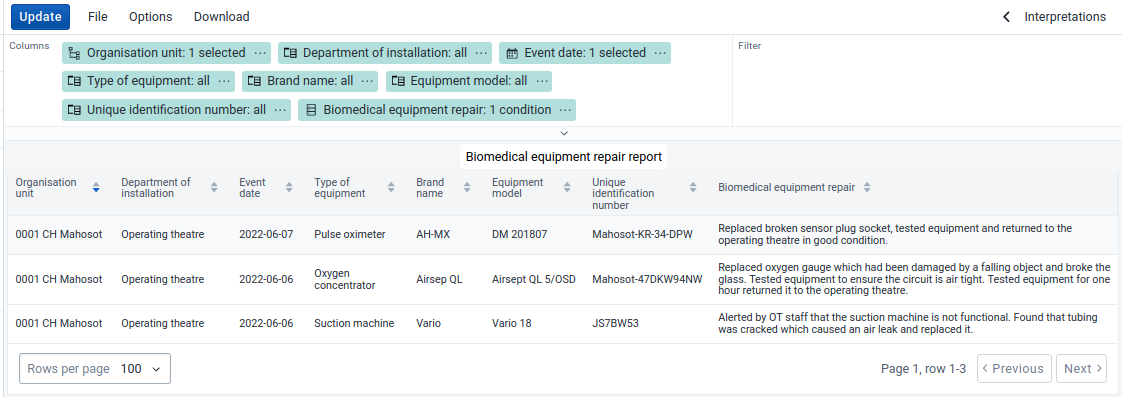
This report provides a chronological record of all corrective maintenance (repairs) with their details. Name (*): "BLM LL 2 - Biomedical equipment corrective maintenance report"Input: "Event"
Program: "Biomedical equipment life cycle management" Stage: "Biomedical equipment corrective maintenance" Columns Organisation Unit: tag "User organisation unit" "Department of installation" Last updated on: "Today", "Last 90 days" "Type of equipment" "Brand name" "Equipment model "Unique identifier" "Assessment of technical fault" / Condition: "is not empty / not null"
BLM LL 3 - Biomedical equipment disposal report
This report provides a chronological record of all equipment disposals with their details. Name (*): "BLM LL 3 - Biomedical equipment disposal report"Input: "Event"
Program: "Biomedical equipment life cycle management" Stage: "Biomedical equipment disposal" Columns Organisation Unit: tag "User organisation unit" "Department of installation" Last updated on: "Today", "Last 90 days" "Type of equipment" "Brand name" "Equipment model "Unique identifier" "Reason for disposal" / Condition: "is not empty / not null" "Equipment removed from inventory - CCE"
BLM LL 4 - Biomedical equipment inspection report
This report provides a chronological record of all equipment inspection reports with their details. Name (*): "BLM LL 4 - Biomedical equipment inspection report"Input: "Event"
Program: "Biomedical equipment life cycle management" Stage: "Biomedical equipment inspection" Columns Organisation Unit: tag "User organisation unit" "Department of installation" Last updated on: "Today", "Last 90 days" "Type of equipment" "Brand name" "Biomedical equipment inspection" / Condition: "is not empty / not null"
BLM LL 5 - Biomedical equipment preventive maintenance report
This report provides a chronological record of all preventive maintenance rpoerts with their details. Name (*): "BLM LL 5 - Biomedical equipment preventive maintenance report"Input: "Event"
Program: "Biomedical equipment life cycle management" Stage: "Biomedical equipment preventive maintenance" Columns Organisation Unit: tag "User organisation unit" "Department of installation" Last updated on: "Today", "Last 90 days" "Type of equipment" "Brand name" "Equipment model "Unique identifier" "Biomedical equipment preentive maintenance"
BLM LL 6 - Biomedical equipment repair request report
This report provides a chronological record of all equipment repair request reports with their details. Name (*): "BLM LL 6 - Biomedical equipment repair request report"Input: "Event"
Program: "Biomedical equipment life cycle management" Stage: "Biomedical equipment repair request" Columns Organisation Unit: tag "User organisation unit" "Department of installation" Last updated on: "Today", "Last 90 days" "Type of equipment" "Brand name" "Equipment model "Unique identifier" "Reason for repair reauest" / Condition: "is not empty / not null" "Urgency of repair request" "Biomedical engineer notification"
BLM LL 7 - Biomedical equipment transfer report
This report provides a chronological record of all alarms with their details. Name (*): "BLM LL 1 - Biomedical equipment transfer report"Input: "Event"
Program: "Biomedical equipment life cycle management" Stage: "Biomedical equipment transfer" Columns Organisation Unit: tag "User organisation unit" "Department of installation" Last updated on: "Today", "Last 90 days" "Type of equipment" "Brand name" "Sent from" "Transferred to" "Received from" "Received at"
Web portal / Tracker program
Web portal / Line listing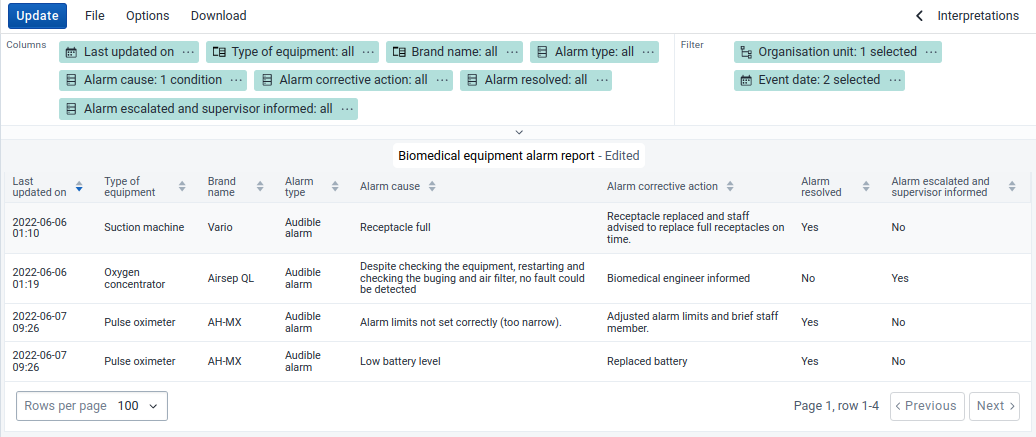
Capture Android app